How to revert git repository to previous commit?

Problem:

Sometimes, we commit code mistakenly in the branch and we want to remove the mistakenly committed code.

Solution:

We can use the git reset command to reset our changes to commit id up to which we want to revert our code changes using below three steps (git commands)-

git log –oneline

Use this command to get all the commits done so far along with commit id

git reset CommitId –hard

Use this command to reset your changes to the commit you want to keep. Please remember that all following commits after this commit will be lost. Commit Id you can get using above command i.e

git log –oneline

git push -f

Your changes will not reflect until and unless you execute this command. You need to provide this command after above command i.e git reset commitId –hard.

Example Screenshot-


Setting up vs code with bitbucket

Create a folder for your code and open git bash inside this folder by clicking right click like this-

Get clone by clicking on clone button like this and paste in git bash and press enter-

project folder will be created inside your local branch folder. Now move to this project folder using below command-

cd {projectname}

Now paste following command in git bash-

git fetch && git checkout PD-13271-Auto-Creation-of-Payment-link-in-read-only-mode-for-Payment-builder-record

You can get checkout url from the branch like this

Now open you eclipse and click Open folder and select project folder which is inside your branch folder.

Now you are ready to go to connect this folder to an org using sfdx authorization and push your code to branch using git commands. You can refer below document if you are new to git commands.

Deploying your code from vscode to SFDC-

Go to Terminal from vscode and click New terminal to open a terminal and now paste the following code-

sfdx force:source:deploy -p .\force-app\main\default\

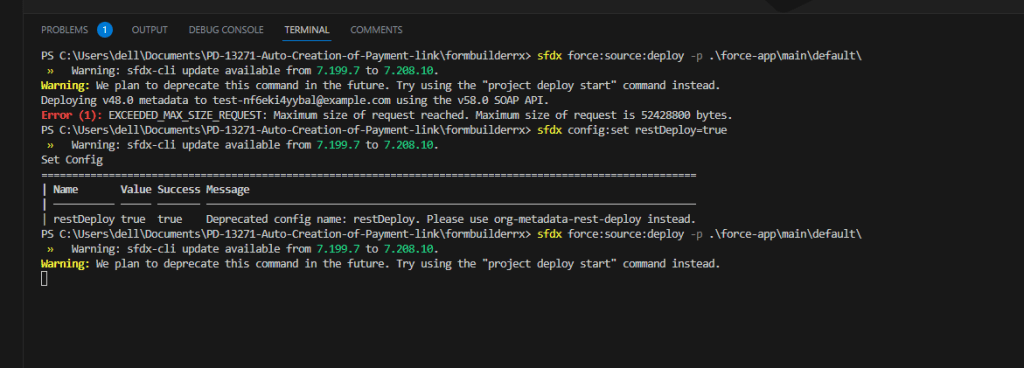
You may get EXCEEDED_MAX_SIZE_REQUEST: Maximum size of request reached. Maximum size of request is 52428800 bytes. error as shown below-

To remove this error, run following command before running above command-

sfdx config:set restDeploy=true

Files are uploaded as Salesforce Files and not as Attachments

Enabling the ‘Files uploaded to the Attachments related list on records are uploaded as Salesforce Files, not as attachments’ feature will add any newly uploaded documents from the Notes and Attachments related list in Classic as Salesforce Files.

In Salesforce Classic

  1. Go to Setup | Customize | Salesforce Files | Settings | General Settings
  2. Click Edit and then select Files uploaded to the Attachments related list on records are uploaded as Salesforce Files, not as attachments.

 
In Lightning Experience 

  1. Go to Setup | Platform Tools Section | Feature Settings | Salesforce Files | General Settings
  2. Click Edit and then select Files uploaded to the Attachments related list on records are uploaded as Salesforce Files, not as attachments.

Reference:

https://help.salesforce.com/s/articleView?id=000380667&type=1

Error Logging Mechanism in Salesforce

We must handle error properly while writing a piece of logic in Salesforce. In case of error, we can capture error logs and throw error as well.

Problem: If we try to insert logger before throwing error, logger record is not created because its roll backed because of exception throwing even if we use future for inserting logger.

Solution:

We will use platform event in this case.

  • We will create Platform Event using ‘Publish Behavior’ as ‘Publish Immediately’. Then we will publish this platform event before exception throwing. This event will get published always because of publish immediate behavior.
  • Now we will be writing trigger on Platform Event which will create logger as soon as event is published.

Code Sample:

Method to publish platform event message-

public without sharing class LoggerHandler {
	public static void publishErrorLogs(string errorExp) {					
		List<Logger_Event__e> platformEventObj = new List<Logger_Event__e>();
		platformEventObj.add(new Logger_Event__e( Log_Info__c = errorExp ));
		List<Database.SaveResult> results = EventBus.publish(platformEventObj);
		for (Database.SaveResult sr : results) {
			if (sr.isSuccess()) {
				System.debug('Successfully published error log event'+ errorExp);
			} 
			else {
				for(Database.Error err : sr.getErrors()) {
					System.debug('Error returned: ' + err.getStatusCode() +' - ' + err.getMessage());
				}
			}       
		}
	}
}

Trigger to handle platform event message and create logger-

trigger LoggerEventTrigger on Logger_Event__e (after insert) {    
    List<Logger__c> portalPackageObjList = new List<Logger__c>();
    for (Logger_Event__e event : Trigger.New) {
        Logger__c loggerObj = new Logger__c();
            loggerObj.Message__c = event.Log_Info__c;
            portalPackageObjList.add(loggerObj);      
    }
    
    if (portalPackageObjList.size() > 0) {
        insert portalPackageObjList;
    }
}

Now, throwing error and using above publishErrorLogs method to publish event which will create logger using above trigger-

public void calculateAmount() {
	try {
		//complex logic to process records and calculate amount
	} catch (Exception e) {
		string errorMsg ='Info: '+ e.getMessage() + ' Error Trace: '+ e.getStackTraceString();
		LoggerHandler.publishErrorLogs(errorMsg);
		throw new CustomException('Please check Portal Package Logger for more info');
	}
}

Evaluate Current User for Flow – 15 – 18 digit User ID

Sometimes, you want to compare record’s owner with current owner in flow to proceed but {!User.Id} returns 15 digit id but record Owner field is returns an 18 digit id. So comparing becomes difficult here. So, you will have to use casesafeId as shown below-

{!CASESAFEID($User.Id)}

Check below snapshot to know why you need to use 18 digit Id-

Note: You may have to create a formula for {!CASESAFEID($User.Id)} and then use it for comparision.

Most Used Git commands using Bitbucket

Most Used Git Commands-

Setting User Name

git config --global user.name "Sandeep Kumar"
git config --global --replace-all user.name "Sandeep Kumar"

Setting Email

git config --global user.email "sandeep.saini482@gmail.com"

Setting Code Editor

git config --global code.editor "nano"

To see global git configuration

git config --list

Creates a brand new Git repository.

git init

Adding a remote repository

git remote add origin {master branch url}

To check all the branches

git remote -v

To check what branch we are currently on

git branch --v

To check status of current working branch

git status

To stage specific file

git add index.html

To stage all files

git add .

Commit with message

git commit -m 'CR4059 Changes'

First Time Push

git push -u -f origin master

create a branch based on master branch locally

git checkout -b test-branch master 

to save branch on server

git push --set-upstream origin test-branch  

switch to master branch

git checkout master  

fetch all changes from remote

git fetch --all 

list of all branches from remote

git branch -r 

delete branch on remote

git push -d origin feature/created-online 

delete branch locally

git branch -d test-branch

to get commits done with id

git log --oneline

to revert change change upto below commit id

git revert {commitId}

push is needed after revert

git push

Introduction to Visualforce

Introduction

Visualforce is a framework that allows developers to build custom user interfaces that can be hosted natively on the Force.com platform. The Visual Force framework includes a tag-based markup language, similar to HTML.

Developers can write/modify visualforce pages and associate their own logic with a controller class written in Apex.

  • In VisualForce page we can write the HTML, CSS, and JavaScript etc…
  • Each visual force is page that contains the tags/components and controllers.
  • Each tag contains attributes and attributes defines the properties of the tag.
    • By default each tag has two attributes.
      • ID: – Id is used to bind the two components together.
      • Rerendered: –    Used to show/hide the component.
    • Controllers: –
      • Standard Controller: –
      • Custom Controller/Controller
      • Extension Controller

Where we can use visualforce pages?

Visualforce pages can be used to

  • Override standard buttons, such as New button for Contact, Edit button for Account….etc..
  • To override custom tabs, to create vf tabs
  • Embed components in detail page layout.

Standard Controller vs Controller vs Extension

Standard Controller

A Visualforce controller is a set of instructions that specify what happens when a user interacts with the components specified in associated Visualforce markup, such as when a user clicks a button or link. Controllers also provide access to the data that should be displayed in a page, and can modify component behavior.

The Lightning platform provides a number of standard controllers that contain the same functionality and logic that are used for standard Salesforce pages. For example, if you use the standard Accounts controller, clicking a Save button in a Visualforce page results in the same behavior as clicking Save on a standard Account edit page.

A standard controller exists for every Salesforce object that can be queried using the Lightning Platform API.

To associate a standard controller with a Visualforce page, use the standardController attribute on the <apex:page> tag and assign it the name of any Salesforce object that can be queried using the Lightning Platform API.

For example, to associate a page with the standard controller for a custom object named MyCustomObject, use the following markup:

<apex:page standardController="MyCustomObject__c">
</apex:page>

When you use the standardController attribute on the <apex:page> tag, you cannot use the controller attribute at the same time.

Controller

Standard controllers can provide all the functionality you need for a Visualforce page because they include the same logic that is used for a standard page. For example, if you use the standard Accounts controller, clicking a Save button in a Visualforce page results in the same behavior as clicking Save on a standard Account edit page.

However, if you want to override existing functionality, customize the navigation through an application, use callouts or Web services, or if you need finer control for how information is accessed for your page, you can write a custom controller or a controller extension using Apex.

Build a Custom Controller

The following class is a simple example of a custom controller:

public class MyCustomController {

    private final Account account;

    public MyCustomController () {
        account = [SELECT Id, Name, Site FROM Account 
                   WHERE Id = :ApexPages.currentPage().getParameters().get('id')];
    }

    public Account getAccount() {
        return account;
    }

    public PageReference save() {
        update account;
        return null;
    }
}

The following Visualforce markup shows how the custom controller above can be used in a page:

<apex:page controller="MyCustomController" tabStyle="Account">
    <apex:form>
        <apex:pageBlock title="Congratulations {!$User.FirstName}">
            You belong to Account Name: <apex:inputField value="{!account.name}"/>
            <apex:commandButton action="{!save}" value="save"/>
        </apex:pageBlock>
    </apex:form>
</apex:page>

The custom controller is associated with the page because of the controller attribute of the <apex:page> component.

As with standard controllers and controller extensions, custom controller methods can be referenced with {! } notation in the associated page markup. In the example above, the getAccount method is referenced by the <apex:inputField> tag’s value attribute, while the <apex:commandButton> tag references the save method with its action attribute.

Another Example: Creating a custom controller which creates/updates the account record.

public class NewAndExistingController {

    public Account account { get; private set; }

    public NewAndExistingController() {
        Id id = ApexPages.currentPage().getParameters().get('id');
        account = (id == null) ? new Account() : 
            [SELECT Name, Phone, Industry FROM Account WHERE Id = :id];
    }

    public PageReference save() {
        try {
            upsert(account);
        } catch(System.DMLException e) {
            ApexPages.addMessages(e);
            return null;
        }
        //  After successful Save, navigate to the default view page
        PageReference redirectSuccess = new ApexPages.StandardController(Account).view();
        return (redirectSuccess);
    }
}
<apex:page controller="NewAndExistingController" tabstyle="Account">
    <apex:form>
        <apex:pageBlock mode="edit">
            <apex:pageMessages/>
            <apex:pageBlockSection>
                <apex:inputField value="{!account.name}"/>
                <apex:inputField value="{!account.phone}"/>
                <apex:inputField value="{!account.industry}"/>
            </apex:pageBlockSection>
            <apex:pageBlockButtons location="bottom">
                <apex:commandButton value="Save" action="{!save}"/>
            </apex:pageBlockButtons>
        </apex:pageBlock>
    </apex:form>
</apex:page>

Extension

Extension is an apex class used to extend or add the functionality to standard or custom controllers.

Extension is an apex class containing a constructor that takes a single argument of type ApexPages.StandardController or CustomControllerName, where CustomControllerName is the name of a custom controller you want to extend.

The following class is a simple example of a controller extension:

public class myControllerExtension {

    private final Account acct;
    
    // The extension constructor initializes the private member
    // variable acct by using the getRecord method from the standard
    // controller.
    public myControllerExtension(ApexPages.StandardController stdController) {
        this.acct = (Account)stdController.getRecord();
    }

    public String getGreeting() {
        return 'Hello ' + acct.name + ' (' + acct.id + ')';
    }
}

The following Visualforce markup shows how the controller extension from above can be used in a page:

<apex:page standardController="Account" extensions="myControllerExtension">
    {!greeting} <p/>
    <apex:form>
        <apex:inputField value="{!account.name}"/> <p/>
        <apex:commandButton value="Save" action="{!save}"/>
    </apex:form>
</apex:page>

The extension is associated with the page using the extensions attribute of the <apex:page> component.

As with all controller methods, controller extension methods can be referenced with {! } notation in page markup. In the example above, the {!greeting} expression at the top of the page references the controller extension’s getGreeting method.

Because this extension works in conjunction with the Account standard controller, the standard controller methods are also available. For example, the value attribute in the <apex:inputField> tag retrieves the name of the account using standard controller functionality. Likewise, the <apex:commandButton> tag references the standard account save method with its action attribute.

Multiple controller extensions can be defined for a single page through a comma-separated list. This allows for overrides of methods with the same name. For example, if the following page exists:

<apex:page standardController="Account" 
    extensions="ExtOne,ExtTwo" showHeader="false">
    <apex:outputText value="{!foo}" />
</apex:page>

with the following extensions:

public class ExtOne {
    public ExtOne(ApexPages.StandardController acon) { }

    public String getFoo() {
        return 'foo-One';
    }
}
public class ExtTwo {
    public ExtTwo(ApexPages.StandardController acon) { }

    public String getFoo() {
        return 'foo-Two';
    }
}

The value of the <apex:outputText> component renders as foo-One. Overrides are defined by whichever methods are defined in the “leftmost” extension, or, the extension that is first in the comma-separated list. Thus, the getFoo method of ExtOne is overriding the method of ExtTwo.

LWC : How to set default values when you clone a record?

Problem: Currently we have no standard way to populate default values while cloning records in salesforce. For eg. If I want to clone a Case record, I have a requirement to set Status field as Open on UI while cloning.

Approach: We will be using create new record page feature of lwc to implement this feature. Lets dive dive into the steps-

1.Create a metadata where we will define which fields to populate

2. Now write a method to populate Default-

/*populate defaultValues While Cloning Record*/
private static void populateDefaultValues(sObject newSobj, String objectAPIName) {
	String recordTypeId;
	String strRecordTypeName = '';
	try {
		recordTypeId = String.valueOf(newSobj.get('RecordTypeId'));
		strRecordTypeName = Schema.getGlobalDescribe().get(objectAPIName).getDescribe().getRecordTypeInfosById().get(recordTypeId).getDeveloperName();
	} catch(Exception e) {
		//if object don't have record type, you will get an error and I don't want to break the flow thats why added this piece of code inside try catch. 
		system.debug(e.getMessage());
	}
	//query metadata to populate data set in metadata based on object name
	list<Custom_Clone_Default__mdt> lstMdtRec = [SELECT Id, Label, Field_Value__c, Object_Name__c, Record_Type_Name__c 
												 FROM Custom_Clone_Default__mdt  WHERE Object_Name__c  = :objectAPIName
												AND Record_Type_Name__c =:strRecordTypeName];
	for (Custom_Clone_Default__mdt oMetaData : lstMdtRec){
		Schema.DescribeFieldResult dfr = fieldMap.get(oMetaData.Label).getDescribe();
		Schema.DisplayType t = dfr.getType();
		if(oMetaData.Field_Value__c == 'CURRENTUSER'){
			newSobj.put(oMetaData.Label, userinfo.getUserId());
		}else{
			if(t == DisplayType.Boolean){
				newSobj.put(oMetaData.Label, !String.isBlank(oMetaData.Field_Value__c) ? boolean.valueOf(oMetaData.Field_Value__c) : false);
			}else if(t == DisplayType.Date){
				newSobj.put(oMetaData.Label, !String.isBlank(oMetaData.Field_Value__c) ? date.valueOf(oMetaData.Field_Value__c) : null);
			} else if(t == DisplayType.DateTime){
				newSobj.put(oMetaData.Label, !String.isBlank(oMetaData.Field_Value__c)? datetime.valueOf(oMetaData.Field_Value__c) : null);
			}else{
				newSobj.put(oMetaData.Label, oMetaData.Field_Value__c);
			}
		}
	}
}

3. Write a method to fetch current record with all unique editable fields except createdbyid, lastmodifedid, lastmodifieddate and createddate field and make fields as default using method ‘populateDefaultValues’

@AuraEnabled
public static sObject getClonedValues(Id recordId, String objectAPIName) {
	Map<String, Schema.SobjectType> schemaMap = Schema.getGlobalDescribe();
	fieldMap = schemaMap.get(objectAPIName).getDescribe().fields.getMap();
	String soqlQuery = 'Select ';
	Schema.DescribeFieldResult fieldResult;
	Set<String> ignoreFields = new Set<String>{'createdbyid', 'lastmodifiedbyid', 'lastmodifieddate', 'createddate'};
	for(String s : fieldMap.keySet()) {
		if(!ignoreFields.contains(s)) {
			fieldResult = fieldMap.get(s).getDescribe();
			if(fieldResult.isCreateable() && !fieldResult.isUnique()) {
				soqlQuery += s + ',';
			}
		}
	}

	soqlQuery = soqlQuery.removeEnd(',');
	soqlQuery += ' FROM ' + objectAPIName + ' WHERE ID = \'' + recordId + '\'';
	Sobject record = Database.query(soqlQuery);
	populateDefaultValues(record, objectAPIName);
	try {
		return record;
	} catch(Exception e) {
		return null;
	}
}

You can refer my blog to check how we can get record type Id, developer name and label using apex.

Now write a lwc component, which will use ‘getClonedValues’ method to create map which we will pass inside create new page as shown below-

import { LightningElement, api, wire } from 'lwc';
import { encodeDefaultFieldValues } from 'lightning/pageReferenceUtils';
import { NavigationMixin } from 'lightning/navigation';
import getClonedValues from '@salesforce/apex/CloneSingleRecord.getClonedValues';
export default class Custom_clone_lwc extends NavigationMixin(LightningElement) {
		@api recordId;
		@api objectApiName;
		recordTypeId;
		
    @api async invoke() {
        this.fetchClonedValues(this.recordId, this.objectApiName);
    }

    fetchClonedValues(recId, objectName) {
				getClonedValues({ recordId: recId, objectAPIName : objectName }).then(data => {
            const map = new Map(Object.entries(data));
            let keys = Object.keys(data);
            let finalObj = {};
            for (let i = 0; i < keys.length; i++) {
                var skey = keys[i];
                var val =  map.get(keys[i]);
								if(val) {
                	finalObj[skey] = val;
								}
            }
						if(finalObj['RecordTypeId']) {
								this.recordTypeId = finalObj['RecordTypeId'];
						}
						
						console.log('finalObj>>'+ JSON.stringify(finalObj));
            const defaultValues = encodeDefaultFieldValues(finalObj);
						
						let self = this;
            this[NavigationMixin.Navigate]({
                type: 'standard__objectPage',
                attributes: {
                    objectApiName: objectName,
                    actionName: 'new'
                },
                state: {
                    defaultFieldValues: defaultValues,
										recordTypeId: self.recordTypeId
                }
            });
        }).catch(error => {
            console.log('error>> ' + JSON.stringify(error));
        });
    }
}

Make this component compatible with quick action using xml as shown below

<?xml version="1.0"?>
<LightningComponentBundle xmlns="http://soap.sforce.com/2006/04/metadata">
	<apiVersion>56</apiVersion>
	<isExposed>true</isExposed>
	<targets>
		<target>lightning__RecordAction</target>	
	</targets>	
	<targetConfigs>
		<targetConfig targets="lightning__RecordAction" >
				<actionType>Action</actionType>
		</targetConfig>
	</targetConfigs>
</LightningComponentBundle>

Check out my below blog post also to find out how we can fetch record type information in apex using various ways-

Install Visual studio code and create a lwc component

You need CLI for VsCode, so let’s install the CLI before we install visual studio code-

Install the Command Line Interface (CLI)

  1. Install the CLI from https://developer.salesforce.com/tools/sfdxcli.
  2. Confirm the CLI is properly installed and on the latest version by running the following command from the command line-
    sfdx update

Install Visual Studio Code (VsCode)

  1. Download and install the latest version of Visual Studio Code for your operating system. If you already have Visual Studio Code installed, there’s no need to reinstall it.
  2. Launch Visual Studio Code.
  3. On the left toolbar, click the Extensions icon Visual Studio Code's Extension icon..
  4. Search for Salesforce Extension Pack and click Install.

We have installed cli and vscode. Now we need to create project first in vscode before creating a lwc component. So, lets create a project first and authorize it with an org, then we will create a lwc component.

Create a Salesforce Project in VsCode

  1. Press Ctrl+Shift+P (Windows) or Cmd+Shift+P (macOS)
  2. Type sfdx and then select SFDX: Create Project or SFDX: Create Project with Manifest and enter.
  3. Then select a folder and click Create Project.

Note: SFDX: Create Project will create project without package.xml file while SFDX: Create Project with Manifest will create a project with package.xml.

Authorize your Org

  1. Press Ctrl+Shift+P (Windows) or Cmd+Shift+P (macOS)
  2. Type Authorize and then select ‘SFDX: Authorize an Org’.
  3. You will be presented with below options-
    • Project Default – Select this option if your url is defined in package.json
    • Sandbox – Select this option if you are developing your component in sandbox
    • Production – Select this option if you want to create project for dev or production environment.
    • Custom – Select this option if you are not sure about sandbox or production. You will need to enter url in next step if you select this option.
  4. Choose accordingly and then you will be directed to browser where you will enter credentials and login.
  5. Now you can close your browser once you are successfully authorized. You will see ‘Successfully authorized’ message in output panel as shown below upon successful authorization.

Now lets create a lwc component.

Create a Lightning Web Component

Custom Aura Tokens and how to use them in lwc?

Custom Aura tokens:

You can capture essential values of your visual design into Custom Aura tokens. Define a token value once and reuse it in your lightning component’s css.

Advantage:

Tokens make it easy to ensure that your design is consistent and even easier to update your design as it evolves.

Steps To Create Aura Tokens:

  • Go to Setup -> Developer Console
  • Create New and then select Lightning Tokens.
  • Name it ‘defaultTokens’ (This name should not change as it will make your token accessible in aura and lwc components.) and click Submit.
  • Now create token inside it using aura:token tag.

For eg. we have created following ‘defaultTokens’ tokens file. Tokens created in the defaultTokens bundle are automatically available in components in your namespace.

<aura:tokens extends="force:base">
	<aura:token name='myYellowColor' value='Yellow' ></aura:token>
    <aura:token name='myRedColor' value='Red' ></aura:token>
</aura:tokens>

Using token in LWC:

To use a design token in lwc, reference it using var() css function. Prepend –c- to the custom aura token. For eg., you can use above tokens in lwc like this-

.searchCss{
		background-color:var(--c-myYellowColor);
        color:var(--c-myRedColor);
}

You can also use global tokens instead of custom design token. To reference a global design token in your Lightning web component’s CSS, use the --lwc- prefix and reference the token name in camelCase as shown below-

.searchCss{
		background-color:var(--lwc-brandAccessible);
}

Using token in Aura:

To use a design token in aura, reference it using the token() function and the token name in the CSS resource of a component bundle. For eg. you can use above tokens in aura like this-

.THIS .searchCss {
    background-color:token(myYellowColor);
    color:token(myRedColor);
}

lightning-textarea – How to set its height?

A lightning-textarea component creates an HTML textarea element for entering multi-line text input. A textarea field can hold an unlimited number of characters or a maximum number of character specified by the max-length attribute. If disabled, the field is grayed out and you can’t interact with it. A required textarea field displays an error if you don’t enter any input after first interaction.

To apply a custom width for the text area, use the class attribute. To set the input for the text area, set its value using the value attribute. Setting this value overwrites any initial value that’s provided.

The rows attribute and cols attribute are not supported. In many browsers, the text area is resizable by default, and a vertical scrollbar is displayed when the content exceeds the number of rows. Specifying the CSS width and height properties is not supported.

You can define a function in JavaScript to handle input events like blur, focus, and change. For example, to handle a change event on the component, use the onchange attribute.

To retrieve the content of the text area field, use event.detail.value property.

Client-side input validation is available for this component. Set a maximum length using the maxlength attribute or a minimum length using the minlength attribute. An error message is automatically displayed in the following cases:

  • A required field is empty when required is present on the lightning-textarea tag.
  • The input value contains fewer characters than that specified by the minlength attribute.
  • The input value contains more characters than that specified by the maxlength attribute.

To check the validity states of an input, use the validity attribute, which is based on the ValidityState object. You can access the validity states in your JavaScript. This validity attribute returns an object with boolean properties. For more information, see the lightning-input documentation.

Workaround for Setting Height for lightning-textarea:

Most people find it difficult to set appropriate height of lightning-textarea in lwc. There is workaround for it using –sds-c-textarea-sizing-min-height css property, which we will explain using below coding example-

Step1: assign css class to text area

<lightning-textarea class="custom-textarea"></lightning-textarea>

Step2: set –sds-c-textarea-sizing-min-height css property in the class as shown below-

.custom-textarea {
    --sds-c-textarea-sizing-min-height:150px;
}
image showing adjusted height of text area using lightning-textarea
This image shows how height of text area has been adjusted using above code sample

How to set lwc lightning-textarea height?

Most people find it difficult to set appropriate height of lightning-textarea. There is workaround for it using –sds-c-textarea-sizing-min-height css property, which we will explain using below coding example-

Step1: assign css class to text area

<lightning-textarea class="custom-textarea"></lightning-textarea>

Step2: set –sds-c-textarea-sizing-min-height css property in the class as shown below-

.custom-textarea {
    --sds-c-textarea-sizing-min-height:150px;
}
image showing adjusted height of text area
This image shows how height of text area has been adjusted using above code sample

How to change color and size of lightning icons?

Do you have doubt regarding if we can change the color of utility icon in Salesforce? If yes, then definitely this post is for your. In this post, we will explain how color and size of all lightning icons can be changed.. So, lets dive into it-

Changing of Size:

We will use size attribute to change size of lightning-icons-

  • medium is the default size, which creates a 32px by 32px icon
  • small creates a 24px by 24px icon
  • x-small creates a 16px by 16px icon
  • xx-small creates a 14px by 14px icon
  • large creates a 48px by 48px icon

Changing of Color:

To change foreground color of utility icons use –sds-c-icon-color-foreground-default property.

To change foreground color of non-utility icons use –sds-c-icon-color-foreground property.

To change background color of any icon use –sds-c-icon-color-background property.

Example:

salesforce-icon-color-change.html

<template>
		<div class='slds-card'>
				
		
		<div>
				 Different Sizes
		</div>
		<lightning-icon size='large' icon-name="utility:check" ></lightning-icon>
		<lightning-icon size='medium' icon-name="utility:check" ></lightning-icon>
		<lightning-icon size='small' icon-name="utility:check" ></lightning-icon>
		<lightning-icon size='x-small' icon-name="utility:check" ></lightning-icon>
		<lightning-icon size='xx-small' icon-name="utility:check" ></lightning-icon>
		<div>
				 Utility Icons - Different Colors
		</div>
		<lightning-icon icon-name="utility:check" size="large" class='green-utility-icon' ></lightning-icon>
		<lightning-icon icon-name="utility:check" size="large" class='red-utility-icon' ></lightning-icon>
		<lightning-icon icon-name="utility:check" size="large" class='gray-utility-icon'></lightning-icon>
		<lightning-icon icon-name="utility:check" size="large" class='blue-utility-icon'></lightning-icon>
		<div>
				Other Icons - Different Colors
		</div>
		<lightning-icon icon-name="standard:address" size="large" class='green-non-utility-icon'></lightning-icon>
		<lightning-icon icon-name="standard:address" size="large" class='red-non-utility-icon'></lightning-icon>
		<lightning-icon icon-name="standard:address" size="large" class='gray-non-utility-icon'></lightning-icon>
		<lightning-icon icon-name="standard:address" size="large" class='blue-non-utility-icon'></lightning-icon>
		<div>
				 Different background colors
		</div>
		<lightning-icon icon-name="utility:check" size="large" class='green-background-icon' ></lightning-icon>
		<lightning-icon icon-name="utility:check" size="large" class='red-background-icon'></lightning-icon>
		<lightning-icon icon-name="utility:check" size="large" class='gray-background-icon'></lightning-icon>
		<lightning-icon icon-name="utility:check" size="large" class='blue-background-icon'></lightning-icon>
		<lightning-icon icon-name="standard:address" size="large" class='green-background-icon'></lightning-icon>
		<lightning-icon icon-name="standard:address" size="large" class='red-background-icon'></lightning-icon>
		<lightning-icon icon-name="standard:address" size="large" class='gray-background-icon'></lightning-icon>
		<lightning-icon icon-name="standard:address" size="large" class='blue-background-icon'></lightning-icon>		
		</div>
</template>

salesforce-icon-color-change.css

.green-utility-icon {
		--sds-c-icon-color-foreground-default: #49A54C;
}
.red-utility-icon {
		--sds-c-icon-color-foreground-default: #CB0015;
}
.gray-utility-icon {
		--sds-c-icon-color-foreground-default: #BEBEBE;
}
.blue-utility-icon {
		--sds-c-icon-color-foreground-default: blue;
}
.green-non-utility-icon {
		--sds-c-icon-color-foreground: #49A54C;
}
.red-non-utility-icon {
		--sds-c-icon-color-foreground: #CB0015;
}
.gray-non-utility-icon {
		--sds-c-icon-color-foreground: #BEBEBE;
}
.blue-non-utility-icon {
		--sds-c-icon-color-foreground: blue;
}
.green-background-icon{
    --sds-c-icon-color-background: #49A54C;
		padding: 0.3rem;
}
.red-background-icon{
    --sds-c-icon-color-background: #CB0015;
		padding: 0.3rem;
}
.blue-background-icon{
    --sds-c-icon-color-background: blue;
		padding: 0.3rem;
}
.gray-background-icon{
    --sds-c-icon-color-background: #BEBEBE;
		padding: 0.3rem;
}

salesforce-icon-color-change.xml

<?xml version="1.0"?>
<LightningComponentBundle xmlns="http://soap.sforce.com/2006/04/metadata">
	<apiVersion>50</apiVersion>
	<isExposed>true</isExposed>
	<targets>
		<target>lightning__Tab</target>
	</targets>
</LightningComponentBundle>

Screenshot-

This screenshot shows icons displayed of different color and size which were created using above code example.

Updating a record in lwc without using apex

You can update any individual record in lwc using ui api i.e without writing any piece of apex logic. All you need to do it to import uiRecordApi class as shown below-

import { updateRecord } from 'lightning/uiRecordApi';

then call this method as shown below in your js handler (save method which you want to call from save button) –

const fields = {};
fields['Id'] = recordId; //populate it with current record Id
fields['Target_Areas__c'] = this.selectedTargetareaString; //populate any fields which you want to update like this

const recordInput = { fields };

updateRecord(recordInput) .then(() => {
		this.dispatchEvent(
				new ShowToastEvent({
						title: 'Success',
						message: 'Record updated',
						variant: 'success'
				})
		);
}) .catch(error => {
		this.dispatchEvent(
				new ShowToastEvent({
						title: 'Error creating record',
						message: error.body.message,
						variant: 'error'
				})
		);
});

TypeError: can’t define property “x”: “obj” is not extensible

Problem: In LWC, when reassigning value in cloned javascript object, you get this error.

For eg.

let weeklyReportDetailsClone = Object.assign([], this.weeklyReportDetails);
weeklyReportDetailsClone[index].isTAEditable = true;
//Any code written after this line will fail

Solution: First stringify js object and then parse it to clone as shown below-

let weeklyReportDetailsClone = JSON.parse(JSON.stringify(this.weeklyReportDetails)); //Object.assign([], this.weeklyReportDetails);<br>weeklyReportDetailsClone[index].isTAEditable = true;

Reason: The JavaScript exception “can’t define property “x”: “obj” is not extensible” occurs when Object.preventExtensions() marked an object as no longer extensible, so that it will never have properties beyond the ones it had at the time it was marked as non-extensible. So stringifying and then parsing will remove Object.preventExtensions()  method.

Reference:

https://developer.mozilla.org/en-US/docs/Web/JavaScript/Reference/Errors/Cant_define_property_object_not_extensible

How to get current day in salesforce(Apex)

Please use format method of DateTime class to print day of week and day of month. Please see the below example which printing day of week and month to the debug log-

DateTime currentDateTime = System.now();
system.debug(currentDateTime); //prints 2022-11-24 12:49:19

String dayOfweek = currentDateTime.format('u');
system.debug(dayOfweek); //prints 4 (4 is for thursday)

String dayOfmonth = currentDateTime.format('d');
system.debug(dayOfmonth); //prints 24

Web Server Flow using PKCE (Salesforce/SFDC)

Problem Statement: We get authorization code in the callback url and hacker can intercept the auth code and this way, without user’s knowledge, he can get access token and then salesforce resources if he has access to connect app’s client and client secret.

Solution: Salesforce recommends web server flow with Proof Key for Code for Exchange (PKCE, pronounced “pixy”) to help prevent authorization code interception attacks.

We will use the code_challenge and code_verifier parameters to implement PKCE with the web server flow. code_challenge is passed in Auth request and code_verifier is passed in token request. If these values are mismatched, invalid_grant error code is thrown.

We will generate code_verifier from 5 digit number only as shown below –

code_verifier = String.valueOf(Integer.valueof((Math.random() * 1000)));

code_challenge is SHA256 hash value of the code_verifier which we will generate using below method-

code_challenge = WebServerFlowController.getCodeChallenge(code_verifier);
public static String getCodeChallenge(String codeVerifier) {
	return base64URLencode(Crypto.generateDigest('SHA-256', Blob.valueOf(codeVerifier)));
}
    
private static String base64URLencode(Blob input){
	String output = encodingUtil.base64Encode(input);
	output = output.replace('+', '-');
	output = output.replace('/', '_');
	while ( output.endsWith('=')){
		output = output.subString(0,output.length()-1);
	}
	return output;
}

Now lets see the complete apex code where I will passing these parameters as attributes in auth and token request-

public class WebServerFlowController  {

    //Use your Client Id
    String clientId = '****';

    //Use your Client Secret
    String clientsecret='*****';

    String accesstoken_url='https://login.salesforce.com/services/oauth2/token';

    String authurl='https://login.salesforce.com/services/oauth2/authorize';
    
    String creationEndPoint ='/services/data/v49.0/sobjects/Contact';

    String redirect_uri = 'https://sandeepcompany2-dev-ed--c.visualforce.com/apex/WebServerFlowPage';
    
    String access_token;
    String instance_url;
    static String code_verifier {get;set;}
    static String code_challenge {get;set;}
    
    public PageReference getAuthCode() {
        code_verifier = String.valueOf(Integer.valueof((Math.random() * 1000))); //generates a random number from 0 to 1000
        code_challenge = WebServerFlowController.getCodeChallenge(code_verifier);
    	List<Integration_Configuraiton__c> integrationConfigList = [Select Id, Code_Verifier__c, code_challenge__c from Integration_Configuraiton__c];
        if(integrationConfigList.size() > 0) {
            integrationConfigList[0].Code_Verifier__c = code_verifier;
            integrationConfigList[0].code_challenge__c = code_challenge;
        } else {
            integrationConfigList.add(new Integration_Configuraiton__c(Code_Verifier__c = code_verifier));
        }
		upsert integrationConfigList;        
            
        PageReference pageRef = new PageReference(authurl + '?response_type=code&client_id='+clientId+
                                                  '&redirect_uri='+redirect_uri+'&code_challenge='+code_challenge); //+ '&code_challenge_method=S256'
        pageRef.setRedirect(true);
        return pageRef;
    }
    
    public WebServerFlowController () {
        
    }
    
    public PageReference getAccessToken() {
        Integration_Configuraiton__c integrationConfig = [Select Id, Code_Verifier__c, code_challenge__c from Integration_Configuraiton__c];
        code_verifier = integrationConfig.Code_Verifier__c;
        code_challenge = integrationConfig.code_challenge__c;
        
        Http h= new Http();
        String code = ApexPages.currentPage().getParameters().get('code');        
        HttpRequest req= new HttpRequest();
        String reqbody = 'code=' + code + '&grant_type=authorization_code&client_id='+clientId+
            '&redirect_uri='+redirect_uri+'&client_secret='+clientsecret+'&code_verifier='+code_verifier;
        
        req.setBody(reqbody);
        
        req.setMethod('POST');
        
        req.setEndpoint(accesstoken_url);
        
        HttpResponse res=h.send(req);
        
        AccessTokenWrapper obj = AccessTokenWrapper.parse(res.getBody());
        access_token = obj.access_token;
        instance_url = obj.instance_url;
        apexpages.addMessage(new ApexPages.message(Apexpages.Severity.INFO, code_verifier + '***' + code_challenge + '####' + reqbody + '$$$$' + res.getBody()));
        return null;
    }
    
    public PageReference createContact() {
        Http h2 = new Http();
        String jsonstr = '{"FirstName": "Sandeep", "LastName" : "Kumar ' + System.now() + '"}';
    
        HttpRequest req1 = new HttpRequest();
    
        req1.setHeader('Authorization','Bearer ' + access_token);
    
        req1.setHeader('Content-Type','application/json');
    
        req1.setHeader('accept','application/json');
    
        req1.setBody(jsonstr);
    
        req1.setMethod('POST');
    
        req1.setEndpoint(instance_url + creationEndPoint);
    
        HttpResponse res1 = h2.send(req1);
        apexpages.addMessage(new ApexPages.message(Apexpages.Severity.INFO, res1.getBody()));
        return null;
    }
    
    public static String getCodeChallenge(String codeVerifier) {
        return base64URLencode(Crypto.generateDigest('SHA-256', Blob.valueOf(codeVerifier)));
	}
    
    private static String base64URLencode(Blob input){
        String output = encodingUtil.base64Encode(input);
        output = output.replace('+', '-');
        output = output.replace('/', '_');
        while ( output.endsWith('=')){
            output = output.subString(0,output.length()-1);
        }
        return output;
    }
}

In above code, I am using custom setting for temporary storage of code verifier and code challenge. Now Its your choice, if you want to keep these values on some custom object.

To see AccessTokenWrapper class and visualforce for WebServerFlowController, please visit my previous blog OAuth 2.0 Web Server Flow for Web App Integration (SFDC, Salesforce) where I am explained the basics of web server flow and the complete steps.

Demo (Detailed Explanation):

How to get key-prefix of salesforce object?

Sometimes while writing your code in trigger, you need to identify objects based on record id of the record. So, first three character of the recordId which is called key-prefix is used to identify object in code.

For eg. a0u is the keyprefix which is used to identify Custom_Network_Case__c object as shown in below url

https://****.lightning.force.com/lightning/r/Custom_Network_Case__c/a0u2C000001Ne9jQAC/view

Now we will see how can we can get key-prefix of a salesforce object.

If we know the object name already:

String keyPrefix = Custom_Network_Case__c.SObjectType.getDescribe().getKeyPrefix();

System.Debug('Key Prefix: '+ keyPrefix);

If object is dynamically get from the string:

Map<String, Schema.SObjectType> m  = Schema.getGlobalDescribe() ;
Schema.SObjectType s = m.get('Custom_Network_Case__c') ;
Schema.DescribeSObjectResult r = s.getDescribe() ;
String keyPrefix = r.getKeyPrefix();
System.Debug('Key Prefix: '+ keyPrefix);

OAuth 2.0 Web Server Flow for Web App Integration (SFDC, Salesforce)

Problem: User want to create contact in one salesforce org from another salesforce org and as a web developer we don’t want to expose user’s credentials to the web application otherwise owner of the web app/hacker may misuse this information if web application is not much secure.

Solution: We will use web server flow in which user can enter credentials on the fly using standard salesforce login screen thereby not exposing his credentials to the web application.

Prerequisite:

In this vedio, I will be explaining the steps for getting access token using web server flow.

Now once we gone through all the steps mentioned in the vedio, we will be creating contact in another org using web server flow. So, in actual we will do the following-

  • Creating a connected app in target org(Please refer this article to setup connected app for web server flow)
  • Creating remote site setting for target org (in which you want to create case)
  • Creating Visualforce page and Apex where we will create three buttons 1) to get authorization code, 2) to get access token using authorization code and then 3) creating case using access token.

WebServerFlowPage (Visualforce Page)

<apex:page controller="WebServerFlowController">
    <apex:messages />
    <apex:form >
        <apex:commandButton action="{!getAuthCode}" value="getAuthCode" id="theButton"/>  
        <apex:commandButton action="{!getAccessToken}" value="getAccessToken" id="theButton1"/>
        <apex:commandButton action="{!createContact}" value="createContact" id="theButton2"/>   
    </apex:form>
</apex:page>

AccessTokenWrapper (Apex Class)

public class AccessTokenWrapper{
    public String access_token; 
    public String refresh_token;
    public String signature; 
    public String scope;   
    public String instance_url; 
    public String id;  
    public String token_type;   
    public String issued_at;   
    public static AccessTokenWrapper parse(String json){
        return (AccessTokenWrapper) System.JSON.deserialize(json, AccessTokenWrapper.class);
    }
}

WebServerFlowController (Apex Class)

public class WebServerFlowController  {

    //Use your Client Id
    String clientId = '****';

    //Use your Client Secret
    String clientsecret='****';

    String accesstoken_url='https://login.salesforce.com/services/oauth2/token';

    String authurl='https://login.salesforce.com/services/oauth2/authorize';
    
    String creationEndPoint ='/services/data/v49.0/sobjects/Contact';

    String redirect_uri = 'https://sandeepcompany2-dev-ed--c.visualforce.com/apex/WebServerFlowPage'; //This is callback url
    
    String access_token;
    String instance_url;
    
    public PageReference getAuthCode() {
        PageReference pageRef = new PageReference(authurl + '?response_type=code&client_id='+clientId+'&redirect_uri='+redirect_uri);
        pageRef.setRedirect(true);
        return pageRef;
    }
    
    public WebServerFlowController () {
        
    }
    
    public PageReference getAccessToken() {
        Http h= new Http();
        String code = ApexPages.currentPage().getParameters().get('code');        
        HttpRequest req= new HttpRequest();
        String reqbody = 'code=' + code + '&grant_type=authorization_code&client_id='+clientId+'&redirect_uri='+redirect_uri+'&client_secret='+clientsecret;
        
        req.setBody(reqbody);
        
        req.setMethod('POST');
        
        req.setEndpoint(accesstoken_url);
        
        HttpResponse res=h.send(req);
        
        AccessTokenWrapper obj = AccessTokenWrapper.parse(res.getBody());
        access_token = obj.access_token;
        instance_url = obj.instance_url;
        apexpages.addMessage(new ApexPages.message(Apexpages.Severity.INFO, res.getBody()));
        return null;
    }
    
    public PageReference createContact() {
        Http h2 = new Http();
        String jsonstr = '{"FirstName": "Sandeep", "LastName" : "Kumar ' + System.now() + '"}';
    
        HttpRequest req1 = new HttpRequest();
    
        req1.setHeader('Authorization','Bearer ' + access_token);
    
        req1.setHeader('Content-Type','application/json');
    
        req1.setHeader('accept','application/json');
    
        req1.setBody(jsonstr);
    
        req1.setMethod('POST');
    
        req1.setEndpoint(instance_url + creationEndPoint);
    
        HttpResponse res1 = h2.send(req1);
        apexpages.addMessage(new ApexPages.message(Apexpages.Severity.INFO, res1.getBody()));
        return null;
    }
}

Demo

Send email from salesforce using gmail api

Problem Statement:

There is a maximum of 5,000 emails that can be sent within a 24 hour period from the salesforce. Check this link to more about email limitation.

Solution:

We can use external API service for eg. gmail API for sending email from salesforce.

Let’s see how we can configure gmail api for salesforce step by step-

Step 1- Creating project in google console.

Step 2 – Setting up Auth provider in salesforce

Step 3: Setting up Named credentials

Basically we will setup named credentials using above url and scope. We will also authenticate named credentials using test user which we added in our google console project.

Step 4: Now we will write small piece of code for email sending-

// Instantiate a new HTTP request, specify the method (GET) as well as the endpoint
HttpRequest req = new HttpRequest();
String toAddress = 'sandeep.saini482@gmail.com';
String subject = 'Testing sending email from salesforce using GMail API';
String mailBody = 'Testing sending email from salesforce using GMail API';
String mbody = '{ "raw" : "' + EncodingUtil.base64Encode(Blob.valueof( 'To: ' + toAddress + '\r\nContent-Type:text/plain; charset=utf-8;\r\nSubject: ' + subject + '\r\n\r\n' + mailBody )) + '"}';
req.setHeader('Content-Length', mbody.length()+'');
req.setHeader('Content-Type', 'application/json');

req.setEndpoint('callout:Gmail_API/gmail/v1/users/sandeep.saini482@gmail.com/messages/send');
//req.setEndpoint('https://gmail.googleapis.com');
req.setMethod('POST');
system.debug(mbody);
req.setBody(mbody);
// Send the request, and return a response
Http h = new Http();
HttpResponse res = h.send(req);
system.debug(res);

Demo:

This video explains how we can send emails from salesforce using gmail api

How to delete all debug logs in Salesforce

Problem: By default, there is no feature in salesforce we can delete all debug logs on single click of a button. As you can see in below screenshot, you have ‘Delete All’ button but when click on this button, it deletes only a bunch of logs.

Debug logs in salesforce

Solution: You need to run below command in javascript console of your browser from debug log screen using below steps-

  1. Go to Setup->Debug log.
  2. Now press Ctrl+Shift+I to open browser inspector.
  3. Now click on console and paste following code in this window; and now wait and watch till all debug logs get deleted.
setInterval(
function() {
   if (document.querySelector('span[id*="deleteAllStatus.start"]').style.display === 'none') {document.querySelector('input[value="Delete All"]').click()}
}
,250);

Demo:

SFDC Dynamic Image Component (LWC)

Problem: Currently its very hard to add proper size image to the app builder or lightning community builder dynamically.

Solution: In order to solve the above problem, I have build a reusable component which will display image based on the configurable height, width and static resource name where image is uploaded.

Basically, We will create a dynamic Image component which will pick image from static resource. Let’s dive into the code-

displayImage.html

<template>
    <template if:true={imgURL}>
        <div class='imagestyle'>
						<img src={imgURL} style={imgStyle} />
				</div>
		</template>
</template>

displayImage.css

.imagestyle {
		text-align:center;
}

displayImage.js

import { LightningElement,api,track,wire } from 'lwc';
import GetResourceURL from '@salesforce/apex/DisplayImageController.getResourceURL'
export default class Displayimage extends LightningElement {
 
    @api image ='';  
    @api Height;
    @api Width;
		@track imgURL= false;
		@track imgStyle;
    @wire(GetResourceURL,{resourceName : '$image'}) weire({data,error}){
		if (data) {
			this.imgURL = data;
			this.imgStyle = 'width : ' + this.Width + ';' + 'height:' + this.Height + ';';
			console.log(data);
		} 
		else if (error) {
			console.log(error);
		}
	}
}

displayImage.js-meta.xml

<?xml version="1.0" encoding="UTF-8"?>
<LightningComponentBundle xmlns="http://soap.sforce.com/2006/04/metadata">
    <apiVersion>54.0</apiVersion>
    <isExposed>true</isExposed>
    <targets>
      <target>lightning__AppPage</target>
      <target>lightning__HomePage</target>
			<target>lightningCommunity__Page</target>
      <target>lightningCommunity__Default</target>
  	</targets>

    <targetConfigs>
        <targetConfig targets="lightning__AppPage, lightning__HomePage">
            <property name="image" type="String"  label="Enter static resource name"></property>
            <property name="Height" type="String"  label="Height" ></property>
           <property name="Width" type="String"  label="width" ></property>
        </targetConfig>
				<targetConfig targets ="lightningCommunity__Default">
            <property name="image" type="String"  label="Enter static resource name"></property>
            <property name="Height" type="String"  label="Height"></property>
           <property name="Width" type="String"  label="width"></property>
        </targetConfig>
    </targetConfigs>
</LightningComponentBundle>

DisplayImageController class

public with sharing Class DisplayImageController {

    @AuraEnabled(cacheable=true)
    public static String getResourceURL(String resourceName) {
            List<StaticResource> resourceList = [
                SELECT Name, NamespacePrefix, SystemModStamp 
                FROM StaticResource 
                WHERE Name = :resourceName
        ];
                            
        if (resourceList.size() == 1) {
           String namespace = resourceList[0].NamespacePrefix;
           return '/resource/' 
              + resourceList[0].SystemModStamp.getTime() + '/' 
              + (namespace != null && namespace != '' ? namespace + '__' : '') 
              + resourceName; 
        } else return '';
    }
}

Now upload some images in static resources for testing….

Now create an app builder page and drag & drop this component and configure its properties as shown below-

In this example, we have dragged & dropped component two times & set its properties accordingly

Output:

Images are dynamically displayed from static resource using configurable height and width

Send Custom Bell/Push Notification (LWC)

sendCustomNotification.html

<template>
    <lightning-input type="text" label="Enter Notification Title" placeholder="type here..." onchange={handleTitle}></lightning-input>
    <lightning-input type="text" label="Enter Notification Body" placeholder="type here..." onchange={handleBody}></lightning-input>
    <template if:true={showNotificationTypePicklist}>
        <lightning-combobox name="notificationtype" label="Select Notification Type" placeholder="Select Notification type"
        options={notificationOptions} onchange={handleNotificationTypeChange}></lightning-combobox>
    </template>
    <div class="slds-m-vertical_medium">
        <lightning-button variant="brand" label="Send Notification" title="Send Custom Notification" onclick={handleClick} class="slds-m-left_x-small"></lightning-button>
    </div>
</template>

sendCustomNotification.js

import { LightningElement, api, track } from 'lwc';
import notifyUsers from '@salesforce/apex/CustomNotificationFromApex.notifyUsers';
import getNotificationList from '@salesforce/apex/CustomNotificationFromApex.getNotificationList';
export default class SendCustomNotification extends LightningElement {
    @api recordId;
    @track notificationOptions = [];
    showNotificationTypePicklist = false; 

    //fired on load of the component
    connectedCallback(){
        this.notificationJson.targetId = this.recordId;
        //get all the notification type
        getNotificationList()
        .then((result) => {
            result.forEach(element => {
                this.notificationOptions.push({label: element.CustomNotifTypeName, value: element.Id});
            });
            this.showNotificationTypePicklist = true;
        })
        .catch((error) => {
            console.log(error);
        });
    }

    //handler for button click
    handleClick(){
        //send the custom notification
        notifyUsers({ 
            wrapp : this.notificationJson
        })
        .then((result) => {
            alert('Notification Sent');
        })
        .catch((error) => {
            console.log(error);
        });
    }

    //property to hold the input parameter values
    @track notificationJson = {
        title: null,
        body: null,
        customNotificationType: null,
        targetId : null
    };

    //hanlder for title input
    handleTitle(event){
        this.notificationJson.title = event.detail.value;
    }

    //hanlder for body input
    handleBody(event){
        this.notificationJson.body = event.detail.value;
    }

    //hanlder for notification type picklist
    handleNotificationTypeChange(event){
        this.notificationJson.customNotificationType = event.detail.value;
    }
}

sendCustomNotification.js-meta.xml

<?xml version="1.0" encoding="UTF-8"?>
<LightningComponentBundle xmlns="http://soap.sforce.com/2006/04/metadata">
    <apiVersion>53.0</apiVersion>
    <isExposed>true</isExposed>
    <targets>
        <target>lightning__RecordPage</target>
    </targets>
</LightningComponentBundle>

CustomNotificationFromApex

public without sharing class CustomNotificationFromApex {

    @AuraEnabled
    public static void notifyUsers(NotificationWrapper wrapp) {
        // Create a new custom notification
        Messaging.CustomNotification notification = new Messaging.CustomNotification();

        // Set the contents for the notification
        notification.setTitle(wrapp.title);
        notification.setBody(wrapp.body);

        // Set the notification type and target
        notification.setNotificationTypeId(wrapp.customNotificationType);
        notification.setTargetId(wrapp.targetId);
        
        // Actually send the notification
        try {
            notification.send(getUserIds());
        }
        catch (Exception e) {
            System.debug('Problem sending notification: ' + e.getMessage());
        }
    }

    @AuraEnabled
    public static List<CustomNotificationType> getNotificationList() {
        List<CustomNotificationType> notificationTypeList = new  List<CustomNotificationType>();
        notificationTypeList = [SELECT Id, CustomNotifTypeName, DeveloperName FROM CustomNotificationType ];
        return notificationTypeList;
    }

    public static set<String> getUserIds() {
        set<String> userids = new set<String>();
        for(User usr : [select id from User Where Profile.UserLicense.Name = 'Salesforce' and IsActive = true]){
            userids.add(usr.id);
        }
        return userids;
    }
}

NotificationWrapper

public class NotificationWrapper {
    @AuraEnabled public string title{ get; set; }
    @AuraEnabled public string body{ get; set; }
    @AuraEnabled public string customNotificationType{ get; set; }
    @AuraEnabled public string targetId{ get; set; }
}

LWC Inside Flow with Custom Footer

Let’s create a LWC component first-

contactInfoFlowLWC.html

<template>
    <lightning-record-edit-form object-api-name="Contact" onsuccess={handleSuccess}>
        <lightning-messages> </lightning-messages>
        <lightning-input-field field-name="AccountId"></lightning-input-field>
        <lightning-input-field field-name="FirstName"> </lightning-input-field>
        <lightning-input-field field-name="LastName"> </lightning-input-field>
        <lightning-input-field field-name="Email"> </lightning-input-field>
        <footer class="slds-modal__footer">
            <lightning-button class="slds-m-top_small" variant="brand" type="submit" name="update" label="Submit">
            </lightning-button>
            <lightning-button class="slds-m-top_small" onclick={handleNext} name="nextScreen" label="Next">
            </lightning-button>
        </footer>
    </lightning-record-edit-form>
</template>

contactInfoFlowLWC.js

import { LightningElement, api } from 'lwc';
import { FlowNavigationNextEvent } from 'lightning/flowSupport';
import { NavigationMixin } from 'lightning/navigation';
export default class ContactInfoFlowLWC extends NavigationMixin(LightningElement) {
    @api contactId;
    @api availableActions = [];
    handleSuccess(event) {
        this.contactId = event.detail.id;
        this.NavigateToRecord();
    }
		
		//go to next component in flow
    handleNext() {
        const nextNavigationEvent = new FlowNavigationNextEvent();
				this.dispatchEvent(nextNavigationEvent);
    }

    NavigateToRecord() {
        this[NavigationMixin.Navigate]({
            type: 'standard__recordPage',
            attributes: {
                recordId: this.contactId,
                objectApiName: 'Contact',
                actionName: 'view'
            }
        });
    }
}

contactInfoFlowLWC.js-meta.xml

<?xml version="1.0" encoding="UTF-8"?>
<LightningComponentBundle xmlns="http://soap.sforce.com/2006/04/metadata">
    <apiVersion>52.0</apiVersion>
    <isExposed>true</isExposed>
    <targets>
        <target>lightning__FlowScreen</target>
    </targets>
</LightningComponentBundle>

Now lets create a flow & use lightning component inside it-

make sure ‘Show Footer’ option should be unchecked
Flow should look like this

Now add this flow on home page screen-

Demo:

Creating a generic Modal

Modal.html

<template>
    <section role="dialog" tabindex="-1" class={modalClass} aria-labelledby="modal-heading-01" aria-modal="true">
        <div class="slds-modal__container">
            <div class="slds-modal__header">
                <slot name="headercontent">Default content</slot>
            </div>
            <div class="slds-modal__content slds-p-around_medium" id="modal-content-id-1">
                <slot name="bodycontent">Default content</slot>
            </div>
            <div class="slds-modal__footer">
                <slot name="footercontent">Default content</slot>
            </div>
        </div>
    </section>
    <div class="slds-backdrop slds-backdrop_open" role="presentation"></div>
</template>

Modal.js

import { LightningElement, api } from 'lwc';

export default class Modal extends LightningElement {
    //default size of the modal has been kept as large 
    //other possible values are medium and small
    @api modalClass = "slds-modal slds-fade-in-open slds-modal_large";
}

modal.js-meta.xml

<?xml version="1.0" encoding="UTF-8"?>
<LightningComponentBundle xmlns="http://soap.sforce.com/2006/04/metadata">
    <apiVersion>50.0</apiVersion>
    <isExposed>false</isExposed>
</LightningComponentBundle>

Testing this generic Modal

testModal.html

<template>
    <lightning-button label="open modal" onclick={handleOpenModal}></lightning-button>
    <c-modal if:true={openModal} modal-class="slds-modal slds-fade-in-open slds-modal_medium">
        <span slot="headercontent">
            <lightning-button-icon class="slds-modal__close" title="Close" icon-name="utility:close"
                icon-class="slds-button_icon-inverse" onclick={handleCloseModal}>
            </lightning-button-icon>
            Header Name
        </span>
        <span slot="bodycontent">
            Body Content
        </span>
        <span slot="footercontent">
            <button class="slds-button slds-button_neutral" onclick={handleCloseModal} title="Cancel">Cancel</button>
        </span>
    </c-modal>
</template>

testModal.js

import { LightningElement } from 'lwc';

export default class TestModal extends LightningElement {
    openModal = false;
    handleOpenModal() {
        this.openModal = true;
    }
    handleCloseModal() {
        this.openModal = false;
    }
}
<?xml version="1.0" encoding="UTF-8"?>
<LightningComponentBundle xmlns="http://soap.sforce.com/2006/04/metadata">
    <apiVersion>50.0</apiVersion>
    <isExposed>true</isExposed>
    <targets>
        <target>lightning__RecordPage</target>
        <target>lightning__AppPage</target>
        <target>lightning__HomePage</target>
    </targets>
</LightningComponentBundle>

Now add this test component in app builder. You should see output as shown below when you click on ‘open modal’ button-

Testing Generic Modal

Apex Class Explorer using Custom LWC

apexClassExplorer.html

<template>
    <lightning-card title="Apex Class Search" icon-name="custom:custom57">
        <div class="slds-var-m-around_medium">
            <lightning-input type="search" onchange={handleKeyChange}
                class="slds-show slds-is-relative slds-var-m-bottom_small" label="Search">
            </lightning-input>
            <template if:true={apexClasses}>
                <template for:each={apexClasses} for:item="apex">
                    <lightning-card key={apex.Id}>
                        <h3 slot="title">
                            <lightning-icon icon-name="doctype:xml" alternative-text="XML file" title="XML">
                            </lightning-icon>
                            {apex.Name}
                        </h3>
                        <lightning-button label="Edit" onclick={handleEdit} slot="actions" data-url={apex.Id}>
                        </lightning-button>
                        <lightning-button label="View" onclick={handleView} data-id={apex.Id} slot="actions">
                        </lightning-button>
                        <lightning-button if:true={apex.showCode} label="Hide" onclick={handleHide} data-id={apex.Id}
                            slot="actions">
                        </lightning-button>
                        <div class="slds-scrollable">
                            <div class="slds-text-longform">
                                <div class="slds-page-header__row slds-page-header__row_gutters">
                                    <div class="slds-page-header__col-details">
                                        <ul class="slds-page-header__detail-row" style="list-style: none;">
                                            <li class="slds-page-header__detail-block">
                                                <div class="slds-text-title slds-truncate" title="Api Version">Api
                                                    Version
                                                </div>
                                                <div class="slds-truncate" title={apex.ApiVersion}>{apex.ApiVersion}
                                                </div>
                                            </li>
                                            <li class="slds-page-header__detail-block">
                                                <div class="slds-text-title slds-truncate" title="Status">Status</div>
                                                <div class="slds-truncate" title={apex.Status}>{apex.Status}</div>
                                            </li>
                                            <li class="slds-page-header__detail-block">
                                                <div class="slds-text-title slds-truncate" title="Namespace Prefix">
                                                    Namespace Prefix
                                                </div>
                                                <div class="slds-truncate" title={apex.NamespacePrefix}>
                                                    {apex.NamespacePrefix}
                                                </div>
                                            </li>
                                            <li class="slds-page-header__detail-block">
                                                <div class="slds-text-title slds-truncate" title="IsValid">Created Date
                                                </div>
                                                <div class="slds-truncate" title={apex.IsValid}>{apex.CreatedDate}</div>
                                            </li>
                                            <li class="slds-page-header__detail-block">
                                                <div class="slds-text-title slds-truncate" title="IsValid">Created By
                                                    Name
                                                </div>
                                                <div class="slds-truncate" title={apex.IsValid}>{apex.CreatedBy.Name}
                                                </div>
                                            </li>
                                            <li class="slds-page-header__detail-block">
                                                <div class="slds-text-title slds-truncate" title="IsValid">Last Modified
                                                    Date
                                                </div>
                                                <div class="slds-truncate" title={apex.IsValid}>{apex.LastModifiedDate}
                                                </div>
                                            </li>
                                            <li class="slds-page-header__detail-block">
                                                <div class="slds-text-title slds-truncate" title="IsValid">Last Modified
                                                    By Name
                                                </div>
                                                <div class="slds-truncate" title={apex.IsValid}>
                                                    {apex.LastModifiedBy.Name}
                                                </div>
                                            </li>
                                        </ul>
                                    </div>
                                </div>
                                <blockquote if:true={apex.showCode}>
                                    <pre>
                                        <code class="language-html">
                                            {apex.Body}
                                        </code>
                                    </pre>
                                </blockquote>
                            </div>
                        </div>
                    </lightning-card>
                </template>
            </template>
        </div>
    </lightning-card>
</template>

apexClassExplorer.js

import { LightningElement, track } from 'lwc';
import fetchApexClass from '@salesforce/apex/apexClassExplorerController.fetchApexClass';
/** The delay used when debouncing event handlers before invoking Apex. */
const DELAY = 350;
export default class ApexClassExplorer extends LightningElement {
    @track apexClasses;
    error;

    handleKeyChange(event) {
        // Debouncing this method: Do not actually invoke the Apex call as long as this function is
        // being called within a delay of DELAY. This is to avoid a very large number of Apex method calls.
        window.clearTimeout(this.delayTimeout);
        const searchKey = event.target.value;
        // eslint-disable-next-line @lwc/lwc/no-async-operation
        this.delayTimeout = setTimeout(() => {
            fetchApexClass({ searchKey: searchKey })
                .then((result) => {
                    result.forEach(element => {
                        element.showCode = false;
                    });
                    this.apexClasses = result;
                    this.error = undefined;
                })
                .catch((error) => {
                    this.error = error;
                    this.apexClasses = undefined;
                });
        }, DELAY);
    }

    handleView(event) {
        const dataid = event.target.dataset.id;
        this.apexClasses = this.apexClasses.map(x => {
            if (x.Id == dataid) {
                x.showCode = true;
            }
            return x;
        });
    }

    handleHide(event) {
        const dataid = event.target.dataset.id;
        this.apexClasses = this.apexClasses.map(x => {
            if (x.Id == dataid) {
                x.showCode = false;
            }
            return x;
        });
    }

    handleEdit(event) {
        const url = window.location.origin + '/' + event.target.dataset.url;
        window.open(url);
    }
}

apexClassExplorerController

public with sharing class apexClassExplorerController {
    @AuraEnabled
    public static List<ApexClass> fetchApexClass(String searchKey){
        String key = '%' + searchKey + '%';
        try {
            return [SELECT Id, NamespacePrefix, Name, ApiVersion, Status, IsValid, BodyCrc, Body, LengthWithoutComments, CreatedDate, CreatedBy.Name, LastModifiedDate, LastModifiedBy.Name, SystemModstamp FROM ApexClass WHERE Name LIKE :key];
        } catch (Exception e) {
            throw new AuraHandledException(e.getMessage());
        }
    }
}

apexClassExplorer.xml

<?xml version="1.0" encoding="UTF-8"?>
<LightningComponentBundle xmlns="http://soap.sforce.com/2006/04/metadata">
    <apiVersion>52.0</apiVersion>
    <isExposed>true</isExposed>
    <targets>
        <target>lightning__AppPage</target>
        <target>lightning__RecordPage</target>
        <target>lightning__HomePage</target>
    </targets>
</LightningComponentBundle>
Apex Explorer Screenshot

LIGHTNING TREE GRID WITH SEARCH FUNCTIONALITY

treeGridWithSearch.html

<template>
    <lightning-card title="Search In Tree Grid" icon-name="custom:custom57">
        <div class="slds-var-m-around_medium">
            <lightning-input type="search" onchange={handleKeyChange}
                class="slds-show slds-is-relative slds-var-m-bottom_small" label="Search">
            </lightning-input>
            <lightning-tree-grid columns={gridColumns} data={gridData} key-field="Id">
            </lightning-tree-grid>
        </div>
    </lightning-card>
</template>

treeGridWithSearch.js

import { LightningElement } from 'lwc';
import fetchAccountAndRelatedContacts from '@salesforce/apex/accountController.fetchAccountAndRelatedContacts';
const DELAY = 350;
export default class TreeGridWithSearch extends LightningElement {
    gridData;

    gridColumns = [
        {
            type: 'text',
            fieldName: 'Name',
            label: 'Name'
        },
        {
            type: 'text',
            fieldName: 'Phone',
            label: 'Phone'
        },
        {
            type: 'text',
            fieldName: 'AccountNumber',
            label: 'Account Number'
        },
        {
            type: 'text',
            fieldName: 'FirstName',
            label: 'First Name'
        },
        {
            type: 'text',
            fieldName: 'LastName',
            label: 'Last Name'

        }
    ];

    handleKeyChange(event) {
        // Debouncing this method: Do not actually invoke the Apex call as long as this function is
        // being called within a delay of DELAY. This is to avoid a very large number of Apex method calls.
        window.clearTimeout(this.delayTimeout);
        const searchKey = event.target.value;
        // eslint-disable-next-line @lwc/lwc/no-async-operation
        this.delayTimeout = setTimeout(() => {
            fetchAccountAndRelatedContacts({ searchKey: searchKey }).then((result) => {
                let data = JSON.parse(JSON.stringify(result));
                for (let i = 0; i < data.length; i++) {
                    data[i]._children = data[i]['Contacts'];
                    delete data[i]['Contacts'];
                }
                this.gridData = data;
            }).catch((error) => {
                console.log(error);
                this.gridData = undefined;
            });
        }, DELAY);
    }
}

QR Code Scanning

Download javascript file from here and upload as static resource in your salesforce org with name ‘Html5QRCode’

Now create a visualforce page using below code-

<apex:page >
  <head>
    <title>Html-Qrcode Demo</title>
  
   <apex:includeScript value="{!$Resource.Html5QRCode}"/>
   <script>
       function docReady(fn) {
            // see if DOM is already available
            if (document.readyState === "complete" || document.readyState === "interactive") {
                // call on next available tick
                setTimeout(fn, 1);
            } else {
                document.addEventListener("DOMContentLoaded", fn);
            }
        } 
        
        docReady(function() {
            var resultContainer = document.getElementById('qr-reader-results');
            var lastResult, countResults = 0;
            
            var html5QrcodeScanner = new Html5QrcodeScanner(
                "qr-reader", { fps: 10, qrbox: 250 });
            
            function onScanSuccess(qrCodeMessage) {
                /*if (qrCodeMessage !== lastResult) {
                    ++countResults;
                    lastResult = qrCodeMessage;
                    resultContainer.innerHTML += `<div>[${countResults}] - ${qrCodeMessage}</div>`;
                    
                    // Optional: To close the QR code scannign after the result is found
                    html5QrcodeScanner.clear();
                }*/
                alert(qrCodeMessage);
                window.location = 'qrCodeMessage;
            }
            
            // Optional callback for error, can be ignored.
            function onScanError(qrCodeError) {
                // This callback would be called in case of qr code scan error or setup error.
                // You can avoid this callback completely, as it can be very verbose in nature.
            }
            
            html5QrcodeScanner.render(onScanSuccess, onScanError);
        });
      </script>
  </head>
  <body>
    <div id="qr-reader" style="width:500px"></div>
    <div id="qr-reader-results"></div>
  </body>
</apex:page>

Above code is self explanatory. Upon successful scanning, this code will redirect you the website related to your QR code.

Credit for this QRCode JS library goes to Minhazav

Building Resilient Integration in case error occurs during execution of batch Apex Class

When you are integrating with external system using Batch Apex, you can implement Database.RaisesPlatformEvents interface to generate BatchApexErrorEvent event which external system can subscribe to listen in case of error.

Streaming API Subscription Channel:

/event/BatchApexErrorEvent

Example:

public with sharing class TestBatch implements Database.Batchable<sObject>, Database.RaisesPlatformEvents {
    public Database.QueryLocator start(Database.BatchableContext BC){
        String query = 'SELECT Id FROM Account';
        return Database.getQueryLocator(query);
    }

    public void execute(Database.BatchableContext BC, List<SObject> scope){
        Integer i = 1 / 0;
    }

    public void finish(Database.BatchableContext BC){ }
}

Listening to the event using trigger:

trigger LogBatchApexErrorEvent on BatchApexErrorEvent (after insert){
    if(Trigger.IsInsert && Trigger.IsAfter){
        LogBatchApexErrorEvent_Handler.persistLog(Trigger.New);
    }
}

Test Class:

static testMethod void testBatchApexErrorEvent() {
   insert new Account(Name = 'Test Account');

   try{
        Test.startTest();
        TestBatch tb = new TestBatch();
        Database.executeBatch(tb); 
        Test.stopTest();
    } catch(System.MathException e){}
    Test.getEventBus().deliver(); 

    System.assertEquals(1, [SELECT Id FROM Log__c].size());
}

Note: Please don’t forget to use ‘Test.getEventBus().deliver();’ to fire platform event in test class

For information like what information will be passed in the event, please check this link

Migrating Files between Salesforce Orgs

There are 3 main stages for org-to-org File migration:     

  • Exporting Files from the source org (Steps 1-2)
  • Importing said Files to the target org (Steps 3-4)
  • Relating the imported Files to existing data (Step 5) – this is where the bulk of the work will be!
Advertisements

Step 1

Use the Data Export function in Salesforce to export the Files. Check the box ‘Include Salesforce Files and Salesforce CRM Content document version’. You don’t need to export the actual data.

This creates one or more zip files. When you extract them, look out for the following:

ContentVersion folder (contains the Files so there may be more than one folder)

ContentVersion.csv (contains the ID of each File)

ContentDocumentLink.csv (contains the IDs to relate Files to records)

Advertisements

Step 2

Unzip the ContentVersion folder(s) into a single ContentVersion folder on your local drive.

Step 3

This is where you prepare to import the Files into the target org. Recreate the ContentVersion.csv file from Step 1 with:

Title(Required) – File name
Description(Optional)
PathOnClient(Required) – The path name of where you have stored the Files in Step 2(e.g. C:\Files\ContentVersionAll)
Version Data(Required) – The PathOnClient, plus the file Name(e.g. C:\Files\ContentVersionAll\0680P000006N82BQAS – this is the File Name found in the ContentVersion folder)
 I would also recommend creating an External ID field on the target ContentVersion object to hold the original Salesforce ID, as this will assist with relating records correctly further down the process.
Advertisements

Step 4  

Use the new ContentVersion.csv file to insert the Files into the target org ContentVersion object.

Step 5

Now that the Files have been imported to the target org, each File will have been allocated a new ContentDocumentID. This will now be used to link the File to the related records. 

  • From the target org, export the ContentVersion object using the same fields as in Step 3, plus the ContentDocumentID field
  • Open the exported ContentVersion.csv file and the ContentDocumentLink.csv file from Step 1 (I would recommend keeping a copy of the original file in case you need to refer back to it)

Here’s the tricky bit. You now need reconstruct the ContentDocumentLink.csv file, using the IDs from the target org, which could be different to the IDs in the source org (if you have performed a data migration prior to this). This should be made simpler by using the External ID from Step 3 to match the records. Choose whichever method you are comfortable querying data with, e.g. lookups in Excel, MySQL queries or even MS Access. There is no ‘right’ application or method to use.

The new ContentDocumentLink.csv file (which you will then import into your target org), needs to be constructed as follows:

ContentDocumentID(Required) – From the import success file in Step 4, or the export in Step 5
LinkedEntityID  (Required) – The record ID of the related record in your target org
ShareType(Required) – The permission granted to user. For valid values, see the ‘Description’ details for the field in the ContentDocumentLink | SOAP API Developer Guide
Visibility(Optional) – Specifies whether this file is available to all users, internal users, or shared user. Refer to the field’s ‘Description’ details in the guide link above
Advertisements

Renaming and Converting Chatter Content after exporting:

Now that you know how to migrate Files, you have probably gathered that moving anything other than Salesforce records can be a little complex. Another type of data you might want to migrate is Chatter Content. All those helpful internal interactions need to be backed up, or even migrated if you are moving to another system. If you have ever exported Chatter Files, Content and Attachments using the Weekly/Monthly Export Service before, you will probably know that everything comes out in an indecipherable fashion, and cannot be opened. Luckily, this article explains exactly what you need to do to convert your Chatter Content back to its original form, and make it usable outside of Salesforce.

This article is take from here. So all credit for this article goes to this site.

Please check below post if you want to convert attachment

Preparation for Salesforce Integration Architect Exam Certificate

TopicsWeightageNo of Questions in exam
Evaluate Current System Landscape85
Evaluate business needs117
Translate needs to Integration Requirements2213
Design Integration Solutions2817
Build solution2314
Maintain Integration85
Weightage of Topics

Please refer below trailhead for preparation of above topics-

https://trailhead.salesforce.com/en/users/strailhead/trailmixes/architect-integration-architecture

How to open CSV files with the correct delimiter/separator in excel

Adding “sep=;” or “sep=,” to the CSV

When you have a CSV that is separated by semicolons (;) and your system/Excel default is commas (,), you can add a single line to tell Excel what delimiter to use when opening the file. To do this:

  1. Open your CSV using a text editor.
    1. Windows: NotePad (notepad.exe)
    2. Mac: TextEdit (textedit.app)
  2. Skip a line at the top, and add sep=; if the separator used in the CSV is a semicolon (;), or sep=, if the separator is a comma (,). 
  3. Save, and re-open the file.

Please refer this article for the more details.

Salesforce Chat Agent (Advanced)

This blog assumes you have basic understanding of chat agent configurations. So once you have created ‘Embedded Service Deployments’, you have to ‘Chat Code Snippet share it to the customer portal.

Now there is below requirement-

For Available Chat Agents-

  1. New Contact should not be created.
  2. Contact should be searched based on combination of first name, last name and email and should be displayed to agent if matches.
  3. First Name, Last Name and Email should be passed from portal, but it should not be visible to customers.
  4. Subject should be auto-populated and visible to customer also.
  5. A picklist field should also be displayed and ‘None’ should be displayed by default.

Solutions:

If you use the ‘Chat code snippet’, contact will be always created if doesn’t match customer’s entry. So in order to stop creation of case, we can create a flag on contact in sfdc and allow case to be created only when this flag is true using validation rule. And since no flag will be passed from customer chat, hence no contact will be created. (Note: There may be other required fields also in sfdc which can be alternative to flag).

Select Name, Email, Subject and Type field from prechat-form as shown below-

Now hide FirstName, LastName and Email when ‘AfterMaximize’ event is fired as shown in below code-

embedded_svc.addEventHandler("afterMaximize", function(data) {
	document.querySelector('.FirstName').parentNode.style.display = 'none';
	document.querySelector('.LastName').parentNode.style.display = 'none';
	document.querySelector('.Email').parentNode.style.display = 'none';
});

Now populate First Name, Last Name, Email and Subject field as shown below-

embedded_svc.settings.prepopulatedPrechatFields = {
	FirstName : "SandeepTest",
	LastName : "KumarTest",
	Email : "sandeep.saini482@gmail.com",
	Subject: "Need Assistance Immediately"            
};

Note: Type:”” will not work here as this is picklist field and this is limitation of chat agent.

We have a jugaad. We will use java-script to populate it. We want to populate it when afterMaximize event is fired. So we will use following javascript code to populate it-

let typeEle = document.querySelector('.Type');
typeEle.value = '';
//simply populating value as empty is not enough, following code is necessary in order to reflect value in sfdc
typeEle.dispatchEvent(new Event('change',{'bubbles':!0}));

Now the final script would look like-

<pre class="wp-block-syntaxhighlighter-code"><style type='text/css'>
	.embeddedServiceHelpButton .helpButton .uiButton {
		background-color: #005290;
		font-family: "Salesforce Sans", sans-serif;
	}
	.embeddedServiceHelpButton .helpButton .uiButton:focus { 
		outline: 1px solid #005290;
	}
	@font-face {
		font-family: 'Salesforce Sans';
		src: url('https://c1.sfdcstatic.com/etc/clientlibs/sfdc-aem-master/clientlibs_base/fonts/SalesforceSans-Regular.woff') format('woff'),
		url('https://c1.sfdcstatic.com/etc/clientlibs/sfdc-aem-master/clientlibs_base/fonts/SalesforceSans-Regular.ttf') format('truetype');
	}
</style>

<a href="https://service.force.com/embeddedservice/5.0/esw.min.js">https://service.force.com/embeddedservice/5.0/esw.min.js</a>
<script type='text/javascript'>
	var initESW = function(gslbBaseURL) {
		embedded_svc.settings.displayHelpButton = true; //Or false
		embedded_svc.settings.language = ''; //For example, enter 'en' or 'en-US'

		//embedded_svc.settings.defaultMinimizedText = '...'; //(Defaults to Chat with an Expert)
		//embedded_svc.settings.disabledMinimizedText = '...'; //(Defaults to Agent Offline)

		//embedded_svc.settings.loadingText = ''; //(Defaults to Loading)
		//embedded_svc.settings.storageDomain = 'yourdomain.com'; //(Sets the domain for your deployment so that visitors can navigate subdomains during a chat session)

		// Settings for Chat
		//embedded_svc.settings.directToButtonRouting = function(prechatFormData) {
			// Dynamically changes the button ID based on what the visitor enters in the pre-chat form.
			// Returns a valid button ID.
		//};
		embedded_svc.settings.prepopulatedPrechatFields = {
            FirstName : "SandeepTest",
            LastName : "KumarTest",
            Email : "sandeep.saini482@gmail.com",
            Subject: "Need Assistance Immediately"            
        };
        
        embedded_svc.addEventHandler("afterMaximize", function(data) {
            document.querySelector('.FirstName').parentNode.style.display = 'none';
            document.querySelector('.LastName').parentNode.style.display = 'none';
            document.querySelector('.Email').parentNode.style.display = 'none';
            
            let typeEle = document.querySelector('.Type');
            typeEle.value = '';
            typeEle.dispatchEvent(new Event('change',{'bubbles':!0}));
        });
        
		//embedded_svc.settings.fallbackRouting = []; //An array of button IDs, user IDs, or userId_buttonId
		//embedded_svc.settings.offlineSupportMinimizedText = '...'; //(Defaults to Contact Us)

		embedded_svc.settings.enabledFeatures = ['LiveAgent'];
		embedded_svc.settings.entryFeature = 'LiveAgent';
		embedded_svc.init(
			'https://poc1com-dev-ed.my.salesforce.com',
			'https://pocsites-developer-edition.ap24.force.com/CustomerService',
			gslbBaseURL,
			'00D5g000002FEOc',
			'Chat_Agents',
			{
				baseLiveAgentContentURL: 'https://c.la2-c1-ukb.salesforceliveagent.com/content',
				deploymentId: '5725g00000006Gk',
				buttonId: '5735g00000007Ma',
				baseLiveAgentURL: 'https://d.la2-c1-ukb.salesforceliveagent.com/chat',
				eswLiveAgentDevName: 'Chat_Agents',
				isOfflineSupportEnabled: true
			}
		);
	};

	if (!window.embedded_svc) {
		var s = document.createElement('script');
		s.setAttribute('src', 'https://poc1com-dev-ed.my.salesforce.com/embeddedservice/5.0/esw.min.js');
		s.onload = function() {
			initESW(null);
		};
		document.body.appendChild(s);
	} else {
		initESW('https://service.force.com');
	}
</script></pre>

Demo:

Lightning: Populating Email Body of chatter Email using Email Templates

Requirement: User should be able to choose temples and then populate email body in chatter email based on Email Template as shown below-

Solution: We will create following lightning Aura component and will drop just above the Chatter Email. Let’s take a look at the code-

UpdateEmailComponent.cmp

<aura:component implements="flexipage:availableForRecordHome,force:hasRecordId" access="global" controller="UpdateEmailComponentController">
    <aura:attribute name="recordId" type="String" access="global"/>
    <lightning:quickActionAPI aura:id="quickActionAPI" />
    <aura:handler name='init' value='{!this}' action='{!c.init}'/>
    <aura:attribute name='templateList' type='sObject[]'/>
    <aura:attribute name='selectedTemplateId' type='String'/>
    <aura:attribute name='templateBody' type='Object'/>
    <aura:attribute name="emailActionName" type="String" access="global" default="Case.SendEmail" />
    
    <lightning:card >
        <lightning:layout multipleRows="true">
            <lightning:layoutItem size="1" class="border text-right"> 
            </lightning:layoutItem>
            <lightning:layoutItem size="5" class="border text-right">  
                <lightning:select  aura:id="templateId" name="select" label="Select Template" required="true" onchange="{! c.selectTemplate }">
                    <option value="">None</option>
                    
                    <aura:iteration items="{!v.templateList}" var="template">
                        <option value="{!template.Id}">{!template.Name}</option>
                    </aura:iteration>
                </lightning:select>
            </lightning:layoutItem>
            
            
            <lightning:layoutItem size="6" class="border text-right" >
                <lightning:button label="Send Email" onclick="{!c.sendEmail}" class="slds-m-around--large" />
            </lightning:layoutItem>
    	</lightning:layout>
    </lightning:card>
</aura:component>

UpdateEmailComponentController.js

({
	init:function(component, event, helper) {
        var action = component.get('c.getEmailTemplate'); 
        action.setCallback(this, function(a){
            debugger;
            var state = a.getState(); // get the response state
            if(state == 'SUCCESS') {
                component.set('v.templateList', a.getReturnValue());
            }
        });
        $A.enqueueAction(action);
    },
    selectTemplate: function (cmp, evt, helper) {
        var selectedTemplateId = cmp.find('templateId').get('v.value');
        cmp.set("v.selectedTemplateId", selectedTemplateId);
    },
    sendEmail: function (component, event, helper) {
        var selectedTemplateId =  component.get("v.selectedTemplateId");
        if(selectedTemplateId!= undefined && selectedTemplateId!="" && selectedTemplateId!="undefined")
        {
            helper.getEmailBody(component, event, helper);  
            
        }
        else
        {
            var inputCmp = component.find("templateId");
            inputCmp.setCustomValidity("Please select a value");

            inputCmp.reportValidity();
            
        }
    }
})

UpdateEmailComponentHelper.js

({
	getEmailBody:  function(component, event, helper) {
        debugger;
        var action = component.get('c.getEmailBodyfromApex'); 
        var selectedTemplateId =  component.get("v.selectedTemplateId");
        var recordId =  component.get("v.recordId");
        var self=this;
        
        action.setParams({
            "emailTemplateId" :selectedTemplateId,
            "recordId":recordId
        });
        
        action.setCallback(this, function(a){
            debugger;
            var state = a.getState(); // get the response state
            if(state == 'SUCCESS') {
                component.set('v.templateBody', a.getReturnValue());
                self.callQuickAction(component, event, helper);
            }
        });
        $A.enqueueAction(action);
        
    },
    
    callQuickAction:function(component, event, helper) {
        var recordId =  component.get("v.recordId");
        var templateBody=component.get("v.templateBody");
        var emailActionName =component.get("v.emailActionName");
        var actionAPI = component.find("quickActionAPI");
        var targetFields={Subject: {value: templateBody.emailSubject}, HtmlBody: {value: templateBody.emailBody, insertType: "replace"}};
        var args = { actionName :emailActionName,targetFields : targetFields};
        console.log('About to fire quick action');
        actionAPI.setActionFieldValues(args)
        .then(function(result){
            console.log('Fired Quick Action');})
        .catch(function(e){
            console.error(e);
            alert('Hi' + JSON.stringify(e) );
        });
    },
})

ContactListCompController.apxc

public class UpdateEmailComponentController 
{
    @auraEnabled
    public static list<emailTemplate> getEmailTemplate() {
        list<emailTemplate>lstEmailTemplate= [select id,name,foldername from emailTemplate  where isactive=true and folder.name = 'SampleFolder'];
        return lstEmailTemplate;
    }
    
    @auraEnabled
    public static emailTemplateWrapper getEmailBodyfromApex(string emailTemplateId,string recordId) {
        Case c = [Select AccountId from Case where id = :recordId];
        emailTemplateWrapper objemailTemplateWrapper = new emailTemplateWrapper();
        Messaging.SingleEmailMessage mail = new Messaging.SingleEmailMessage();
        mail = Messaging.renderStoredEmailTemplate(emailTemplateId, userinfo.getUserId(), c.AccountId);
        
        objemailTemplateWrapper.emailSubject = mail.getSubject();
        string emailhtmlBody=mail.getHtmlBody();
        string emailtextBody=mail.getPlainTextBody(); 
        if(string.isNotBlank(emailhtmlBody))
            objemailTemplateWrapper.emailBody = emailhtmlBody;
        else {
           string replaceStr= emailtextBody.replace('\n', '<br/>');
           objemailTemplateWrapper.emailBody =replaceStr;
        }
        return objemailTemplateWrapper;        
    }
    
    public class emailTemplateWrapper {
        @auraenabled public string emailSubject;
        @auraenabled public string emailBody;        
    }
}

Please note:

  • Email to Case should be enabled for chatter Email to be visible on case.
  • You should have ‘sendEmail’ action on the case.
  • Your Email Templates should be in ‘SampleFolder’. If its in different folder, rename the folder in apex class accordingly.

Getting Record Type in Apex (Salesforce)

This post will explain the various ways to get RecordTypeId, RecordType DeveloperName or Record Type Label in apex –

Getting record type information using Record Type Label

Schema.SObjectType.SObjectAPIName.getRecordTypeInfosByName().get('record type label').getRecordTypeId();

Schema.SObjectType.SObjectAPIName.getRecordTypeInfosByName().get('record type label').getName();

Schema.SObjectType.SObjectAPIName.getRecordTypeInfosByName().get('record type label').getDeveloperName();

Getting record type information using Record Type DeveloperName

Schema.SObjectType.SObjectAPIName.getRecordTypeInfosByDeveloperName().get('record type name').getRecordTypeId();

 Schema.SObjectType.SObjectAPIName.getRecordTypeInfosByDeveloperName().get('record type name').getName();

 Schema.SObjectType.SObjectAPIName.getRecordTypeInfosByDeveloperName().get('record type name').getDeveloperName();

Getting record type information using Record Type Id

Schema.SObjectType.SObjectAPIName.getRecordTypeInfosById().get('record type Id').getRecordTypeId();

Schema.SObjectType.SObjectAPIName.getRecordTypeInfosById().get('record type Id').getName();

Schema.SObjectType.SObjectAPIName.getRecordTypeInfosById().get('record type Id').getDeveloperName();

Getting Record Type Id in Salesforce

Getting record type using Record Type Name

Id wholeSalePartnerRecordTypeId = Schema.SObjectType.Account.getRecordTypeInfosByName().get('Wholesale Partner').getRecordTypeId();

Getting record type using Record Type Developer Name

Id wholeSalePartnerRecordTypeId = Schema.SObjectType.Account.getRecordTypeInfosByDeveloperName().get('Wholesale_Partner').getRecordTypeId();

Allow Lightning Web Components to appear in Lightning Communities

Allowing component in Community Builder:
Open your .js-meta.xml file, (ex. myLightningWebComponent.js-meta.xml) and
set isExposed to true. This will expose the component in all orgs and in Lightning App Builder and Community Builder.

Add the targets field in the LightningComponentBundle root with lightningCommunity__Page as a target.

<targets>
    <target>lightningCommunity__Page</target>
</targets>

Targets define what type of page you want your component to be added to. lightningCommunity__Page allows the component to be shown on a Community Page. Without this tag, your component would not appear in the Community Builder.

Setting Properties:
Specify what properties the Community Builder can set. First, add another target called lightningCommunity__Default in .js-meta.xml file.

Below the targets, add the following:

<targetConfigs>
    <targetConfig targets="lightningCommunity__Default">
        <property name="buttonText" type="String" default="defaultText" />
    </targetConfig>
</targetConfigs>

Inside targetConfig, we can configure what the Community Builder Property Editor can set in the component. For our component, you’ll notice we added the text of the button to be set by the Community Builder Property Editor.

Note: The property name must match the name of the @api property in the JavaScript file.

Your final .js-meta.xml file should look similar to this:

<?xml version="1.0" encoding="UTF-8"?>
<LightningComponentBundle xmlns="http://soap.sforce.com/2006/04/metadata" fqn="myLightningWebComponent">
    <apiVersion>45.0</apiVersion>
    <isExposed>true</isExposed>
    <masterLabel>My Lightning Web Component</masterLabel>
    <targets>
      <target>lightningCommunity__Page</target>
      <target>lightningCommunity__Default</target>
    </targets>
    <targetConfigs>
      <targetConfig targets="lightningCommunity__Default">
          <property name="buttonText" type="String" default="defaultText" />
      </targetConfig>
    </targetConfigs>
<LightningComponentBundle>

To know more, read this very nice article. This will tell you also the benefit of the LWC and how can create and deploy a lightning web component using sfdx command.

Single Sign On(SSO) – Salesforce To Salesforce

We will be connecting one salesforce org (identity provider) to another salesforce org (service provider) using SAML.

Let’s jump to the steps with screenshots to understand this better –

Do this in Identity provider Org:

  • Enable Identity provider & Download the certificate
    • Go to Setup -> Identity Provider
    • Click on ‘Enable Identity Provider’. Select existing certificate if any else create new certificate. We have existing certificate, so we select that and click on save.

You can refer below screenshots to understand this-

copy ‘Salesforce Identity’ URL from this page. We will need this while creating SAML setting in service provider org

Do this in Service provider Org:

  • Create remote site setting
    • Create a remote site setting for the ‘Salesforce Identity’ URL you just saved in previous step from identity provider page from identity provider org. This remote site setting is needed to create SAML entry.
  • Enable SAML & create a SAML setting for this identity provider org-
    • Go to Setup -> Single Sign-On Settings->Click Edit and check off Enable Button and Click on Save.
    • Now click on New or New from Metadata File or New From Metadata URL.
      • New – If you want to enter everything manually.
      • New from Metadata File – This will generate SSO setting based on the Metadata file which you can download from identity provider setup page from identity provider org.
      • New From Metadata URL – This will generate SSO setting based on the Identity provider URL you just copied from identity provider.
    • We are using ‘New From Metadata URL’ here but please note this url need to be set in remote site setting first before using here as already mentioned in previous step otherwise you will not able to proceed using Metadata URL.
    • Select Assertion contains the Federation ID from the User object from SAML identity type and click on Save.

You can refer below screenshot to understand this-

Copy the values from the Entity ID and Login URL fields. You need these values later when you define a connected app on the identity provider.
  • Add the identity provider as an authentication service
    • Go to Setup -> My Domain.
    • Click on ‘Edit’ button under ‘Authentication Configuration’ & check off ‘Identity Provider’ org which is just below Login Form.

You can refer below screenshot to understand this-

Do this in Identity provider Org:

  • Create a connected App-
    • Go to Setup -> App Manager -> New Connected App.
    • Now enter Connected App Name, Description and Email.
    • Now check off ‘Enable SAML’ and enter Entity Id and ACS URL. This Entity Id and ACS URL is same as Entity Id and Login URL which you just saved from SAML setting page.
    • Now select Subject Type as ‘Federation Id’ and Idp Certificate is the same as certificate which you selected while enabling identity provider.
    • Click on Save.

You can refer below screenshot to understand this-

  • Add Profiles
    • Click on Manage button on the connected app you just create (classic view).
    • Now click on Manage Profiles button and select profile of the user in service provider org whom you want to give access.

Please refer below screenshot-

Test Connection:

Create a new user or use the existing ones in both org which you want to use to authenticate from identity provider to service provider. Federation id of both user should be same and profile should be exactly what you selected in connected app setting.

  • Test Connection directly from Connected App
    • Click on Idp-initiated Login URL as shown in below screenshot from identity provider org. You should be able to login in your service provider org from this.
  • Login from Service provider URL:
    • Enter service provider url in the same window in which you login with your identity provider. Just click on identity provider link as shown in below screen and you should be able to login.
  • Login from App Launcher
    • To this using app launcher, you will first have to configure your connected app in that way.
    • So in order to configure that, go to your connected app which you just created by clicking on setup->Connected App->Edit Policies.
    • Enter ‘Start Url’ same as ‘ACS Url’ and click on save.
    • Click on App Launcher. You should see an app with same name as your connected app (‘Service Provider Org’ in our case) as shown in below screenshot. Click on this app and you should be able to login to service provider.

Outbound Messaging

Outbound messaging uses the notifications() call to send SOAP messages over HTTP(S) to a designated endpoint when triggered by a workflow rule.

Outbound endpoints are continuously listening for the events.

What is outbound Message?

  • Is a notification() SOAP API call
  • A single SOAP message can include upto 100 notifications. Each notification contains the object ID and a reference to the associated sObject data.
  • If the response from the other party is not ok then it will try to resend the notification for all those requests which are 24 hours old.

notifications() call:

Outbound message will have following format which will contain notifications.

<schema elementFormDefault="qualified" xmlns="http://www.w3.org/2001/XMLSchema" 
 targetNamespace="http://soap.sforce.com/2005/09/outbound">
	<import namespace="urn:enterprise.soap.sforce.com" />
	<import namespace="urn:sobject.enterprise.soap.sforce.com" />

	<element name="notifications">
		<complexType> 
			<sequence> 
				<element name="OrganizationId" type="ent:ID" />
				<element name="ActionId" type="ent:ID" />
				<element name="SessionId" type="xsd:string" nillable="true" />
				<element name="EnterpriseUrl" type="xsd:string" />
				<element name="PartnerUrl" type="xsd:string" />
				<element name="Notification" maxOccurs="100" 
				  type="tns:OpportunityNotification" />
			</sequence> 
		</complexType> 
	</element>
</schema>

where ActionId is the workflow rule(action) that trigger this message.

The Notification datatype is defined in the WSDL as below-

<complexType name="OpportunityNotification">
	<sequence>
		<element name="Id" type="ent:ID" />
		<element name="sObject" type="ens:Opportunity" />
	</sequence>
</complexType>

Notification response:

Below is the schema for sending acknowledgement (ack) response to salesforce.

<element name="notificationsResponse">
	<complexType>
		<sequence>
			<element name="Ack" type="xsd:boolean" />
		</sequence>
	</complexType>
</element>

Schema should be only in this format otherwise salesforce will not consider message to be delievered.

Creating outbound message using workflow:

In this outbound message creation, we will be using rest endpoint generated from hookbin.com-

Creating Outbound Message

Demo:

Testing Outbound Messaging using Hookbin

Also, check outbound message status under Setup->Monitoring->Outbound Messages as shown below-

It is showing delivery as failed which we can ignore as of now because we are not getting response(ack) from hookbin in format described in Notification response section.

Salesforce Integration Patterns

Salesforce Integration Patterns Overview:

Over the years, developers around the world have developed some patterns to solve common integration problems, we call them Integration patterns. Same is the case with salesforce when we want to integrate salesforce with other systems. We have some predefined patterns in salesforce, we call it Salesforce Integration Patterns.

Usually one system is not sufficient to fulfill every requirement, we need to integrate with external system. For eg. take an travel planning system, which needs to connect with external systems for checking hotel booking, external car, rail and flight booking services to calculate overall estimate of trip for the client.

If implemented properly, these patterns enable you to get to production as fast as possible and have the most stable, scalable, and maintenance-free set of applications possible. Salesforce’s own consulting architects use these patterns as reference points during architectural reviews and are actively engaged in maintaining and improving them.

As with all patterns, this post covers most integration scenarios, but not all. While Salesforce allows for user interface (UI) integration—mashups, for example—such integration is outside the scope of this document. If you feel that your requirements are outside the bounds of what these patterns describe, speak with your Salesforce representative.

We use following salesforce integration patterns to solve integration problems in salesforce-

  • Request & ReplySalesforce need to wait for response to complete the process.
  • Fire & Forget – Salesforce calls the remote system, but doesn’t wait for the call’s successful completion.
  • Batch Data Synchronization – Data Replication/Synchonization between systems which is done in a batch manner.
  • Remote Call-In – Remote system make callout in salesforce to create, retrieve, update, or delete records.
  • UI Update Based on Data Change – The Salesforce user interface must be automatically updated as a result of changes to Salesforce data.
  • Data Virtualization – Salesforce accesses external data in real time. 

To know more about these patterns, click on respective integration pattern name.

Integration Design Patterns

We use following integration patterns in salesforce-

  • Request & ReplySalesforce need to wait for response to complete the process.
  • Fire & Forget – Salesforce calls the remote system, but doesn’t wait for the call’s successful completion.
  • Batch Data Synchronization – Data Replication/Synchonization between systems which is done in a batch manner.
  • Remote Call-In – Remote system make callout in salesforce to create, retrieve, update, or delete records.
  • UI Update Based on Data Change – The Salesforce user interface must be automatically updated as a result of changes to Salesforce data.
  • Data Virtualization – Salesforce accesses external data in real time. 

To know more about these patterns, click on respective design pattern name.

Data Virtualization (Integration design pattern)

Salesforce accesses external data in real time. This removes the need to persist data in Salesforce and then reconcile the data between Salesforce and the external system.

Solutions:

  • Salesforce Connect (Best Solution):

Use Salesforce Connect to access data from external sources, along with your Salesforce data. Pull data from legacy systems such as SAP, Microsoft, and Oracle in real time without making a copy of the data in Salesforce.

Salesforce Connect maps data tables in external systems to external objects in your org. External objects are similar to custom objects, except that they map to data located outside your Salesforce org. Salesforce Connect uses a live connection to external data to always keep external objects up-to-date. Accessing an external object fetches the data from the external system in real time.

Salesforce Connect lets you:

  • Query data in an external system.
  • Create, update, and delete data in an external system.
  • Access external objects via list views, detail pages, record feeds, custom tabs, and page layouts.
  • Define relationships between external objects and standard or custom objects to integrate data from different sources.
  • Enable Chatter feeds on external object pages for collaboration.
  • Run reports (limited) on external data.
  • View the data on the Salesforce mobile app.

To access data stored on an external system using Salesforce Connect, you can use one of the following adapters:

  • OData 2.0 adapter or OData 4.0 adapter — connects to data exposed by any OData 2.0 or 4.0 producer.
  • Cross-org adapter — connects to data that’s stored in another Salesforce org. The cross-org adapter uses the standard Lightning Platform REST API. Unlike OData, the cross-org adapter directly connects to another org without needing an intermediary web service.
  • Custom adapter created via Apex — if the OData and cross-org adapters aren’t suitable for your needs, develop your own adapter with the Apex Connector Framework.
  • Request & Reply (SubOptimal Solution):

Use Salesforce web service APIs (REST & SOAP) to make ad-hoc data requests to access and update external system data.

For all Design Patterns, please refer this.

UI Update Based on Data Changes (Integration design pattern)

The Salesforce user interface must be automatically updated as a result of changes to Salesforce data.

Solution:

  • Salesforce Streaming API (Best Solution):

This solution is composed of the following components:

  • A PushTopic with a query definition that allows you to:
    • Specify what events trigger an update
    • Select what data to include in the notification
  • A JavaScript-based implementation of the Bayeux protocol (currently CometD) that can be used by the user interface
  • A Visualforce page or Lightning component
  • A JavaScript library included as a static resource

This solution has the following limitations:

  • Delivery of notifications isn’t guaranteed.
  • Order of notifications isn’t guaranteed.
  • Notifications aren’t generated from record changes made by Bulk API.

This solution has the following benefits:

  • Eliminates the need for writing custom polling mechanisms
  • Eliminates the need for a user-initiated feedback loop

For all Design Patterns, please refer this.

Remote Call-In (Integration design pattern)

Remote system make callout in salesforce to create, retrieve, update, or delete records.

Solutions:

  • SOAP & REST API (Best Solution):

Salesforce provides a SOAP/REST API that remote systems can use to:

  • Publish events to notify your Salesforce org
  • Query data in your org
  • Create, update, and delete data
  • Obtain metadata about your org
  • Run utilities to perform administrative tasks

The client executing SOAP/REST API must have a valid login and obtain a session to perform any API calls. The API respects object-level and field-level security configured in Salesforce based on the logged in user’s profile.

For bulk data operations (more than 500,000 records), use the REST-based Bulk API.

  • Custom API (SubOptimal Solution):

Apex can be used to expose rest/web(soap) services. Its not applicable for platform events.

For all Design Patterns, please refer this.

Batch Data Synchronization (Integration design pattern)

Data Replication/Synchonization between systems which is done in a batch manner.

Solutions:

  • Change Data Capture (Best Solution):

Salesforce Change Data Capture publishes change events, which represent changes to Salesforce records.

With Change Data Capture, you can receive near-real-time changes of Salesforce records, and synchronize corresponding records in an external data store.

Change Data Capture takes care of the continuous synchronization part of replication. It publishes the deltas of Salesforce data for new and changed records. Change Data Capture requires an integration app for receiving events and performing updates in the external system.

  • Using ETL Tool (Good Solution):

This tool connects to the systems, extract data, transform in required target form and then uploads using Bulk or SOAP API.

  • Manual Remote Calls (SubOptimal Solution):

Salesforce or external system will call every time the data is changed. However, it would cause huge ongoing traffic and should be avoided if possible.

For all Design Patterns, please refer this.