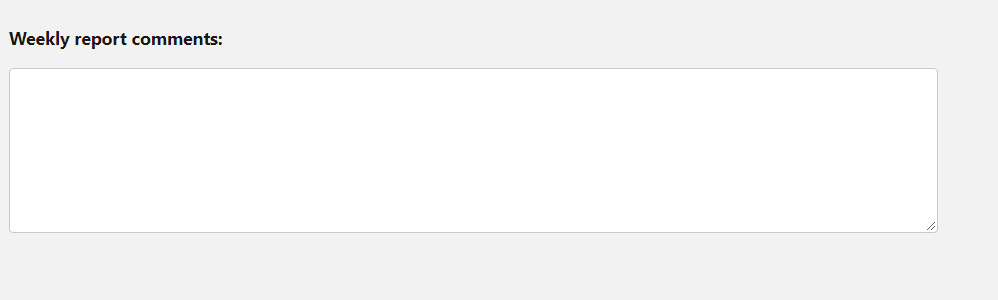
A lightning-textarea component creates an HTML textarea element for entering multi-line text input. A textarea field can hold an unlimited number of characters or a maximum number of character specified by the max-length attribute. If disabled, the field is grayed out and you can’t interact with it. A required textarea field displays an error if you don’t enter any input after first interaction.
To apply a custom width for the text area, use the class attribute. To set the input for the text area, set its value using the value attribute. Setting this value overwrites any initial value that’s provided.
The rows attribute and cols attribute are not supported. In many browsers, the text area is resizable by default, and a vertical scrollbar is displayed when the content exceeds the number of rows. Specifying the CSS width and height properties is not supported.
You can define a function in JavaScript to handle input events like blur, focus, and change. For example, to handle a change event on the component, use the onchange attribute.
To retrieve the content of the text area field, use event.detail.value property.
Client-side input validation is available for this component. Set a maximum length using the maxlength attribute or a minimum length using the minlength attribute. An error message is automatically displayed in the following cases:
- A required field is empty when required is present on the lightning-textarea tag.
- The input value contains fewer characters than that specified by the minlength attribute.
- The input value contains more characters than that specified by the maxlength attribute.
To check the validity states of an input, use the validity attribute, which is based on the ValidityState object. You can access the validity states in your JavaScript. This validity attribute returns an object with boolean properties. For more information, see the lightning-input documentation.
Workaround for Setting Height for lightning-textarea:
Most people find it difficult to set appropriate height of lightning-textarea in lwc. There is workaround for it using –sds-c-textarea-sizing-min-height css property, which we will explain using below coding example-
Step1: assign css class to text area
<lightning-textarea class="custom-textarea"></lightning-textarea>
Step2: set –sds-c-textarea-sizing-min-height css property in the class as shown below-
.custom-textarea {
    --sds-c-textarea-sizing-min-height:150px;
}


