Dealing with Slow Salesforce Deployments? Try Resetting Your Source Tracking

If you’ve been working in a Salesforce DX project for a while, you might notice that running sf project deploy start begins to feel sluggish. Sometimes, it stays stuck at “Polling for status” or “Initializing” for minutes before any actual progress occurs.

Recently, I encountered this exact issue. After trying a few different angles, the solution turned out to be simpler than expected: Resetting the source tracking.

The Problem: The “Ghost” in the Source Tracking

Salesforce DX uses local files (stored in the .sf or .sfdx hidden folders) to keep track of what has changed between your local environment and your scratch org or sandbox. This is what allows the CLI to perform “delta” deployments—only sending what has actually changed.

Over time, especially after large merges, switching branches, or interrupted deployments, these tracking files can become bloated or corrupted. The CLI spends an enormous amount of time trying to reconcile the differences, leading to the “long hang” you might be experiencing.

The Fix: A Fresh Start

If your deployment is taking an unusually long time, you can force the CLI to stop “thinking” and just start fresh by following these steps:

1. Reset the Tracking

Run the following command in your terminal: sf project reset tracking

What this does: This clears the local source tracking files. It tells the CLI, “Forget everything you think you know about what is or isn’t in sync.” It does not delete your code; it only deletes the metadata about your code.

2. Force the Deployment

Once the tracking is reset, run your deployment again pointing to your source directory: sf project deploy start --source-dir "force-app/main/default"

Because you reset the tracking, the CLI will now treat this as a clean deployment of those files, often bypassing the logic loops that were causing the previous delays.

When should you use this?

While resetting tracking is a powerful “turn it off and back on again” fix, use it specifically when:

  • Your deployment hangs on the initial “Analyzing” or “Metadata” phase.
  • You’ve just performed a massive git pull or branch merge.
  • The CLI is reporting conflicts that you know don’t actually exist.

Conclusion

Efficiency in Salesforce development is all about keeping your local environment lean. If the CLI is acting up, don’t just wait for the loading bar—reset your tracking and get back to coding.

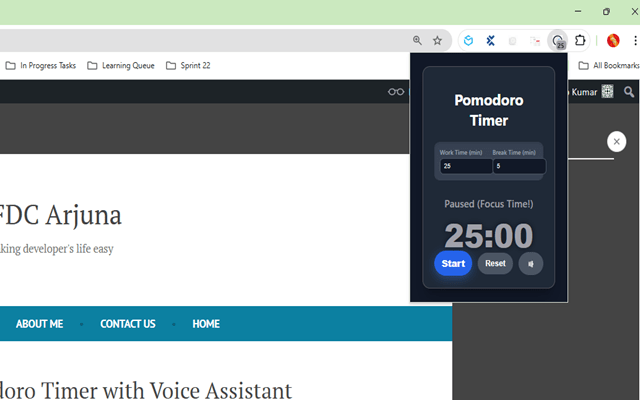
Pomodoro Timer (By Sandy) with Voice Assistant

Stop battling distractions and start working instantly! This Cyclical Pomodoro Timer (By Sandy) is the ultimate productivity tool designed to minimize setup and maximize your focus time.

🚀 Why You Need This Timer (Key Benefits)

  • Instantly Start Focusing: The timer automatically begins the 25-minute countdown the moment you open your browser. No “Start” button needed—it eliminates the hesitation that leads to procrastination.
  • Prevent Burnout: It enforces the proven 25 minutes of work / 5 minutes of rest cycle, ensuring you get the essential mental breaks needed to sustain high-quality focus throughout your day.
  • Stay in Flow with Voice Cues: A calm, audible voice alerts you when the Work/Break session ends. Keep your eyes on your task and let the timer tell you when to transition, completely eliminating self-interruption.

✨ Key Features at a Glance

  • Auto-Start Default: Opens with the classic and highly effective 25 minutes Work / 5 minutes Break cycle already running.
  • Mute/Unmute Voice Alerts: Full control over audio announcements for session transitions (Work to Break, Break to Work). Perfect for quiet environments or when you step away from your desk.
  • Customizable Cycle Length: Easily adjust the Work Time (min) and Break Time (min) to tailor the rhythm to your specific tasks or energy level.
  • Cyclical Automation: Seamlessly transitions from Work $\rightarrow$ Break $\rightarrow$ Work without manual resets.
  • One-Click Controls: Pause and Reset buttons for managing unexpected interruptions.
  • Dark Mode Interface: High-contrast design is easy on the eyes during long work sessions.

💡 How to Use It

  1. Install the extension.
  2. Click the icon to open the timer window.
  3. The timer starts immediately on the 25-minute work session!
  4. Work until the voice tells you to take a break.
  5. Optional: Click the speaker icon to toggle the voice on/off.

Install the Zero-Friction Pomodoro Timer (By Sandy) today and turn your browser into a powerhouse of focused productivity!

🔍 Understanding Where Salesforce (SFDX) Environments Are Stored in VS Code

When you’re working with Salesforce DX (SFDX) in Visual Studio Code, you often connect to multiple Salesforce orgs — such as Developer Orgs, Sandboxes, or Scratch Orgs.
But have you ever wondered where these environments are actually stored?

Let’s break it down in simple terms 👇


🧩 What Are Salesforce (SFDX) Environments?

In SFDX, “environments” refer to the Salesforce orgs you’ve authorized for development or deployment.
Each time you run a command like:

sfdx force:auth:web:login -a DevHub

you’re creating a local authorization record on your system that tells VS Code (via the Salesforce CLI) how to connect to that org.


🗂️ Where Are These Environments Stored?

All your connected Salesforce environments are stored locally by the Salesforce CLI — not inside VS Code itself.

The exact location depends on your operating system:

🪟 On Windows:

C:\Users\<your-username>\sfdx\

🐧 On Linux / macOS:

~/.sfdx/

Inside this folder, you’ll find JSON files containing information about each authorized org, such as:

  • Access tokens
  • Instance URLs
  • Aliases
  • Username details

For example, you might see files like:

auth.json
DevHub.json
MySandbox.json

These represent the Salesforce orgs you’ve connected to.

Note: Aliases are storied in alias.json


⚙️ How VS Code Uses These Environments

VS Code itself doesn’t store your environment details — instead, it uses the Salesforce CLI (sfdx) to fetch and manage them.

When you open your Salesforce project in VS Code:

  • It reads the project structure from sfdx-project.json
  • It looks for your default org (specified in the same file or via CLI)
  • It communicates with the org using credentials stored in the .sfdx folder

🧰 Viewing Your Authorized Orgs

To see all your connected environments, run:

sfdx force:org:list

This command displays:

  • Aliases (friendly names you set)
  • Usernames
  • Org IDs
  • Connected status
  • Expiration date (for scratch orgs)

Example output:

=== Orgs
     ALIAS        USERNAME                    ORG ID              CONNECTED STATUS
 ───  ───────────  ──────────────────────────  ──────────────────  ───────────────
     DevHub        admin@mydevhub.com          00D5g00000XXXXXXX   Connected
     MySandbox     sandbox@appohm.com          00D9H00000YYYYYYY   Connected


🧹 Removing Unused Environments

If you no longer need an org, you can remove its local authorization using:

sfdx force:auth:logout -u <username or alias>

To remove all authorized orgs:

sfdx force:auth:logout --all

This clears the corresponding files from the .sfdx directory.


💡 Pro Tip: Setting a Default Org

You can set your default org (used for push, pull, and deploy commands) with:

sfdx force:config:set defaultusername=<alias>

To verify:

sfdx force:config:get defaultusername


📁 Project-Specific Environment Data

Each SFDX project also contains a hidden folder:

<your-project>/.sfdx/

This folder stores environment-specific metadata for that particular project, including:

  • Local scratch org settings
  • Cached connection details

It’s safe to delete this folder when cleaning your workspace — it will be recreated as needed.


✅ Summary

PurposeLocation
Global org authorization~/.sfdx/ or %LOCALAPPDATA%\sfdx\
Project-specific environment data<your-project>/.sfdx/
Project configurationsfdx-project.json
Default org settingStored via sfdx force:config:set

🧠 Final Thoughts

Your Salesforce environments are not stored in VS Code itself, but rather managed by the Salesforce CLI.
VS Code simply acts as the development interface, reading your CLI configurations to connect, push, and retrieve metadata seamlessly.

Next time you switch orgs or clean your setup, you’ll know exactly where those environment details live and how to manage them safely.

Download Recent Salesforce Debug Logs Using Salesforce CLI

Debug logs are an essential tool for Salesforce developers and admins. They help trace code execution, identify issues, and monitor system behavior. While you can view logs directly in Salesforce Setup, downloading multiple logs at once can be tedious. Thankfully, the Salesforce CLI (sf) makes this process quick and easy.

Using sf apex get log Command

The sf apex get log command allows you to download recent debug logs directly to your local machine. The syntax is simple:

sf apex get log --number <N> --output-dir <folder>

Parameters

  • --number <N>: Specifies the number of most recent debug logs you want to download.
    Example: --number 10 will download the 10 latest logs.
  • --output-dir <folder>: Specifies the directory where the downloaded logs will be saved.
    Example: --output-dir logs will save all logs into a folder named logs.

Example

To download the 10 most recent debug logs into a local folder named logs:

sf apex get log --number 10 --output-dir logs

What happens:

  1. Salesforce CLI fetches the 10 most recent debug logs from your org.
  2. The logs are saved in the logs folder in your current working directory.
  3. You can now open the .log files locally and search for errors, exceptions, or any debug statements.

Benefits of Using This Command

  • Time-saving: Download multiple logs at once instead of viewing them one by one in Setup.
  • Automation-ready: Combine with scripts to automatically download and parse logs.
  • Offline analysis: Search, filter, or share logs without logging into Salesforce.

Optional: Automate Log Analysis

After downloading logs, you can use simple tools like grep (Linux/macOS) or Select-String (Windows PowerShell) to search for keywords:

grep -i "Sandy" logs/*.log

OR 

Select-String -Path .\logs\*.log -Pattern "Sandy"

This instantly shows all occurrences of errors across the downloaded logs.


Conclusion

Using sf apex get log --number 10 --output-dir logs is the fastest way to retrieve multiple Salesforce debug logs. It saves time, allows offline analysis, and can easily be integrated into automation scripts for monitoring and debugging.

Next time you need to investigate multiple log entries, skip the Setup UI and use the CLI — your future self will thank you! 🚀

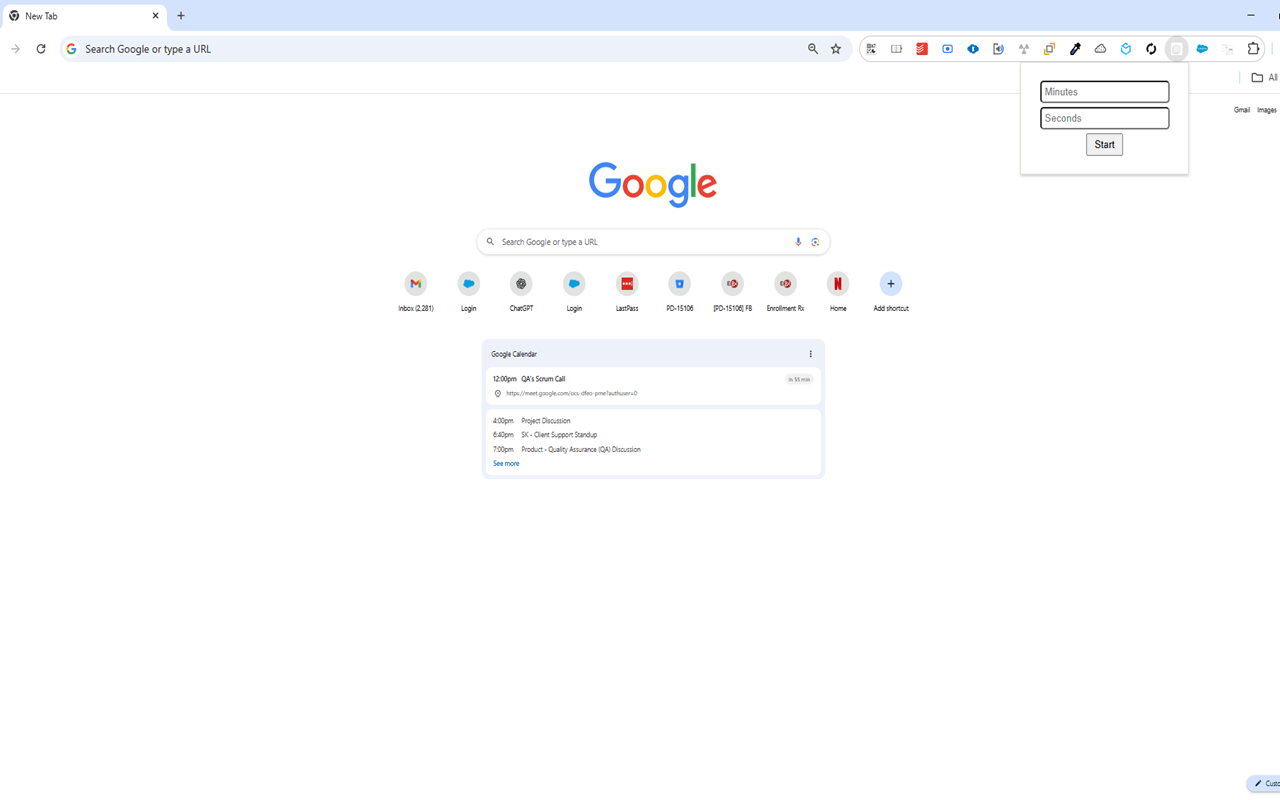
Simple Timer (By Sandy): A Chrome Extension That Talks to You

Need a timer that not only tracks time but also alerts you audibly? Meet Simple Timer (By Sandy) — a lightweight Chrome Extension that counts down and speaks “Time’s up!” when your session ends. No more staring at the screen!

Why This Extension?

Many timers silently finish, and you might miss them while working, studying, or browsing. This extension gives you a clear, audible alert so you immediately know when time’s up.

Key Features

  1. Set Your Time
    Quickly enter the countdown duration and start tracking your session. Perfect for work, study, or short breaks.
  2. Start, Pause, Reset
    • Start: Begin the countdown instantly.
    • Pause: Stop the timer mid-way without losing your progress.
    • Reset: Clear the current session and start fresh.
  3. Audible Alert: “Time’s up!”
    When the timer reaches zero, it speaks out “Time’s up!” — so you don’t have to keep checking the screen.
  4. Accessible in Browser
    As a Chrome Extension, it’s just a click away in your toolbar — no need to open external apps.

How It Works

The extension uses a simple countdown mechanism and leverages the browser’s speech synthesis feature to announce “Time’s up!” automatically. It’s lightweight, responsive, and runs smoothly in the background while you focus on your tasks.

Use Cases

  • Pomodoro & Study Sessions: Stay productive without constantly checking the timer.
  • Work Tasks: Keep track of breaks, meetings, or short tasks.
  • Cooking or Exercise: Let the timer tell you when to check your food or finish a set.

Conclusion

Simple Timer (By Sandy) turns time tracking into a hassle-free experience. Its audible alert, simplicity, and quick access from your Chrome toolbar make it a must-have for anyone who wants to manage time efficiently and hands-free.

How to Perform a Git Hard Pull (Without Regret)

When collaborating in Git, it’s not uncommon to find your local branch out of sync with the remote—especially when you’ve made changes that conflict or aren’t needed anymore. If you just want to wipe your local changes and sync exactly with the remote, there’s a powerful (but dangerous) combo:

git reset --hard
git pull

In this post, we’ll explain what this does, when to use it, and how to do it safely.


🧼 What Does git reset --hard Do?

The command:

git reset --hard
  • Resets your working directory and index (staging area) to the latest commit.
  • Discards all unstaged and staged changes.
  • Leaves your branch pointing to the latest local commit.
  • Irreversibly deletes any uncommitted changes unless backed up.

⚠️ Warning: Once you run this, there’s no undo unless you’ve created a stash or backup.


🔄 What Happens After git pull?

After the reset, you pull the latest changes from the remote:

git pull

This:

  • Fetches the latest commits from the remote branch.
  • Merges them into your (now clean) local branch.

Because you’ve removed all local changes, the merge happens smoothly and without conflicts.


✅ When Should You Use This?

Use this approach when:

  • You’re okay losing all local changes (both staged and unstaged).
  • You want your local branch to exactly match the remote.
  • You’re fixing a broken or stale local environment.

This is common in emergency situations or when switching contexts entirely.


🛡 How to Do It Safely (Optional Stash)

If you’re unsure whether you might need your changes later, stash them before resetting:

git stash
git fetch origin
git reset --hard origin/main # Replace 'main' with your branch
git stash pop # Optional: apply changes again

This protects your work in case you change your mind later.


🧠 Pro Tips

  • Use git status before running a hard reset to see what you’ll lose.
  • Always double-check the branch you’re on.
  • Consider backing up with git stash or a temporary commit.
  • If your reset target is the remote branch, run: git fetch origin git reset --hard origin/main

🧾 Summary

A hard pull using git reset --hard followed by git pull is a powerful way to clean up your local Git workspace and realign with remote. But with great power comes great responsibility—always understand what you’re wiping before hitting that Enter key.

Cleaning Up Test Data Efficiently Using a Batch Apex Job in Salesforce

Problem Statement (Refined & Expanded)

In many Salesforce development or QA environments, repeated testing often leads to the creation of thousands of test records across multiple objects. Whether you’re testing a data import process, automation rules, integrations, or user journeys — each test run leaves behind a trail of test data.

Over time, this leftover data begins to:

  • Slow down the org
  • Complicate debugging
  • Cause data conflicts in future test runs
  • Exhaust storage limits

Manually deleting this test data becomes time-consuming, repetitive, and error-prone — especially when data spans multiple related objects or involves content files like ContentDocument or ContentDocumentLink.

Hence, having a reusable, generic, and automated cleanup process is essential to maintain a clean development or testing sandbox. That’s where a Batch Apex job comes in handy.


Why Use a Batch Apex Job?

Salesforce imposes several limits on DML operations, such as:

  • Max 10,000 records per transaction
  • Max 150 DML operations per transaction
  • Heap and CPU limits

A Batch Apex job lets you:

  • Handle large datasets (millions of records)
  • Process them in manageable chunks
  • Perform cascading deletions or cleanups safely
  • Chain multiple cleanups automatically

You can even schedule it to run nightly, or execute it manually from Developer Console or a custom admin UI.


Example Scenario

Imagine you have the following during each test cycle:

  • Thousands of Contact records
  • Related entries in a custom object like ERx_Import__BigTable__c
  • Associated ContentDocument and ContentDocumentLink files (e.g. test attachments)

Instead of cleaning these up manually every time, you can run a batch class that:

  1. Deletes all Contact records
  2. Automatically continues with deletion of BigTable records
  3. Deletes related file records (ContentDocument, ContentDocumentLink)
  4. Cleans up custom metadata like ERx_Import__ERx_Import_File_Details__c

This approach ensures repeatable, fast, and consistent cleanup, allowing testers and developers to start fresh every time.


Key Benefits of This Approach

  • 🚀 Speed up test cycles — no more manual deletion
  • 💡 Minimize data conflicts — clean environment each run
  • 🔁 Reusable logic — supports multiple objects
  • 🧠 Scalable — handles 10k+ records per object
  • 📅 Schedule-ready — can be run nightly or post-deployment

Code Example-


global class DeleteAllRecordsBatch implements Database.Batchable<SObject> {
    private String sObjectApiName;

    global DeleteAllRecordsBatch(String sObjectApiName) {
        this.sObjectApiName = sObjectApiName;
    }

    global Database.QueryLocator start(Database.BatchableContext bc) {
        String query = 'SELECT Id FROM ' + sObjectApiName;
        return Database.getQueryLocator(query);
    }

    global void execute(Database.BatchableContext bc, List<SObject> scope) {
        delete scope;
    }

    global void finish(Database.BatchableContext bc) {
        if(sObjectApiName == 'Contact') {
            Database.executeBatch(new DeleteAllRecordsBatch('ERx_Import__BigTable__c'), 2000);
        } else {
            Map<Id, ERx_Import__ERx_Import_File_Details__c> importFiles = new Map<Id, ERx_Import__ERx_Import_File_Details__c>(
                [SELECT Id FROM ERx_Import__ERx_Import_File_Details__c]
            );

            if (importFiles.isEmpty()) return;

            List<ContentDocumentLink> links = [
                SELECT ContentDocumentId 
                FROM ContentDocumentLink 
                WHERE LinkedEntityId IN :importFiles.keySet()
            ];

            Set<Id> documentIds = new Set<Id>();
            for (ContentDocumentLink link : links) {
                documentIds.add(link.ContentDocumentId);
            }

            // Delete links with partial DML
            if (!links.isEmpty()) {
                Database.delete(links, false);
            }

            // Delete ContentDocuments with partial DML
            if (!documentIds.isEmpty()) {
                List<ContentDocument> docsToDelete = [
                    SELECT Id FROM ContentDocument WHERE Id IN :documentIds
                ];
                Database.delete(docsToDelete, false);
            }

            // Delete import file detail records with partial DML
            if (!importFiles.isEmpty()) {
                Database.delete(importFiles.values(), false);
            }
        }
    }
}

How to run?

Database.executeBatch(new DeleteAllRecordsBatch(‘Contact’), 2000);

How to delete salesforce files using apex?

Deleting files linked to record-

Map<Id, ERx_Import__ERx_Import_File_Details__c> importFiles = new Map<Id, ERx_Import__ERx_Import_File_Details__c>([Select Id from ERx_Import__ERx_Import_File_Details__c]);
// Step 1: Get the ContentDocument Id from the related record (e.g., Account)
List<ContentDocumentLink> links = [
    SELECT ContentDocumentId 
    FROM ContentDocumentLink 
    WHERE LinkedEntityId in: importFiles.keySet()
];

// Step 2: Get the ContentDocument Ids
Set<Id> documentIds = new Set<Id>();
for (ContentDocumentLink link : links) {
    documentIds.add(link.ContentDocumentId);
}

// Step 3: Delete ContentDocumentLink records
delete links;

// Step 4: Delete the ContentDocument records (this deletes file and its versions)
List<ContentDocument> docsToDelete = [SELECT Id FROM ContentDocument WHERE Id IN :documentIds];
delete docsToDelete;

Deleting files which are not linked to record-

you can delete files based on title match like below-

// Step 1: Fetch a batch of ContentDocuments
List<ContentDocument> docsToDelete = [SELECT Id FROM ContentDocument where Title like '%large_dataset_2%' LIMIT 50];
Set<Id> docIds = new Set<Id>();
for (ContentDocument doc : docsToDelete) {
    docIds.add(doc.Id);
}

// Step 2: Check if any ContentDocumentLink exists
Map<Id, ContentDocumentLink> existingLinksMap = new Map<Id, ContentDocumentLink>(
    [SELECT Id, ContentDocumentId FROM ContentDocumentLink WHERE ContentDocumentId IN :docIds]
);

// Step 3: Optional - check if linked to FeedItem (Chatter posts)
Map<Id, FeedAttachment> chatterLinks = new Map<Id, FeedAttachment>(
    [SELECT Id, RecordId FROM FeedAttachment WHERE RecordId IN :docIds]
);

// Step 4: Only include docs that are not linked anywhere
List<ContentDocument> safeToDelete = new List<ContentDocument>();
for (ContentDocument doc : docsToDelete) {
    if (!existingLinksMap.containsKey(doc.Id) && !chatterLinks.containsKey(doc.Id)) {
        safeToDelete.add(doc);
    }
}

// Step 5: Now delete the truly orphan files
if (!safeToDelete.isEmpty()) {
    delete safeToDelete;
} else {
    System.debug('No safe ContentDocuments found to delete.');
}

How to Create a List View Button to Delete Selected Records in Salesforce

Salesforce makes it easy to work with records in bulk using List Views, but when it comes to deleting multiple records directly from a List View — there’s no native “Delete Selected” button. That’s where this solution comes in!

In this blog post, we’ll show you how to create a custom List View button that lets users select multiple records and delete them with a single click using Visualforce, Apex, and StandardSetController.


🎯 Use Case

Let’s say you manage a custom object like Stocks__c and you want users to delete multiple records at once from a List View — just like a mass delete action. We’ll build that using a Visualforce page and an Apex extension.


🧱 Step 1: Apex Class to Handle Deletion

This Apex class is designed to process the selected records from the list view and perform the delete operation.

public class DeleteRecordExtension {
    List<sObject> sObjList;
    public boolean isDeleted { get; set; }
    Set<Id> recordIds;
    public String errorMessage { get; set; }

    public DeleteRecordExtension(ApexPages.StandardSetController std) {
        sObjList = std.getSelected();
        recordIds = new Set<Id>();
        for (sObject obj : sObjList) {
            recordIds.add(obj.Id);
        }
    }

    public PageReference deleteRecords() {
        try {
            if (sObjList.size() > 0) {
                delete sObjList;
                ApexPages.addMessage(new ApexPages.Message(ApexPages.Severity.INFO, 'Records deleted'));
                isDeleted = true;

                Schema.SObjectType sobjectType = sObjList[0].Id.getSObjectType();
                String sobjectName = sobjectType.getDescribe().getName();
                return new PageReference('/lightning/o/' + sobjectName + '/list');
            }
        } catch (Exception e) {
            ApexPages.addMessage(new ApexPages.Message(ApexPages.Severity.ERROR, e.getMessage()));
        }
        return null;
    }
}

📄 Step 2: Create Visualforce Page

This Visualforce page will be invoked by the button and will trigger the deletion process on page load using the action attribute.

<apex:page 
    standardController="Stocks__c" 
    action="{!deleteRecords}" 
    extensions="DeleteRecordExtension" 
    recordSetVar="errorLogs"  
    lightningStylesheets="true">
</apex:page>

✏️ Replace Stocks__c with your object name if you’re working with another object.


🧭 Step 3: Add a Custom List View Button

  1. Go to SetupObject ManagerStocks__c
  2. Navigate to Buttons, Links, and ActionsNew Button or Link
  3. Set these values:
    • Label: Delete Selected
    • Display Type: List Button
    • Behavior: Display in existing window with sidebar
    • Content Source: Visualforce Page
    • Select Visualforce Page: the one you created above
  4. Click Save

🧩 Step 4: Add Button to Search Layout

  1. In the same object settings, go to Search Layouts for Salesforce Classic (or Search Layouts for Lightning Experience)
  2. Edit the List View layout
  3. Add your Delete Selected button to the List View Actions
  4. Save

✅ Final Result

Now, when you go to a list view for your object, you can:

  • ✅ Select multiple records
  • ✅ Click the Delete Selected button
  • ✅ Delete all selected records in one go

All this happens smoothly using a Visualforce page and a touch of Apex logic behind the scenes.

Demo


📝 Wrap-Up

With just a Visualforce page, an Apex class, and a custom list view button, you’ve built your own mass delete functionality in Salesforce!

💬 Got questions? Drop a comment below. Happy building!

Efficient Debugging in Apex: A Guide to Using the DebugUtil Class

In the world of Salesforce development, efficient debugging is crucial. The DebugUtil class is a powerful tool that helps capture and print debug messages effectively. Let’s dive into how you can leverage this class for streamlined debugging.

public with sharing class DebugUtil {
 
    private static List<String> messages = new List<String>();
    private static Integer count = 1;
 
    public static void addMessage(Object message) {
        if(message != null) {
            messages.add('Step ' + count++ + ' : Line ' + currentLineNumber() + ' ' + String.valueOf(message) );
        }
    }
 
    public static void printAssert() {
        if(!messages.isEmpty() && isDebuggingEnabled()){
            System.assert(false, String.join(messages, ', '));
            clearMessages();
        }
    }
 
    private static void clearMessages() {
        messages.clear();
        count = 0;
    }

    private static Boolean isDebuggingEnabled() {
        // Query the custom setting for the specific record name 'Admin Settings'
        ERx_Forms__FormBuilder_Settings__c adminSettings = [SELECT ERx_Forms__Debugging__c FROM ERx_Forms__FormBuilder_Settings__c WHERE Name = 'Admin Settings' LIMIT 1];

        // Return the value of the ERx_Forms__Debugging__c field
        return adminSettings.ERx_Forms__Debugging__c;
    }

    public static Integer currentLineNumber() {
        try {
            Integer x = 0 / 0;
        } catch(Exception e) {
            String line2 = e.getStackTraceString().split(' line ')[3].split(',')[0];
            return Integer.valueOf(line2);
        }
        return null;
    }
}

Features of DebugUtil Class

  • Message Capture: Easily add messages to a list with the addMessage() method.
  • Sequential Messages: Each message is prefixed with a count to keep track of the order.
  • Assertion Printing: Use printAssert() to print all captured messages as an assertion, making it easy to locate issues in the debug log.

How to Use DebugUtil

Adding Messages:

DebugUtil.addMessage('This is a debug message');
DebugUtil.addMessage('Another debug message');

By using addMessage(), you can capture and store debug messages efficiently.

Printing Messages:

DebugUtil.printAssert();

When you need to print all captured messages, simply call printAssert(). This will output the messages in the debug log.

Best Practices

  • Use Meaningful Messages: Make sure your debug messages provide valuable information about the state of your application.
  • Limit Debugging in Production: Use the DebugUtil class primarily in development and testing environments to avoid performance issues in production.

Conclusion

The DebugUtil class is a versatile tool for enhancing your debugging process in Salesforce. By capturing and printing debug messages effectively, you can quickly identify and resolve issues, leading to more robust and reliable code. Start integrating DebugUtil into your workflow today and experience the benefits of organized and efficient debugging!

Streamline your File Management Operations in Salesforce

Finding the time to manage your files in Salesforce can feel like a juggling act – especially when you keep your business running while dealing with multiple documents, attachments, and data across different departments. What if there was a way to streamline your file management operations, cut clutter, and keep everything in one easy-to-find place? Enter file management platforms, these tools are designed to not only simplify your file management but also help boost your team’s productivity to make sure important files are always accessible. 

Ready to change how you handle your files in Salesforce for the better? Let’s dive into Salesforce File Management for an all-in-one solution! 

What is File Management? 

File management is organizing, storing, and maintaining your digital documents and data in a (hopefully) efficient and organized way. In today’s digital landscape, your data volume is continuously increasing, and a well-maintained and structured file management system is essential for you and your business to access, share, and protect your important files easily. This system involves creating folders, and directories, and categorizing your files by type or project, whatever makes the most sense for your departments and teams, and most importantly setting access permissions to ensure data security. 

Implementing a reliable file management system will save you time, reduce the risk of data loss and keep your teams organized by providing a clear structure for storing and retrieving information. 

What is File Management Software Used for? 

Implementing a file management operating system will help you organize, store, retrieve, and efficiently secure your digital files so you can manage them without hassle. It’s essential for tasks like categorizing your files, configuring access permissions, and ensuring data backup when dealing with large volumes of data. Your chosen software should provide a user-friendly interface to create, rename, move, delete, and archive your files and folders. Look out for features like version control, collaboration tools, and search functionality to help your business maintain an organized file structure to improve accessibility and productivity. Let’s dive into a few key functions your file management software can also be used for. 

Archive Documents

File management software is instrumental for archiving your documents. Providing you with a structured way to store your files that aren’t in active use but you need to store them for future reference. Most software offers powerful search and indexing features so your team members don’t need to waste time searching for documents and can easily retrieve them when necessary. You can configure options for retention periods to ensure compliance with relevant legal and organization requirements so you can rest assured that your documents aren’t lost. Keeping your workspaces clutter-free while maintaining a reliable backup of your information come audit time means you don’t need to spend ages constantly searching, organizing, and structuring your archives. 

Image Modifications

Organizing and modifying images can be quite a challenge if you are completing those tasks manually. Many file management software platforms offer integrated tools for image modifications for basic actions such as cropping, resizing, and adjusting color or contrast. This means you can make those quick edits without needing to switch back and forth between multiple applications, saving you time and streamlining workflows. You can easily categorize your images for quick retrieval and keep copies of your edited and original images. 

Virus Scanning

Creating scanning processes protects your digital files from malware and other cyber threats. This capability is essential to ensure that any file you upload and share is secure, preventing the spread of viruses across your organization’s network. You can create workflows to scan your files during regular intervals or the initial upload process to quickly detect and delete infected files to minimize any potential damage. Adding this layer of data security when dealing with external files provides you with peace of mind and safeguards sensitive information while allowing your team to access files without any worry. 

Automate Document Flows

Creating automated workflows for your documents means streamlining those repetitive tasks including approvals, transfers, and updates. You can move your documents through pre-defined stages without the need for manual intervention which saves your team time and reduces the risk of human error. Automation means that your tasks are completed uniformly and promptly so your team always has access to the information they need when they need it. 

File Management Tools for Salesforce

If you’re in the market for a file management system software for Salesforce, you’ll be spoilt for choice as there are a variety of tools available on the AppExchange. These tools are designed to streamline all your document processes and include functionality for processes such as archiving, workflows, and virus scans. This makes it easy to manage documents directly in your Salesforce org without needing to switch between multiple platforms. By choosing to leverage the power of a file management system tailor-made for Salesforce you can enhance your data accessibility, improve team collaboration, and maintain a clear structure of your documents. 

Titan Files 

Titan Files is a robust file management program that offers your business all the bells and whistles. Designed to optimize your document storage and organization within your Salesforce ecosystem. You can seamlessly manage, share, and collaborate on your files in Salesforce so you don’t need to leave the familiar interface to manage and handle your files. Set permissions, automate workflows, and organize your files using tags and folders so your team can easily find and access their documents. You get bonus features like version control and secure sharing, so your team is always working with the latest document version while also maintaining compliance when it comes to document security. This file management progress is the ideal choice if your business is looking to streamline your operations and maximize your file management processes. 

You might be thinking that using a file management system like this will require coding knowledge but that’s the best news, you don’t need any coding knowledge to use this tool. Anyone on your team can create automation using this intuitive interface. Worried about storage space? You can connect to your third-party cloud storage solution to archive your files according to your company’s best practices without having to change your storage provider. Maximize the potential of your Salesforce with Titan.

Salesforce Forms for Faster Client Onboarding & Smoother Business Processes

Client onboarding can often be a tedious task that doesn’t get the attention to detail that it requires. By choosing to combine the Salesforce platform with your client onboarding experience, you can transform this cumbersome, time-consuming task into an effortless, and dare we say, enjoyable experience. Forms for Salesforce makes this a reality by providing you with an innovative solution to accelerate the onboarding process and optimize your business processes. Offering both intuitive design and integration capabilities, Salesforce Forms makes the collection of client data a seamless process that ensures accuracy and reduces administrative overhead. 

This cutting-edge tool will not only enhance client satisfaction by simplifying the onboarding process but also empower your business to operate more efficiently. You can adapt to changes in the marketplace and focus on delivering exceptional service. So why not embrace the future and make your client onboarding a breeze with Salesforce Forms?

How Salesforce Forms Help with Faster Client Onboarding: 

Dynamic Forms in Salesforce adapt in real-time based on the user inputs. This means that clients only need to interact with relevant fields when completing forms in Salesforce. Let’s dive into a few key components of these forms and how they can assist you in the onboarding process. 

Automated Data Capture

Dynamic Forms in Salesforce streamline your client onboarding process by automating data capture. Your business can capture essential client information quickly and accurately from submitted forms and sync it to your Salesforce org. This ensures that your database is kept up-to-date and error-free. You can also implement validation rules to ensure that information is only pushed to your Salesforce Customer Relationship Management (CRM) database if it meets your set criteria to further safeguard the integrity of your data. 

Predefined Templates

Creating predefined templates is a surefire way to ensure consistency for all your clients and simplifies the data collection process. Templates are designed to capture all the necessary information efficiently and completely. Predefined templates reduce the time spent on creating and customizing forms for each client, once you have ironed out the template, you can use it over and over again for each new client. Predefined templates can free up valuable resources so you can focus on delivering exceptional service and building relationships instead of being bogged down by administrative tasks. 

Real-Time Updates

Salesforce Forms ensures that your data is instantly captured and reflected in your database. Immediate data synchronization eliminates any delay and the risks associated with manual data entry resulting in a smoother onboarding process. Real-time updates provide you with insights into the client onboarding process so you can address any issues quickly and keep all stakeholders informed with the most up-to-date information. This functionality promotes transparency and coordination as well as improves your data accuracy and boosts productivity. 

Enhanced Client Experience

These forms are designed to be intuitive and user-friendly. Offering a straightforward design that makes them easy to complete. Clients are less likely to encounter issues or make mistakes when completing your forms so they can complete the process quickly and effortlessly. Dynamic fields ensure that your clients only need to complete relevant sections to them, this makes the completion process more efficient and pleasant with no time wasted. You can also customize your forms to match your business branding to provide a cohesive experience for your client and create a professional impression from the very beginning. 

Salesforce Forms for Improved Business Processes

Forms for Salesforce can change the way you collect and manage your data to enhance your business processes. Designed to streamline your daily operations, Salesforce dynamic forms can offer you numerous benefits. We’ve covered some key benefits below. 

Standardization and Consistency

Creating templates for a variety of use cases and implementing them across departments and interactions ensures consistency and uniformity. Templates enable your team members to follow established processes and reduce the need for manual effort resulting in a reliable and consistent outcome each time data is captured. 

Automated Workflows

You can create automated workflows to trigger based on the data collected in your forms. For example, once your client has submitted their completed form, Salesforce can route the captured information to the appropriate department, update any records, send confirmation emails, and initiate follow-up tasks all without requiring manual effort. Automation not only accelerates your processes but also ensures that no crucial step is missed so your clients receive consistent and prompt experiences with your business. Your employees will have more time to focus on building long-lasting relationships with your clients rather than routine administrative tasks. 

Integration with Other Systems

Salesforce Forms offers the great benefit of integrating with other systems so you can rely on a unified and efficient workflow. Any data collected in your forms is automatically synchronized to your database and internal systems. This reduces redundancies and the risk of error as well as provides access to up-to-date information across your departments. Whether you are working with your CRM database, enterprise resource planning (ERP) software, or any other critical software, Salesforce Forms are designed to facilitate a unified data ecosystem. A cohesive approach to your data means you can make informed decisions backed up by your data to execute your strategic goals. 

Analytics and Reporting

By using Salesforce Forms to collect accurate and complete data, you can gain a holistic insight into your clients. Salesforce offers powerful analytics tools that you can implement to track your performance, identify emerging trends, and uncover opportunities from your collected data. Real-time reporting ensures that any insights are relevant to your business and your created strategies will have a meaningful impact on your metrics. 

TITAN’s Forms Solution for Salesforce

Titan is the Salesforce form builder you have been searching for. This comprehensive and innovative tool is designed to enhance your data collection and streamline your business processes to extend your Salesforce experience. You can create user-friendly, intuitive, and most importantly responsive forms without needing to know any code. Implement real-time data validations, create automated workflows, and sync data straight from your Salesforce using the drag-and-drop builder. Take your business to new heights and build long-lasting relationships with your clients by implementing Titan today.

Automating Salesforce Code Analysis with PMD Using CI/CD Pipelines

As Salesforce developers, maintaining high-quality code is crucial for ensuring robust and efficient applications. One way to achieve this is by integrating static code analysis tools into your development process. In this blog post, we’ll explore how to set up a CI/CD pipeline to automate Salesforce code analysis using PMD, a popular static code analysis tool.

What is PMD?

PMD is an open-source static code analyzer that finds common programming flaws such as unused variables, empty catch blocks, unnecessary object creation, and more. By incorporating PMD into your Salesforce development workflow, you can catch potential issues early and improve the overall quality of your code.

Why Use a CI/CD Pipeline?

A Continuous Integration and Continuous Deployment (CI/CD) pipeline automates the process of integrating code changes, running tests, and deploying applications. By integrating PMD into a CI/CD pipeline, you ensure that code analysis is performed consistently and automatically with every code change. This helps in maintaining code quality and preventing issues from reaching production.

Setting Up the CI/CD Pipeline

We’ll use Bitbucket Pipelines for this example, but the concepts can be applied to other CI/CD tools like Jenkins, GitHub Actions, or GitLab CI.

Step 1: Define the Pipeline Configuration

Create a bitbucket-pipelines.yml file in the root of your Salesforce project repository. This file defines the pipeline configuration. Below is the configuration we will use:

image:
  name: salesforce/salesforcedx:latest-full

pipelines:
  pull-requests:
    '**':
      - step:
          name: Salesforce Code Analyzer with PMD
          caches:
            - node
          script:
            - sfdx scanner:run --format html --target force-app --engine "pmd" --pmdconfig=config/pmd-rules.xml --outfile pmd-report.html
          artifacts:
            - pmd-report.html

Breakdown of the Configuration

  • Image: Specifies the Docker image to use. In this case, we use salesforce/salesforcedx:latest-full, which includes the Salesforce DX CLI and other necessary tools.
  • Pipelines: Defines the pipeline stages. Here, we configure the pipeline to run for all pull requests ('**').
  • Step: Describes the individual step in the pipeline:
  • name: The name of the step, “Salesforce Code Analyzer with PMD”.
  • caches: Specifies caching for dependencies to speed up the pipeline. We cache the node environment.
  • script: Lists the commands to execute:
    • sfdx scanner:run --format html --target force-app --engine "pmd" --pmdconfig=config/pmd-rules.xml --outfile pmd-report.html: This command runs the PMD analysis using Salesforce’s scanner plugin. It targets the force-app directory, uses PMD as the engine, specifies a custom PMD rules configuration file (config/pmd-rules.xml), and outputs the results to pmd-report.html.
  • artifacts: Specifies the files to be preserved after the pipeline runs. In this case, we keep pmd-report.html so that we can review the analysis results.

Step 2: Configure PMD Rules

Create a PMD rules configuration file (pmd-rules.xml) in your project. This file defines the rules that PMD will use to analyze your code. Here’s a simple example:

<?xml version="1.0" encoding="UTF-8"?>
<ruleset name="Apex Rules"
         xmlns="http://pmd.sourceforge.net/ruleset/2.0.0"
         xmlns:xsi="http://www.w3.org/2001/XMLSchema-instance"
         xsi:schemaLocation="http://pmd.sourceforge.net/ruleset/2.0.0
                             http://pmd.sourceforge.net/ruleset_2_0_0.xsd">
    <description>Custom PMD rules for Apex</description>
	
	<!-- Best Practices -->
    <rule ref="category/apex/bestpractices.xml/ApexUnitTestClassShouldHaveRunAs" />
	<rule ref="category/apex/bestpractices.xml/ApexUnitTestClassShouldHaveAsserts" />
	<rule ref="category/apex/bestpractices.xml/ApexUnitTestShouldNotUseSeeAllDataTrue" />
	<rule ref="category/apex/bestpractices.xml/AvoidGlobalModifier" />
	<rule ref="category/apex/bestpractices.xml/AvoidLogicInTrigger" />
	<rule ref="category/apex/bestpractices.xml/UnusedLocalVariable" />
	
	<!-- Code Styles -->
	<rule ref="category/apex/codestyle.xml/ClassNamingConventions">
		<properties>
			<property name="testClassPattern" value="[A-Z][a-zA-Z0-9_]*Test" />
			<property name="abstractClassPattern" value="[A-Z][a-zA-Z0-9_]*" />
			<property name="classPattern" value="[A-Z][a-zA-Z0-9_]*" />
			<property name="interfacePattern" value="[A-Z][a-zA-Z0-9_]*" />
			<property name="enumPattern" value="[A-Z][a-zA-Z0-9_]*" />
		</properties>
	</rule>
	<rule ref="category/apex/codestyle.xml/FieldNamingConventions">
		<properties>
			<property name="enumConstantPattern" value="[A-Z][A-Z0-9_]*" />
			<property name="constantPattern" value="[A-Z][A-Z0-9_]*" />
			<property name="finalPattern" value="[a-z][a-zA-Z0-9]*" />
			<property name="staticPattern" value="[a-z][a-zA-Z0-9]*" />
			<property name="instancePattern" value="[a-z][a-zA-Z0-9]*" />
		</properties>
	</rule>
	<rule ref="category/apex/codestyle.xml/ForLoopsMustUseBraces" />
	<rule ref="category/apex/codestyle.xml/IfElseStmtsMustUseBraces" />
	<rule ref="category/apex/codestyle.xml/IfStmtsMustUseBraces" />
	<rule ref="category/apex/codestyle.xml/LocalVariableNamingConventions" />
	<rule ref="category/apex/codestyle.xml/MethodNamingConventions">
		<properties>
			<property name="testPattern" value="validate[A-Z][a-zA-Z0-9]*" />
			<property name="staticPattern" value="[a-z][a-zA-Z0-9]*" />
			<property name="instancePattern" value="[a-z][a-zA-Z0-9]*" />
		</properties>
	</rule>
	<rule ref="category/apex/codestyle.xml/PropertyNamingConventions" />
	<rule ref="category/apex/codestyle.xml/WhileLoopsMustUseBraces" />
	
	<!-- Design -->
	<rule ref="category/apex/design.xml/AvoidDeeplyNestedIfStmts">
		<properties>
			<property name="problemDepth" value="3" />
		</properties>
	</rule>
	<rule ref="category/apex/design.xml/CognitiveComplexity">
		<properties>
			<property name="classReportLevel" value="50" />
			<property name="methodReportLevel" value="15" />
		</properties>
	</rule>
	<rule ref="category/apex/design.xml/CyclomaticComplexity">
		<properties>
			<property name="classReportLevel" value="40" />
			<property name="methodReportLevel" value="10" />
		</properties>
	</rule>
	<rule ref="category/apex/design.xml/ExcessiveClassLength">
		<properties>
			<property name="minimum" value="1000.0" />
		</properties>
	</rule>
	<rule ref="category/apex/design.xml/ExcessiveParameterList">
		<properties>
			<property name="minimum" value="4.0" />
		</properties>
	</rule>
	<rule ref="category/apex/design.xml/ExcessivePublicCount">
		<properties>
			<property name="minimum" value="20.0" />
		</properties>
	</rule>
	<rule ref="category/apex/design.xml/StdCyclomaticComplexity">
		<properties>
			<property name="reportLevel" value="10" />
			<property name="showClassesComplexity" value="true" />
			<property name="showMethodsComplexity" value="true" />
		</properties>
	</rule>
	<rule ref="category/apex/design.xml/TooManyFields">
		<properties>
			<property name="maxfields" value="15" />
		</properties>
	</rule>
	
	<!-- Documentation -->
	<rule ref="category/apex/documentation.xml/ApexDoc">
		<properties>
			<property name="reportPrivate" value="false" />
			<property name="reportProtected" value="false" />
			<property name="reportMissingDescription" value="true" />
			<property name="reportProperty" value="true" />
		</properties>
	</rule>
	
	<!-- Error Prone -->
	<rule ref="category/apex/errorprone.xml/AvoidDirectAccessTriggerMap" />
	<rule ref="category/apex/errorprone.xml/AvoidHardcodingId" />
	<rule ref="category/apex/errorprone.xml/AvoidNonExistentAnnotations" />
	<rule ref="category/apex/errorprone.xml/EmptyCatchBlock" />
	<rule ref="category/apex/errorprone.xml/EmptyIfStmt" />
	<rule ref="category/apex/errorprone.xml/EmptyStatementBlock" />
	<rule ref="category/apex/errorprone.xml/EmptyTryOrFinallyBlock" />
	<rule ref="category/apex/errorprone.xml/EmptyWhileStmt" />
	<rule ref="category/apex/errorprone.xml/InaccessibleAuraEnabledGetter" />
	<rule ref="category/apex/errorprone.xml/MethodWithSameNameAsEnclosingClass" />
	<rule ref="category/apex/errorprone.xml/TestMethodsMustBeInTestClasses" />
	
	<!-- Performance -->
	<rule ref="category/apex/performance.xml/AvoidDebugStatements" />
	<rule ref="category/apex/performance.xml/AvoidDmlStatementsInLoops" />
	<rule ref="category/apex/performance.xml/AvoidSoqlInLoops" />
	<rule ref="category/apex/performance.xml/AvoidSoslInLoops" />
	<rule ref="category/apex/performance.xml/EagerlyLoadedDescribeSObjectResult" />
	<rule ref="category/apex/performance.xml/OperationWithLimitsInLoop" />
	
	<!-- Security -->
	<rule ref="category/apex/security.xml/ApexBadCrypto" />
	<rule ref="category/apex/security.xml/ApexCRUDViolation" />
	<rule ref="category/apex/security.xml/ApexDangerousMethods" />
	<rule ref="category/apex/security.xml/ApexInsecureEndpoint" />
	<rule ref="category/apex/security.xml/ApexSharingViolations" />
	<rule ref="category/apex/security.xml/ApexSOQLInjection" />
	<rule ref="category/apex/security.xml/ApexSuggestUsingNamedCred" />
	<rule ref="category/apex/security.xml/ApexXSSFromEscapeFalse" />
	<rule ref="category/apex/security.xml/ApexXSSFromURLParam" />
	
	<!-- VF Security -->
	<rule ref="category/vf/security.xml/VfUnescapeEl" />
</ruleset>

you can add/remove rules as per your requirement.

Step 3: Commit and Push Your Changes

Once you’ve configured your pipeline and PMD rules, commit the bitbucket-pipelines.yml and pmd-rules.xml files to your repository:

git add bitbucket-pipelines.yml config/pmd-rules.xml
git commit -m "Add CI/CD pipeline configuration for PMD code analysis"
git push origin your-branch

Step 4: Review the Analysis Results

When you create a pull request, the pipeline will automatically run the PMD analysis. Once the pipeline completes, you can download and review the pmd-report.html file to see the analysis results.

Conclusion

Integrating PMD into your CI/CD pipeline is a powerful way to ensure consistent code quality in your Salesforce projects. By automating static code analysis, you can catch potential issues early and maintain a high standard of code across your development team. Give this setup a try and experience the benefits of automated code quality checks in your Salesforce development workflow.

Demo

How to Authenticate with Salesforce Using JWT

Salesforce is a powerful CRM platform, and connecting to it securely is crucial for accessing and managing data. One of the secure methods to connect with Salesforce is using JSON Web Tokens (JWT). JWT authentication is especially useful for server-to-server integrations where user interaction is not required. This blog post will guide you through the process of setting up JWT authentication with Salesforce.

Steps to Implement JWT Authentication with Salesforce

1. Create a Connected App in Salesforce

  1. Navigate to Setup: Log in to your Salesforce org and go to the Setup area.
  2. App Manager: In the Quick Find box, type “App Manager” and select it.
  3. New Connected App: Click on “New Connected App”.
  4. Basic Information: Fill in the required fields like Connected App Name, API Name, and Contact Email.
  5. Enable OAuth Settings:
    • Check the “Enable OAuth Settings” checkbox.
    • In the “Callback URL” field, enter a placeholder URL (e.g., http://localhost:3000/callback).
    • Select the following OAuth Scopes:
      • Manage user data via APIs (api)
      • Perform requests on your behalf at any time (refresh_token, offline_access)
    • Check the “Use Digital Signatures” checkbox and upload your certificate (public key).
  6. Save: Click “Save” and note down the Consumer Key (Client ID).

2. Generate a Private Key and Certificate

If you don’t have a private key and certificate, you can generate them using OpenSSL. Check this article to download OpenSSL.

Here’s how you can create a private key and a self-signed certificate:

  1. Generate the Private Key:
    openssl genrsa -out server.key 2048
  2. Create a Certificate Signing Request (CSR):
    openssl req -new -key server.key -out server.csr
    During this step, you’ll be prompted to enter some information about your organization and domain.
  3. Generate the Self-Signed Certificate:
    openssl x509 -req -days 365 -in server.csr -signkey server.key -out server.crt

3. Run the org login jwt CLI command

sf org login jwt --client-id 3MVG9pRxf --jwt-key-file server.key --username stockmaster@wiseinvesting.com --alias my-hub-org --instance-url https://login.salesforce.com

If encounter below error, it means you need to approve this user first time.

Errors encountered:
user hasn’t approved this consumer

Use below command to approve the user first time-

https://login.salesforce.com/services/oauth2/authorize?response_type=code&client_id=3MVG9pRxf&redirect_uri=https://wiseinvesting3-dev-ed.develop.lightning.force.com/

How to generate private key and certificate

When working with SSL/TLS and securing communications, it is essential to generate a private key and certificate. OpenSSL is a powerful and widely-used toolkit for managing these cryptographic tasks. Below, I’ll walk you through the process of generating a private key and a self-signed certificate using OpenSSL.

Step 1: Install OpenSSL

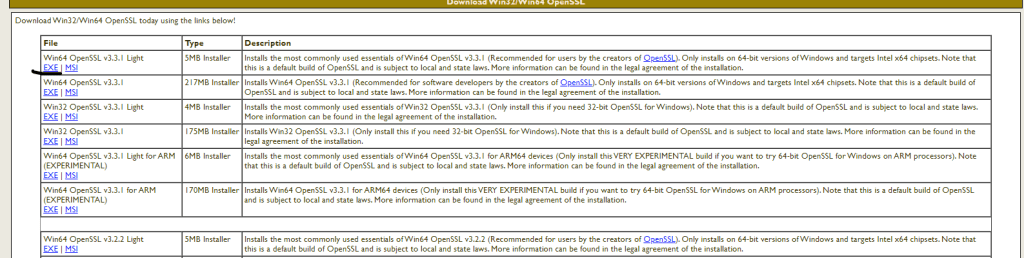
If you don’t have OpenSSL installed, you can download it from here. Follow the instructions for your operating system. I have window 11, so I installed Win64 OpenSSL v3.3.1 Light exe as highlighted in below screenshot-

you can install based on your operating system. You have to set path also after installing.

Step 2: Generate a Private Key

  1. Open your terminal or command prompt.
  2. Run the following command to generate a private key:
openssl genpkey -algorithm RSA -out private.key -aes256
  • -algorithm RSA: Specifies the RSA algorithm.
  • -out private.key: Specifies the output file name.
  • -aes256: Encrypts the private key with AES 256.

You will be prompted to enter a passphrase to encrypt the private key. Remember this passphrase as you will need it to use the key.

Step 3: Generate a Certificate Signing Request (CSR)

  1. Run the following command to generate a CSR:
openssl req -new -key private.key -out request.csr

This command will prompt you to enter information about your organization. This information will be included in your certificate.

Step 4: Generate a Self-Signed Certificate

  1. Run the following command to generate a self-signed certificate:
openssl x509 -req -days 365 -in request.csr -signkey private.key -out certificate.crt
  • -req: Indicates that the input is a CSR.
  • -days 365: Specifies the certificate’s validity period (365 days).
  • -signkey private.key: Specifies the private key to sign the certificate.
  • -out certificate.crt: Specifies the output file name for the certificate.

Summary of Generated Files

  • private.key: Your private key, encrypted with a passphrase.
  • request.csr: Your certificate signing request.
  • certificate.crt: Your self-signed certificate.

Example Commands Together

# Generate a private key
openssl genpkey -algorithm RSA -out private.key -aes256

# Generate a CSR
openssl req -new -key private.key -out request.csr

# Generate a self-signed certificate
openssl x509 -req -days 365 -in request.csr -signkey private.key -out certificate.crt

Now you have a private key and a self-signed certificate that you can use for development or testing purposes. If you need a certificate for production use, you should submit your CSR to a Certificate Authority (CA) to get it signed.

Demo:

Create Salesforce Customer Portals to Improve User Experience

To make it in today’s competitive landscape, exceptional user experiences are not a luxury but a necessity. If your business is leveraging Salesforce for your CRM needs, you can take customer interactions to new heights by strategically implementing customer portals. 

Customer portals in Salesforce provide a seamless, personalized experience where clients can access their data, receive support, and engage with your services on the go. By effectively harnessing the power of customer portals, you can foster stronger relationships with your customers, enhance satisfaction, and ensure long-term loyalty. Join us as we learn more about how customer portals improve the customer experience, cover some Salesforce customer portal examples, and look at a third-party software solution you can use to create your portals. 

How Customer Portals Improve User Experience?

Salesforce client portals and customer portals can significantly enhance the user experience in several ways. The nature of your customer portals will depend on your industry and directly impact the benefits they can offer you. For example, a portal where users can manage their accounts provides a convenient way for users to access their account information on the go and this means that you can rely on your database remaining up to date without having to reach out to your customers. We’ve covered a few of these benefits briefly:  

Self-Service Capabilities

Customer portals provide 24/7 access to services and information. Customer self-service portal features like these mean your users can find answers, track orders, and manage accounts around the clock. This eliminates the frustrations associated with traditional self-service such as waiting for operating hours to request information or report a ticket. Customer self-service portal software can alleviate pressure on your support teams as they can focus on logged tickets instead of finding information for customers in real time. 

Personalized User Experiences 

You can personalize portals to display only relevant information to users. Due to the majority of portals requiring users to identify themselves through a login process, you can tailor the experience per user. Bi-directional customer portals allow for a seamless information flow between the user and your business. This model is best for fostering real-time collaboration, proactive support, and personalized interaction. By platforming instant communication with users and your customer support teams, you can ensure that users receive immediate personalized assistance that reduces response times and leads to enhanced satisfaction. 

Data-Driven Insights for Users

Portals collect valuable data from each customer who logs in. By tracking user behavior and preferences, you can understand customer needs better. Leading to the continuous improvement of user experiences based on this data. Making data-driven decisions ensures that any changes made are based on logic and reasoning supported by evidence. This reduces your overall risks when creating new strategies. Predictive analysis means you can anticipate user needs and issues before they arise. You can suggest troubleshooting tips for common issues and preemptively address problems based on past user interactions. These insights can also improve your security by identifying unusual customer behavior that could indicate a security breach. Additional security measures not only protect your user data but also build trust. 

Tracking Customer Interactions with Customer Experience Portals

Tracking customer interactions is essential for understanding their behavior to improve your service delivery. Salesforce Analytics provides you with a complete overview of your customer data at a glance. You can maintain detailed logs of all user activities within the portals, including details like login times, pages most visited, features used, forms completed, and other interactions. This ensures you can gauge which pages are the most valuable to your customers and ensure you spend time optimizing them. Tracked interactions can assist with providing more personalized experiences through refining your algorithms to suggest only relevant content to users. 

Some great examples of Salesforce customer portals are: 

  • E-commerce portals where customers can browse catalogs and view detailed product information. These portals are a great way for customers to purchase products directly from your business. Customers can update their personal information when completing purchases which syncs to your CRM database. 
  • Financial services portals for clients to view their account details, apply for loans and track application statuses. These portals platform secure communication between advisors and clients. 
  • Education portals allow students to browse and enroll in courses. You can provide access to course materials, grades, and assignments. Students can participate in discussion forums and collaborate with their peers. 

Titan Web: All-in-One Solution for No-Code Customer Portals in Salesforce

Now that we’ve covered the benefits of using customer portals, let’s cover a great no-code web app builder you can implement in your business. Titan is an all-in-one solution to create customer portals with Salesforce without needing to know any code. 

The Titan web app is 100% secure and compliant with HIPAA, SOC 2, ISO, GDPR, and other leading frameworks. Offering two-factor authentication login, you can rest assured that your customer data is only accessible to verified users and remains protected. 

Synced to Salesforce in real-time, Titan’s multi-patented technology is the only solution on the market that enables you to push data to Salesforce and pull it back in real-time using no code. This ensures that the latest data is always displayed in your customer portals. Use a blank canvas and drag and drop elements in the Salesforce online form builder to create the user experience you want. 

If you require portals that cater to customers across the globe, Titan has got you covered. Titan’s Salesforce Form Builder has a built-in, customizable Auto Translator that automatically adapts itself to your user’s native language. You can build complex business automation using clicks instead of code directly from Titan. To take your customer interactions to the next level, implement Titan to create engaging customer portals. 

Overall, creating customer portals is a strategic move to enhance the customer experience. Providing 24/7 access to information, streamlining communication, and enabling self-service capabilities, your business can connect with your customers and foster a deeper relationship. Customer portals are transparent and efficient by nature, building trust and improving overall customer satisfaction. As your business prioritizes the customer experience by creating customer-centric strategies, leveraging a Salesforce customer portal is pivotal to driving long-term loyalty, growth, and success. 

Cloning Records in Salesforce: Methods and Solutions

Cloning a record in Salesforce is a common requirement for many organizations. It involves creating a new record with the same values as an existing one. There are several ways to achieve this, each with its own advantages and limitations. Here, we will explore both the standard Salesforce cloning functionality and an advanced cloning solution provided by Appohm Technology‘s Universal Cloner.

1. Standard Salesforce Clone Functionality

Steps to Clone a Record:

  1. Navigate to the Record: Find the record you wish to clone.
  2. Click the “Clone” Button: This button is typically available on the record’s detail page.
  3. Modify Any Necessary Fields: Before saving, you can make any changes needed to the cloned record.
  4. Click “Save”: The new record will be created with the same values as the original.

Limitations:

  • No Cloning of Related Records: Standard cloning does not duplicate related records, such as child objects, files, or notes.

2. Advanced Cloning with Universal Cloner by Appohm Technology

For more complex cloning requirements, the Universal Cloner app from Appohm Technology provides a powerful solution. This app can be found on the Salesforce AppExchange.

Steps to Use Universal Cloner:

  1. Install the App:
  2. Setup Cloner for an Object:
    • Navigate to the Universal Cloner Setup tab.
    • Define the source object to be cloned.
    • Specify the target object to determine where the cloned record will be created.
    • Choose to clone files, notes, and related child objects up to five levels deep.
    • Select whether to clone all fields or just specific fields from both the parent and related child objects.
  3. Using the Cloner:
    • Create a Button: create and place a custom button on the standard Salesforce layout using formula which is mentioned in their documentation.
    • Direct Cloning: Alternatively, use the ‘Universal Clone’ tab for direct cloning.

Features:

  • Comprehensive Cloning: Clone files, notes, and related child objects up to five levels.
  • Selective Field Cloning: Choose specific fields to clone from the parent and related child objects.
  • Customizable: Highly customizable to fit complex cloning requirements.
  • Multi-Record Cloning: Capability to clone multiple records at once, saving significant time and effort.

Benefits:

  • Enhanced Functionality: Overcomes the limitations of the standard cloning feature by including related records.
  • User-Friendly: Easy to set up and use, with intuitive configuration options.
  • Time-Saving: Significantly reduces the time and effort required for complex cloning tasks.

Demonstration:

Conclusion

While the standard Salesforce cloning functionality is sufficient for basic cloning needs, the Universal Cloner app by Appohm Technology is an excellent solution for more advanced requirements. It offers comprehensive cloning capabilities, including related records and selective field cloning, making it a valuable tool for any organization with complex cloning needs. Before investing time and resources into developing a custom cloning solution, consider trying the Universal Cloner app.

For more details and to explore additional features, visit the AppExchange listing and watch the demo video.

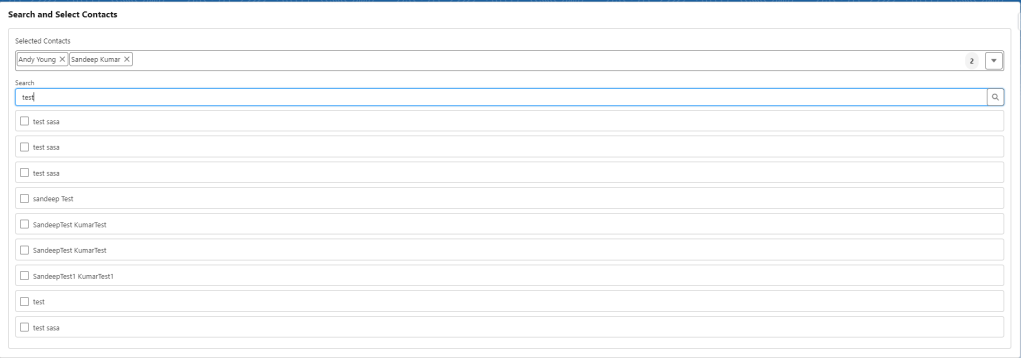
Create a search component in lwc

HTML Template

1. searchComponent.html

<template>
    <lightning-card title="Search and Select Contacts">
        <div class="slds-m-around_medium">
            <div class="slds-box slds-box_small slds-theme_default">
                <div class="slds-grid slds-grid_align-spread">
                    <div>
                        <h2>Selected Contacts</h2>
                    </div>
                </div>
                <div class="slds-pill_container slds-m-around_x-small slds-grid slds-grid_align-spread">
                    <div>
                        <template if:true={selectedContacts.length}>
                            <template for:each={selectedContacts} for:item="contact" for:index="index">
                                <span key={contact.Id} class="slds-pill">
                                    <span class="slds-pill__label">{contact.Name}</span>
                                    <button class="slds-button slds-button_icon slds-pill__remove" title="Remove" onclick={handleRemove} data-id={contact.Id}>
                                        <lightning-icon icon-name="utility:close" alternative-text="Remove"></lightning-icon>
                                    </button>
                                </span>
                            </template>
                        </template>
                    </div>
                    <div class="slds-grid slds-grid_align-end slds-m-left_auto">
                        <span class="slds-badge slds-m-right_small">{selectedContacts.length}</span>
                        <lightning-button-icon icon-name="utility:down" onclick={toggleDropdown} alternative-text="Show/Hide List"></lightning-button-icon>
                    </div>
                </div>
                <template if:true={showDropdown}>
                    <div class="slds-m-around_x-small slds-grid slds-grid_align-spread slds-m-bottom_small">
                        <lightning-input 
                            class="slds-col slds-grow full-width" 
                            label="Search" 
                            value={searchTerm} 
                            onchange={handleSearchChange}>
                        </lightning-input>
                        <lightning-button-icon icon-name="utility:search" alternative-text="Search" class="lookup-icon"></lightning-button-icon>
                    </div>
                    <div class="slds-m-around_x-small">
                        <template if:true={filteredContacts.length}>
                            <template for:each={filteredContacts} for:item="contact" for:index="index">
                                <div key={contact.Id} class="slds-box slds-box_x-small slds-m-around_x-small">
                                    <lightning-input type="checkbox" label={contact.Name} checked={contact.isSelected} data-id={contact.Id} onchange={handleCheckboxChange}></lightning-input>
                                </div>
                            </template>
                        </template>
                        <template if:false={filteredContacts.length}>
                            <p>No contacts found</p>
                        </template>
                    </div>
                </template>
            </div>
        </div>
    </lightning-card>
</template>

Custom CSS

Create or update the CSS file for the component to ensure the search input takes the full width and the overall layout is clean.

2. searchComponent.css

.full-width {
    width: 100%;
}

.lookup-icon {
    position: relative;
    top: 1.5rem;
    margin-left: -2.5rem;
}

.slds-m-around_x-small {
    margin: 0.5rem 0;
}

Final JavaScript Controller

3. searchComponent.js

Ensure the JavaScript controller correctly manages the state of selected contacts and filtered contacts.

import { LightningElement, track } from 'lwc';
import searchContacts from '@salesforce/apex/ContactController.searchContacts';
import getSelectedContacts from '@salesforce/apex/ContactController.getSelectedContacts';

export default class SearchComponent extends LightningElement {
    @track searchTerm = '';
    @track selectedContactIds = ['003xxxxxxxxxxxx', '003xxxxxxxxxxxx']; // Add default selected contact IDs here
    @track selectedContacts = [];
    @track filteredContacts = [];
    @track showDropdown = false;

    connectedCallback() {
        this.loadSelectedContacts();
    }

    loadSelectedContacts() {
        getSelectedContacts({ contactIds: this.selectedContactIds })
            .then(result => {
                this.selectedContacts = result;
                this.updateFilteredContactsSelection();
            })
            .catch(error => {
                console.error('Error fetching selected contacts:', error);
            });
    }

    handleSearchChange(event) {
        this.searchTerm = event.target.value;
        if (this.searchTerm.length > 2) {
            this.searchContacts();
        } else {
            this.filteredContacts = [];
        }
    }

    searchContacts() {
        searchContacts({ searchTerm: this.searchTerm })
            .then(result => {
                this.filteredContacts = result.map(contact => ({
                    ...contact,
                    isSelected: this.selectedContactIds.includes(contact.Id)
                }));
            })
            .catch(error => {
                console.error('Error fetching contacts:', error);
            });
    }

    toggleDropdown() {
        this.showDropdown = !this.showDropdown;
    }

    handleCheckboxChange(event) {
        const contactId = event.target.dataset.id;
        const isChecked = event.target.checked;

        if (isChecked) {
            const selectedContact = this.filteredContacts.find(contact => contact.Id === contactId);
            if (!this.selectedContacts.some(contact => contact.Id === contactId)) {
                this.selectedContacts = [...this.selectedContacts, selectedContact];
                this.selectedContactIds = [...this.selectedContactIds, contactId];
            }
        } else {
            this.selectedContacts = this.selectedContacts.filter(contact => contact.Id !== contactId);
            this.selectedContactIds = this.selectedContactIds.filter(id => id !== contactId);
        }

        this.updateFilteredContactsSelection();
    }

    handleRemove(event) {
        const contactId = event.target.dataset.id;
        this.selectedContacts = this.selectedContacts.filter(contact => contact.Id !== contactId);
        this.selectedContactIds = this.selectedContactIds.filter(id => id !== contactId);
        this.updateFilteredContactsSelection();
    }

    updateFilteredContactsSelection() {
        this.filteredContacts = this.filteredContacts.map(contact => ({
            ...contact,
            isSelected: this.selectedContactIds.includes(contact.Id)
        }));
    }
}

Step 3: Deploy the Component and Apex Controller

Deploy your component and Apex controller to your Salesforce org.

sfdx force:source:push

Step 4: Add the Component to a Lightning Page

  1. Navigate to the App Builder in Salesforce.
  2. Add the searchComponent to your desired page.
  3. Save and activate the page.

This final design ensures that the search input, selected contacts, and dropdown are well-organized, providing a clean and user-friendly interface.

File upload in public library through lwc and generate public link

To allow file upload to a public library through Lightning Web Component (LWC) and generate a public link, you need to:

  1. Create an LWC to handle file upload.
  2. Implement Apex methods to upload the file to Salesforce and generate a public link.

fileUploader.html

<template>
    <lightning-card title="File Uploader" icon-name="custom:custom63">
        <lightning-input type="file" label="Select File" onchange={handleFileChange}></lightning-input>
        <lightning-button label="Upload File" onclick={handleFileUpload} class="slds-m-top_medium"></lightning-button>
        <template if:true={publicLink}>
            <lightning-input label="Public Link" value={publicLink} readonly></lightning-input>
        </template>
    </lightning-card>
</template>

fileUploader.js

import { LightningElement, track } from 'lwc';
import uploadFileAndGenerateLink from '@salesforce/apex/FileUploaderWithPublicLink.uploadFileAndGenerateLink';

export default class FileUploader extends LightningElement {
    @track publicLink;
    fileData;

    handleFileChange(event) {
        const file = event.target.files[0];
        if (file) {
            this.fileData = {
                fileName: file.name,
                fileContent: ''
            };
            const reader = new FileReader();
            reader.onload = () => {
                const base64 = reader.result.split(',')[1];
                this.fileData.fileContent = base64;
            };
            reader.readAsDataURL(file);
        }
    }

    handleFileUpload() {
        if (this.fileData) {
            uploadFileAndGenerateLink({ fileName: this.fileData.fileName, fileContent: this.fileData.fileContent })
                .then(result => {
                    this.publicLink = result;
                })
                .catch(error => {
                    console.error('Error uploading file: ', error);
                });
        }
    }
}

FileUploaderWithPublicLink class

public class FileUploaderWithPublicLink {
    
    @AuraEnabled
    public static String uploadFileAndGenerateLink(String fileName, String fileContent) {
        String libraryName = 'Asset Library'; //you can change library name 
        // Fetch the public library Id dynamically
        Id libraryId = getLibraryIdByName(libraryName);
        if (libraryId == null) {
            throw new AuraHandledException('Library not found: ' + libraryName);
        }

        // Step 1: Upload the file
        ContentVersion contentVersion = new ContentVersion();
        contentVersion.Title = fileName;
        contentVersion.PathOnClient = fileName;
        contentVersion.VersionData = EncodingUtil.base64Decode(fileContent);
        contentVersion.FirstPublishLocationId = libraryId; // Id of the public library
        insert contentVersion;

        // Query the ContentVersionId
        //ContentVersion uploadedContentVersion = [SELECT Id, ContentDocumentId FROM ContentVersion WHERE Id = :contentVersion.Id LIMIT 1];

        // Step 2: Create ContentDistribution record to generate a public link
        ContentDistribution contentDistribution = new ContentDistribution();
        contentDistribution.Name = fileName;
        contentDistribution.ContentVersionId = contentVersion.Id;
        contentDistribution.PreferencesAllowOriginalDownload = true; // Set to false if you do not want to allow original download
        contentDistribution.PreferencesAllowPDFDownload = true; // Set to false if you do not want to allow PDF download
        contentDistribution.PreferencesAllowViewInBrowser = true; // Set to false if you do not want to allow view in browser
        contentDistribution.PreferencesExpires = false; // Set to true if you want the link to expire
        contentDistribution.PreferencesPasswordRequired = false; // Set to true if you want to require a password
        insert contentDistribution;

        // Query the secure URL
        ContentDistribution createdContentDistribution = [SELECT Id, DistributionPublicUrl, ContentDownloadUrl FROM ContentDistribution WHERE Id = :contentDistribution.Id LIMIT 1];

        // Return the public link URL
        return createdContentDistribution.ContentDownloadUrl;
    }

    private static Id getLibraryIdByName(String libraryName) {
        List<ContentWorkspace> libraries = [SELECT Id FROM ContentWorkspace WHERE Name = :libraryName LIMIT 1];
        if (!libraries.isEmpty()) {
            return libraries[0].Id;
        }
        return null;
    }
}

Demo

Once you select the file and click on upload, file will be uploaded in ‘Asset Library’ library, public link will be generated which you will see at lwc UI as well at the bottom as well-

Now you can modify this component according to your need.

Important Financial Ratios and Interpretations for Stock Valuation

Here is a table summarizing important financial ratios, their formulas, and interpretations:

RatioFormulaInterpretation
Price-to-Earnings (P/E)[ \frac{\text{Market Price per Share}}{\text{Earnings per Share (EPS)}} ]​A low P/E ratio compared to industry average may indicate undervaluation; suggests how much investors are willing to pay per dollar of earnings.
Price-to-Book (P/B)[\frac{\text{Market Price per Share}}{\text{Book Value per Share}}]A P/B ratio less than 1 suggests the stock is trading below its book value, potentially indicating undervaluation.
Price-to-Sales (P/S)[\frac{\text{Market Price per Share}}{\text{Revenue per Share}}]       ​A lower P/S ratio can indicate that the stock is undervalued relative to its sales.
Price/Earnings to Growth (PEG)[\frac{\text{P/E Ratio}}{\text{Earnings Growth Rate}}]                 ​A PEG ratio less than 1 suggests the stock may be undervalued considering its earnings growth potential.
Dividend Yield[\frac{\text{Annual Dividends per Share}}{\text{Market Price per Share}}]A higher dividend yield compared to the industry average can indicate that the stock is undervalued, especially if the company has a stable or growing dividend history.
Free Cash Flow (FCF) Yield[\frac{\text{Free Cash Flow}}{\text{Market Capitalization}}] A high FCF yield indicates that the company generates substantial free cash flow relative to its market value, which can be a sign of undervaluation.
Debt-to-Equity (D/E)[\frac{\text{Total Liabilities}}{\text{Shareholders’ Equity}}]          A lower D/E ratio suggests the company has less leverage, indicating lower financial risk.
Current Ratio[\frac{\text{Current Assets}}{\text{Current Liabilities}}]                A current ratio above 1 indicates the company has enough short-term assets to cover its short-term liabilities, suggesting good liquidity.
Return on Assets (ROA)[\frac{\text{Net Income}}{\text{Total Assets}}]A higher ROA indicates efficient use of the company’s assets to generate profits.
Return on Equity (ROE)[\frac{\text{Net Income}}{\text{Shareholders’ Equity}}]A higher ROE suggests efficient use of shareholders’ equity to generate profits.
Enterprise Value-to-EBITDA (EV/EBITDA)[\frac{\text{Enterprise Value (EV)}}{\text{EBITDA}}]A lower EV/EBITDA ratio compared to industry peers can indicate that the stock is undervalued relative to its earnings before interest, taxes, depreciation, and amortization.
Enterprise Value-to-Sales (EV/Sales)[\frac{\text{Enterprise Value (EV)}}{\text{Sales}}]A lower EV/Sales ratio suggests that the stock is undervalued relative to its sales.

Here are additional important financial ratios, along with their formulas and interpretations:

RatioFormulaInterpretation
Interest Coverage Ratio[\frac{\text{EBIT}}{\text{Interest Expense}}]Measures a company’s ability to meet its interest payments. Higher values indicate better coverage.
Operating Margin[\frac{\text{Operating Income}}{\text{Revenue}}]Indicates the proportion of revenue that remains after covering operating expenses. Higher margins indicate more efficient operations.
Net Profit Margin[\frac{\text{Net Income}}{\text{Revenue}}]​Shows the percentage of revenue that translates into net income. Higher margins indicate greater profitability.
Quick Ratio (Acid-Test Ratio)[\frac{\text{Current Assets} – \text{Inventory}}{\text{Current Liabilities}}]Measures a company’s ability to meet short-term obligations without selling inventory. Higher ratios indicate better liquidity.
Gross Profit Margin[\frac{\text{Gross Profit}}{\text{Revenue}}]Indicates the proportion of revenue that exceeds the cost of goods sold (COGS). Higher margins suggest better control over production costs.
Return on Invested Capital (ROIC)[\frac{\text{NOPAT}}{\text{Invested Capital}}]Measures the return generated on all capital invested in the company. Higher ROIC indicates more efficient use of capital.
Asset Turnover Ratio[\frac{\text{Revenue}}{\text{Total Assets}}]Measures how efficiently a company uses its assets to generate revenue. Higher ratios indicate better efficiency.
Inventory Turnover Ratio[\frac{\text{Cost of Goods Sold (COGS)}}{\text{Average Inventory}}]Indicates how often a company’s inventory is sold and replaced over a period. Higher ratios suggest efficient inventory management.
Accounts Receivable Turnover Ratio[\frac{\text{Net Credit Sales}}{\text{Average Accounts Receivable}}]Measures how efficiently a company collects receivables. Higher ratios indicate quicker collection.
Debt Ratio[\frac{\text{Total Liabilities}}{\text{Total Assets}}]Indicates the proportion of a company’s assets that are financed by debt. Lower ratios suggest less financial risk.
Dividend Payout Ratio[\frac{\text{Dividends per Share}}{\text{Earnings per Share (EPS)}}]Shows the percentage of earnings paid out as dividends. Higher ratios indicate more earnings distributed as dividends.
Cash Ratio[\frac{\text{Cash and Cash Equivalents}}{\text{Current Liabilities}}]Measures a company’s ability to pay off short-term liabilities with cash and cash equivalents. Higher ratios indicate better liquidity.
Price-to-Cash Flow (P/CF) Ratio[\frac{\text{Market Price per Share}}{\text{Cash Flow per Share}}]Compares a company’s market price to its cash flow. Lower ratios may indicate undervaluation.
Price-to-Earnings to Growth (PEG) Ratio[\frac{\text{P/E Ratio}}{\text{Earnings Growth Rate}}]A PEG ratio less than 1 suggests the stock may be undervalued considering its earnings growth potential.
Earnings Yield[\frac{\text{Earnings per Share}}{\text{Market Price per Share}}]​Inverse of the P/E ratio. Higher earnings yield indicates that the stock may be undervalued.

Detailed Interpretation:

  • P/E Ratio:
    • Low P/E: May indicate undervaluation if the company has strong future growth prospects.
    • High P/E: May indicate overvaluation or that investors expect high future growth.
  • P/B Ratio:
    • Low P/B: May indicate the stock is undervalued, especially if the company’s assets are properly valued and can generate returns.
    • High P/B: Could indicate overvaluation or that investors expect high future growth.
  • P/S Ratio:
    • Low P/S: May indicate undervaluation relative to the company’s sales.
    • High P/S: Could indicate overvaluation or that the company has high profit margins and growth potential.
  • PEG Ratio:
    • PEG < 1: Generally considered good, indicating the stock might be undervalued considering its earnings growth.
    • PEG > 1: Might indicate overvaluation or slower expected growth.
  • Dividend Yield:
    • High Yield: Can indicate undervaluation or a strong, stable company if dividends are sustainable.
    • Low Yield: Might indicate overvaluation or that the company is reinvesting earnings into growth.
  • FCF Yield:
    • High FCF Yield: Suggests the company generates substantial cash flow relative to its market value, indicating potential undervaluation.
    • Low FCF Yield: May indicate overvaluation or that the company is not generating enough free cash flow.
  • D/E Ratio:
    • Low D/E: Indicates lower financial risk and potentially strong financial health.
    • High D/E: Suggests higher financial leverage and risk.
  • Current Ratio:
    • Current Ratio > 1: Indicates good short-term financial health.
    • Current Ratio < 1: May indicate potential liquidity issues.
  • ROA:
    • High ROA: Indicates efficient use of assets to generate profits.
    • Low ROA: Suggests less efficient use of assets.
  • ROE:
    • High ROE: Indicates efficient use of equity to generate profits.
    • Low ROE: Suggests inefficient use of equity.
  • EV/EBITDA:
    • Low EV/EBITDA: Suggests undervaluation relative to earnings before interest, taxes, depreciation, and amortization.
    • High EV/EBITDA: May indicate overvaluation.
  • EV/Sales:
    • Low EV/Sales: Suggests undervaluation relative to sales.
    • High EV/Sales: May indicate overvaluation or high profit margins and growth potential.
  • Interest Coverage Ratio:
    • High Ratio: Indicates strong ability to meet interest obligations, suggesting lower financial risk.
    • Low Ratio: Indicates potential difficulty in meeting interest payments, suggesting higher financial risk.
  • Operating Margin:
    • High Margin: Indicates efficient control of operating costs and higher profitability.
    • Low Margin: Suggests higher operating costs relative to revenue, indicating lower profitability.
  • Net Profit Margin:
    • High Margin: Indicates more effective cost control and higher profitability.
    • Low Margin: Suggests lower profitability, possibly due to high expenses or low revenue.
  • Quick Ratio (Acid-Test Ratio):
    • High Ratio: Indicates good short-term liquidity without relying on inventory.
    • Low Ratio: Suggests potential liquidity issues, indicating reliance on inventory sales to meet short-term obligations.
  • Gross Profit Margin:
    • High Margin: Suggests strong pricing power and effective cost control over COGS.
    • Low Margin: Indicates higher COGS relative to revenue, suggesting less control over production costs.
  • Return on Invested Capital (ROIC):
    • High ROIC: Indicates efficient use of capital to generate returns, suggesting strong management performance.
    • Low ROIC: Suggests inefficient use of capital, indicating potential issues in operational efficiency or capital allocation.
  • Asset Turnover Ratio:
    • High Ratio: Indicates efficient use of assets to generate revenue.
    • Low Ratio: Suggests underutilization of assets, indicating potential inefficiencies in operations.
  • Inventory Turnover Ratio:
    • High Ratio: Indicates efficient inventory management and strong sales.
    • Low Ratio: Suggests slow-moving inventory, indicating potential issues in sales or inventory management.
  • Accounts Receivable Turnover Ratio:
    • High Ratio: Indicates efficient collection of receivables.
    • Low Ratio: Suggests potential issues in collecting receivables, indicating higher credit risk.
  • Debt Ratio:
    • Low Ratio: Indicates lower financial risk with less reliance on debt.
    • High Ratio: Suggests higher financial risk with greater reliance on debt to finance assets.
  • Dividend Payout Ratio:
    • High Ratio: Indicates more earnings are being paid out as dividends, which can be attractive to income-focused investors.
    • Low Ratio: Suggests more earnings are being retained for growth or other purposes.
  • Cash Ratio:
    • High Ratio: Indicates strong liquidity, with sufficient cash to cover short-term liabilities.
    • Low Ratio: Suggests potential liquidity issues, indicating less cash available to cover short-term obligations.
  • Price-to-Cash Flow (P/CF) Ratio:
    • Low Ratio: May indicate undervaluation, suggesting the stock is cheap relative to its cash flow.
    • High Ratio: Could indicate overvaluation, suggesting the stock is expensive relative to its cash flow.
  • Earnings Yield:
    • High Yield: Indicates the stock may be undervalued, offering a higher return on investment relative to its market price.
    • Low Yield: Suggests the stock may be overvalued, offering a lower return on investment relative to its market price.

Salesforce Admin Certification Preparation Guide

The Salesforce Admin Certification is designed for individuals who have experience as a Salesforce Administrator. This certification validates the candidate’s ability to manage and maintain a Salesforce implementation, including user setup, security, data management, and customization.

2. Core Exam Topics

The Salesforce Admin Certification exam covers the following core topics:

  1. Organization Setup
  2. User Setup
  3. Security and Access
  4. Standard and Custom Objects
  5. Sales and Marketing Applications
  6. Service and Support Applications
  7. Activity Management and Collaboration
  8. Data Management
  9. Analytics—Reports and Dashboards
  10. Workflow/Process Automation
  11. Desktop and Mobile Administration
  12. AppExchange

3. Detailed Preparation Guide

A. Organization Setup

Problem Statement: Configure your Salesforce organization to align with company requirements.

Configuration and Implementation Steps:

  1. Company Information:
    • Setup → Company Information
    • Update information like the fiscal year, business hours, and currency settings.
  2. Locale Settings:
    • Setup → Company Settings → Locale Settings
    • Configure default language, locale, and time zone.
  3. Manage Currencies:
    • Setup → Manage Currencies
    • Enable multiple currencies if required.

Examples & Best Practices:

  • Ensure fiscal year settings align with company’s financial calendar.
  • Verify default settings match the primary user base location.

B. User Setup

Problem Statement: Add and manage users within Salesforce.

Configuration and Implementation Steps:

  1. Create Users:
    • Setup → Users → Users
    • Add new users and configure profiles and roles.
  2. Login Access Policies:
    • Setup → Security → Login Access Policies
    • Configure login hours and IP restrictions.
  3. Manage Password Policies:
    • Setup → Security → Password Policies
    • Set password expiration and complexity requirements.

Examples & Best Practices:

  • Assign users the least privilege necessary to perform their job.
  • Regularly audit user access and login history.

C. Security and Access

Problem Statement: Implement security controls to protect data and manage user access.

Configuration and Implementation Steps:

  1. Profiles and Permission Sets:
    • Setup → Users → Profiles
    • Setup → Users → Permission Sets
    • Define and assign profiles and permission sets to control access.
  2. Roles and Role Hierarchies:
    • Setup → Users → Roles
    • Create and configure roles and role hierarchy for data access.
  3. Sharing Rules:
    • Setup → Security → Sharing Settings
    • Define sharing rules to extend access to records.
  4. Field-Level Security:
    • Setup → Security → Field Accessibility
    • Control access to specific fields.

Examples & Best Practices:

  • Use profiles to control access to objects and permission sets for more granular permissions.
  • Regularly review sharing rules and role hierarchies.

D. Standard and Custom Objects

Problem Statement: Customize Salesforce to capture and manage data specific to business needs.

Configuration and Implementation Steps:

  1. Custom Objects and Fields:
    • Setup → Objects and Fields → Object Manager
    • Create custom objects and fields as needed.
  2. Page Layouts:
    • Setup → Objects and Fields → Object Manager → Page Layouts
    • Customize page layouts for different profiles.
  3. Record Types:
    • Setup → Objects and Fields → Object Manager → Record Types
    • Create record types to support different business processes.

Examples & Best Practices:

  • Use custom fields to capture additional information required by the business.
  • Optimize page layouts for user efficiency.

E. Sales and Marketing Applications

Problem Statement: Configure Salesforce to support sales and marketing processes.

Configuration and Implementation Steps:

  1. Sales Process and Opportunity Stages:
    • Setup → Objects and Fields → Object Manager → Opportunity
    • Define sales processes and opportunity stages.
  2. Lead Management:
    • Setup → Objects and Fields → Object Manager → Lead
    • Customize lead conversion settings and lead assignment rules.
  3. Campaign Management:
    • Setup → Marketing → Campaigns
    • Configure campaign member statuses and ROI tracking.

Examples & Best Practices:

  • Align opportunity stages with the sales process.
  • Automate lead assignment based on criteria like geography or product interest.

F. Service and Support Applications

Problem Statement: Configure Salesforce to support customer service processes.

Configuration and Implementation Steps:

  1. Case Management:
    • Setup → Objects and Fields → Object Manager → Case
    • Configure case assignment rules, queues, and escalation rules.
  2. Service Console:
    • Setup → Service Console
    • Set up the Service Console app for support agents.
  3. Knowledge Management:
    • Setup → Knowledge
    • Enable and configure Salesforce Knowledge.

Examples & Best Practices:

  • Use case assignment rules to route cases to the appropriate support team.
  • Implement knowledge articles to help agents resolve cases faster.

G. Activity Management and Collaboration

Problem Statement: Enable effective collaboration and activity tracking within Salesforce.

Configuration and Implementation Steps:

  1. Activities:
    • Setup → Activities
    • Configure task and event settings.
  2. Chatter:
    • Setup → Chatter
    • Enable and configure Chatter settings for collaboration.
  3. Calendars:
    • Setup → Calendar
    • Customize calendars and sharing settings.

Examples & Best Practices:

  • Use Chatter groups for team collaboration.
  • Configure task and event reminders to improve user productivity.

H. Data Management

Problem Statement: Maintain data quality and integrity within Salesforce.

Configuration and Implementation Steps:

  1. Data Import:
    • Setup → Data → Data Import Wizard
    • Import data using Data Import Wizard or Data Loader.
  2. Data Export:
    • Setup → Data → Data Export
    • Schedule regular data exports for backup.
  3. Data Cleansing:
    • Setup → Data → Duplicate Management
    • Implement duplicate rules and matching rules.

Examples & Best Practices:

  • Regularly clean and de-duplicate data.
  • Implement validation rules to ensure data integrity.

I. Analytics—Reports and Dashboards

Problem Statement: Create and manage reports and dashboards to support decision-making.

Configuration and Implementation Steps:

  1. Reports:
    • Setup → Analytics → Reports & Dashboards
    • Create custom reports using Report Builder.
  2. Dashboards:
    • Setup → Analytics → Reports & Dashboards
    • Design dashboards to display key metrics.
  3. Report Types:
    • Setup → Objects and Fields → Report Types
    • Create custom report types for specific reporting needs.

Examples & Best Practices:

  • Use summary and matrix reports for detailed data analysis.
  • Design dashboards that provide actionable insights.

J. Workflow/Process Automation

Problem Statement: Automate business processes to improve efficiency.

Configuration and Implementation Steps:

  1. Workflow Rules:
    • Setup → Process Automation → Workflow Rules
    • Create workflow rules to automate tasks and field updates.
  2. Process Builder:
    • Setup → Process Automation → Process Builder
    • Design complex business processes using Process Builder.
  3. Flow:
    • Setup → Process Automation → Flows
    • Build flows to automate complex processes.

Examples & Best Practices:

  • Use workflow rules for simple automations.
  • Implement Process Builder and Flow for more complex scenarios.

K. Desktop and Mobile Administration

Problem Statement: Enable Salesforce access on mobile devices and manage desktop settings.

Configuration and Implementation Steps:

  1. Salesforce Mobile App:
    • Setup → Apps → Mobile Apps
    • Configure settings for the Salesforce mobile app.
  2. Lightning Experience:
    • Setup → User Interface → Lightning Experience
    • Customize Lightning Experience settings.
  3. Desktop Integration:
    • Setup → Desktop Integration
    • Configure integrations with Outlook and other desktop applications.

Examples & Best Practices:

  • Ensure mobile users have access to key features.
  • Optimize Lightning Experience for desktop users.

L. AppExchange

Problem Statement: Extend Salesforce functionality using AppExchange apps.

Configuration and Implementation Steps:

  1. AppExchange:
    • Visit AppExchange and search for apps.
    • Install apps to extend Salesforce functionality.
  2. App Management:
    • Setup → Apps → Installed Packages
    • Manage installed packages and configure settings.

Examples & Best Practices:

  • Select apps that address specific business needs.
  • Regularly review and update installed packages.

4. Best Practices and Considerations

  • Security: Implement strong security controls, including field-level security, sharing settings, and role hierarchies.
  • Data Quality: Maintain high data quality through validation rules, duplicate management, and regular data cleansing.
  • User Training: Ensure users are well-trained on Salesforce features and best practices.
  • Documentation: Document customizations, processes, and configurations thoroughly.
  • Regular Audits: Perform regular audits of user access, data quality, and system performance.
  • Stay Updated: Keep up with Salesforce releases and new features.

This guide provides a detailed roadmap for preparing for the Salesforce Admin Certification, covering essential topics, implementation steps, examples, and best practices. Following this guide will help you build a solid foundation in Salesforce administration and enhance your chances of passing the certification exam.

Salesforce Service Cloud Consultant Certification Preparation Guide

The Salesforce Service Cloud Consultant certification is designed for professionals who have experience implementing Service Cloud solutions in a customer-facing role. This certification validates a candidate’s ability to design and implement Service Cloud solutions that support customer business processes and requirements using Salesforce applications. The following notes provide a comprehensive overview of the key topics, detailed examples, configuration steps, implementation approaches, and problem statements to help you prepare effectively for the certification exam.

Salesforce Service Cloud Overview

1. Service Cloud Basics:

  • Features and Functionalities:
    • Case Management: Tracking and resolving customer issues.
    • Service Console: Unified interface for support agents.
    • Knowledge Base: Centralized repository of information.
    • Omni-Channel: Routing and assigning work across channels.
    • Entitlements: Managing customer entitlements and SLAs.

2. Service Cloud Implementation:

  • Best Practices:
    • Understand business requirements and map them to Service Cloud features.
    • Plan for data migration, integration, and customization.
    • Ensure scalability and user adoption.
  • Configuration:
    • Customize case page layouts, fields, and record types.
    • Set up email-to-case and web-to-case.

Case Management

1. Case Creation and Management:

  • Problem Statement: The support team is overwhelmed with manually creating cases from customer emails and website inquiries, leading to delays in case resolution.
  • Automated Case Creation:
    • Email-to-Case:
      • Example: Automatically create cases from customer emails.
      • Configuration Steps:
        1. Navigate to Setup.
        2. Search for Email-to-Case and select it.
        3. Enable Email-to-Case and configure routing addresses.
        4. Create Case Assignment Rules to assign cases based on criteria.
    • Implementation Approach:
      1. Identify Email Sources: Determine which email addresses will be used for customer support.
      2. Set Up Routing Addresses: Configure Salesforce to process incoming emails to these addresses.
      3. Define Case Assignment Rules: Ensure that incoming cases are assigned to the appropriate support teams or queues.
      4. Test the Configuration: Send test emails to verify that cases are being created and routed correctly.
    • Web-to-Case:
      • Example: Generate cases from web forms.
      • Configuration Steps:
        1. Navigate to Setup.
        2. Search for Web-to-Case and select it.
        3. Enable Web-to-Case and generate the HTML code for the form.
        4. Place the HTML code on your website.
    • Implementation Approach:
      1. Design Web Form: Determine the fields that need to be included on the web form.
      2. Generate HTML Code: Use Salesforce to generate the code and embed it on your website.
      3. Map Form Fields: Ensure that the form fields map correctly to Salesforce case fields.
      4. Test Submission: Verify that cases are created in Salesforce when the form is submitted.

2. Case Assignment and Escalation:

  • Problem Statement: Cases are not being assigned to the appropriate support agents, causing delays and customer dissatisfaction.
  • Assignment Rules:
    • Example: Define criteria to assign cases to queues or users.
    • Configuration Steps:
      1. Navigate to Setup.
      2. Search for Case Assignment Rules.
      3. Create a new rule and define criteria.
      4. Specify the assignment rule entries for routing cases.
    • Implementation Approach:
      1. Identify Assignment Criteria: Determine the criteria for assigning cases (e.g., based on case type or priority).
      2. Configure Assignment Rules: Set up the rules in Salesforce to route cases based on the identified criteria.
      3. Assign to Queues/Users: Define the target queues or users for each rule entry.
      4. Test Assignment: Create test cases to ensure they are being assigned correctly.

3. Case Resolution:

  • Problem Statement: Support agents lack a structured process for resolving cases, leading to inconsistent service and longer resolution times.
  • Case Resolution Paths:
    • Example: Define processes and stages for resolving cases.
    • Configuration Steps:
      1. Navigate to Setup.
      2. Search for Path Settings.
      3. Create a new path for the Case object.
      4. Define key fields and guidance for each stage.
    • Implementation Approach:
      1. Define Resolution Process: Outline the stages that a case goes through from creation to resolution.
      2. Configure Path Settings: Use the Path feature to create a visual representation of the resolution process.
      3. Specify Key Fields: Identify key fields that should be updated at each stage.
      4. Provide Guidance: Add stage-specific guidance for agents to follow.

Service Console

1. Service Console Configuration:

  • Problem Statement: Support agents are using multiple tools and interfaces, leading to inefficiencies and decreased productivity.
  • Console App Settings:
    • Example: Customize the console layout and components.
    • Configuration Steps:
      1. Navigate to Setup.
      2. Search for App Manager and select the Service Console app.
      3. Customize the app settings, including utility bar and navigation items.
    • Implementation Approach:
      1. Define Agent Requirements: Understand the needs of support agents in terms of tools and information.
      2. Configure the Console: Customize the console layout to include necessary components like case details, knowledge articles, and macros.
      3. Set Up Utility Bar: Add utilities that agents use frequently (e.g., Omni-Channel, History).
      4. Test User Experience: Ensure that the console configuration enhances agent productivity.

Knowledge Management

1. Knowledge Base:

  • Problem Statement: Support agents are unable to quickly find and share information, leading to longer case resolution times.
  • Setting Up and Managing Knowledge:
    • Example: Create article types and define data categories.
    • Configuration Steps:
      1. Navigate to Setup.
      2. Search for Knowledge Settings and enable Knowledge.
      3. Create article types and define data categories.
      4. Configure knowledge settings, such as permissions and visibility.
    • Implementation Approach:
      1. Identify Knowledge Needs: Determine the types of information that will be included in the knowledge base.
      2. Set Up Article Types: Create article types for different content categories (e.g., FAQs, How-Tos).
      3. Organize with Data Categories: Use data categories to structure and classify articles.
      4. Publish and Manage Articles: Develop a process for creating, reviewing, and publishing articles.

Omni-Channel

1. Omni-Channel Setup:

  • Problem Statement: Workload distribution among support agents is uneven, leading to inefficiencies and agent burnout.
  • Routing Configurations:
    • Example: Set up routing rules to assign work items.
    • Configuration Steps:
      1. Navigate to Setup.
      2. Search for Omni-Channel Settings and enable Omni-Channel.
      3. Create routing configurations for cases, chats, and other work items.
    • Implementation Approach:
      1. Define Workload Distribution: Understand how work items should be distributed among agents.
      2. Set Up Omni-Channel Settings: Enable and configure Omni-Channel in Salesforce.
      3. Create Routing Rules: Define rules for routing different types of work items to the appropriate agents or queues.
      4. Monitor and Adjust: Continuously monitor Omni-Channel performance and adjust settings as needed.

Entitlement Management

1. Entitlement Processes:

  • Problem Statement: The support team struggles to track and adhere to service level agreements (SLAs), leading to missed deadlines and customer dissatisfaction.
  • Setting Up Entitlements:
    • Example: Define entitlements and associate them with accounts.
    • Configuration Steps:
      1. Navigate to Setup.
      2. Search for Entitlement Settings and enable entitlements.
      3. Create entitlement records and associate them with accounts.
    • Implementation Approach:
      1. Identify Entitlement Policies: Determine the entitlements offered to customers (e.g., support tiers).
      2. Configure Entitlements in Salesforce: Set up entitlement records and associate them with accounts and cases.
      3. Define Milestones: Create milestones to track important events in the support process.
      4. Monitor Compliance: Ensure that support cases adhere to the defined entitlements and milestones.

Reporting and Analytics

1. Service Cloud Reports and Dashboards:

  • Problem Statement: The support team lacks visibility into key performance metrics, making it difficult to track performance and identify areas for improvement.
  • Standard and Custom Reports:
    • Example: Use standard reports or create custom reports for specific needs.
    • Configuration Steps:
      1. Navigate to the Reports tab.
      2. Create new reports and customize them with filters and fields.
    • Implementation Approach:
      1. Identify Key Metrics: Determine the metrics that need to be tracked (e.g., case resolution time, customer satisfaction).
      2. Create Custom Reports: Use Salesforce reporting tools to create custom reports that highlight these metrics.
      3. Design Dashboards: Build dashboards to provide visual representations of key performance indicators.
      4. Share Insights: Share reports and dashboards with stakeholders to keep them informed about performance.

Integration and Data Management

1. Integrations:

  • Problem Statement: The support team needs to integrate Salesforce with other systems to streamline workflows and improve efficiency.
  • Integrating with External Systems:
    • Example: Connect with CTI systems, social media platforms, and other tools.
    • Configuration Steps:
      1. Set up integration tools like Salesforce Connect, CTI adapters, etc.
      2. Configure integration settings for external systems.
    • Implementation Approach:
      1. Identify Integration Requirements: Determine the external systems that need to be integrated with Salesforce.
      2. Select Integration Tools: Choose appropriate tools and connectors for the integration.
      3. Configure Integration Settings: Set up and configure the integration within Salesforce.
      4. Test and Validate: Ensure that data is flowing correctly between systems.

Additional Topics

1. Service Cloud for Industries:

  • Problem Statement: The organization requires industry-specific customizations to meet regulatory and operational needs.
  • Industry-Specific Implementations:
    • Example: Customize Service Cloud for specific industries like financial services, healthcare, etc.
    • Configuration Steps:
      1. Identify industry requirements and regulatory needs.
      2. Customize Service Cloud features to meet industry standards.
      3. Implement industry-specific apps from AppExchange.
    • Implementation Approach:
      1. Conduct Industry Analysis: Understand the specific needs and regulations of the industry.
      2. Customize Features: Tailor Service Cloud features to align with industry requirements.
      3. Leverage AppExchange: Utilize industry-specific apps to extend functionality.
      4. Train Users: Ensure users are trained on industry-specific customizations.

2. Mobile Solutions:

  • Problem Statement: Support agents need to manage cases and customer interactions on the go, requiring mobile access to Service Cloud.
  • Service Cloud Mobile App:
    • Example: Enable support on mobile devices.
    • Configuration Steps:
      1. Download Salesforce Mobile App from app stores.
      2. Configure mobile settings in Salesforce.
      3. Train users on mobile app usage.
    • Implementation Approach:
      1. Evaluate Mobile Needs: Determine the mobile requirements of support agents.
      2. Configure Mobile App: Set up and customize the Salesforce mobile app.
      3. Enable Mobile Features: Activate mobile features such as push notifications and offline access.
      4. Test Mobile Functionality: Ensure that the mobile app meets the needs of support agents.

3. Security and Compliance:

  • Problem Statement: The organization needs to ensure data security and compliance with industry regulations.
  • Data Security and Sharing Settings:
    • Example: Implement appropriate security measures.
    • Configuration Steps:
      1. Set up profiles and roles to control access.
      2. Configure sharing rules and field-level security.
      3. Monitor security settings regularly.
    • Implementation Approach:
      1. Assess Security Needs: Identify the security requirements based on data sensitivity and compliance regulations.
      2. Configure Security Settings: Set up profiles, roles, and sharing rules to control access to data.
      3. Implement Compliance Measures: Ensure that Salesforce settings align with industry regulations (e.g., encryption, audit trails).
      4. Regular Audits: Conduct regular audits to ensure ongoing compliance and data security.

Exam Preparation Tips

  • Study Resources:
    • Salesforce Trailhead modules and projects.
    • Official Salesforce documentation and implementation guides.
    • Service Cloud Consultant Study Guide and Exam Guide.
  • Hands-on Practice:
    • Practice setting up and configuring Service Cloud features in a developer org.
    • Work on real-life scenarios and case studies.
  • Mock Exams:
    • Take practice exams to familiarize yourself with the exam format and question types.
    • Review explanations for correct and incorrect answers.
  • Join Study Groups:
    • Participate in study groups and forums to discuss concepts and share knowledge.
  • Review Release Notes:
    • Keep up-to-date with the latest Salesforce releases and updates that impact Service Cloud functionalities.

This comprehensive guide, with problem statements, examples, configuration steps, and implementation approaches, should help you thoroughly prepare for the Salesforce Service Cloud Consultant certification exam.

Salesforce Sales Cloud Certification Guide: Key Concepts and Best Practices

Welcome to your comprehensive guide for Salesforce Sales Cloud Certification. This set of notes is designed to help you master the key concepts and functionalities required to pass the Salesforce Sales Cloud certification exam. The certification focuses on various aspects of Salesforce Sales Cloud, including industry knowledge, implementation strategies, solution design, marketing and leads management, account and contact management, opportunity management, sales productivity, sales analytics and reporting, as well as integration and data management. Each section provides detailed explanations, examples, and best practices to ensure you have a thorough understanding of how to leverage Salesforce Sales Cloud to meet business requirements and drive sales success.

Contents

  1. Industry Knowledge:
    • Sales Metrics
    • Sales Processes
    • Sales Strategies
  2. Implementation Strategies:
    • Project Management
    • Agile and Waterfall Methodologies
    • Change Management
  3. Sales Cloud Solution Design:
    • Data Model
    • Security Model
    • Sales Processes
  4. Marketing and Leads:
    • Lead Management
    • Campaign Management
    • Marketing Automation
  5. Account and Contact Management:
    • Account Management
    • Contact Management
  6. Opportunity Management:
    • Sales Stages
    • Forecasting
    • Opportunity Teams
  7. Sales Productivity:
    • Collaboration
    • Automation
    • CPQ (Configure, Price, Quote)
  8. Sales Analytics and Reporting:
    • Reports and Dashboards
    • Einstein Analytics
  9. Integration and Data Management:
    • Integration
    • Data Management

Each section of these notes dives into critical areas that you will need to understand and master for the certification exam. From understanding the importance of lead conversion rates and quota attainment to learning how to configure Salesforce features and manage data integrity, these notes provide the knowledge and insights necessary to excel.

Getting Started

Before diving into the specific topics, it’s essential to familiarize yourself with the overall structure and functionality of Salesforce Sales Cloud. Spend time navigating the platform, exploring its various features, and understanding how different components interact. This foundational knowledge will make it easier to grasp the detailed concepts covered in these notes and apply them effectively in real-world scenarios.

Whether you’re a seasoned Salesforce professional or new to the platform, this guide is structured to enhance your learning experience and equip you with the skills needed to achieve Salesforce Sales Cloud certification success. Let’s begin your journey towards becoming a certified Salesforce Sales Cloud expert.

1. Industry Knowledge

Sales Metrics

  1. Lead Conversion Rates:
    • Definition: The percentage of leads that become opportunities or customers.
    • Importance: Indicates the effectiveness of marketing and sales efforts.
    • Calculation:
      • [
        \text{Lead Conversion Rate} = \left(\frac{\text{Number of Leads Converted}}{\text{Total Number of Leads}}\right) \times 100
        ]
    • Example: If a company receives 500 leads and converts 50 into opportunities, the conversion rate is:
      • [
        \left(\frac{50}{500}\right) \times 100 = 10\%
        ]
  2. Sales Pipeline Stages:
    • Definition: Different phases an opportunity goes through from initial contact to closing the deal.
    • Typical Stages: Prospecting, Qualification, Proposal, Negotiation, Closed-Won, Closed-Lost.
    • Importance: Helps track opportunity progress and forecast sales.
  3. Forecast Accuracy:
    • Definition: The degree to which a sales forecast predicts actual sales.
    • Importance: Ensures realistic sales projections for planning and budgeting.
    • Calculation:
      • [
        \text{Forecast Accuracy} = \left(\frac{\text{Actual Sales}}{\text{Forecasted Sales}}\right) \times 100
        ]
    • Example: If forecasted sales are $1,000,000 and actual sales are $900,000, the accuracy is:
      • [
        \left(\frac{900,000}{1,000,000}\right) \times 100 = 90\%
        ]
  4. Quota Attainment:
    • Definition: The percentage of sales targets achieved by a salesperson or team.
    • Importance: Measures performance against sales goals.
    • Calculation:
      • [
        \text{Quota Attainment} = \left(\frac{\text{Actual Sales}}{\text{Sales Quota}}\right) \times 100
        ]
    • Example: If a salesperson has a quota of $200,000 and achieves $250,000, the attainment is:
      • [
        \left(\frac{250,000}{200,000}\right) \times 100 = 125\%
        ]

Sales Processes

  1. Lead Management:
    • Definition: Capturing, tracking, and managing potential customers.
    • Components: Lead generation, lead scoring, lead nurturing, lead conversion.
    • Tools: Web-to-Lead forms, Lead Assignment Rules, Marketing Automation.
    • Example: Leads captured from a marketing campaign are scored, assigned, and nurtured until they are ready for sales follow-up.
  2. Opportunity Management:
    • Definition: Managing sales opportunities from creation to closure.
    • Components: Opportunity creation, sales stages, deal tracking, closing.
    • Tools: Opportunity records, Sales Path, Opportunity Teams.
    • Example: Opportunities are tracked through stages from prospecting to closing, with updates recorded at each stage.
  3. Sales Forecasting:
    • Definition: Predicting future sales based on historical data and pipeline analysis.
    • Methods: Historical forecasting, pipeline forecasting, intuitive forecasting.
    • Tools: Salesforce Forecasting Reports, Einstein Forecasting.
    • Example: Sales managers use historical data and current opportunities to forecast next quarter’s sales.

Sales Strategies

  1. Solution Selling:
    • Definition: Focusing on understanding and addressing customer needs with tailored solutions.
    • Elements: Needs analysis, customized solutions, consultative interactions.
    • Benefits: Builds trust and long-term relationships.
    • Example: A salesperson identifies a customer’s pain points and proposes a tailored solution to address them.
  2. Consultative Selling:
    • Definition: Acting as an advisor, providing insights and expertise to help customers make informed decisions.
    • Elements: In-depth discovery, active listening, expert recommendations.
    • Benefits: Enhances customer value perception and fosters loyalty.
    • Example: A salesperson advises a customer on the best product based on their specific needs and challenges.
  3. Value-Based Selling:
    • Definition: Demonstrating the unique value and benefits of a product or service.
    • Elements: Value proposition, ROI analysis, benefit-driven conversations.
    • Benefits: Differentiates the product and justifies pricing.
    • Example: A salesperson highlights cost savings and efficiency gains from using their product.

2. Implementation Strategies

Project Management

  1. Scoping:
    • Definition: Defining the project boundaries, goals, deliverables, tasks, costs, and deadlines.
    • Components: Project objectives, deliverables, requirements, assumptions, constraints.
    • Example: Implementing a new CRM system with clear goals and deliverables.
  2. Timeline Management:
    • Definition: Managing the project schedule to ensure timely task completion.
    • Components: Project schedule, Gantt charts, critical path.
    • Example: Using a Gantt chart to track software development tasks and deadlines.
  3. Stakeholder Communication:
    • Definition: Managing communication with all project stakeholders.
    • Components: Stakeholder identification, communication plan, feedback mechanisms.
    • Example: Regular updates and meetings with stakeholders in a construction project.

Agile and Waterfall

  1. Waterfall Methodology:
    • Definition: A linear, sequential approach where each phase must be completed before the next begins.
    • Components: Phases like Requirements, Design, Implementation, Testing, Deployment, Maintenance.
    • Example: Manufacturing projects where design must be finalized before production starts.
  2. Agile Methodology:
    • Definition: An iterative, incremental approach focusing on flexibility and customer feedback.
    • Components: Iterations (sprints), user stories, daily stand-ups, product backlog.
    • Example: Software development with frequent releases and customer feedback.
  3. When to Use Each Methodology:
    • Waterfall:
      • Suitable for well-defined requirements with low likelihood of changes.
      • Example: Building a bridge with fixed design specifications.
    • Agile:
      • Suitable for evolving requirements needing flexibility.
      • Example: Developing a mobile app with ongoing user feedback.

Change Management

  1. Communication Plans:
    • Definition: Outlining how change information will be communicated to stakeholders.
    • Components: Messaging, channels, timing.
    • Example: Regular updates during a company reorganization.
  2. Training Programs:
    • Definition: Providing education and resources to help stakeholders adapt to the change.
    • Components: Training needs assessment, delivery methods, evaluation.
    • Example: Training employees on a new software system through workshops and online tutorials.

3. Sales Cloud Solution Design

Data Model

  1. Lead:
    • Definition: A potential customer showing interest in products or services.
    • Fields: Name, Company, Status, Source.
    • Example: Leads from a marketing campaign are captured and tracked.
  2. Opportunity:
    • Definition: A potential revenue-generating event, like a deal or sale.
    • Fields: Stage, Amount, Close Date, Probability.
    • Example: Opportunities tracked through stages from prospecting to closing.
  3. Account:
    • Definition: A company or organization that is a customer, partner, or competitor.
    • Fields: Name, Industry, Type, Annual Revenue.
    • Example: Accounts managed for customer relationship tracking.
  4. Contact:
    • Definition: An individual associated with an account.
    • Fields: Name, Email, Phone, Title.
    • Example: Contacts managed for communication and relationship tracking.
  5. Campaign:
    • Definition: A marketing initiative designed to generate leads and opportunities.
    • Fields: Name, Type, Status, Budget.
    • Example: Campaigns run to track marketing effectiveness and ROI.
  6. Product:
    • Definition: An item or service sold by the company.
    • Fields: Name, Product Code, Price, Description.
    • Example: Products used in opportunities and quotes.

Security Model

  1. Profiles:
    • Definition: Determine what users can do within Salesforce.
    • Example: Sales User profile with access to leads, opportunities, and accounts.
  2. Roles:
    • Definition: Define the hierarchy and data visibility for users.
    • Example: Sales manager role with access to all team opportunities.
  3. Permission Sets:
    • Definition: Grant additional permissions on top of profile settings.
    • Example: Permission set for access to specific features not in the user’s profile.
  4. Sharing Rules:
    • Definition: Extend data access based on record ownership or criteria.
    • Example: Sharing rules for leads in a specific territory to the sales team.
  5. Field-Level Security:
    • Definition: Control access to individual fields within objects.
    • Example: Restrict sensitive information access to certain users.

Sales Processes

  1. Lead to Opportunity:
    • Definition: Managing leads and converting them into opportunities.
    • Steps: Capture leads, qualify, convert to opportunities.
    • Example: Convert a qualified lead from a webinar into an opportunity.
  2. Opportunity to Quote:
    • Definition: Creating and managing quotes for opportunities.
    • Steps: Create opportunity, add products, generate quote.
    • Example: Generate a quote for a product based on a customer’s requirements.
  3. Quote to Order:
    • Definition: Converting approved quotes into orders.
    • Steps: Send quote, approve, convert to order.
    • Example: Convert a customer-approved quote into an order for fulfillment.

4. Marketing and Leads

Lead Management

  1. Capture Leads:
    • Definition: Collecting information from potential customers.
    • Tools and Methods: Web-to-Lead, Manual Entry, Third-Party Integrations.
    • Example: Capture leads through a web form and integrate them into Salesforce.
  2. Manage Leads:
    • Definition: Organizing and prioritizing leads.
    • Tools and Features: Lead Assignment Rules, Lead Queues, Lead Status.
    • Example: Assign leads from the West Coast to the West Coast sales team.
  3. Convert Leads:
    • Definition: Transforming a lead into an account, contact, and opportunity.
    • Steps: Qualify lead, convert lead, follow-up.
    • Example: Convert a lead from a webinar into an opportunity and follow up.

Campaign Management

  1. Create Campaigns:
    • Definition: Marketing initiatives designed to generate leads and opportunities.
    • Steps: Define objectives, set budget and timeline, create campaign record.
    • Example: Create a campaign for a product launch with a set budget and timeline.
  2. Manage Campaigns:
    • Definition: Executing and monitoring marketing campaigns.
    • Tools and Features: Campaign Hierarchies, Campaign Members, Campaign Influence.
    • Example: Run email blasts and social media ads for a product launch campaign.
  3. Track Campaign Influence and Measure ROI:
    • Definition: Assess the impact of campaigns on sales and calculate ROI.
    • Tools and Features: Campaign Influence Reports, ROI Calculation.
    • Example: Use reports to track lead conversions and calculate the campaign’s financial return.

Marketing Automation

  1. Pardot:
    • Definition: A marketing automation tool for B2B marketers.
    • Key Features: Lead Nurturing, Lead Scoring and Grading, Analytics.
    • Example: Run automated email campaigns targeting different buyer journey stages.
  2. Marketing Cloud:
    • Definition: A comprehensive marketing automation platform for multi-channel marketing.
    • Key Features: Email Studio, Journey Builder, Social Studio, Advertising Studio.
    • Example: Design customer journeys with personalized emails, SMS notifications, and social media engagement.

5. Account and Contact Management

Account Management

  1. Account Hierarchies:
    • Definition: Model relationships between parent and subsidiary accounts.
    • Components: Parent Account, Child Accounts, Hierarchy Display.
    • Example: Track a multinational corporation with a parent account and regional office child accounts.
  2. Account Teams:
    • Definition: Groups of users working together on an account.
    • Components: Team Roles, Access Levels, Collaboration.
    • Example: An account team includes a sales rep, a sales engineer, and a customer support representative.
  3. Territory Management:
    • Definition: Organize and manage accounts based on geographical or other criteria.
    • Components: Territories, Territory Hierarchies, Assignment Rules.
    • Example: Define territories based on regions and assign accounts based on location.

Contact Management

  1. Contact Roles:
    • Definition: Specify the part a contact plays in an account or opportunity.
    • Components: Role Definition, Role Assignment, Role-Based Access.
    • Example: Assign roles like Decision Maker and Technical Buyer to contacts in an opportunity.
  2. Contact Data Quality:
    • Definition: Ensuring contact data is accurate, complete, and up-to-date.
    • Components: Data Validation Rules, Regular Data Cleaning, Data Enrichment.
    • Example: Use validation rules to ensure all contact records have email addresses and phone numbers.
  3. Customer Segmentation:
    • Definition: Dividing customers into distinct groups based on characteristics.
    • Components: Segmentation Criteria, Segmentation Tools, Targeted Marketing.
    • Example: Segment contacts into Frequent Buyers, Occasional Shoppers, and New Customers for tailored marketing.

6. Opportunity Management

Sales Stages

  1. Sales Stages:
    • Definition: Steps in the sales process from initial contact to closing the deal.
    • Components: Stage Names, Stage Probability, Stage Duration.
    • Example: Configure sales stages as Prospecting, Qualification, Proposal, Negotiation, Closed-Won, and Closed-Lost.
  2. Sales Paths:
    • Definition: Visual representation of the sales process guiding reps through stages.
    • Components: Path Stages, Key Fields, Guidance for Success.
    • Example: Include key fields like Budget, Decision Maker, and Timeline in the Qualification stage path.

Forecasting

  1. Forecast Types:
    • Definition: Different methods of predicting future sales.
    • Types: Pipeline Forecasting, Historical Forecasting, Custom Forecasting.
    • Example: Set up pipeline forecasting to predict sales for the next quarter based on current opportunities.
  2. Setting Up Forecasting:
    • Steps: Enable forecasting, define forecast categories, configure forecast hierarchy.
    • Example: Enable forecasting and set categories to track deal likelihood, setting up a hierarchy reflecting sales team structure.
  3. Using Forecasting Tools:
    • Features: Forecast Rollups, Adjustments, Forecast Reports.
    • Example: Review the forecast rollup for the quarter, make adjustments, and generate a report for senior management.

Opportunity Teams

  1. Opportunity Teams:
    • Definition: Groups of users collaborating on an opportunity.
    • Components: Team Roles, Access Levels, Team Collaboration.
    • Example: Include a sales rep, technical expert, and customer success manager in an opportunity team.
  2. Configuring Opportunity Teams:
    • Steps: Enable Opportunity Teams, define team roles, add team members.
    • Example: Enable Opportunity Teams and define roles such as Primary Sales Rep and Technical Consultant.
  3. Managing Opportunity Teams:
    • Best Practices: Regular updates, clear communication, performance tracking.
    • Example: Use Chatter for clear communication within the team and monitor performance.

7. Sales Productivity

Collaboration

  1. Chatter:
    • Definition: Real-time collaboration tool within Salesforce.
    • Key Features: Feeds, Groups, Notifications.
    • Example: Sales teams use Chatter to discuss strategy and share documents.
  2. Salesforce Mobile:
    • Definition: Mobile access to Salesforce for productivity on the go.
    • Key Features: Real-Time Data, Push Notifications, Customizable Interface.
    • Example: A sales rep uses Salesforce Mobile to update opportunities while traveling.
  3. Communities:
    • Definition: Online spaces for customers, partners, and employees to connect.
    • Key Features: Branded Portals, Self-Service, Collaboration.
    • Example: A company creates a customer community for product documentation and support.

Automation

  1. Workflow Rules:
    • Definition: Automate standard internal procedures and processes.
    • Key Features: Criteria-Based Actions, Actions like tasks and emails.
    • Example: Automatically send an email when a high-value opportunity reaches the negotiation stage.
  2. Process Builder:
    • Definition: Visual tool for creating complex workflows with multiple steps.
    • Key Features: Multi-Step Processes, Record Updates, Integrations.
    • Example: Create a process to update account status and assign follow-up tasks.
  3. Flow:
    • Definition: Automate business processes through visual workflows.
    • Key Features: Screen Flows, Autolaunched Flows, Complex Logic.
    • Example: Design a flow to guide reps through qualification questions when creating a new lead.

CPQ (Configure, Price, Quote)

  1. Product Configuration:
    • Definition: Selecting and customizing products to meet customer requirements.
    • Key Features: Product Bundles, Configuration Rules, Options and Features.
    • Example: Configure a software package with base product and optional modules.
  2. Pricing:
    • Definition: Determining the price of configured products.
    • Key Features: Price Books, Discounts and Markups, Tiered Pricing.
    • Example: Automatically calculate total price with volume discounts.
  3. Quote Generation:
    • Definition: Creating and sending quotes to customers.
    • Key Features: Quote Templates, Approval Processes, E-Signature Integration.
    • Example: Generate a quote using a template, send for approval, and track status.

8. Sales Analytics and Reporting

Reports and Dashboards

  1. Reports:
    • Definition: Organize and present data from Salesforce objects to analyze performance.
    • Key Features: Report Types, Filters, Grouping and Summarization, Custom Formulas.
    • Example: Create a report to track monthly sales performance.
  2. Dashboards:
    • Definition: Visual representation of key metrics and performance indicators.
    • Key Features: Components, Dynamic Dashboards, Filters.
    • Example: Create a dashboard showing quarterly sales performance and top-performing products.

Einstein Analytics

  1. Einstein Analytics:
    • Definition: Advanced analytics platform integrated with Salesforce for deeper insights.
    • Key Features: Data Exploration, Predictions and Recommendations, Custom Dashboards.
    • Example: Use Einstein Analytics to identify trends and predict sales performance.

9. Integration and Data Management

Integration

  1. APIs:
    • Definition: Allow different software systems to communicate.
    • Key Types: REST API, SOAP API, Bulk API.
    • Example: Use REST API to sync e-commerce platform data with Salesforce.
  2. Middleware:
    • Definition: Software that connects different applications for communication and data sharing.
    • Key Features: Data Transformation, Workflow Automation, Error Handling.
    • Example: Use MuleSoft to connect Salesforce with an ERP system.
  3. Data Integration Platforms:
    • Definition: Platforms for integrating, managing, and unifying data from multiple sources.
    • Key Features: Connectors, Data Mapping, Real-Time and Batch Processing.
    • Example: Use Informatica to integrate Salesforce data with marketing automation tools.

Data Management

  1. Data Deduplication:
    • Definition: Identifying and removing duplicate records.
    • Key Strategies: Automated Tools, Manual Review.
    • Example: Use Salesforce duplicate rules to merge duplicate contact records.
  2. Data Enrichment:
    • Definition: Enhancing existing data with additional information from external sources.
    • Key Strategies: Third-Party Data Providers, Automated Processes.
    • Example: Integrate with ZoomInfo to enrich lead and account records.
  3. Data Governance:
    • Definition: Overall management of data availability, usability, integrity, and security.
    • Key Elements: Policies and Procedures, Data Stewardship, Monitoring and Compliance.
    • Example: Implement a data governance framework with policies for data entry and access.

Creating Named Credential in Salesforce using Outh2.0

Creating a Connected App, an Authentication Provider, and a Named Credential in Salesforce for managing OAuth 2.0 integrations involves several steps that work together to secure and simplify external API access. Here’s how to set up each component:

Step 1: Create a Connected App

A Connected App in Salesforce is used to integrate your Salesforce Org with other applications. It provides the client ID and client secret needed for OAuth 2.0 authentication.

  1. Navigate to Setup in Salesforce.
  2. Use the Quick Find box and search for “App Manager”.
  3. Click New Connected App.
  4. Enter the required details:
    • Connected App Name
    • API Name
    • Contact Email
  5. In the API (Enable OAuth Settings) section, check Enable OAuth Settings.
  6. Enter the Callback URL provided by the external application or the one you intend to use for OAuth responses. This URL must match the one configured in your external system or application.
  7. Select the OAuth Scopes that your application will need. These determine the levels of access that your application will have.
  8. Click Save. Note down the Consumer Key and Consumer Secret generated; these are required to set up the Authentication Provider.

Step 2: Set Up an Authentication Provider

The Authentication Provider in Salesforce manages the identity protocols.

  1. Navigate back to Setup.
  2. Use the Quick Find box to search for “Auth. Providers”.
  3. Click New.
  4. For Provider Type, select the appropriate type depending on the service (e.g., Open ID Connect).
  5. Fill in the required fields and click Save.:
  • Name: Choose a name for the provider.
  • Consumer Key: Use the Consumer Key from the Connected App.
  • Consumer Secret: Use the Consumer Secret from the Connected App.
  • Authorize Endpoint URL, Token Endpoint URL, and User Info Endpoint URL: These URLs are specific to the OAuth service provider (you can typically find this information in the API documentation of the external service).
  • Default Scopes: Specify necessary scopes as defined by the external service.

Step 3: Create a Named Credential

Named Credentials manage authenticated connections to external services, storing endpoint URLs and authentication settings.

  1. Navigate back to Setup.
  2. In the Quick Find box, type “Named Credentials”.
  3. Click New Named Credential.
  4. Fill in the details:
    • URL: Enter the base URL of the external service’s API.
    • Identity Type: Usually, this is Named Principal.
    • Authentication Protocol: Choose OAuth 2.0.

    • Authentication Provider: Select the Authentication Provider you created.

    • Label and Name
  5. Configure additional settings based on your needs:
    • Start Authentication Flow on Save: Useful for immediately initiating the authentication process.
    • Generate Authorization Header: Typically enabled.
    • Allow Merge Fields in HTTP Header and HTTP Body: Enable these if you require dynamic insertion of Salesforce data in API calls.
  6. Click Save. If you enabled “Start Authentication Flow on Save,” follow the prompts to authenticate the connection.

Finalizing Setup

After setting up the Connected App, Authentication Provider, and Named Credential, your Salesforce org is ready to authenticate securely and make API calls to the connected external service. Test your setup by making API calls from Apex or Flow using the Named Credential to ensure everything is configured correctly.

This comprehensive setup ensures that all communications between Salesforce and external systems are secure, using OAuth 2.0 as the authentication standard.

***

Even if you deploy these setup, there might be specific configurations or re-authentications required in the client’s org:

  1. Verify Endpoints and Keys: Ensure that the endpoints and keys (like Consumer Key and Secret in Connected App) are correct for the client’s environment. Sometimes these need to be regenerated or adjusted if the endpoint URLs or other service-specific details differ.
  2. Re-authenticate OAuth: For OAuth setups (in Named Credentials and Authentication Providers), it’s usually necessary to initiate or re-initiate the OAuth flow to authenticate the connections in the new org, especially if the endpoints or keys have changed.
  3. Permissions and Profiles: Ensure that the right Salesforce profiles or permission sets have access to the Connected App, Authentication Provider, and Named Credentials. Adjust these settings in the client’s org to match the security and access requirements.

How to create an Apex class using the Tooling API from within a Salesforce LWC and Apex

To create an Apex class using the Tooling API from within a Salesforce Lightning Web Component (LWC) and Apex, you need to make an HTTP callout to the Tooling API. This involves several steps, including setting up the necessary permissions, handling authentication, and constructing the API request.

Step 1: Set Up Permissions

Ensure your Salesforce user account has the appropriate permissions to use the Tooling API and to create Apex classes. You may need to enable API access and assign permissions to create and manage Apex code.

Step 2: Create Named Credential

Since the Tooling API requires authentication, you should set up a Named Credential in Salesforce to manage the authentication process securely. This will store the endpoint and handle the authentication tokens needed for API requests.

  • Go to SetupSecurityNamed Credentials.
  • Create a new Named Credential with the URL of your Salesforce instance’s Tooling API endpoint (usually https://<your-instance>.salesforce.com/services/data/vXX.0/tooling/ where XX is the API version).
  • Set the Identity Type to “Named Principal” and Authentication Protocol to “OAuth 2.0”.
  • Use “OAuth 2.0” settings appropriate for your organization.

Step 3: Apex Code to Use Tooling API

Write an Apex class that uses this Named Credential to make HTTP callouts to the Tooling API.

public with sharing class ApexCreator {
    @AuraEnabled
    public static String createApexClass(String className, String classBody) {
        HttpRequest req = new HttpRequest();
        req.setEndpoint('callout:MyNamedCredential/services/data/vXX.0/tooling/sobjects/ApexClass');
        req.setMethod('POST');
        req.setHeader('Content-Type', 'application/json');

        // Create the JSON body with the Apex class details
        Map<String, String> body = new Map<String, String>{
            'Name' => className,
            'Body' => classBody
        };
        req.setBody(JSON.serialize(body));

        Http http = new Http();
        HttpResponse res = http.send(req);
        if (res.getStatusCode() == 201) {
            return 'Apex class created successfully.';
        } else {
            return 'Error: ' + res.getBody();
        }
    }
}

Step 4: Call Apex from LWC

In your LWC, create a method to call the Apex method, passing the class name and body as parameters.

import { LightningElement, api } from 'lwc';
import createApexClass from '@salesforce/apex/ApexCreator.createApexClass';

export default class ApexClassCreator extends LightningElement {
    @api className;
    @api classBody;

    createClass() {
        createApexClass({ className: this.className, classBody: this.classBody })
            .then(result => {
                console.log(result);
            })
            .catch(error => {
                console.error(error);
            });
    }
}

HTML for LWC

Add a simple form in your LWC’s HTML to input the class name and body, and a button to trigger the class creation.

<template>
    <lightning-input label="Class Name" value={className} onchange={handleInputChange} data-id="className"></lightning-input>
    <lightning-textarea label="Class Body" value={classBody} onchange={handleInputChange} data-id="classBody"></lightning-textarea>
    <lightning-button label="Create Class" onclick={createClass}></lightning-button>
</template>

JavaScript Handling Input

Handle the input changes in your LWC JavaScript.

handleInputChange(event) {
    const field = event.target.dataset.id;
    if (field === 'className') {
        this.className = event.target.value;
    } else if (field === 'classBody') {
        this.classBody = event.target.value;
    }
}

Security and Monitoring

Remember to monitor the usage of this functionality, as dynamically creating Apex classes can lead to security issues and potentially harmful code being injected and executed within your Salesforce environment. Always validate the inputs and consider adding logs and checks to monitor the creation of Apex classes.

This setup allows your LWC to interact with Salesforce’s Tooling API to dynamically create Apex classes based on user input or other runtime conditions.

Einstein Prediction Builder

Einstein Prediction Builder is a tool that allows you to create custom AI models directly within Salesforce, enabling you to predict outcomes based on your Salesforce data. This feature is part of Salesforce Einstein, an integrated set of AI technologies that makes the Salesforce Customer Success Platform smarter.

Here’s how Einstein Prediction Builder works and how you can utilize it:

  1. Define the Prediction: Start by selecting the object in Salesforce on which you want to make predictions, such as predicting the likelihood of sales opportunities being won or predicting customer churn. You define what you want to predict and on which field your prediction will be focused.
  2. Choose the Data: Select the fields from your Salesforce data that you believe will influence the prediction. Einstein Prediction Builder uses these fields as inputs to train the model.
  3. Build the Model: After configuring the inputs, Einstein Prediction Builder automatically processes the data and builds a machine learning model tailored to your prediction needs. You don’t need to write any code or manage the underlying algorithms.
  4. Deploy and Use Predictions: Once the model is built, you can deploy it and start using the predictions in your Salesforce workflows, reports, and dashboards. You can also use these predictions to trigger specific actions using Salesforce Process Builder or Flow.
  5. Evaluate and Iterate: Salesforce provides tools to evaluate the accuracy of your predictions and insights into how different factors are influencing them. You can refine your model by adjusting the data inputs or modifying the configuration based on performance.

Einstein Prediction Builder democratizes the use of AI, making it accessible to administrators and business users without deep technical knowledge in data science. This tool is powerful for enhancing decision-making and automating processes based on predictive insights directly within the Salesforce environment.

Setting up Einstein Prediction Builder

Setting up Einstein Prediction Builder in Salesforce involves several steps to create and deploy a predictive model. Below is a general guide to help you get started:

1. Prerequisites

  • Salesforce Edition: Ensure that you have a Salesforce edition that supports Einstein Prediction Builder (e.g., Enterprise, Performance, Unlimited, or Developer Edition).
  • Permissions: Make sure you have the necessary permissions enabled in Salesforce, including Modify All Data, Manage Einstein Prediction Builder, and access to any relevant objects and fields.

2. Access Einstein Prediction Builder

  • Navigate to the Setup in Salesforce.
  • Enter “Einstein Prediction Builder” in the Quick Find box and select it under Einstein Platform.

3. Create a New Prediction

  • Click on “New Prediction”.
  • Name your Prediction: Choose a name that clearly identifies what you’re predicting.

4. Select the Object

  • Target Object: Select the Salesforce object that contains the field you want to predict.
  • Outcome Field: Choose the field that holds the outcome you want to predict (like a checkbox that marks a customer churn).

5. Define the Prediction

  • Type of Prediction: Decide whether you are predicting a numerical value or a binary outcome (true/false).
  • Records to Include: Specify which records should be included in the prediction (like all records or only those meeting certain criteria).

6. Select Predictor Fields

  • Choose fields from your Salesforce data that you think influence the outcome. Einstein Prediction Builder will analyze these fields to generate the prediction.

7. Review and Build

  • Review all settings and make any necessary adjustments.
  • Click on “Build” to let Einstein create the model. Building the model can take some time depending on the complexity and amount of data.

8. Deploy the Prediction

  • Once the model is built and evaluated, you can deploy it.
  • Go to the detail page of the prediction and click “Deploy”.
  • Integrate Predictions: Use the predictions in your workflows, formulas, or display them on record pages using Lightning App Builder.

9. Monitor and Improve

  • Regularly check the performance of your model through the dashboard provided by Einstein Prediction Builder.
  • Adjust the model inputs or refine your data set based on the performance metrics and insights you gather.

10. Enable Predictions in Your Salesforce Environment

  • After deploying the prediction, use the model’s predictions in reports, dashboards, or as part of automated workflows to enhance decision-making processes.

By following these steps, you’ll be able to leverage AI-driven insights within Salesforce, enhancing your ability to make informed decisions based on predictive data analysis. Remember, the effectiveness of your model highly depends on the quality and relevance of the data you use to train it.

Setting up Salesforce trial org with Einstein capabilities

To set up a Salesforce trial org with Einstein capabilities, you can sign up for a CRM Analytics-enabled Developer Edition Org. This will give you access to CRM Analytics and allows you to experiment with its features using sample data and built-in analytics tools. Here’s a general guide on how to get started:

  1. Sign Up: Visit the specific sign-up page for a CRM Analytics-enabled Developer Edition Org. You’ll need to provide an email address and some other basic information to register. You can start the sign-up process here.
  2. Verify and Activate Your Account: After filling out the sign-up form, you’ll receive an activation email. Click the “Verify Account” link in the email to activate your account, set your password, and choose a security question.
  3. Access CRM Analytics: Once your account is activated, you can log in to your new org. It will be pre-configured with CRM Analytics and comes with sample data to help you start exploring and building analytics dashboards right away.
  4. Connect to Trailhead: To maximize your learning and get hands-on experience, you can connect this org to your Trailhead account. This integration will allow you to complete hands-on challenges and earn badges that demonstrate your skills.

This setup will give you a comprehensive environment to explore Salesforce’s Einstein and CRM Analytics capabilities. For further guidance, Salesforce provides detailed instructions and resources on their Trailhead platform to help you get started and make the most of your trial org.

Einstein Analytics

Einstein Analytics, rebranded as Tableau CRM, is a sophisticated analytics and business intelligence platform that is integrated within the Salesforce ecosystem. It provides advanced AI-driven insights, making it a valuable tool for companies to understand their data deeply and make data-driven decisions effectively. Below are detailed insights into its features, benefits, setup process, industry applications, best practices, and important considerations.

Features of Einstein Analytics

  1. AI-Powered Insights: Utilizes Salesforce’s proprietary AI technology, Einstein, to provide predictive analytics and automated insights. This includes forecasting, trend analysis, and pattern recognition.
  2. Data Integration: Seamlessly integrates data from Salesforce as well as external sources, allowing users to bring together and visualize data from multiple platforms in a unified analytics environment.
  3. Interactive Dashboards: Users can create dynamic dashboards with a high degree of interactivity, enabling drill-downs and filtering to explore data at granular levels.
  4. Customizable AI Models: Beyond pre-built models, users can create custom AI models specific to their business needs using Einstein Discovery.
  5. Real-Time Analytics: Capable of providing real-time insights to react quickly to business changes and customer interactions.
  6. Security and Compliance: Inherits Salesforce’s robust security model, ensuring data is secure and compliance standards are met.

Benefits

  • Improved Decision Making: By integrating real-time data analytics, organizations can make faster and more informed decisions.
  • Productivity Boost: Automation of routine data analysis tasks frees up time for teams to focus on strategic activities.
  • Enhanced Customer Insights: Provides deeper understanding of customer behavior and trends, enhancing customer engagement and personalization.
  • Scalability: Designed to scale with the growth of an organization, handling an increasing volume of data without loss of performance.

Access & Setup

  1. Purchasing Licenses: Access to Einstein Analytics begins by purchasing the required licenses from Salesforce based on the organizational needs.
  2. Enabling Features: From the Salesforce Setup, enable Einstein Analytics by navigating to the Analytics setup page and following the provided steps.
  3. Assigning Permissions: Configure and assign user permissions to control access based on roles, ensuring users have appropriate access levels.
  4. Data Setup: Configure dataflows or sync data from Salesforce objects to create datasets in Einstein Analytics. External data can be integrated via connectors or API.

Industry Examples and Applications

  1. Retail: Retailers use Einstein Analytics to track customer purchasing patterns, manage inventory levels, and optimize marketing campaigns by analyzing sales data across various channels.
  2. Healthcare: In healthcare, it’s used for patient management by analyzing treatment outcomes and operational efficiency, helping in resource allocation and patient care improvement.
  3. Financial Services: Banks and financial institutions leverage it to assess risk, personalize customer services, monitor transactions in real-time, and detect fraudulent activities.
  4. Manufacturing: Manufacturers use it to monitor supply chain performance, optimize production processes, and predict equipment maintenance needs.

Best Practices

  • Training and Adoption: Conduct regular training sessions and create user guides to help users understand how to use the platform effectively.
  • Data Governance: Establish clear data governance policies to maintain data integrity and quality.
  • Regular Audits: Perform regular audits of your data processes and analytics workflows to ensure they continue to meet business needs and compliance requirements.
  • Optimization: Regularly review and optimize dashboards and data models to maintain performance as data volume grows.

Considerations

  • Cost Effectiveness: Assess the cost against the potential ROI, considering both the direct and indirect benefits.
  • Technical Complexity: Some features may require advanced technical skills; consider the skills available within your team or the need for training.
  • Data Security: Always prioritize data security, especially when dealing with sensitive or regulatory-compliant data.

Implementing Einstein Analytics effectively can transform an organization’s data into actionable insights, driving significant improvements in decision-making and operational efficiency. However, achieving these benefits requires careful planning, proper setup, and ongoing management to ensure the tool’s capabilities are fully leveraged.

Continuous integration

Continuous Integration (CI) is a software development practice where developers frequently merge their code changes into a shared repository, ideally several times a day. Each integration is automatically tested (often using an automated build process) to detect integration errors as quickly as possible. Here’s a breakdown of the key elements and benefits of CI, and how it’s typically implemented in a development workflow:

Key Elements of Continuous Integration

  1. Version Control System: All project code is stored in a version control system (VCS) like Git, SVN, or Mercurial, which tracks revisions and enables multiple developers to collaborate.
  2. Automated Build System: Tools like Jenkins, Travis CI, GitLab CI, and CircleCI automatically compile and build the software whenever changes are pushed to the repository. This helps in quickly identifying issues that break the build.
  3. Automated Tests: Automated tests (unit tests, integration tests, etc.) are run as part of the build process to ensure that new changes do not break existing functionality. This is crucial for maintaining long-term quality and stability of the software.
  4. Frequent Commits: Developers are encouraged to commit changes to the version control repository frequently. This minimizes the complexity of integrating changes.
  5. Build Server: A dedicated server performs the builds and tests automatically. It checks out the code from the repository upon every commit made by developers and runs the necessary builds and tests.
  6. Immediate Feedback: Developers receive immediate feedback from the automated systems, so if a build or test fails, they can quickly address the issue.
  7. Visibility and Communication: Continuous Integration systems often come with dashboards or integration with communication tools to inform teams about the build status, which enhances transparency and communication among team members.

Benefits of Continuous Integration

  1. Early Bug Detection: Bugs and integration issues are discovered and fixed on a regular basis, keeping the codebase healthy and reducing the time spent on debugging.
  2. Reduced Integration Problems: Regular merging and testing significantly reduce integration problems, making it easier to deliver software more rapidly.
  3. Faster Release Rate: With CI, you can release new features and bug fixes more quickly and frequently, which can give you a competitive advantage.
  4. Improved Developer Productivity: Automation of the build and testing processes frees developers from manual tasks, allowing them to focus on creating value.
  5. Enhanced Code Quality: Regular testing ensures that quality is maintained over the course of the development, improving the overall reliability of the software product.
  6. Better Project Visibility and Predictability: Continuous feedback on the system’s health and the progress of new features improves project visibility and makes outcomes more predictable.

Implementing Continuous Integration

Implementing CI involves setting up a CI server, integrating it with your code repository, and configuring your build and test environments. Here’s a simple step-by-step approach:

  1. Choose a CI tool: Select a tool that integrates well with your existing tools and supports your project requirements (e.g., Jenkins, CircleCI, GitHub Actions).
  2. Set up the CI server: Install and configure the CI tool. If you’re using a hosted solution (like Travis CI or CircleCI), this step involves setting up an account and linking it to your repository.
  3. Configure builds: Define how your software is built using scripts or configuration files (e.g., Makefiles, pom.xml for Maven, build.gradle for Gradle).
  4. Write and configure tests: Set up your test suite so that it can be triggered by the CI tool. Ensure that all dependencies for running the tests are correctly configured.
  5. Integrate with your repository: Configure the CI system to watch for changes in your repository and trigger builds automatically when changes are detected.
  6. Optimize processes: Refine your build, test, and deployment processes continuously to improve speed and reliability.

By integrating CI into your software development process, you enhance productivity and ensure that your software maintains a high standard of quality throughout its development lifecycle.

Salesforce Technical Architect Questions

Preparing for a Salesforce Technical Architect interview involves a deep understanding of Salesforce’s platform, architecture, and best practices.

Here’s a broad set of questions divided into different categories relevant to a Salesforce Technical Architect:

General Understanding & Conceptual Knowledge

  1. What is a Technical Architect’s role in a Salesforce implementation?
  2. Can you explain the MVC architecture as it relates to Salesforce?
  3. What are the key considerations for data migration in Salesforce?
  4. Describe the concept of multi-tenancy in Salesforce.
  5. How do you ensure the scalability of a Salesforce solution?
  6. What is the difference between Salesforce Classic and Lightning Experience in terms of architecture?
  7. Explain the role of API in Salesforce integrations.
  8. What are the main security features in Salesforce that architects should know about?

Salesforce Products and Features

  1. How would you describe the function of Salesforce Sales Cloud to a stakeholder?
  2. What are the architectural considerations for implementing Service Cloud?
  3. Can you detail how Salesforce Marketing Cloud integrates with other Salesforce clouds?
  4. Explain the use of Salesforce Commerce Cloud and its impact on system architecture.
  5. What are the benefits and challenges of implementing Salesforce CPQ?
  6. How does Salesforce Einstein change the architecture of a Salesforce solution?
  7. What is Salesforce Shield and why is it important for security?

Design and Implementation

  1. How do you handle large data volumes (LDV) in Salesforce?
  2. What strategies would you use for long-running operations in Salesforce?
  3. Explain the process of selecting between triggers, batch Apex, and workflow rules.
  4. How would you design a robust error handling system in Salesforce?
  5. Describe a scenario using Platform Events and when they would be necessary.
  6. What are best practices for using custom settings and custom metadata types?
  7. How do you ensure a Salesforce design is optimized for mobile users?

Data Management

  1. What are the implications of data skew in Salesforce and how do you manage it?
  2. Describe strategies to maintain data quality in a Salesforce instance.
  3. How would you plan and execute a large scale data archiving strategy in Salesforce?
  4. What tools and techniques are available for data backup in Salesforce?
  5. Explain the role of external objects in Salesforce.

Integration and Middleware

  1. What are the typical integration patterns used with Salesforce?
  2. How do you choose between REST and SOAP APIs for integration?
  3. What considerations should be made when integrating Salesforce with ERP systems?
  4. Describe how you would secure data transmitted between Salesforce and external systems.
  5. What is an Integration User, and when would you use it?

Performance Optimization

  1. What are some common performance bottlenecks in Salesforce applications?
  2. How would you use the Developer Console to troubleshoot performance issues?
  3. What are the limitations of Salesforce report performance and how can you overcome them?
  4. Describe the process to optimize SOQL queries.
  5. How do you use Salesforce’s Execution Governors and Limits?

Testing and Deployment

  1. What is the recommended approach for deploying changes in Salesforce?
  2. How do you manage version control with Salesforce development?
  3. What are the best practices for Salesforce environment management?
  4. Describe strategies for effective test automation in Salesforce.
  5. How do you ensure a smooth user acceptance testing (UAT) process?

Advanced Technical Scenarios

  1. Describe an approach for handling multi-language and multi-currency support in Salesforce.
  2. How would you architect a solution for real-time analytics in Salesforce?
  3. What are considerations for implementing Single Sign-On (SSO) with Salesforce?
  4. How do you approach the design of a Salesforce solution that must comply with GDPR?
  5. What are the considerations for using Blockchain technology in a Salesforce solution?

This list gives you a broad range of questions that cover different aspects of a Salesforce Technical Architect’s responsibilities.

Answers:

1. What is a Technical Architect’s role in a Salesforce implementation?

The role of a Technical Architect in a Salesforce implementation involves overseeing the solution’s overall architecture. They ensure that the solution aligns with business requirements and integrates seamlessly with other systems. Their responsibilities include designing scalable and secure architectures, guiding best practices, and solving complex technical challenges.

2. Can you explain the MVC architecture as it relates to Salesforce?

In Salesforce, the Model-View-Controller (MVC) architecture separates the application into three interconnected components. The Model represents the database and includes objects and fields. The View is the user interface, including pages and components that display the model data. The Controller processes the business logic and handles user interactions. Salesforce implements this pattern to organize code and simplify development.

3. What are the key considerations for data migration in Salesforce?

Key considerations for data migration into Salesforce include:

  • Data cleanliness: Ensuring data is clean and duplicate-free before migration.
  • Mapping: Correctly mapping data fields from the source system to Salesforce fields.
  • Volume: Managing large data volumes by using tools like the Bulk API.
  • Testing: Thoroughly testing the migration process to prevent data loss and ensure integrity.
  • Change management: Preparing the organization for changes in how data is accessed and managed.

4. Describe the concept of multi-tenancy in Salesforce.

Multi-tenancy in Salesforce means that multiple customers share the same infrastructure and platform although their data and configurations are kept separate. This architecture allows Salesforce to efficiently manage resources and upgrades across multiple clients, ensuring security and data privacy through a rigorous partitioning of tenant data.

5. How do you ensure the scalability of a Salesforce solution?

To ensure scalability in Salesforce, architects should:

  • Design with scalable components like custom objects and applications that can handle increased volumes.
  • Use asynchronous processing (e.g., batch jobs, future methods) to manage large operations.
  • Implement efficient data management strategies to handle large data volumes.
  • Regularly review and optimize code and queries for performance.

6. What is the difference between Salesforce Classic and Lightning Experience in terms of architecture?

Salesforce Classic uses a page-centric architecture where each interaction requires a server round-trip. Lightning Experience, however, is component-based, built on the Lightning Component Framework that encourages modular app development with dynamic client-side interactions. This modern approach improves performance, provides enhanced user interfaces, and facilitates easier customization.

7. Explain the role of API in Salesforce integrations.

APIs in Salesforce (e.g., REST, SOAP, Bulk, Streaming) play a critical role in integrations, allowing external systems to securely access Salesforce data and functionality. They enable real-time data synchronization, automation of processes, and expansion of Salesforce capabilities into other systems, essential for creating a connected ecosystem.

8. What are the main security features in Salesforce that architects should know about?

Key security features in Salesforce include:

  • Profiles and Permission Sets to control user access to data.
  • Field-Level Security to restrict access to specific fields.
  • Organization-Wide Defaults and Sharing Rules to manage record access.
  • Encryption, using Salesforce Shield for encrypting sensitive data at rest.
  • Audit Trail to monitor changes made within the system.

9. How would you describe the function of Salesforce Sales Cloud to a stakeholder?

Salesforce Sales Cloud is a CRM platform designed to support sales processes. It enables organizations to store customer data, track sales opportunities, automate workflows, and manage customer interactions and relationships to increase sales efficiency and effectiveness.

10. What are the architectural considerations for implementing Service Cloud?

When implementing Service Cloud, considerations include:

  • Integration with existing systems (e.g., ERP, marketing platforms).
  • Configuring case management workflows for efficient resolution.
  • Implementing Omni-Channel for routing cases to the right agent.
  • Ensuring data security and compliance, especially for sensitive customer data.
  • Scalability to handle varying volumes of service requests.

11. Can you detail how Salesforce Marketing Cloud integrates with other Salesforce clouds?

Salesforce Marketing Cloud integrates with other Salesforce clouds (like Sales Cloud and Service Cloud) through Salesforce Connect and API integrations. This allows for seamless sharing of data such as customer contact details, engagement history, and campaign responses, which enhances the consistency and relevance of marketing campaigns. The integration also enables triggering of customer journeys based on actions within Sales or Service Clouds, providing a unified customer experience.

12. Explain the use of Salesforce Commerce Cloud and its impact on system architecture.

Salesforce Commerce Cloud is designed to create unified, intelligent shopping experiences across all channels, whether online, mobile, or in-store. It impacts system architecture by necessitating robust, scalable integrations with inventory, order management, and customer databases. Commerce Cloud is often integrated with ERP systems and uses APIs to synchronize customer and order data, ensuring that all touchpoints have real-time access to accurate information.

13. What are the benefits and challenges of implementing Salesforce CPQ?

Benefits:

  • Streamlines the quoting process, reducing errors and increasing speed.
  • Supports complex pricing structures and automation of discounts, improving accuracy and efficiency.
  • Enhances visibility into quoting and sales processes.

Challenges:

  • Complexity of setup and configuration, especially for organizations with complex sales processes.
  • Requires training for users due to its comprehensive features.
  • Integration challenges with other systems, such as ERP or external pricing databases.

14. How does Salesforce Einstein change the architecture of a Salesforce solution?

Salesforce Einstein introduces AI capabilities into the Salesforce environment, allowing for smarter customer interactions and data-driven decisions. Architecturally, it requires considerations for data quality and volume, as AI models are only as good as the data they learn from. Integration points might need to be established or enhanced to gather comprehensive data inputs. Additionally, performance considerations must be managed to ensure the AI functionalities do not slow down the system.

15. What is Salesforce Shield and why is it important for security?

Salesforce Shield is a suite of security tools designed to enhance data protection, compliance, and governance for Salesforce applications. It includes features like Platform Encryption, Event Monitoring, and Field Audit Trail. Shield is crucial for organizations that handle sensitive data, as it provides tools to encrypt data at rest, monitor user activities in real-time, and maintain detailed audit histories up to ten years, helping organizations comply with regulatory requirements.

16. How do you handle large data volumes (LDV) in Salesforce?

Handling large data volumes in Salesforce involves strategies such as:

  • Archiving old data that is not frequently accessed.
  • Using indexing and optimized queries to improve data retrieval times.
  • Employing Salesforce’s Big Objects for storing massive data sets that are infrequently accessed but need to be available.
  • Utilizing skinny tables to improve performance in reports and SOQL queries.
  • Implementing asynchronous processes (Batch Apex, Queueable Apex) for data operations that involve large datasets.

17. What strategies would you use for long-running operations in Salesforce?

For long-running operations, Salesforce architects use asynchronous processing methods like Batch Apex, Future Methods, and Queueable Apex to manage processes that exceed normal processing limits. These methods allow operations to run in the background, processing large data volumes without hitting governor limits. Additionally, leveraging Salesforce’s Bulk API for data-intensive tasks like data import or large updates is crucial.

18. Explain the process of selecting between triggers, batch Apex, and workflow rules.

Selection depends on the specific requirements:

  • Workflow Rules are best for simple field updates, email notifications, or tasks that don’t require complex logic.
  • Triggers are suitable for more complex operations that need to occur immediately after a record is created or updated and where the logic cannot be accomplished via workflows.
  • Batch Apex is used when the operation needs to handle large data volumes that exceed the limits of what triggers can process in a single transaction, or when the task can be scheduled to run during off-peak hours.

19. How would you design a robust error handling system in Salesforce?

A robust error handling system in Salesforce should include:

  • Try-Catch blocks in Apex to manage exceptions.
  • Custom error logging to a custom object or external system.
  • User-friendly error messages to inform end-users of issues without exposing sensitive system details.
  • Integration error handling, ensuring that failures in external calls do not cripple user operations.
  • Monitoring and alerts using tools like Event Monitoring and custom dashboard indicators for system health.

20. Describe a scenario using Platform Events and when they would be necessary.

Platform Events are useful in scenarios where you need to communicate changes in Salesforce to external systems or between different parts of Salesforce asynchronously. For example, in a manufacturing process, an event can be published when a product assembly completes, which triggers downstream processes such as packaging and shipping, handled by different systems or components. This event-driven architecture helps decouple processes and enhances system scalability and responsiveness.

21. What are best practices for using custom settings and custom metadata types?

Custom Settings:

  • Use custom settings for storing data that varies by organization or profile but does not change frequently, like system parameters or integration settings.
  • Hierarchical custom settings can store data specific to an organization, profile, or user.
  • They are cached, providing efficient access without counting against SOQL query limits.

Custom Metadata Types:

  • Use custom metadata types to store data that needs to be deployable with packages, such as configurations that should be migrated with Metadata API.
  • They are also cached and can be queried and managed via Metadata API, unlike custom settings.
  • Useful for storing information that controls application behavior, such as mappings or flow definitions, which can be updated by administrators without deploying code.

22. How do you ensure a Salesforce design is optimized for mobile users?

To optimize Salesforce design for mobile users, consider the following practices:

  • Use Salesforce Mobile SDK and Lightning Design System to ensure interfaces are responsive and provide a consistent user experience across devices.
  • Simplify layouts, focusing on essential information and interactions to enhance usability on smaller screens.
  • Optimize performance by minimizing the data transferred over mobile connections and implementing offline capabilities for critical functionality.
  • Test on multiple devices and networks to ensure the application performs well in varied mobile conditions.

23. What are the implications of data skew in Salesforce and how do you manage it?

Data skew in Salesforce occurs when a single record (like an Account) has a very high number of related records (like Contacts), which can degrade performance. To manage data skew:

  • Distribute ownership of records more evenly across multiple parent records to avoid having too many child records linked to a single parent.
  • Use indexing and selective queries to improve performance.
  • Consider splitting very large datasets into smaller, more manageable ones and using sharing rules thoughtfully to minimize overhead.

24. Describe strategies to maintain data quality in a Salesforce instance.

Strategies to maintain data quality include:

  • Implement validation rules and required fields to ensure data completeness and accuracy upon entry.
  • Use duplicate rules and matching rules to prevent and merge duplicate records.
  • Regularly audit and cleanse data using data cleansing tools or built-in Salesforce reports to identify and correct inaccuracies.
  • Educate users on the importance of data quality and provide training on how to enter and manage data properly.

25. How would you plan and execute a large scale data archiving strategy in Salesforce?

To plan and execute a large-scale data archiving strategy:

  • Identify data that is no longer actively used but needs to be retained for historical or compliance reasons.
  • Use data archiving tools like Salesforce Big Objects or external archiving solutions to store old data securely.
  • Define and implement retention policies that specify how long different types of data should be kept before archiving or deletion.
  • Ensure that archived data can be accessed or recovered when required, maintaining a balance between accessibility and performance.

26. What tools and techniques are available for data backup in Salesforce?

For data backup in Salesforce, you can use:

  • Salesforce’s Data Export service, which can be scheduled regularly to export data as backup files.
  • Third-party backup solutions that provide more comprehensive features, such as automated backups, quick restore capabilities, and fine-grained data recovery.
  • Using APIs (Data Loader or Workbench) to periodically extract data for backup.

27. Explain the role of external objects in Salesforce.

External objects in Salesforce allow you to access data stored outside of Salesforce in real-time via external data sources, using Salesforce Connect. They behave like regular Salesforce objects, but the data is not stored in Salesforce, and queries are made in real-time to the external system. This is particularly useful for integrating with legacy systems or other external databases without importing the data into Salesforce.

28. What are the typical integration patterns used with Salesforce?

Typical integration patterns with Salesforce include:

  • Batch Data Synchronization: Regularly syncing data between Salesforce and other systems in batch mode.
  • Real-Time Synchronization: Immediate data sync when records are created or updated, using webhooks or platform events.
  • Remote Call-In: External systems call into Salesforce using Salesforce APIs to retrieve or update data.
  • User Interface Integration: Embedding external application UIs within Salesforce or vice versa, to provide a seamless user experience.

29. How do you choose between REST and SOAP APIs for integration?

  • REST API is generally preferred for web applications due to its simplicity, flexibility, and compatibility with web standards. It supports both XML and JSON formats and is ideal for mobile applications and any integration that requires OAuth for authentication.
  • SOAP API is suited for enterprise-level integrations that require high levels of security and transactions that involve multiple calls in a single request. It is more rigid but reliable for complex operations.

30. What considerations should be made when integrating Salesforce with ERP systems?

When integrating Salesforce with ERP systems, consider:

  • Data consistency and integrity across systems.
  • The volume of data to be synchronized and the frequency of updates.
  • Security and compliance requirements, ensuring sensitive data is protected.
  • Choosing the right integration tools and technologies (middleware, APIs).
  • Planning for potential system downtime or performance impacts during integration.

31. Describe how you would secure data transmitted between Salesforce and external systems.

To secure data transmitted between Salesforce and external systems, follow these practices:

  • Use of Secure Protocols: Always use HTTPS for web services, SFTP for file transfers, and TLS for all connections to ensure data is encrypted in transit.
  • Authentication and Authorization: Implement OAuth for secure, token-based authentication. Ensure only authorized users and systems can access data.
  • Data Masking and Encryption: Apply field-level encryption and consider masking sensitive data when it is unnecessary for the external system to have access to detailed information.
  • Monitoring and Logging: Monitor and log all data transmissions to detect and respond to potential security threats or data breaches.

32. What is an Integration User, and when would you use it?

An Integration User is a dedicated Salesforce user account used specifically for integrations between Salesforce and external systems. This user has permissions tailored to the needs of the integration, limiting access to only the necessary data and actions. Use an Integration User to:

  • Enhance Security: By isolating integration activities from regular user operations.
  • Audit and Track: Easier auditing and tracking of data changes and system interactions caused by automated processes.
  • Compliance: Meet compliance requirements by controlling and limiting data access through specific profiles and roles.

33. What are some common performance bottlenecks in Salesforce applications?

Common performance bottlenecks in Salesforce applications include:

  • Complex SOQL Queries: Queries that do not use indexes or that scan large data volumes can slow down performance.
  • Apex Governor Limits: Hitting Apex CPU time limits, SOQL query limits, or DML limits can cause processes to fail.
  • Page Load Times: Visualforce pages or Lightning components with complex logic or excessive server calls can delay page rendering.
  • Data Skew: Large numbers of records associated with a single record (account or parent record) can degrade performance.

34. How would you use the Developer Console to troubleshoot performance issues?

The Developer Console in Salesforce provides tools to troubleshoot performance issues:

  • Debug Logs: Set up debug logs to trace the execution of code and identify where delays or problems occur.
  • Performance Analysis: Use the Performance tab to analyze the load times of Visualforce pages and understand where time is being spent.
  • SOQL Query Optimization: Review SOQL queries from the logs to find inefficient queries that need optimization.
  • Execution Overview: Use the Execution Overview tab to view detailed information about the execution of your code, including timings and resource usage.

35. What are the limitations of Salesforce report performance and how can you overcome them?

Limitations of Salesforce report performance include:

  • Data Volume: Large volumes of data can slow down report generation.
  • Complex Calculations: Reports with complex formula fields or multiple groupings can be slow.
  • Simultaneous Requests: High numbers of users running reports simultaneously can affect performance.

To overcome these limitations:

  • Summary Fields and Indexing: Use summary fields and ensure fields used in filters and joins are indexed.
  • Limit Data Scope: Reduce the scope of the data in the reports where possible.
  • Scheduled Reports: Schedule reports during off-peak hours to reduce load on the system.

36. Describe the process to optimize SOQL queries.

To optimize SOQL queries:

  • Use Indexes: Ensure that fields used in WHERE clauses are indexed.
  • Selective Queries: Make queries selective by ensuring that they filter a significant percentage of the data, typically using indexed fields.
  • Batch Large Queries: For very large data sets, consider batching the queries or using asynchronous methods to process the data in smaller chunks.
  • Avoid SOQL in Loops: Never place SOQL queries inside FOR loops to prevent hitting governor limits.

37. How do you use Salesforce’s Execution Governors and Limits?

Salesforce imposes Governor Limits to manage resources on the platform. To use these limits effectively:

  • Understand the Limits: Be aware of the various limits, such as the number of SOQL queries, DML statements, and CPU time per transaction.
  • Optimize Code: Write efficient Apex code to perform within these limits, such as bulkifying Apex triggers and using batch processes.
  • Monitor and Test: Regularly monitor your application’s performance and conduct load testing to ensure it operates within these limits under peak loads.

The recommended approach for deploying changes in Salesforce includes:

  • Use of Sandboxes: Develop and test changes in sandbox environments before deploying to production.
  • Version Control: Use version control systems to manage changes and track revisions.
  • Change Sets: Use change sets for transferring changes between Salesforce orgs, or use more sophisticated CI/CD tools for automated deployments.
  • Testing: Perform comprehensive testing, including unit tests, integration tests, and UAT to ensure functionality and performance.

39. How do you manage version control with Salesforce development?

Manage version control in Salesforce development by:

  • Using Git: Utilize a version control system like Git to track changes in your Salesforce code and configurations.
  • Integrate IDEs: Use integrated development environments (IDEs) like VS Code with Salesforce extensions that support version control operations.
  • Branch Strategy: Implement a branching strategy that supports your development workflow, such as feature branching or Git flow.

40. What are the best practices for Salesforce environment management?

Best practices for Salesforce environment management include:

  • Multiple Environments: Use multiple environments (e.g., development, testing, staging, and production) to ensure changes are thoroughly tested before going live.
  • Environment Specific Configuration: Manage configuration settings that are specific to each environment.
  • Monitoring and Auditing: Regularly monitor and audit environments for performance and compliance.

41. Describe strategies for effective test automation in Salesforce.

Effective test automation in Salesforce can be achieved by:

  • Using Apex Test Classes: Develop comprehensive test classes in Apex to cover all use cases, including positive and negative scenarios.
  • Test Data Setup: Utilize @testSetup methods to create test data for multiple test methods, ensuring tests do not depend on data in your production environment.
  • Mocking External Calls: Implement mocking frameworks to simulate external API calls, avoiding dependencies on external systems during testing.
  • Continuous Integration: Integrate a CI pipeline to automatically run tests whenever changes are committed, ensuring immediate feedback on the impact of changes.

42. How do you ensure a smooth user acceptance testing (UAT) process?

To ensure a smooth UAT process:

  • Clear Criteria: Establish clear acceptance criteria with stakeholders before UAT begins.
  • Comprehensive Training: Provide training sessions and detailed documentation to UAT participants to familiarize them with the functionality being tested.
  • Dedicated Test Environment: Set up a dedicated UAT environment that mirrors the production environment as closely as possible.
  • Feedback Mechanism: Implement an efficient mechanism for users to report issues and provide feedback during UAT.

43. Describe an approach for handling multi-language and multi-currency support in Salesforce.

For multi-language and multi-currency support:

  • Translation Workbench: Use Salesforce’s Translation Workbench to manage translations for custom labels, picklist values, and other UI elements.
  • Custom Labels: Utilize custom labels for storing text in multiple languages, which can be referenced in Visualforce pages and Apex code.
  • Currency Management: Enable Advanced Currency Management for handling date-specific exchange rates if business operations require managing records in multiple currencies over time.
  • Locale Settings: Configure locale settings for users to ensure that date formats, number formats, and other locale-specific settings are correctly displayed.

44. How would you architect a solution for real-time analytics in Salesforce?

Architecting a solution for real-time analytics in Salesforce:

  • Salesforce Reports and Dashboards: Utilize real-time reports and dashboards for up-to-date data visualizations.
  • Streaming API: Implement Salesforce Streaming API to receive real-time data updates pushed to client applications.
  • Einstein Analytics: Leverage Salesforce Einstein Analytics (Tableau CRM) for advanced analytics capabilities, including AI-driven insights and predictions.
  • External Tools: Integrate with external real-time analytics platforms if higher scalability or specialized analytic capabilities are needed.

45. What are considerations for implementing Single Sign-On (SSO) with Salesforce?

Considerations for implementing SSO with Salesforce include:

  • Identity Provider (IdP): Choose a reliable IdP that supports standards such as SAML 2.0 or OAuth.
  • User Directory Integration: Ensure that your user directory (like Active Directory or LDAP) is integrable with Salesforce for seamless user management.
  • Security Protocols: Implement robust security protocols to protect identity data and authentication tokens.
  • Failover and Redundancy: Plan for failover scenarios to ensure that SSO functionality remains available even if one system goes down.

46. How do you approach the design of a Salesforce solution that must comply with GDPR?

To design a Salesforce solution compliant with GDPR:

  • Data Minimization: Only collect data that is absolutely necessary for the operation of the business.
  • User Consent: Implement mechanisms to capture and manage user consent for data collection and processing.
  • Data Subject Rights: Ensure the system allows users to exercise their rights such as data access, rectification, erasure, and portability.
  • Security Measures: Apply strong security measures to protect personal data, including encryption, auditing, and monitoring.

47. What are the considerations for using Blockchain technology in a Salesforce solution?

Using Blockchain technology in Salesforce involves:

  • Use Case Identification: Identify processes that benefit from decentralization and immutable record keeping, such as supply chain management or identity verification.
  • Integration Complexity: Assess the complexity of integrating Blockchain with existing Salesforce infrastructure.
  • Performance and Scalability: Consider the impact of Blockchain on system performance and scalability, particularly in terms of transaction speed and data volume.
  • Regulatory Compliance: Ensure compliance with regulatory requirements, especially those related to data privacy and security.
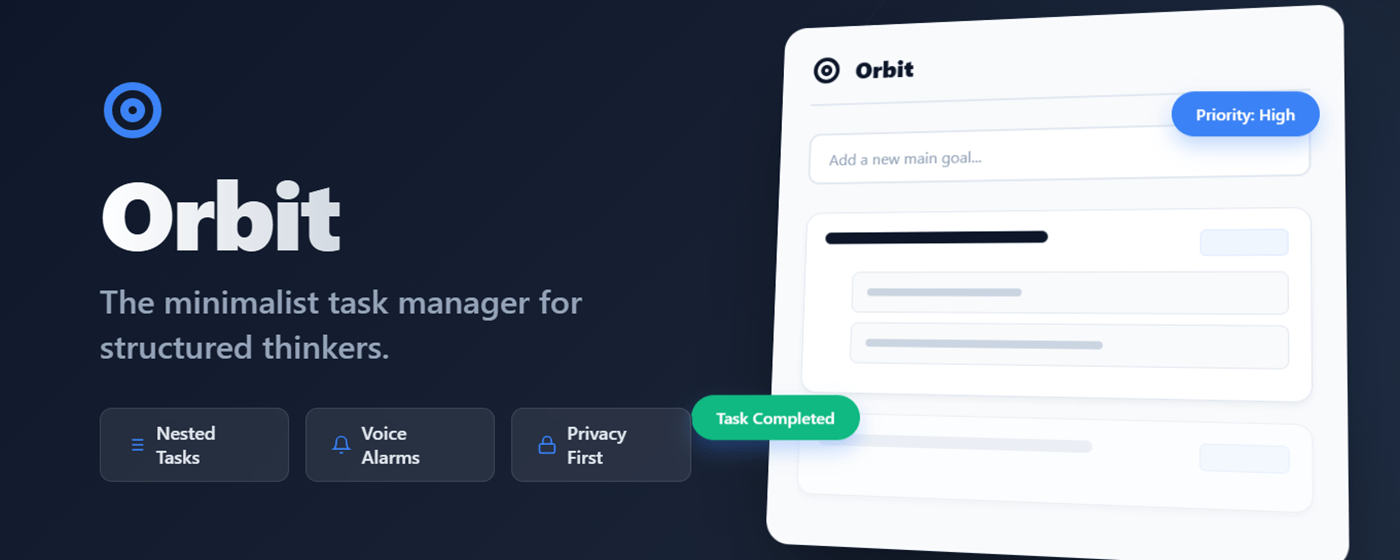
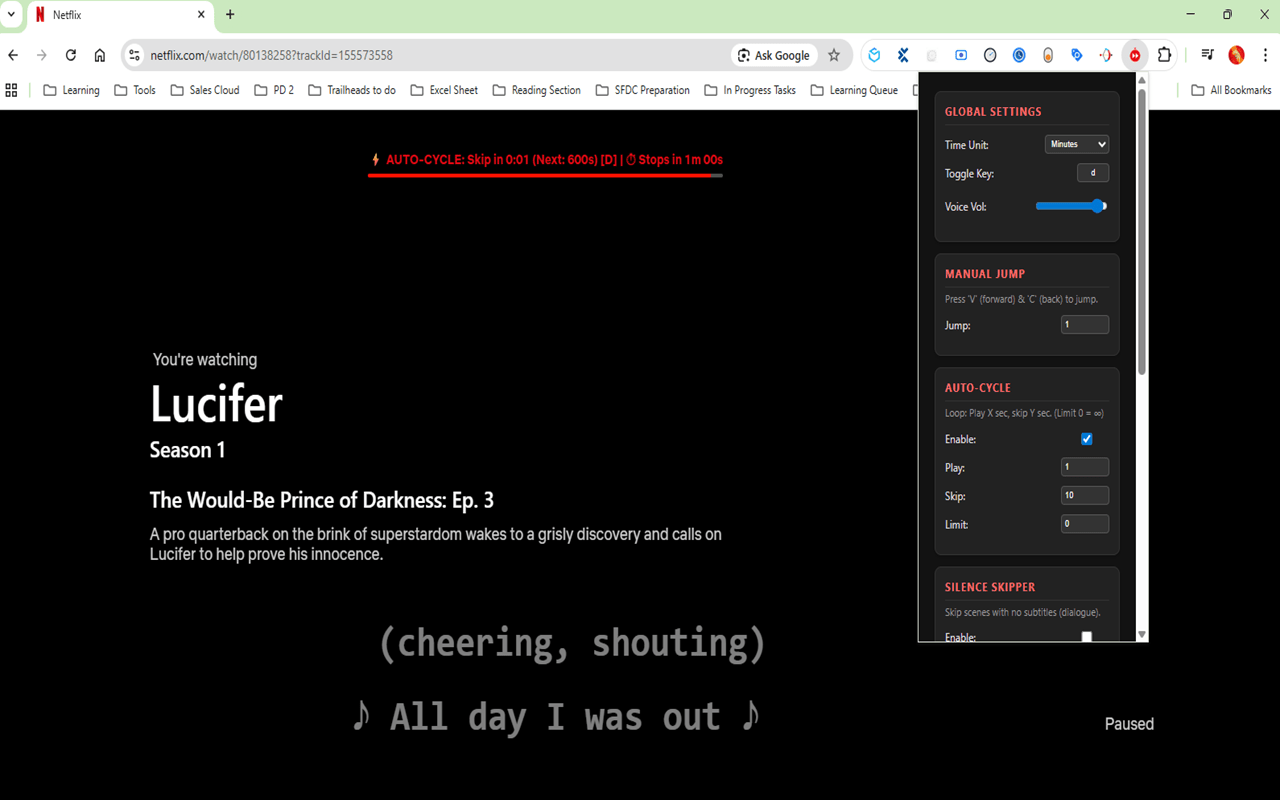
How would you handle bulk data operations in Salesforce?

Handling bulk data operations in Salesforce efficiently is crucial for maintaining performance and staying within platform limits. Here are several strategies and tools that can be used:

1. Use of Bulk API

  • Bulk API is designed for high-volume data operations. It processes large amounts of records asynchronously, making it suitable for tasks such as large-scale data migrations or synchronizing Salesforce data with external systems. Bulk API is optimized to load or delete many records simultaneously while minimizing the number of API requests.

2. Batch Apex

  • Batch Apex allows you to define a single job that can be broken into manageable chunks, where each chunk is processed as a separate transaction. It’s particularly useful for processing data that exceeds the governor limits, such as updating a large number of records with complex business logic.
  • Batch Apex is also capable of handling sophisticated processing scenarios that require a high degree of customization, like complex calculations across multiple object relationships.

3. Data Loader

  • Data Loader is a client application for the bulk import or export of data. Use it to insert, update, delete, or export Salesforce records. When importing data, Data Loader reads, extracts, and loads data from CSV files or from a database connection. It can also be used for scheduling regular data loads, such as nightly imports.

4. Optimizing Data Operations

  • Efficient SOQL Queries: Write queries that efficiently filter and return only the necessary fields and records. Avoid queries that process excessive amounts of data.
  • Limit Data Skew: Data skew can occur when too many records of a particular object are associated with a single record of another object (like having many Opportunity records linked to a single Account). This can significantly impact performance. Distributing records more evenly can help avoid this issue.

5. Using Platform Events and Change Data Capture

  • Platform Events and Change Data Capture enable you to streamline data changes in Salesforce and integrate external systems more efficiently. These features use event-driven architecture to handle data changes asynchronously, which can be more scalable than traditional processing methods.

6. Parallel Processing

  • When using data tools like Data Loader, configure it to run multiple threads in parallel. This allows the simultaneous processing of multiple batches of data, significantly speeding up the data operation tasks.

7. Monitoring and Adjusting

  • Always monitor the system’s performance and adjust your data handling strategies based on the feedback and logs provided by Salesforce. Tools like the Bulk Data Load Jobs page in Setup can help you track the status and performance of your data operations.

These approaches should be chosen based on the specific requirements and constraints of your Salesforce org and the nature of the data operation tasks. Each has its strengths and is suited to different scenarios, so understanding when and how to use them is key to effective Salesforce data management.

LWC Interview Questions

Here’s a set of common Lightning Web Components (LWC) interview questions along with their answers:

1. What is LWC and how is it different from Aura Components?

Answer: Lightning Web Components (LWC) is a lightweight framework built on modern web standards, designed to simplify building web components on the Salesforce Lightning Platform. It is different from Aura Components in that it is built with native web standards and can coexist with Aura, offering better performance and easier interoperability with modern JavaScript.

2. Can you explain the component lifecycle in LWC?

Answer: LWC components have a lifecycle managed by the framework, including phases such as creation, rendering, updating, and destruction. Key lifecycle hooks include:

  • constructor(): Invoked when a component instance is created.
  • connectedCallback(): Called when the component is connected to the DOM.
  • render(): Determines the component’s template.
  • disconnectedCallback(): Invoked when the component is removed from the DOM.
  • errorCallback(): Called when an error is thrown during the component’s lifecycle.

3. What is the Shadow DOM in LWC?

Answer: The Shadow DOM is a key feature of web components, including LWC, that provides encapsulation for JavaScript, styles, and templating. It ensures that a component’s styles do not leak out and that styles from outside do not affect the internals of the component.

4. How do you pass data between components in LWC?

Answer: Data can be passed between components using properties (for parent to child) and custom events (for child to parent). Properties are reactive if decorated with @api, making them reflect changes to parent components. Custom events allow children to send data to parent components through event dispatching.

5. What are decorators in LWC?

Answer: Decorators are special declarations prefixed with @, used to modify properties or functions. Key decorators in LWC include:

  • @api: Marks a field as public, which can be set by the parent component.
  • @track: Used in earlier versions to make fields reactive. With modern LWC, all fields are reactive by default.
  • @wire: Provides reactive data binding to Salesforce data and services.

6. Explain the use of the @wire decorator.

Answer: The @wire decorator is used to wire a property or method to a data source, typically Salesforce Apex methods or standard Salesforce APIs (like getRecord). The data is provided reactively to the component, and updates to the source are reflected in the component’s property or method.

7. How can you handle events in LWC?

Answer: Events in LWC can be handled using event listeners. You can add an event listener in the component’s template using the on[eventname] syntax, like onclick or onchange. Custom events can be handled similarly but need to be dispatched by child components using this.dispatchEvent(new CustomEvent('eventname')).

These questions cover fundamental concepts and are likely to come up in various forms during an interview focusing on LWC development.

Sure, let’s expand the list of interview questions for Lightning Web Components (LWC) with additional questions and code examples to demonstrate deeper knowledge and practical application:

8. How do you use slots in LWC?

Answer:
Slots are a feature of Web Components that allow you to define placeholder elements in a component’s template that can be filled with any markup passed by the parent component. They provide a way to compose complex components with customizable layouts.

Example:

<!-- childComponent.html -->
<template>
    <div>
        <slot name="header">Default header content</slot>
        <p>Some more content...</p>
        <slot name="footer">Default footer content</slot>
    </div>
</template>
<!-- parentComponent.html -->
<template>
    <c-child-component>
        <h1 slot="header">Custom Header</h1>
        <div slot="footer">Custom Footer Content</div>
    </c-child-component>
</template>

9. What are reactive properties in LWC and how do you use them?

Answer:
Reactive properties are properties that cause the component to re-render when their values change. In LWC, any field declared with @track in earlier versions or simply as class fields in the current version are reactive by default.

Example:

import { LightningElement, track } from 'lwc';

export default class ReactiveExample extends LightningElement {
    @track counter = 0;

    incrementCounter() {
        this.counter++;
    }
}
<!-- reactiveExample.html -->
<template>
    <button onclick={incrementCounter}>Increment</button>
    <p>Counter: {counter}</p>
</template>

10. How can you call an Apex method from an LWC?

Answer:
Apex methods can be called from LWC using the @wire decorator for reactive data fetching, or by using import and calling the method imperatively.

Example for imperative call:

import { LightningElement } from 'lwc';
import getAccountList from '@salesforce/apex/AccountController.getAccountList';

export default class ApexCallExample extends LightningElement {
    accounts;
    error;

    connectedCallback() {
        getAccountList()
            .then(result => {
                this.accounts = result;
            })
            .catch(error => {
                this.error = error;
            });
    }
}

11. Describe how conditional rendering works in LWC.

Answer:
Conditional rendering in LWC is achieved by using JavaScript expressions in the template to conditionally include or exclude portions of the DOM.

Example:

<!-- conditionalRendering.html -->
<template>
    <template if:true={isVisible}>
        <p>Visible Content</p>
    </template>
    <template if:false={isVisible}>
        <p>Hidden Content</p>
    </template>
</template>
import { LightningElement } from 'lwc';

export default class ConditionalRendering extends LightningElement {
    isVisible = true;

    toggleVisibility() {
        this.isVisible = !this.isVisible;
    }
}

12. Explain the use of static resources in LWC.

Answer:
Static resources allow you to upload images, style sheets, JavaScript, and other files that you can reference in your LWC. They are useful for assets that are reused across multiple components or applications.

Example:

<!-- staticResourceComponent.html -->
<template>
    <img src={logoUrl} alt="Company Logo">
</template>
import { LightningElement } from 'lwc';
import LOGO from '@salesforce/resourceUrl/companyLogo';

export default class StaticResourceComponent extends LightningElement {
    logoUrl = LOGO;
}

Certainly! Let’s add more in-depth Lightning Web Components (LWC) interview questions that cover additional advanced topics, suitable for evaluating a candidate’s breadth and depth of understanding:

13. How do you manage state between multiple LWC components?

Answer:
State management between components in LWC can be achieved through a combination of event handling, reactive properties, and shared JavaScript modules (for more global state). Components can communicate using events for direct parent-child or sibling communication, and shared modules can act as simple stores or more complex state management utilities.

Example for shared module:

// stateStore.js
let count = 0;
const callbacks = [];

const registerCallback = (callback) => {
    callbacks.push(callback);
};

const incrementCount = () => {
    count++;
    callbacks.forEach(callback => callback(count));
};

export { registerCallback, incrementCount };
// componentUsingState.js
import { LightningElement } from 'lwc';
import { registerCallback, incrementCount } from 'c/stateStore';

export default class ComponentUsingState extends LightningElement {
    count = 0;

    connectedCallback() {
        registerCallback((newCount) => {
            this.count = newCount;
        });
    }

    increment() {
        incrementCount();
    }
}

14. Explain the different types of decorators in LWC and their uses.

Answer:
In LWC, decorators are special functions that add functionality to properties or methods. The primary decorators are:

  • @api: Exposes public properties and methods, making them accessible to other components.
  • @track: Used in earlier versions to track private property changes and re-render components when those properties change. In current versions, all properties are reactive by default.
  • @wire: Connects a component to a data source, such as an Apex method or Salesforce data service, and provides reactive data.

Example using @wire:

import { LightningElement, wire } from 'lwc';
import { getRecord } from 'lightning/uiRecordApi';

export default class WireDecoratorExample extends LightningElement {
    @wire(getRecord, { recordId: '001xx000003NGGqAAO', fields: ['Account.Name'] })
    account;
}

15. How can you handle errors in LWC?

Answer:
Error handling in LWC can be done in several ways, including try-catch blocks within JavaScript methods, error handling in lifecycle hooks, and using the errorCallback lifecycle hook to handle errors during rendering or in the lifecycle.

Example using errorCallback:

import { LightningElement } from 'lwc';

export default class ErrorHandlingComponent extends LightningElement {
    errorCallback(error, stack) {
        console.log(error, stack);
    }
}

16. What are best practices for unit testing LWC components?

Answer:
Best practices for unit testing LWC components include:

  • Testing one unit of code (a single component) at a time.
  • Mocking dependent modules and Apex calls to ensure the tests are isolated.
  • Using Jest test framework provided by Salesforce to simulate user interaction, check the DOM output, and validate component public methods and properties.

Example using Jest:

import { createElement } from 'lwc';
import MyComponent from 'c/myComponent';
import { registerApexTestWireAdapter } from '@salesforce/sfdx-lwc-jest';

describe('c-my-component', () => {
    afterEach(() => {
        while (document.body.firstChild) {
            document.body.removeChild(document.body.firstChild);
        }
    });

    it('renders greeting message', () => {
        const element = createElement('c-my-component', {
            is: MyComponent
        });
        document.body.appendChild(element);
        const div = element.shadowRoot.querySelector('div');
        expect(div.textContent).toBe('Hello, World!');
    });
});

These questions and examples provide a comprehensive overview of handling common and advanced scenarios in LWC development, which should be very useful for deep-diving into a candidate’s expertise during interviews.

integrating with Apex using lwc

Integrating Lightning Web Components (LWC) with Apex in Salesforce is a powerful way to leverage server-side processing for your client-side applications. This integration enables you to access Salesforce data, perform complex business logic, and maintain security controls. Let’s explore this integration in detail.

1. Understanding the Role of Apex:

Apex is Salesforce’s server-side programming language, allowing developers to create custom business logic and manipulate Salesforce data. Apex classes are used to define methods that can be called from Lightning Web Components.

2. Creating an Apex Class:

To integrate with Apex, you first create an Apex class. This class contains methods that perform specific tasks, such as querying records, performing calculations, or processing data.

public with sharing class ExampleController {
    @AuraEnabled(cacheable=true)
    public static List<Account> getAccounts() {
        return [SELECT Id, Name FROM Account LIMIT 10];
    }
}

In this example, the getAccounts() method queries the ten most recent Account records from Salesforce.

3. Importing Apex Methods in LWC:

In your Lightning Web Component JavaScript file, you import the Apex method using the @salesforce/apex module. This module provides a way to call Apex methods imperatively or declaratively.

import { LightningElement, wire } from 'lwc';
import getAccounts from '@salesforce/apex/ExampleController.getAccounts';

4. Calling Apex Methods:

You can call Apex methods imperatively using the wire adapter or the imperative method invocation. With the wire adapter, data is automatically provisioned and refreshed when needed.

export default class MyComponent extends LightningElement {
    @wire(getAccounts) accounts;
}

In this example, the accounts property is populated with the result of calling the getAccounts() method.

5. Handling Responses:

You handle the response from Apex methods in your Lightning Web Component. This may involve processing the data, handling errors, or updating the component’s state.

@wire(getAccounts)
wiredAccounts({ error, data }) {
    if (data) {
        this.accounts = data;
    } else if (error) {
        console.error('Error fetching accounts:', error);
    }
}

6. Displaying Data:

Once you’ve retrieved data from Apex, you can display it in your Lightning Web Component’s HTML template using property bindings.

<template>
    <ul>
        <template for:each={accounts} for:item="account">
            <li key={account.Id}>{account.Name}</li>
        </template>
    </ul>
</template>

7. Pushing Changes to Salesforce:

After making changes to your Lightning Web Component or Apex class, you use the Salesforce CLI to push those changes to your Salesforce org.

sfdx force:source:push

8. Previewing Your Component:

You can preview your Lightning Web Component in the Salesforce Lightning App Builder or in a Lightning page. Drag your component onto a page to see it in action, displaying data retrieved from Apex.

Conclusion:

Integrating Lightning Web Components with Apex provides a seamless way to incorporate server-side processing into your client-side applications. By leveraging the power of Apex, you can access Salesforce data and perform complex business logic, enhancing the functionality and user experience of your Salesforce applications.

Data binding in LWC

Data binding in Lightning Web Components (LWC) is a core concept that enables developers to connect data sources and UI elements efficiently. Understanding and utilizing data binding effectively can greatly enhance the interactivity and responsiveness of applications built on the Salesforce platform. This overview will cover the essentials of data binding in LWC, illustrate it with examples, and share best practices to follow.

Understanding Data Binding in LWC

Data binding in LWC involves synchronizing data between the JavaScript class and the template. This synchronization allows data to be displayed in the UI and updated in real-time as the data changes. LWC supports one-way data binding by default, meaning that changes in the JavaScript class properties are reflected in the template, but not vice versa.

Types of Data Binding

  1. Property Binding: Connects property values of JavaScript objects to attributes of HTML elements in the template.
  2. Expression Binding: Uses expressions within curly braces {} to bind values calculated from one or more properties.

Examples of Data Binding in LWC

Here are a few practical examples to demonstrate how data binding works in LWC:

Example 1: Property Binding

Let’s create a simple LWC that binds a property from the JavaScript class to an element in the template.

JavaScript Class:

import { LightningElement, track } from 'lwc';

export default class SimpleBinding extends LightningElement {
    @track greeting = 'Hello, World!';
}

HTML Template:

<template>
    <p>{greeting}</p>
</template>

In this example, the greeting property is annotated with @track, making it reactive. Any changes to this property will automatically update the DOM where {greeting} is referenced.

Example 2: Expression Binding

Here we demonstrate an expression that calculates a value to be bound to the template.

JavaScript Class:

import { LightningElement } from 'lwc';

export default class ExpressionBinding extends LightningElement {
    firstName = 'John';
    lastName = 'Doe';

    get fullName() {
        return `${this.firstName} ${this.lastName}`;
    }
}

HTML Template:

<template>
    <p>Full Name: {fullName}</p>
</template>

The fullName getter computes a full name by concatenating firstName and lastName. The computed value is then bound to the template.

Best Practices for Data Binding

  1. Minimize Use of @track: Use @track only when necessary. As of Spring ’20, LWC automatically tracks changes to object and array fields, reducing the need for @track for primitive data types.
  2. Use Getters for Computed Properties: Instead of recalculating data on every render cycle, use getters to define computed properties. This approach leverages JavaScript’s lazy evaluation.
  3. Avoid Inline JavaScript in Templates: For maintainability and security, avoid writing inline JavaScript expressions in templates. Instead, handle complex logic in JavaScript classes.
  4. Keep Data Flow Unidirectional: Maintain data flow from top to bottom (from parents to children). This practice helps in managing and debugging large applications.
  5. Utilize Change Handlers: To react to changes in properties effectively, use change handlers. They help in executing additional logic when properties change.

Conclusion

Data binding in LWC is a powerful feature that facilitates building dynamic and responsive applications on the Salesforce platform. By following the provided examples and best practices, developers can ensure their applications are both efficient and maintainable. As Salesforce continues to enhance its platform, staying updated with the latest development approaches and component functionalities is crucial for building robust applications.

Event handling in lwc

Event handling in LWC allows you to capture and respond to various events triggered by user interactions or system events. Here’s a guide on how to handle events in Lightning Web Components:

1. Handling DOM Events:

You can handle standard DOM events like click, change, input, etc., directly in your HTML template.

Example:

<template>
    <button onclick={handleClick}>Click Me</button>
</template>
import { LightningElement } from 'lwc';

export default class MyComponent extends LightningElement {
    handleClick() {
        console.log('Button clicked!');
    }
}

2. Dispatching Custom Events:

You can dispatch custom events to communicate between components or trigger actions within a component.

Example:

<template>
    <button onclick={handleButtonClick}>Click Me</button>
</template>
import { LightningElement } from 'lwc';

export default class MyComponent extends LightningElement {
    handleButtonClick() {
        // Dispatch custom event
        this.dispatchEvent(new CustomEvent('customclick'));
    }
}

In the parent component, you can listen for this custom event:

<template>
    <c-my-component oncustomclick={handleCustomClick}></c-my-component>
</template>
import { LightningElement } from 'lwc';

export default class ParentComponent extends LightningElement {
    handleCustomClick() {
        console.log('Custom button clicked!');
    }
}

3. Event Bubbling and Capturing:

LWC supports event bubbling and capturing, similar to standard DOM events.

Example:

<template>
    <div onclick={handleDivClick}>
        <button>Click Me</button>
    </div>
</template>
import { LightningElement } from 'lwc';

export default class MyComponent extends LightningElement {
    handleDivClick() {
        console.log('Div clicked!');
    }
}

4. Preventing Default Behavior:

You can prevent the default behavior of an event using event.preventDefault().

Example:

<template>
    <a href="https://www.example.com" onclick={handleLinkClick}>Click Me</a>
</template>
import { LightningElement } from 'lwc';

export default class MyComponent extends LightningElement {
    handleLinkClick(event) {
        event.preventDefault();
        console.log('Link clicked!');
    }
}

5. Passing Data with Events:

You can pass data along with custom events using the detail property.

Example:

handleButtonClick() {
    const eventData = { message: 'Hello from child component!' };
    this.dispatchEvent(new CustomEvent('customclick', { detail: eventData }));
}

In the parent component:

<template>
    <c-my-component oncustomclick={handleCustomClick}></c-my-component>
</template>
handleCustomClick(event) {
    const message = event.detail.message;
    console.log('Received message:', message);
}

This covers the basics of event handling in Lightning Web Components. You can explore more advanced topics like component events, lifecycle hooks, and imperative event handling as you become more familiar with LWC development.

Create Your First LWC

let’s create a simple “Hello World” Lightning Web Component (LWC).

1. Create a New LWC Project:

Open your terminal and run the following commands:

sfdx force:project:create -n mylwcproject
cd mylwcproject

2. Enable LWC:

If LWC is not enabled in your Salesforce org, enable it by running:

sfdx force:org:create -f config/project-scratch-def.json -a myorg -s -d 30
sfdx force:source:push -u myorg

3. Create Your First Lightning Web Component:

Run the following command to create a new LWC named helloWorld:

sfdx force:lightning:component:create --type lwc -n helloWorld

4. Navigate to the Component Directory:

cd force-app/main/default/lwc/helloWorld

5. Open the Component Files in Your Editor:

code .

This will open VS Code with the files for your component.

6. Write Your Component Code:

HTML (helloWorld.html):

<template>
    <h1>Hello World!</h1>
</template>

JavaScript (helloWorld.js):

import { LightningElement } from 'lwc';

export default class HelloWorld extends LightningElement {}

7. Preview Your Component:

Push your changes to your org:

sfdx force:source:push -u myorg

Then open your org:

sfdx force:org:open -u myorg

Navigate to a Lightning App Builder and drag your component onto a page to preview it.

That’s it! You’ve created your first LWC. It’s a simple one, but it demonstrates the basic structure of an LWC component. You can continue to build on this foundation by adding more functionality, such as event handling, data binding, and integrating with Apex.

LWC guide for beginner

Lightning Web Components (LWC) is a powerful framework designed by Salesforce for creating fast and interactive user interfaces. This guide will introduce you to LWC and provide various code examples to help you start building components effectively.

What are Lightning Web Components?

Lightning Web Components (LWC) is a modern framework built on the latest web standards. It’s designed to simplify the process of building custom elements on Salesforce’s Lightning Platform. LWC is both performant and lightweight, ensuring that you can create highly responsive applications.

Setting Up Your Environment

Before diving into coding, ensure that your Salesforce environment is ready for LWC development. You will need:

  • Salesforce CLI: Tool for managing your Salesforce development lifecycle.
  • Visual Studio Code (VS Code): Preferred editor with Salesforce Extension Pack.
  • Salesforce DX: A Salesforce tool that enhances developer productivity with an integrated experience.

Basic LWC Structure

A typical LWC folder contains three files:

  • HTML File: Holds the structure of your component (componentName.html).
  • JavaScript File: Contains the business logic (componentName.js).
  • Meta XML File: Defines the metadata for the component (componentName.js-meta.xml).

First Component: Hello World

Let’s start by creating a simple “Hello World” component.

HTML (helloWorld.html)

<template>
    Hello World!
</template>

JavaScript (helloWorld.js)

import { LightningElement } from 'lwc';

export default class HelloWorld extends LightningElement {}

Meta XML (helloWorld.js-meta.xml)

<?xml version="1.0" encoding="UTF-8"?>
<LightningComponentBundle xmlns="http://soap.sforce.com/2006/04/metadata" fqn="helloWorld">
    <apiVersion>51.0</apiVersion>
    <isExposed>true</isExposed>
</LightningComponentBundle>

Data Binding and Event Handling

LWC provides reactive properties that make data binding straightforward.

HTML

<template>
    <input type="text" placeholder="Enter your name" onchange={handleChange}/>
    <p>Hello, {name}!</p>
</template>

JavaScript

import { LightningElement, track } from 'lwc';

export default class SimpleGreeting extends LightningElement {
    @track name = '';

    handleChange(event) {
        this.name = event.target.value;
    }
}

Conditional Rendering

LWC allows conditional rendering using the standard JavaScript approach.

HTML

<template>
    <template if:true={isLoggedIn}>
        <p>Welcome back, user!</p>
    </template>
    <template if:false={isLoggedIn}>
        <p>Please log in.</p>
    </template>
</template>

JavaScript

import { LightningElement, api } from 'lwc';

export default class ConditionalRendering extends LightningElement {
    @api isLoggedIn = false;
}

Looping with for:each

You can render lists using for:each.

HTML

<template>
    <ul>
        <template for:each={contacts} for:item="contact">
            <li key={contact.id}>{contact.name}</li>
        </template>
    </ul>
</template>

JavaScript

import { LightningElement, track } from 'lwc';

export default class ContactList extends LightningElement {
    @track contacts = [
        { id: 1, name: 'Alice' },
        { id: 2, name: 'Bob' },
        { id: 3, name: 'Charlie' }
    ];
}

Fetching Data from Salesforce

You can use Apex to fetch data that can be displayed in your LWC.

Apex Controller

public with sharing class ContactController {
    @AuraEnabled(cacheable=true)
    public static List<Contact> getContacts() {
        return [SELECT Id, Name FROM Contact LIMIT 10];
    }
}

JavaScript

import { LightningElement, wire } from 'lwc';
import getContacts from '@salesforce/apex/ContactController.getContacts';

export default class ContactData extends LightningElement {
    @wire(getContacts) contacts;
}

Styling Components

LWC supports standard CSS which is scoped to the component.

CSS (myComponent.css)

p {
    font-size: 16px;
    color: blue;
}

Let’s expand on the basics of Lightning Web Components (LWC) and delve deeper into the more nuanced aspects of working with this powerful framework. We’ll cover additional topics such as lifecycle hooks, communicating between components, and handling Salesforce data more effectively.

Lifecycle Hooks in LWC

Lifecycle hooks offer you the ability to tap into different stages of a component’s life from creation to destruction. Here’s how you can leverage these hooks:

Constructor

The constructor is called when the component is created but before it’s inserted into the DOM.

import { LightningElement } from 'lwc';

export default class LifecycleExample extends LightningElement {
    constructor() {
        super();
        console.log('Component is being constructed');
    }
}

Connected Callback

This is triggered when the component is inserted into the DOM.

connectedCallback() {
    console.log('Component has been inserted into the DOM');
}

Disconnected Callback

This fires when the component is removed from the DOM.

disconnectedCallback() {
    console.log('Component has been removed from the DOM');
}

Rendered Callback

Called after the component has finished the rendering phase. This hook runs after every render of the component.

renderedCallback() {
    console.log('Component has been rendered');
}

Communication Between Components

In LWC, components can communicate using public properties, events, and the pub-sub model.

Public Properties

Components can expose public properties using the @api decorator, making them configurable by the parent component.

import { LightningElement, api } from 'lwc';

export default class ChildComponent extends LightningElement {
    @api greeting;
}

Dispatching Events

Child components can dispatch events that parent components can listen to.

Child Component (Event Dispatcher)
import { LightningElement } from 'lwc';

export default class ChildComponent extends LightningElement {
    handleClick() {
        const event = new CustomEvent('myevent', {
            detail: { message: 'Hello from the child component!' }
        });
        this.dispatchEvent(event);
    }
}
Parent Component (Event Listener)
<template>
    <c-child-component onmyevent={handleChildEvent}></c-child-component>
</template>
handleChildEvent(event) {
    console.log('Received event:', event.detail.message);
}

Handling Salesforce Data

When working with Salesforce data, you can use the @wire service to reactively fetch data from your Apex methods or Salesforce data services.

Fetching Data with Wire Service

import { LightningElement, wire } from 'lwc';
import getContacts from '@salesforce/apex/ContactController.getContacts';

export default class ContactData extends LightningElement {
    @wire(getContacts) contacts;
}

Best Practices in Error Handling

Handling errors gracefully is critical for building robust applications.

Example: Error Handling with Wire Service

import { LightningElement, wire, track } from 'lwc';
import getContacts from '@salesforce/apex/ContactController.getContacts';

export default class ContactData extends LightningElement {
    @track error;
    @track contacts;

    @wire(getContacts)
    wiredContacts({ error, data }) {
        if (data) {
            this.contacts = data;
            this.error = undefined;
        } else if (error) {
            this.error = error;
            this.contacts = undefined;
        }
    }
}

Styling Deep Dive

While each component’s styles are scoped locally, you can define global styles and leverage CSS variables for more dynamic styling.

CSS Variables

/* myComponent.css */
:host {
    --text-color: red;
}

p {
    color: var(--text-color);
}

This expanded guide provides a deeper understanding of the core functionalities and more advanced features of LWC. By mastering these elements, you can effectively build sophisticated and scalable applications on the Salesforce platform.

Expanding further on Lightning Web Components (LWC), let’s explore some additional concepts that are essential for advanced use cases, including slotting (for content projection), accessing static resources, and using wire adapters for more complex data scenarios. We’ll also look at testing strategies for LWCs.

Slotting in LWC

Slotting is a feature that allows you to define placeholders in your components which can be filled with custom content defined outside the component. This follows the Web Components standard and is similar to transclusion in Angular.

Example: Using Slots in LWC

Here’s how to define slots in your LWC:

Parent Component (Uses Slots)
<!-- parentComponent.html -->
<template>
    <c-child-component>
        <div slot="header">This is a header</div>
        <div>Some unslotted content</div>
        <div slot="footer">This is a footer</div>
    </c-child-component>
</template>
Child Component (Defines Slots)
<!-- childComponent.html -->
<template>
    <slot name="header"></slot>
    <slot></slot> <!-- Default slot -->
    <slot name="footer"></slot>
</template>

Using Static Resources in LWC

Static resources allow you to manage images, JavaScript libraries, CSS files, and other assets in Salesforce. You can reference these resources in your LWC.

Example: Referencing a Static Resource

Suppose you have uploaded an image as a static resource named MyImage.

import { LightningElement } from 'lwc';
import MY_IMAGE from '@salesforce/resourceUrl/MyImage';

export default class ImageComponent extends LightningElement {
    imageUrl = MY_IMAGE;
}
<!-- imageComponent.html -->
<template>
    <img src={imageUrl} alt="My Static Resource Image"/>
</template>

Advanced Wire Adapters

Wire adapters are powerful for connecting to Salesforce data and other services reactively. You can also create custom wire adapters.

Example: Custom Wire Adapter

Here’s a simple implementation of a custom wire adapter that fetches data from an external service (conceptually, as actual external calls are restricted in LWC due to security):

// customWireAdapter.js
import { registerListener, unregisterAllListeners } from 'c/pubsub'; // Import a pub-sub helper module

export function getExternalData(eventName, callback) {
    registerListener(eventName, callback);
}

export function releaseExternalData() {
    unregisterAllListeners();
}

Testing LWC

Testing is crucial for ensuring the reliability and performance of your components. LWC provides a Jest-based testing framework.

Example: Jest Test for LWC

import { createElement } from 'lwc';
import SimpleComponent from 'c/simpleComponent';

describe('c-simple-component', () => {
    afterEach(() => {
        while (document.body.firstChild) {
            document.body.removeChild(document.body.firstChild);
        }
    });

    it('displays greeting', () => {
        const element = createElement('c-simple-component', {
            is: SimpleComponent
        });
        document.body.appendChild(element);

        const p = element.shadowRoot.querySelector('p');
        expect(p.textContent).toBe('Hello, World!');
    });
});

Conclusion

With this expanded guide, you now have a deeper insight into creating more dynamic and robust applications using LWC. Understanding and implementing these advanced features, such as slotting, using static resources, crafting custom wire adapters, and integrating comprehensive testing, will significantly enhance your capabilities as a Salesforce developer.

Also check my below posts to know lwc concepts in detail with examples –

Color picker in lwc

To implement a color picker in a Lightning Web Component (LWC), you can use an HTML input element with type="color". Here’s a basic example of how you can create a color picker in an LWC:

<template>
    <lightning-card title="Color Picker">
        <div class="slds-p-around_medium">
            <lightning-input type="color" label="Choose a color" value={selectedColor} onchange={handleChange}></lightning-input>
        </div>
        <div class="slds-p-around_medium" style="background-color: {selectedColor}; width: 100px; height: 100px;"></div>
    </lightning-card>
</template>
import { LightningElement, track } from 'lwc';

export default class ColorPicker extends LightningElement {
    @track selectedColor = '#ffffff';

    handleChange(event) {
        this.selectedColor = event.target.value;
    }
}

In this example:

  • We use a lightning-card component for the overall container.
  • Inside the card, we have a lightning-input component with type="color". This creates a color picker input field.
  • We bind the selectedColor variable to the value attribute of the input field, so changes in the color picker update this variable.
  • We also have a handleChange method that updates the selectedColor variable whenever the user selects a new color.

This is a basic example to get you started. Depending on your requirements, you may need to enhance this component further, such as adding validation, handling more complex color operations, or styling adjustments.

Salesforce integration with Paypal

Integrating Salesforce with PayPal can streamline payment processing, invoicing, and customer management for businesses using Salesforce as their CRM platform. Here are some common ways to integrate Salesforce with PayPal:

  1. PayPal Integration via AppExchange Apps: Salesforce offers numerous third-party apps on the Salesforce AppExchange that provide pre-built integrations with PayPal. These apps allow businesses to sync data between Salesforce and PayPal, automate payment processes, and provide a seamless experience for users. Some popular PayPal integration apps for Salesforce include Chargent, PayPal for Salesforce, and S-Docs.
  2. Custom Integration Using APIs: For businesses with specific integration requirements, custom integration using PayPal APIs (Application Programming Interfaces) and Salesforce APIs can be implemented. Salesforce offers robust APIs, such as REST API and SOAP API, which allow developers to build custom integrations that connect Salesforce with PayPal’s payment processing services. With custom integration, businesses can tailor the integration to meet their unique needs and workflows.
  3. Payment Request Buttons: Salesforce administrators can embed PayPal payment request buttons directly within Salesforce Lightning Experience or Salesforce Communities using custom Lightning components or Visualforce pages. These buttons enable users to make payments or donations securely via PayPal directly from within Salesforce.
  4. Automated Payment Workflows: Salesforce Process Builder or Salesforce Flow can be used to automate payment workflows triggered by specific events or conditions in Salesforce. For example, businesses can set up automated workflows to generate PayPal invoices, process payments, and update Salesforce records (e.g., Opportunities, Accounts) based on customer actions or transaction statuses.
  5. Reporting and Analytics: Salesforce Reporting and Dashboards can be leveraged to gain insights into payment transactions, revenue trends, and customer payment history. By integrating PayPal transaction data with Salesforce, businesses can create custom reports and dashboards to track key metrics, such as total sales, average order value, and payment conversion rates.
  6. Customer Self-Service Portals: Salesforce Community Cloud can be used to create self-service portals where customers can view their account information, make payments, and manage their PayPal accounts. By integrating PayPal with Salesforce Community Cloud, businesses can provide customers with a seamless and intuitive payment experience while reducing manual effort and administrative overhead.

When integrating Salesforce with PayPal, businesses should consider security, compliance, and data privacy requirements to ensure that sensitive payment information is handled securely and in accordance with regulatory standards (e.g., PCI DSS compliance). Additionally, thorough testing and validation of the integration are essential to ensure reliability and accuracy in payment processing workflows.

Sure, let’s create a basic example of Salesforce custom integration with PayPal using Visualforce (VF) and Apex. In this example, we’ll create a Visualforce page where users can initiate a payment through PayPal, and we’ll use Apex to handle the integration with PayPal’s API.

  1. Visualforce Page (PayPalPaymentPage): Create a Visualforce page named PayPalPaymentPage where users can enter the payment amount and initiate the payment process:
<apex:page controller="PayPalPaymentController">
    <apex:form >
        <apex:pageBlock title="Make a Payment">
            <apex:pageMessages />
            <apex:pageBlockSection >
                <apex:inputText value="{!amount}" label="Amount" />
            </apex:pageBlockSection>
            <apex:pageBlockButtons >
                <apex:commandButton value="Pay with PayPal" action="{!initiatePayment}" rerender="messages"/>
            </apex:pageBlockButtons>
        </apex:pageBlock>
    </apex:form>
</apex:page>
  1. Apex Controller (PayPalPaymentController): Create an Apex controller named PayPalPaymentController to handle the payment initiation and interaction with PayPal’s API:
public class PayPalPaymentController {

    public Decimal amount { get; set; }

    public void initiatePayment() {
        // Replace 'clientId' and 'clientSecret' with your PayPal API credentials
        String clientId = 'your_client_id';
        String clientSecret = 'your_client_secret';
        String accessToken = PayPalIntegration.getOAuthToken(clientId, clientSecret);

        if (accessToken != null) {
            String paymentId = PayPalIntegration.createPaymentOrder(accessToken, amount, 'USD');
            if (paymentId != null) {
                ApexPages.addMessage(new ApexPages.Message(ApexPages.Severity.INFO, 'Payment initiated successfully. Payment ID: ' + paymentId));
            } else {
                ApexPages.addMessage(new ApexPages.Message(ApexPages.Severity.ERROR, 'Failed to initiate payment.'));
            }
        } else {
            ApexPages.addMessage(new ApexPages.Message(ApexPages.Severity.ERROR, 'Failed to obtain access token.'));
        }
    }

}
  1. Integration with PayPal (PayPalIntegration Apex Class): Create an Apex class named PayPalIntegration to handle the integration with PayPal’s API:
public class PayPalIntegration {

    public static String getOAuthToken(String clientId, String clientSecret) {
        Http http = new Http();
        HttpRequest request = new HttpRequest();
        request.setEndpoint('https://api.sandbox.paypal.com/v1/oauth2/token');
        request.setMethod('POST');
        request.setHeader('Authorization', 'Basic ' + EncodingUtil.base64Encode(Blob.valueOf(clientId + ':' + clientSecret)));
        request.setHeader('Content-Type', 'application/x-www-form-urlencoded');
        request.setBody('grant_type=client_credentials');
        HttpResponse response = http.send(request);
        if (response.getStatusCode() == 200) {
            Map<String, Object> jsonResponse = (Map<String, Object>) JSON.deserializeUntyped(response.getBody());
            return (String) jsonResponse.get('access_token');
        }
        return null;
    }

    public static String createPaymentOrder(String accessToken, Decimal amount, String currency) {
        // Implement PayPal payment order creation logic
        // This method will create a payment order and return the payment ID
        return null;
    }

}

This example demonstrates how to create a basic integration between Salesforce and PayPal using Visualforce and Apex. You’ll need to implement the createPaymentOrder method in the PayPalIntegration class to handle the creation of payment orders with PayPal’s API. Additionally, replace ‘your_client_id’ and ‘your_client_secret’ with your actual PayPal API credentials.

Before deploying this code to a production environment, thoroughly test the integration in a Salesforce sandbox environment and ensure that all security and compliance requirements are met.

How to create a scratch org with namespace in salesforce

A scratch org in Salesforce serves as a disposable and configurable Salesforce environment that you can use for various purposes, primarily for development and testing. Here are some reasons why scratch orgs are valuable:

  1. Isolation: Scratch orgs provide an isolated environment separate from your production or sandbox orgs. This isolation allows you to experiment with new configurations, develop features, and test changes without impacting other environments.
  2. Freshness: Each scratch org is created from scratch based on a definition file, ensuring a clean and consistent starting point for development. This fresh environment helps prevent issues caused by legacy configurations or data.
  3. Customization: You can customize the configuration of a scratch org to match your specific use case or development requirements by defining features, settings, and metadata in a scratch org definition file.
  4. Flexibility: Scratch orgs are flexible and lightweight, allowing you to create, modify, and delete them quickly and easily. This flexibility makes them ideal for iterative development, prototyping, and agile development practices.
  5. Parallel Development: With scratch orgs, multiple developers can work simultaneously on different features or user stories in their own isolated environments. This parallel development workflow promotes collaboration and reduces conflicts.
  6. Testing and Quality Assurance: Scratch orgs are well-suited for testing and quality assurance activities, including unit testing, integration testing, user acceptance testing (UAT), and regression testing. You can create specific configurations for testing scenarios and easily reset or recreate scratch orgs as needed.
  7. Continuous Integration and Deployment (CI/CD): Scratch orgs play a crucial role in CI/CD pipelines by providing ephemeral environments for automated testing, validation, and deployment of Salesforce applications and metadata changes.
  8. Learning and Training: Scratch orgs are valuable for learning and training purposes, allowing developers, administrators, and other users to explore new Salesforce features, practice configuration changes, and experiment with customizations in a safe environment.

Overall, scratch orgs are essential tools for Salesforce developers and administrators to streamline development processes, enhance collaboration, and ensure the quality and reliability of Salesforce applications and customizations.

To create a scratch org with a namespace in Salesforce, you need to include the namespace in your scratch org definition file (project-scratch-def.json). Here’s how you can do it:

Create a Scratch Org Definition File:

  • If you don’t have a scratch org definition file (project-scratch-def.json), create one in your Salesforce DX project directory.
  • Add the following JSON structure to your scratch org definition file:
{
    "orgName": "My Scratch Org",
    "edition": "Developer",
    "features": [],
    "settings": {
        "orgPreferenceSettings": {
            "enabled": ["S1DesktopEnabled"]
        }
    },
    "namespace": "your_namespace"
}

Replace "your_namespace" with your actual namespace.

Create the Scratch Org:

  • Open a terminal or command prompt and navigate to your Salesforce DX project directory.
  • Run the following command to create the scratch org:
    sfdx force:org:create -s -f project-scratch-def.json -a <alias>
    Replace <alias> with a unique alias for your scratch org.

Open the Scratch Org:

  • After the scratch org is created successfully, you can open it in your web browser by running the following command:
    sfdx force:org:open -u <alias>
    Replace <alias> with the alias you used when creating the scratch org.

Work in the Scratch Org:

  • You can now develop, customize, or test Salesforce features and configurations in the scratch org. Any changes you make in the scratch org will have the namespace prefix.

Delete the Scratch Org (Optional):

  • Once you’re done working with the scratch org, you can delete it using the following command:
    sfdx force:org:delete -u <alias>
    Replace <alias> with the alias of the scratch org you want to delete.

That’s it! You’ve successfully created a scratch org with a namespace in Salesforce using the Salesforce CLI. This scratch org will have the namespace prefix applied to all custom objects, fields, and other metadata components you create in it.

Here are some real-life examples or scenarios of using scratch orgs in Salesforce development:

Feature Development:

  • Salesforce developers use scratch orgs to develop new features or enhancements in isolated environments. Each developer can work on a specific feature branch and create scratch orgs to test their changes without affecting other developers’ work.

Customization and Configuration:

  • Salesforce administrators and consultants use scratch orgs to prototype, configure, and customize Salesforce orgs based on specific business requirements. They can experiment with different configurations, workflows, and automations in a safe environment before deploying changes to production.

Integration Testing:

  • Integration developers use scratch orgs to test and validate integrations between Salesforce and external systems. They can simulate real-world integration scenarios, perform data mapping, and troubleshoot issues in an isolated environment without impacting production data or integrations.

User Acceptance Testing (UAT):

  • Business users and stakeholders use scratch orgs to perform user acceptance testing (UAT) for new Salesforce features or changes. They can review and validate the functionality, user interface, and business processes in a test environment before approving changes for deployment to production.

Regression Testing:

  • QA engineers use scratch orgs to conduct regression testing for Salesforce applications and customizations. They can create test cases, execute tests, and verify that existing functionality continues to work as expected after new changes are introduced.

Training and Enablement:

  • Salesforce trainers and enablement teams use scratch orgs to provide hands-on training and enablement sessions for developers, administrators, and end users. Participants can practice configuration, customization, and development tasks in a controlled environment without impacting production data.

Prototyping and Proof of Concept:

  • Salesforce architects and solution designers use scratch orgs to prototype and validate new solutions or proof of concepts (POCs) before implementing them in production. They can quickly spin up scratch orgs to experiment with different architectures, technologies, and approaches.

Continuous Integration and Deployment (CI/CD):

  • Development teams use scratch orgs as part of their continuous integration and deployment (CI/CD) pipelines to automate testing, validation, and deployment processes. They can create scratch orgs dynamically, deploy changes, run automated tests, and validate results before promoting changes to production.

Overall, scratch orgs play a critical role in Salesforce development by providing flexible, disposable, and configurable environments for various use cases, including development, testing, training, and integration. They enable teams to collaborate effectively, iterate quickly, and deliver high-quality solutions to meet business requirements.

How to create video recorder application in salesforce using lwc

Creating a video recorder application in Salesforce using Lightning Web Components (LWC) involves integrating with the browser’s native media capture API and leveraging Salesforce’s platform capabilities for storing and managing video data. Here’s a high-level overview of how you can implement this:

Set Up Lightning Web Components (LWC):

  • Create a new LWC component to serve as the video recorder interface.
  • Define the HTML template for displaying the video recorder interface and capturing user interactions.
  • Implement JavaScript functions to interact with the browser’s media capture API and handle video recording.

Accessing Media Capture API:

  • Use the navigator.mediaDevices.getUserMedia() method to request access to the user’s camera and microphone.
  • Set constraints to specify the media types (video and audio) and quality settings (resolution, frame rate) for recording.
  • Create a media stream using navigator.mediaDevices.getUserMedia() and attach it to a <video> element in the LWC component to display the live camera feed.

Recording Video:

  • Implement functionality to start and stop video recording based on user interactions.
  • Use the MediaRecorder API to record video from the media stream obtained from the camera.
  • Set up event listeners to handle recording start, data available, and recording stop events.
  • Save the recorded video data as a blob or file object.

Storing Recorded Video:

  • Use Salesforce’s platform features (such as Custom Objects or Files) to store the recorded video data.
  • Create an Apex controller method to handle the upload and storage of video data.
  • Call the Apex method from the LWC component to upload the recorded video data to Salesforce.

Displaying Recorded Video:

  • Implement functionality to retrieve and display recorded videos stored in Salesforce.
  • Use Apex to query the recorded video data from Salesforce’s database.
  • Display the recorded videos in the LWC component using HTML <video> elements or custom UI components.

Additional Features:

  • Add features such as video preview, playback controls, pause/resume recording, and video editing options.
  • Implement error handling and validation to handle scenarios such as camera/microphone access denied or recording failure.
  • Customize the user interface with styling, branding, and accessibility considerations.

Testing and Deployment:

  • Test the video recorder application thoroughly in different browsers and devices to ensure compatibility and performance.
  • Deploy the LWC component and associated Apex classes to your Salesforce org.
  • Perform user acceptance testing and gather feedback for further improvements.

By following these steps, you can create a video recorder application in Salesforce using Lightning Web Components, enabling users to capture, store, and manage video data directly within the Salesforce platform.

Code Example:

To implement the MediaRecorder API in a Lightning Web Component (LWC) in Salesforce, you can follow a similar approach as the plain HTML example, but with some modifications to fit within the LWC framework. Below is an example of how you can create a video recorder component using LWC:

  1. Create a new LWC component named videoRecorder.

videoRecorder.html:

<template>
    <div>
        <button onclick={startRecording} disabled={isRecording}>Start Recording</button>
        <button onclick={stopRecording} disabled={!isRecording}>Stop Recording</button>
    </div>
    <video id="videoElement" width="640" height="480" autoplay></video>
</template>

videoRecorder.js:

import { LightningElement } from 'lwc';

export default class VideoRecorder extends LightningElement {
    isRecording = false;
    mediaRecorder;
    chunks = [];

    async startRecording() {
        const videoElement = this.template.querySelector('video');

        try {
            const stream = await navigator.mediaDevices.getUserMedia({ video: true });
            videoElement.srcObject = stream;
            this.mediaRecorder = new MediaRecorder(stream);

            this.mediaRecorder.ondataavailable = event => {
                this.chunks.push(event.data);
            };

            this.mediaRecorder.onstop = () => {
                const blob = new Blob(this.chunks, { type: 'video/webm' });
                const videoUrl = URL.createObjectURL(blob);
                const downloadLink = document.createElement('a');
                downloadLink.href = videoUrl;
                downloadLink.download = 'recording.webm';
                document.body.appendChild(downloadLink);
                downloadLink.click();
            };

            this.mediaRecorder.start();
            this.isRecording = true;
        } catch (error) {
            console.error('Error accessing media devices:', error);
        }
    }

    stopRecording() {
        this.mediaRecorder.stop();
        this.isRecording = false;
    }
}

This LWC component contains two buttons to start and stop recording, as well as a <video> element to display the live camera feed. When the “Start Recording” button is clicked, the startRecording() method is called, which requests access to the user’s camera using navigator.mediaDevices.getUserMedia().

Once access is granted, it sets up a new MediaRecorder instance to record video from the camera stream. The mediaRecorder.ondataavailable event handler is triggered each time there is new video data available, and it appends the data to the chunks array.

When the “Stop Recording” button is clicked, the stopRecording() method is called, which stops the MediaRecorder instance and triggers the mediaRecorder.onstop event handler. In this event handler, the collected video data chunks are combined into a Blob object and then converted to a URL, allowing the user to download the recorded video.

To use this component in your Salesforce org, simply include it in a Lightning page or Lightning app as needed.

Salesforce Service Cloud

Salesforce Service Cloud is a customer service platform that helps businesses deliver exceptional customer support across various channels, including phone, email, chat, social media, and self-service portals. It enables organizations to streamline their customer service operations, improve agent productivity, and enhance customer satisfaction.

Key Features of Salesforce Service Cloud:

  1. Case Management: Service Cloud provides a centralized platform for managing customer cases from creation to resolution. Agents can create, assign, escalate, and track cases efficiently, ensuring timely resolution and follow-up.
  2. Knowledge Base: Service Cloud includes a robust knowledge base where businesses can create, organize, and share articles, FAQs, and documentation to provide self-service support to customers and empower agents with relevant information.
  3. Omni-Channel Routing: Service Cloud offers omni-channel routing capabilities to automatically route cases to the most appropriate agents based on factors such as skills, availability, and workload. This ensures that cases are distributed efficiently and handled by the right agents.
  4. Live Agent Chat: Service Cloud enables real-time communication between customers and support agents through live chat functionality. Agents can assist customers instantly, answer queries, and resolve issues in real-time, enhancing the overall customer experience.
  5. Social Customer Service: Service Cloud integrates with social media platforms, allowing businesses to monitor and respond to customer inquiries, comments, and mentions on social media channels. This enables proactive engagement with customers and helps build brand loyalty.
  6. Field Service Management: Service Cloud Field Service Lightning extends the capabilities of Service Cloud to include field service management functionalities such as scheduling, dispatching, and managing on-site service appointments. It enables organizations to deliver efficient and personalized field service experiences.
  7. AI-Powered Service: Service Cloud leverages artificial intelligence (AI) and machine learning technologies to automate repetitive tasks, predict customer needs, and provide personalized recommendations. Features such as Einstein Case Classification, Einstein Bots, and Einstein Next Best Action enhance agent productivity and customer satisfaction.
  8. Analytics and Reporting: Service Cloud offers robust analytics and reporting capabilities to track key performance metrics, measure customer satisfaction, and gain insights into support operations. Customizable reports, dashboards, and analytics tools help organizations make data-driven decisions and continuously improve service quality.

Overall, Salesforce Service Cloud provides a comprehensive suite of tools and features to help businesses deliver superior customer service experiences, drive customer loyalty, and differentiate themselves in the market. Whether you’re a small business or a large enterprise, Service Cloud offers scalable solutions to meet your customer service needs and support your growth objectives.

Generative AI

Generative AI refers to artificial intelligence systems that have the capability to generate content, such as images, text, audio, and even videos, that is similar to what a human might create. These systems are often based on deep learning models, particularly variants of Generative Adversarial Networks (GANs) and autoregressive models like OpenAI’s GPT (Generative Pre-trained Transformer) series.

Here are some of the tasks and applications that generative AI can perform:

  1. Image Generation: Generative AI can create realistic images of objects, scenes, and even imaginary concepts. This has applications in art generation, graphic design, and content creation.
  2. Text Generation: AI models like GPT can generate human-like text based on a given prompt or context. This is used in various applications such as language translation, content generation, storytelling, and dialogue systems.
  3. Audio Generation: AI models can generate audio samples, including speech synthesis and music composition. This technology is used in virtual assistants, voice-enabled devices, and music generation platforms.
  4. Video Generation: Generative AI can create video content, including deepfake videos, animation, and video synthesis. This has applications in visual effects, video editing, and content creation.
  5. Data Augmentation: Generative AI can be used to generate synthetic data for training machine learning models, augmenting existing datasets, and improving model performance.
  6. Style Transfer: AI models can transfer the style of one image onto another, creating artistic effects and visualizations. This is used in photo editing software and creative applications.
  7. Content Recommendation: Generative AI can generate personalized content recommendations based on user preferences, behavior, and historical data.
  8. Drug Discovery: In the field of pharmaceuticals, generative AI is used to design new molecules and predict their properties for drug discovery.
  9. Procedural Content Generation: AI can generate content for video games, including levels, environments, characters, and narratives, making games more dynamic and engaging.
  10. Art and Creativity: Generative AI has opened up new possibilities for artistic expression and creativity, enabling artists to collaborate with AI systems to explore new ideas and create innovative works of art.

Overall, generative AI has a wide range of applications across various domains, and its capabilities continue to evolve rapidly, opening up new opportunities for innovation and creativity.

Lead Management in Salesforce

Lead Management in Salesforce is a vital aspect of the platform, allowing businesses to capture, nurture, and convert leads into opportunities and, ultimately, into loyal customers. Here’s a breakdown of lead management within Salesforce:

  1. Lead Capture: Salesforce provides various methods to capture leads, including web-to-lead forms, manual entry, import tools, and integration with marketing automation systems. When a lead is captured, it is stored as a record in the Salesforce database.
  2. Lead Qualification: Once leads are captured, they undergo a qualification process to determine their suitability for further engagement. Sales teams can define criteria for lead qualification based on factors such as demographics, firmographics, behavior, and engagement level.
  3. Lead Assignment: Qualified leads are then assigned to the appropriate sales representatives or teams based on predefined rules, territories, or round-robin allocation. This ensures that leads are distributed efficiently and followed up on promptly.
  4. Lead Nurturing: Not all leads are ready to make a purchase immediately. Salesforce allows businesses to nurture leads over time by engaging them with relevant content, personalized communications, and targeted marketing campaigns. Lead nurturing helps build trust, educate prospects, and keep them engaged until they are ready to buy.
  5. Lead Scoring: Lead scoring is the process of assigning a numerical value to leads based on their characteristics and behavior. Salesforce’s lead scoring capabilities allow businesses to prioritize leads based on their likelihood to convert, ensuring that sales teams focus their efforts on the most promising opportunities.
  6. Lead Tracking and Monitoring: Salesforce enables sales teams to track and monitor lead activities, interactions, and progress through the sales pipeline. This visibility helps sales reps stay informed about each lead’s status, history, and needs, allowing them to tailor their approach accordingly.
  7. Lead Conversion: When a lead demonstrates buying intent and meets the criteria for conversion, it can be converted into an opportunity, contact, and/or account in Salesforce. During the conversion process, relevant information is retained and transferred to the new records, ensuring continuity and accuracy of data.
  8. Lead Reporting and Analytics: Salesforce provides robust reporting and analytics capabilities to measure the effectiveness of lead generation and conversion efforts. Users can create custom reports and dashboards to track key metrics, analyze trends, and optimize lead management processes.

By leveraging Salesforce’s lead management features effectively, businesses can streamline their sales processes, improve lead conversion rates, and drive revenue growth.

Salesforce Sales Cloud Features

Salesforce Sales Cloud is a robust customer relationship management (CRM) platform tailored specifically for sales teams to streamline their processes, enhance productivity, and drive revenue growth. Here are some key features of Salesforce Sales Cloud:

  1. Lead Management: Capture, track, and manage leads efficiently. Sales Cloud allows you to automate lead assignment, qualify leads, and track their progress through the sales pipeline.
  2. Opportunity Management: Track sales opportunities from inception to closure. Sales Cloud provides visibility into deal stages, probabilities, amounts, and next steps, empowering sales teams to prioritize and close deals effectively.
  3. Account and Contact Management: Maintain a comprehensive database of customer accounts and contacts. Sales Cloud centralizes critical information, including contact details, communication history, organizational hierarchies, and more, facilitating better relationship management.
  4. Sales Collaboration: Foster collaboration among sales teams with tools like Chatter. Sales Cloud enables real-time communication, file sharing, and collaboration on deals, driving teamwork and improving efficiency.
  5. Sales Analytics and Reporting: Gain insights into sales performance with powerful analytics and reporting tools. Sales Cloud allows you to create custom reports, dashboards, and charts to track key metrics, identify trends, and make data-driven decisions.
  6. Sales Forecasting: Generate accurate sales forecasts based on historical data, pipeline information, and other relevant factors. Sales Cloud’s forecasting capabilities help sales leaders plan and allocate resources effectively, improving predictability and decision-making.
  7. Mobile Access: Access Sales Cloud on-the-go with mobile devices. Salesforce’s mobile app provides sales representatives with instant access to customer information, updates, tasks, and collaboration features, enabling productivity from anywhere.
  8. Integration Capabilities: Seamlessly integrate Sales Cloud with other Salesforce products and third-party applications. Sales Cloud’s open architecture and extensive integration capabilities enable businesses to create a unified sales ecosystem tailored to their specific requirements.
  9. Workflow Automation: Automate repetitive tasks and streamline sales processes with workflow automation. Sales Cloud allows you to create rules-based workflows to automate lead routing, task assignment, email notifications, and more, saving time and improving efficiency.
  10. Artificial Intelligence (AI) and Machine Learning: Leverage AI-powered features like Einstein Analytics and Einstein Lead Scoring to enhance sales effectiveness. Sales Cloud’s AI capabilities help sales teams prioritize leads, uncover insights, and personalize interactions, driving better outcomes.

These features collectively empower sales teams to efficiently manage their sales processes, deepen customer relationships, and drive revenue growth within Salesforce Sales Cloud.

Display Modal in LWC

Problem:

I need to display Lightning Modal when a button is clicked. I want to display that button in custom lwc component.

Solution:

We will be creating a LWC component using lightning-modal-* tags.

What is a Modal?

The modal is a window that is displayed over the existing application and deactivates the functionality of the rest of the content. Modals are often used to direct users’ attention to take action or view a message from the application.

How to display Modal?

To create a lightning modal component, import LightningModal from lightning/modal. The lightning/modal module provides the LightningModal component to create a modal window on top of the current app window. A modal interrupts a user’s workflow.

LightningModal implements the SLDS modals blueprint.

Create a modal component in response to a user action, such as clicking a button or link. The modal blocks interaction with everything else on the page until the user acts upon or dismisses the modal.

Unlike other components, this component doesn’t use a lightning-modal tag or extend LightningElement. There is no lightning-modal component. Instead, you create a modal by extending LightningModal and using these helper lightning-modal-* components to provide a header, footer and the body of the modal.

  • lightning-modal-body
  • lightning-modal-header
  • lightning-modal-footer

The lightning-modal-body component is required for the modal template. The lightning-modal-header and lightning-modal-footer components are optional but recommended.

How to open Modal Instance?

LightningModal provides an .open() method which opens a modal and returns a promise that asynchronously resolves with the result of the user’s interaction with the modal.

How to Close a Modal Instance?

Use this.close(result) to close the modal, where result is anything you want to return from the modal. The .close() operation is asynchronous to display a brief fade out animation before the modal is destroyed. The result data can’t be modified after the close operation begins.

You can also close the modal with the default close button, the X at the top right corner. Closing a modal like this is the same as calling this.close() with an undefined result, so any data input is lost.

Now lets dive deep into the code-

baseLightningModal Component

<template>
    <lightning-modal-header label={content}></lightning-modal-header>
    <lightning-modal-body>
    <form>
        <div class="slds-box slds-theme_default">
            <lightning-input 
                name="firstName" 
                label="First Name" 
                value="">
            </lightning-input>
            <lightning-input 
                name="lastName" 
                label="Last Name" 
                value="">
            </lightning-input>
            <lightning-input 
                type="date" 
                name="birthdate" 
                label="Birthdate" 
                value="">
            </lightning-input>
            <lightning-input 
                type="email" 
                name="emailAddress" 
                label="Email Address" 
                value="">
            </lightning-input>
            <lightning-input 
                type="tel" 
                name="mobile" 
                label="Mobile" 
                value="">
            </lightning-input>
        </div>
    </form>
    </lightning-modal-body>
    <lightning-modal-footer>
        <div class="slds-m-top_small slds-align_absolute-center">
            <lightning-button 
                variant="Neutral" 
                label="Cancel and close" 
                class="slds-m-left_x-small" 
                onclick={handleClose}>
            </lightning-button>
            <lightning-button 
                variant="brand" 
                class="slds-m-left_x-small" 
                label="Save" 
                onclick={handleSave}>
            </lightning-button>
        </div>
    </lightning-modal-footer>
</template>
import { api } from 'lwc';
import LightningModal from 'lightning/modal';

export default class BaseLightningModal extends LightningModal {
    @api content;

    handleClose() {
        this.close('done');
    }

    handleSave() {
				alert('Data has been saved');
    }
}
<?xml version="1.0" encoding="UTF-8"?>
<LightningComponentBundle xmlns="http://soap.sforce.com/2006/04/metadata">
    <apiVersion>56.0</apiVersion>
    <isExposed>true</isExposed>
    <targets>
        <target>lightning__RecordPage</target>
        <target>lightning__AppPage</target>
        <target>lightning__HomePage</target>
    </targets>
</LightningComponentBundle>

LightningModalExample Component

<template>
		<div class="slds-box slds-theme_default">
		<lightning-button-group>
				<lightning-button onclick={handleLead} label="Submit Lead" aria-haspopup="modal"></lightning-button>
				<lightning-button label="Check Lead Status"></lightning-button>
		</lightning-button-group>
		</div>
</template>
import { LightningElement } from 'lwc';
import myModal from 'c/baseLightningModal';

export default class LightningModalExample extends LightningElement {
    /*async handleLead() {
        const result = await myModal.open({
            size: 'small',
            description: 'Accessible description of modal\'s purpose',
            content: 'Lead Generation Form',
        });
        console.log(result);
    }*/
		handleLead() {
		 		myModal.open({
            size: 'small',
            description: 'Accessible description of modal\'s purpose',
            content: 'Lead Generation Form'
        });
		}
}
<?xml version="1.0" encoding="UTF-8"?>
<LightningComponentBundle xmlns="http://soap.sforce.com/2006/04/metadata">
    <apiVersion>56.0</apiVersion>
    <isExposed>true</isExposed>
    <targets>
        <target>lightning__RecordPage</target>
        <target>lightning__AppPage</target>
        <target>lightning__HomePage</target>
    </targets>
</LightningComponentBundle>
Adding LWC component which we just created on home page

Demo

We display modal in lwc when submit lead button is clicked-

Create an Email as a Quick Action in Salesforce LWC

Let’s first understand why we need to create an email as a quick action.

Problem Statement:

Sending an email through quick action is not available for some of the salesforce objects out of the box. For eg. Contact.

Solution:

We create lwc component using (Global) Send Email action and then create quick action using this lwc which will allow you to open an email composer with predefined values. To achieve this, we are using Headless quick action approach using Navigation Service.

What is Headless quick action?

A headless quick action executes custom code in a Lightning web component. Unlike a screen action, a headless action doesn’t open a modal window.

To enable your component to be used as a headless quick action, configure a target.

In your Lightning web component, always expose invoke() as a public method for headless quick actions. The invoke() method executes every time the quick action is triggered.

What is Navigation Service?

To navigate to another page, record, or list in Lightning Experience, we use the navigation service (lightning/navigation) in lwc.

The lightning/navigation service is supported only in Lightning Experience, Experience Builder sites, and the Salesforce mobile app. It isn’t supported in other containers, such as Lightning Components for Visualforce, or Lightning Out.

What are Global Quick Actions?

Global actions let users log call details, create or update records, or send email, all without leaving the page they’re on. Global create actions enable users to create object records, but the new record has no direct relationship with other records.

We use Global.SendEmail global action in lwc controller to open email composer with predefined values.

Now let’s dive deep in the LWC code-

Now expose this lwc as headless quick action using lightning_RecordAction target-

Now create a quick action button-

This quick action need to be added on the page layout as shown in below screenshot-

Demo:

Once user clicks on this quick action ‘Send Email (LWC)’, email composer is opened as a popup

Implementing reCAPTCHA v3 in Salesforce

Implementing reCAPTCHA v3 in Salesforce involves integrating the reCAPTCHA v3 API into your Salesforce org to add an additional layer of security to your web forms and prevent spam or abusive bot traffic. Here’s a step-by-step guide to implementing reCAPTCHA v3 in Salesforce:

  1. Sign Up for reCAPTCHA v3:
  • Go to the reCAPTCHA website (https://www.google.com/recaptcha) and sign in with your Google account.
  • Register your site to get reCAPTCHA keys (site key and secret key) that you’ll need to integrate reCAPTCHA into your Salesforce org.
  1. Add reCAPTCHA Keys to Salesforce:
  • In your Salesforce org, go to Setup > Security Controls > CAPTCHA Settings.
  • Enter your reCAPTCHA site key and secret key in the appropriate fields.
  • Save your changes.
  1. Integrate reCAPTCHA with Visualforce Pages:
  • Open the Visualforce page where you want to add reCAPTCHA.
  • Add the reCAPTCHA JavaScript library to your Visualforce page by including the following script tag in the section:
<script src="https://www.google.com/recaptcha/api.js?render=YOUR_SITE_KEY"></script>

Replace YOUR_SITE_KEY with your reCAPTCHA site key.

  • Add the reCAPTCHA widget to your form by including the following code inside the tag:
<div class="g-recaptcha" data-sitekey="YOUR_SITE_KEY"></div>

Replace YOUR_SITE_KEY with your reCAPTCHA site key.

  1. Verify reCAPTCHA Response:
  • In your Visualforce controller or extension, retrieve the reCAPTCHA response token from the form submission.
  • Send the reCAPTCHA response token to the reCAPTCHA verification endpoint using a server-side HTTP request.
String recaptchaResponse = ApexPages.currentPage().getParameters().get('g-recaptcha-response');
  • Verify the reCAPTCHA response with the reCAPTCHA secret key.
  1. Process reCAPTCHA Verification Response:
  • Handle the reCAPTCHA verification response in your Visualforce controller or extension.
  • If the reCAPTCHA verification is successful (score > threshold), process the form submission normally.
  • If the reCAPTCHA verification fails (score < threshold), display an error message to the user and prevent the form submission.
  1. Test Your Implementation:
  • Test your reCAPTCHA implementation by submitting the form with and without valid reCAPTCHA responses.
  • Verify that the form submission is blocked when the reCAPTCHA verification fails and allowed when the verification is successful.
  1. Deploy Your Changes:
  • Once you’ve tested your reCAPTCHA implementation thoroughly, deploy your changes to your Salesforce org.

By following these steps, you can successfully implement reCAPTCHA v3 in your Salesforce org to enhance security and prevent spam or abusive bot traffic on your web forms. Make sure to stay updated with any changes or updates to the reCAPTCHA API and adjust your implementation accordingly.

Here’s an example of how to implement reCAPTCHA v3 in a Visualforce page in Salesforce:

  1. Add reCAPTCHA Script to Visualforce Page:
<apex:page controller="ReCaptchaController">
    <html>
        <head>
            <title>reCAPTCHA v3 Example</title>
            <script src="https://www.google.com/recaptcha/api.js?render=YOUR_SITE_KEY"></script>
            <script>
                function onSubmit(token) {
                    // Handle form submission with reCAPTCHA token
                    // For example, submit the form data to the server
                }
            </script>
        </head>
        <body>
            <form>
                <input type="text" name="name" placeholder="Your Name" required><br>
                <input type="email" name="email" placeholder="Your Email" required><br>
                <div class="g-recaptcha" data-sitekey="YOUR_SITE_KEY" data-callback="onSubmit"></div>
                <button type="submit">Submit</button>
            </form>
        </body>
    </html>
</apex:page>

Replace YOUR_SITE_KEY with your reCAPTCHA site key.

  1. Handle reCAPTCHA Verification in Apex Controller:
public class ReCaptchaController {
    public String verifyReCaptcha(String recaptchaResponse) {
        HttpRequest req = new HttpRequest();
        req.setEndpoint('https://www.google.com/recaptcha/api/siteverify');
        req.setMethod('POST');
        req.setBody('secret=YOUR_SECRET_KEY&response=' + EncodingUtil.urlEncode(recaptchaResponse, 'UTF-8'));

        Http http = new Http();
        HttpResponse res = http.send(req);

        if (res.getStatusCode() == 200) {
            Map<String, Object> result = (Map<String, Object>) JSON.deserializeUntyped(res.getBody());
            Boolean success = (Boolean) result.get('success');
            if (success) {
                return 'ReCAPTCHA verification successful';
            } else {
                return 'ReCAPTCHA verification failed';
            }
        } else {
            return 'Error verifying ReCAPTCHA';
        }
    }
}

Replace YOUR_SECRET_KEY with your reCAPTCHA secret key.

  1. Call Apex Method from Visualforce Page:

Add an action attribute to the form tag in the Visualforce page to call the Apex method:

<form action="{!verifyReCaptcha}" method="post">
    <!-- Form fields -->
</form>

This will call the verifyReCaptcha method in the ReCaptchaController when the form is submitted.

  1. Process Verification Response:

Handle the verification response in the verifyReCaptcha method and take appropriate action based on the result.

This example demonstrates a basic implementation of reCAPTCHA v3 in Salesforce using Visualforce and Apex. Make sure to customize it according to your specific requirements and error handling needs. Additionally, ensure that you follow best practices for security and data protection when implementing reCAPTCHA in your Salesforce org.

Working with Salesforce Email Approval Response

Email approval response allows users to approve or reject approval requests by simply replying to the Approval request email received after the record is submitted for approval.

Salesforce Email approval response allows users to approve or reject approval requests by simply replying to the Approval request email received after the record is submitted for approval. So, the users can approve or reject records without logging into Salesforce. For accessing this feature, users must have “API Enabled” System Permission.

Email approval response works in all languages that Salesforce support. The response word is checked using current user’s language directory, and if there is no matching word found, then the response word is checked in all other language dictionaries.

Steps to create Email Approval Process:

Step 1: Enabling Email Response

Go to Process Automation Settings -> Click ‘Enable Email Approval Response’ checkbox

Step 2: Email Template for approval Response

When you enable email approval response, Salesforce uses the default email template for approval processes unless you specify a custom email template.

Steps to create a new custom Email Template

Step 2.1:

Under Administer Section

Communication Templates > Email Templates > Click New Template

workflow approval process salesforce

Step 2.3: Choose Type of Email Template

Step 2.4:

Include an external approval URL field for redirecting to approval page, if needed, and add necessary fields to the Email Body section.

approval process in salesforce

Step 3: Steps to add Custom Email Template in Approval Process

We can replace the default Email Template by choosing a different Email Template while creating Approval Process.

Create an Approval Process for the object that you want to add Custom Email Template

Step 3.1:

Enter Name and Description, Entry Criteria, Approver fields, and Record editability properties.

Step 3.2:

Select the notification template to notify the user once the record is submitted for approval.

Step 3.3:

Activate the approval process and create a record to match the criteria and submit the record for approval. For creating Approval Process refer the below link:

Creating Salesforce Approval Process

Step 4: Responding to Approval Process request through Email

Once the record has been submitted for approval, the approver will get notified through Email. Then, the approver can respond back to the Approval request by replying to that Approval request email.

When responding to an approval request, the first line of the email body may contain one of the following words:

  • Approve
  • Approved
  • Yes
  • Reject
  • Rejected
  • No

Approval Response Email:

salesforce email approval
  • User can use standard mobile device Email client and respond to the approval request email by sending a reply with the above words.
  • Periods and exclamation marks are also allowed at the end of the word. User can add their comments at the second line of the email.
  • User can go to approval process page in Salesforce by clicking the link provided in the Email Template.
  • Delegated approvers can approve or reject email approval requests by replying to the email.

Points to be consider:

  • We cannot use this Approval Process features in which the assigned approver is a queue.
  • Make sure you reply using the same email address that received the email approval request.
  • Approvers must have the “API Enabled” system permission to approve or reject approval requests via email.
  • An email approval request can only be processed once. If another user has responded to the approval request before you do, you will get an error.
  • Users that use Microsoft Word as their email editor must add the comments to the end of the first line of the reply email instead of the second.

Conclusion:

Email approval response helps users approve or reject records by responding to the approval notification via email. If the user wants to see to the approval page, then they can click the approval page link provided in the approval response email. This helps users to approve or reject record without logging into the Salesforce account.