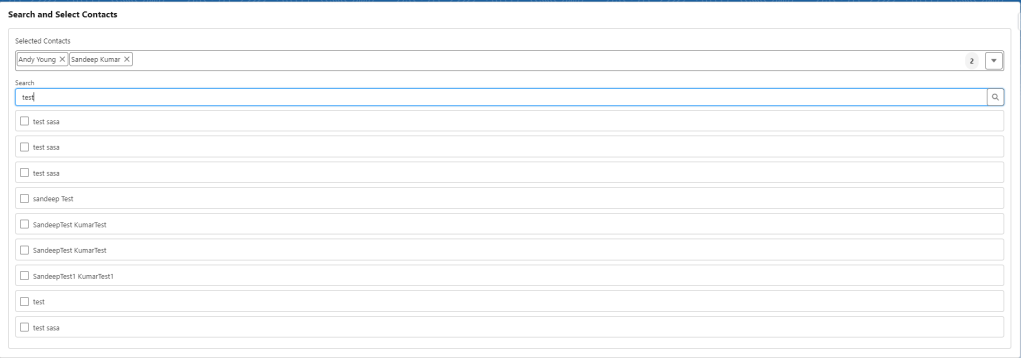
HTML Template
1. searchComponent.html
<template>
    <lightning-card title="Search and Select Contacts">
        <div class="slds-m-around_medium">
            <div class="slds-box slds-box_small slds-theme_default">
                <div class="slds-grid slds-grid_align-spread">
                    <div>
                        <h2>Selected Contacts</h2>
                    </div>
                </div>
                <div class="slds-pill_container slds-m-around_x-small slds-grid slds-grid_align-spread">
                    <div>
                        <template if:true={selectedContacts.length}>
                            <template for:each={selectedContacts} for:item="contact" for:index="index">
                                <span key={contact.Id} class="slds-pill">
                                    <span class="slds-pill__label">{contact.Name}</span>
                                    <button class="slds-button slds-button_icon slds-pill__remove" title="Remove" onclick={handleRemove} data-id={contact.Id}>
                                        <lightning-icon icon-name="utility:close" alternative-text="Remove"></lightning-icon>
                                    </button>
                                </span>
                            </template>
                        </template>
                    </div>
                    <div class="slds-grid slds-grid_align-end slds-m-left_auto">
                        <span class="slds-badge slds-m-right_small">{selectedContacts.length}</span>
                        <lightning-button-icon icon-name="utility:down" onclick={toggleDropdown} alternative-text="Show/Hide List"></lightning-button-icon>
                    </div>
                </div>
                <template if:true={showDropdown}>
                    <div class="slds-m-around_x-small slds-grid slds-grid_align-spread slds-m-bottom_small">
                        <lightning-input
                            class="slds-col slds-grow full-width"
                            label="Search"
                            value={searchTerm}
                            onchange={handleSearchChange}>
                        </lightning-input>
                        <lightning-button-icon icon-name="utility:search" alternative-text="Search" class="lookup-icon"></lightning-button-icon>
                    </div>
                    <div class="slds-m-around_x-small">
                        <template if:true={filteredContacts.length}>
                            <template for:each={filteredContacts} for:item="contact" for:index="index">
                                <div key={contact.Id} class="slds-box slds-box_x-small slds-m-around_x-small">
                                    <lightning-input type="checkbox" label={contact.Name} checked={contact.isSelected} data-id={contact.Id} onchange={handleCheckboxChange}></lightning-input>
                                </div>
                            </template>
                        </template>
                        <template if:false={filteredContacts.length}>
                            <p>No contacts found</p>
                        </template>
                    </div>
                </template>
            </div>
        </div>
    </lightning-card>
</template>
Custom CSS
Create or update the CSS file for the component to ensure the search input takes the full width and the overall layout is clean.
2. searchComponent.css
.full-width {
    width: 100%;
}

.lookup-icon {
    position: relative;
    top: 1.5rem;
    margin-left: -2.5rem;
}

.slds-m-around_x-small {
    margin: 0.5rem 0;
}
Final JavaScript Controller
3. searchComponent.js
Ensure the JavaScript controller correctly manages the state of selected contacts and filtered contacts.
import { LightningElement, track } from 'lwc';
import searchContacts from '@salesforce/apex/ContactController.searchContacts';
import getSelectedContacts from '@salesforce/apex/ContactController.getSelectedContacts';

export default class SearchComponent extends LightningElement {
    @track searchTerm = '';
    @track selectedContactIds = ['003xxxxxxxxxxxx', '003xxxxxxxxxxxx']; // Add default selected contact IDs here
    @track selectedContacts = [];
    @track filteredContacts = [];
    @track showDropdown = false;

    connectedCallback() {
        this.loadSelectedContacts();
    }

    loadSelectedContacts() {
        getSelectedContacts({ contactIds: this.selectedContactIds })
            .then(result => {
                this.selectedContacts = result;
                this.updateFilteredContactsSelection();
            })
            .catch(error => {
                console.error('Error fetching selected contacts:', error);
            });
    }

    handleSearchChange(event) {
        this.searchTerm = event.target.value;
        if (this.searchTerm.length > 2) {
            this.searchContacts();
        } else {
            this.filteredContacts = [];
        }
    }

    searchContacts() {
        searchContacts({ searchTerm: this.searchTerm })
            .then(result => {
                this.filteredContacts = result.map(contact => ({
                    ...contact,
                    isSelected: this.selectedContactIds.includes(contact.Id)
                }));
            })
            .catch(error => {
                console.error('Error fetching contacts:', error);
            });
    }

    toggleDropdown() {
        this.showDropdown = !this.showDropdown;
    }

    handleCheckboxChange(event) {
        const contactId = event.target.dataset.id;
        const isChecked = event.target.checked;

        if (isChecked) {
            const selectedContact = this.filteredContacts.find(contact => contact.Id === contactId);
            if (!this.selectedContacts.some(contact => contact.Id === contactId)) {
                this.selectedContacts = [...this.selectedContacts, selectedContact];
                this.selectedContactIds = [...this.selectedContactIds, contactId];
            }
        } else {
            this.selectedContacts = this.selectedContacts.filter(contact => contact.Id !== contactId);
            this.selectedContactIds = this.selectedContactIds.filter(id => id !== contactId);
        }

        this.updateFilteredContactsSelection();
    }

    handleRemove(event) {
        const contactId = event.target.dataset.id;
        this.selectedContacts = this.selectedContacts.filter(contact => contact.Id !== contactId);
        this.selectedContactIds = this.selectedContactIds.filter(id => id !== contactId);
        this.updateFilteredContactsSelection();
    }

    updateFilteredContactsSelection() {
        this.filteredContacts = this.filteredContacts.map(contact => ({
            ...contact,
            isSelected: this.selectedContactIds.includes(contact.Id)
        }));
    }
}
Step 3: Deploy the Component and Apex Controller
Deploy your component and Apex controller to your Salesforce org.
sfdx force:source:push
Step 4: Add the Component to a Lightning Page
- Navigate to the App Builder in Salesforce.
- Add the
searchComponentto your desired page. - Save and activate the page.
This final design ensures that the search input, selected contacts, and dropdown are well-organized, providing a clean and user-friendly interface.
 SFDC Arjuna