Fire and Forget (Integration design pattern)

In this integration pattern, Salesforce calls the remote system, but doesn’t wait for the call’s successful completion.

Solutions:

  • Process-driven platform events (Best Solution):

No customization is required in Salesforce to implement platform events. This is the recommended solution when the remote process is invoked from an insert or update event.

External apps can listen to event messages by subscribing to a channel through CometD. Platform apps, such as Visualforce pages and Lightning components, can subscribe to event messages with CometD as well.

  • Customization-driven platform events (Good Solution):

Similar to process-driven platform events, but the events are created by Apex triggers or classes. You can publish and consume platform events by using Apex or an API.

  • Workflow-driven outbound messaging (Good Solution):

No customization is required in Salesforce to implement outbound messaging. The recommended solution for this type of integration is when the remote process is invoked from an insert or update event. Salesforce provides a workflow-driven outbound messaging capability that allows sending SOAP messages to remote systems triggered by an insert or update operation in Salesforce. These messages are sent asynchronously and are independent of the Salesforce user interface.

The outbound message is sent to a specific remote endpoint. The remote service must be able to participate in a contract-first integration where Salesforce provides the contract.

On receipt of the message, if the remote service doesn’t respond with a positive acknowledgment, Salesforce retries sending the message, providing a form of guaranteed delivery. When using middleware, this solution becomes a “first-mile” guarantee of delivery.

Note: If session id is passed, remote system can reuse that session id and perform some extra operation like read related child records from salesforce.

Click this to know more about outbound messaging.

  • Custom User Interface or Trigger or Batch Apex (Suboptimal Solution):

This solution is typically used in user interface-based scenarios, but does require customization. In addition, the solution must handle guaranteed delivery of the message in the code.

Similar to the solution for the Request and Reply pattern solution but the difference is that in this pattern, Salesforce doesn’t wait for the request to complete before handing off control to the user.

After receiving the message, the remote system responds and indicates receipt of the message, then asynchronously processes the message. The remote system hands control back to Salesforce before it begins to process the message; therefore, Salesforce doesn’t have to wait for processing to complete.

For all Design Patterns, please refer this.

Display Alert when Laptop is fully charged

You can display standard warning message when your laptop battery becomes low beyond threshold level but reverse is not true.

It would be better if there would be in-built solution to display warning when laptop battery becomes full so that we can switch-off the power button which would increase the laptop battery life.

Since there is no build-in solution as of today, we have a custom solution in vb.net for you which is very simple. Just follow below simple steps-

  • Open notepad.
  • Paste below script in notepad and save it as ‘FullBattery.vbs’.
set oLocator = CreateObject("WbemScripting.SWbemLocator")
set oServices = oLocator.ConnectServer(".","root\wmi")
set oResults = oServices.ExecQuery("select * from batteryfullchargedcapacity")
for each oResult in oResults
   iFull = oResult.FullChargedCapacity
next

while (1)
  set oResults = oServices.ExecQuery("select * from batterystatus")
  for each oResult in oResults
    iRemaining = oResult.RemainingCapacity
    bCharging = oResult.Charging
  next
  iPercent = ((iRemaining / iFull) * 100) mod 100
  if bCharging and (iPercent > 98) Then msgbox "Battery is fully charged"
  wscript.sleep 30000 ' 5 minutes
wend
  • Press Windows+R to open the “Run” dialog box.
  • Type “shell:startup” and then hit Enter to open the “Startup” folder.
  • Create a shortcut for FullBattery.vbs and paste here in the “Startup” folder. It will open on startup the next time you boot.

Preview:

Request and Reply (Integration design pattern)

In this Integration pattern, Salesforce need to wait for response to complete the process.

Solutions:

  • External Services (Best Solution):

Point & Click based integration from Lightning Flow. External System should provide Open API or should have extragent schema.

Click this for trailhead Exercise.

  • LWC or Visualforce calling External System (Best Solution):

Salesforce enables you to consume a WSDL and generate a resulting proxy Apex class. A user-initiated action on a Visualforce page or Lightning page then calls an Apex controller action that then executes this proxy Apex class to perform the remote call.

Salesforce also enables you to invoke HTTP (REST) services using standard GET, POST, PUT, and DELETE methods.

Note: If the remote endpoint poses a risk of high latency response, then an asynchronous callout, also called a continuation, is recommended to avoid hitting synchronous Apex transaction governor limits.

  • Trigger (Sub-Optimal Solution):

You can use Apex triggers to make callouts to external system based on record data changes.

An Apex proxy class can be executed as the result of a DML operation by using an Apex trigger. However, all calls made from within the trigger context must execute asynchronously from the initiating event. Therefore, this solution isn’t recommended for this integration problem. This solution is better suited for the Fire & Forget pattern.

  • Batch Apex calling External Services (Sub-Optimal Solution):

You can make calls to a remote system from a batch job. This solution allows batch remote process execution and processing of the response from the remote system in Salesforce. However, a given batch has limits to the number of calls. For more information, see Governor Limits.

A given batch run can execute multiple transaction contexts (usually in intervals of 200 records). The governor limits are reset per transaction context.

For all Design Patterns, please refer this.

Bulk State Transition (Apex Design Patterns)

What is Bulk State Transition?: This pattern is used to perform bulk actions efficiently based on change of state of one or more records.

Why Bulk State Transition?: We generally creates a utility to process bulk records here. Same utility can be used anywhere irrespective of triggers.

Problem: We will taking an example of order creation based on when opportunity is closed. Below code handles state transition (i.e. only if the opportunity is closed). Also, it’s bulkified – separate list to keep track of orders, and a single bulk insert. However, the order class is highly coupled and is very hard to reuse outside of the trigger context. You can pass in null into the second argument, but that relies on you knowing the inner workings of the class.

trigger OpptyTrigger on Opportunity (before insert, before update) { 
  if (trigger.isInsert) {
    new OrderClass().CreateOrder(trigger.newMap, null);
  else
    new OrderClass().CreateOrder(trigger.newMap, trigger.oldMap);
  }
}
public class OrderClass {
   
  public void CreateOrder(Map<Opportunity> opptyMapNew
              Map<Opportunity> opptyMapOld) {
    List<Order__c> orderList = new List<Order__c>();
    for (Opportunity oppty : opptyMapNew.values()) {
      if (oppty.isClosed && (opptyMapOld == null ||
          !opptyMapOld.get(oppty.id).isClosed)) {
        Order__c order = new Order__c();
        ...
        orderList.add(order);
      }
    }
    insert orderList ;
  }
}

Solution: We will use the bulk state transition pattern which does the following-

  • The trigger checks for eligible records that have changed state
  • Calls a utility class to perform the work, only passing in the eligible records
  • The utility class has a method that does the work in bulk
trigger OpptyTrigger on Opportunity (after insert, after update) {
  if (trigger.isAfter && (trigger.isInsert || trigger.isUpdate)) {
    List<Opportunity> closedOpptyList = new List<Opportunity>();
     
    //loop through opportunities and check if closed
    for (Opportunity oppty : trigger.new) {
      /* Note: for insert, check current state,
          for update, check current state and prior state */
      if (oppty.isClosed && (trigger.isInsert ||
          (trigger.isUpdate &&
          !trigger.oldMap.get(oppty.id).isClosed)))
        closedOpptyList.add(oppty);
    }
     
    //send eligible records to OrderClass
    if (!closedOpptyList.isEmpty())
      new OrderClass().CreateOrderFromOpptys(closedOpptyList); 
  }
}
public class OrderClass {
  public void CreateOrdersFromOpptys(List<Opportunity> opptyList) {
    List<Order__c> orderList = new List<Order__c>();
    for (Opportunity oppty : opptyList) {
      Order__c order = new Order__c();
      //more logic here
      orderList.add(order);
    }
    insert orderList ;
  }
}

For all Design Patterns, please refer this.

Composite Design Pattern (Apex Design Patterns)

What is Composite Design Pattern?: Composite is a structural design pattern that lets you compose objects into tree structures and then work with these structures as if they were individual objects.

Composite design pattern treats each node in two ways:
1) Composite – Composite means it can have other objects below it.
2) leaf – leaf means it has no objects below it.

Lightbox

Why Composite Design Pattern?: The Composite pattern lets you run a behavior recursively over all components of an object tree. The greatest benefit of this approach is that you don’t need to care about the concrete classes of objects that compose the tree. You don’t need to know whether an object is a simple product or a sophisticated box.

The Composite design pattern can be used to represent an expression in Apex regardless of expression complexity, whilst mitigating the impact of governor limits that can result from recursions.

Problem: Let’s take an example of Employee Hierarchy in a company. and we have to manage these hierarchy.

Solution: Use the Composite pattern when you have to implement a tree-like object structure. Employee hierarchy can be represented as a tree structure, so we can use composite design pattern for this. Let’s understand this by following code example-

public class Employee {
   private String name;
   private String dept;
   private integer salary;
   private List<Employee> subordinates;

   // constructor
   public Employee(String name,String dept, integer sal) {
      this.name = name;
      this.dept = dept;
      this.salary = sal;
      subordinates = new List<Employee>();
   }

   public void add(Employee e) {
      subordinates.add(e);
   }

   public void remove(Employee e) {
      for(Integer i = subordinates.size() - 1; i >= 0; i--) {
        if(subordinates[i].equals(e)) {
            subordinates.remove(i);
        }
      }
   }
    
   public List<Employee> getSubordinates(){
     return subordinates;
   }

   public override String toString(){
      return ('Employee :[ Name : ' + name + ', dept : ' + dept + ', salary :' + salary+' ]');
   }   
}
public class CompositePatternDemo {
    public static void validateResult() {
        Employee CEO = new Employee('John','CEO', 30000);

        Employee headSales = new Employee('Robert','Head Sales', 20000);
        
        Employee headMarketing = new Employee('Michel','Head Marketing', 20000);
        
        Employee clerk1 = new Employee('Laura','Marketing', 10000);
        Employee clerk2 = new Employee('Bob','Marketing', 10000);
        
        Employee salesExecutive1 = new Employee('Richard','Sales', 10000);
        Employee salesExecutive2 = new Employee('Rob','Sales', 10000);
        
        CEO.add(headSales);
        CEO.add(headMarketing);
        
        headSales.add(salesExecutive1);
        headSales.add(salesExecutive2);
        
        headMarketing.add(clerk1);
        headMarketing.add(clerk2);
        
        //print all employees of the organization
        System.debug('CEO:' + CEO); 
        
        for (Employee headEmployee : CEO.getSubordinates()) {
            System.debug('Head Employee:' + headEmployee);
            
            for (Employee employee : headEmployee.getSubordinates()) {
                System.debug('Simple Employee:' + employee);
            }
        }	
    }
}

When we execute CompositePatternDemo.validateResult() method, we get following results-

Let’s take another example which is bit complex to understand this-

We will be using composite design pattern to represent expressions. Let’s see the code-

public Interface Expression {
    Expression add(Expression expr);
    Expression set(String name, Boolean value);
    Boolean evaluate();
}
public abstract class Composite implements Expression{
    public List<Expression> children {get; private set;}
    public Composite(){ 
        this.children = new List<Expression>(); 
    }
    public Expression add(Expression expr){
        children.add(expr); 
        return this;
    }
    public Expression set(String name, Boolean value){
        for(Expression expr : children) {
            expr.set(name,value);
        }
        return this;
    }
    public abstract Boolean evaluate();
    public Boolean hasChildren{
        get{ 
            return !children.isEmpty(); 
        }
    }
}
public class AndComposite extends Composite{
    public override Boolean evaluate(){
        for(Expression expr : children) {
            if(!expr.evaluate()) { //if any of the expression is false, it returns false
                return false;
            }
        }
        return true;
    }
}
public class OrComposite extends Composite{
    public override Boolean evaluate(){
        for(Expression expr : children) {
            if(expr.evaluate()) { //if any of the expression is true, it returns true
                return true;
            }
        }
        return false;
    }
}
public class Variable implements Expression {
    public String name {
        get;
        private set;
    }
    public Boolean value {
        get;
        private set;
    }
    public Variable(String name) {
        this.name = name;
    }
    public Expression add(Expression expr) {
        return this;
    }
    public Expression set(String name, Boolean value) {
        if (this.name != null && this.name.equalsIgnoreCase(name)) {
            this.value = value;
        }
        return this;
    }
    public Boolean evaluate() {
        return value;
    }
}

The examples below illustrate how to use the Expression interface-

Example: 1 AND 2

//1 AND 2
Expression expr = new AndComposite();
expr.add(new Variable('1'));
expr.add(new Variable('2'));
expr.set('1', true).set('2', false);
system.debug(expr.evaluate()); //will print false

Example: 1 OR (2 AND 3)

//1 OR (2 AND 3)
Expression expr = new OrComposite();
expr.add(new Variable('1'));
Expression expr2 = new AndComposite();
expr2.add(new Variable('2'));
expr2.add(new Variable('3'));
expr.add(expr2);
expr.set('1', true).set('2', false).set('3', true);
system.debug(expr.evaluate()); //will print true

For all Design Patterns, please refer this.

Facade Design Pattern (Apex Design Patterns)

What is Facade Pattern?: This is a structure design pattern which hides the complexity of the system and provides simple interface to the client. This pattern involves a class called as Facade which provides simplified methods required by clients and delegates its call to methods of existing classes.

Why Facade?: There may be many complex classes in the system. Calling its methods may be tedious and repeated process at many places because of many dependencies between them. So instead of using these methods from these classes again and again, we create a simple class called Façade which utilizes methods from these complex classes in its implementation but provides a simple interface to the client.

Problem: Let’s say you have to draw circle, square and rectangle and you have three different class corresponding to these drawing methods.

Solution: We will create a facade class which provides a simple interface to draw all these three shapes by hiding underlying complexities from the class.

public interface Shape {
   void draw();
}
public class Rectangle implements Shape {

   public void draw() {
      System.debug('Rectangle::draw()');
   }
}
public class Square implements Shape {

   public void draw() {
      System.debug('Square::draw()');
   }
}
public class Circle implements Shape {

   public void draw() {
      System.debug('Circle::draw()');
   }
}
public class ShapeFacade {
   private Shape circle;
   private Shape rectangle;
   private Shape square;

   public ShapeFacade() {
      circle = new Circle();
      rectangle = new Rectangle();
      square = new Square();
   }

   public void drawCircle(){
      circle.draw();
   }
   public void drawRectangle(){
      rectangle.draw();
   }
   public void drawSquare(){
      square.draw();
   }
}
Calling Facade class to draw multiple shapes instead of calling multiple methods from multiple classes.

In Salesforce, you can use facade design pattern where you are using external web service callouts by providing client a simple interface to get response by hiding underlying complexity of making external callouts.

For all Design Patterns, please refer this.

Decorator Design Pattern (Apex Design Patterns)

What is Decorator Pattern?: Decorator pattern allows a user to add new functionality to an existing object without altering its structure. This type of design pattern comes under structural pattern as this pattern acts as a wrapper to existing class.

This pattern creates a decorator class which wraps the original class and provides additional functionality keeping class methods signature intact.

Note: this is not a “true” implementation of the OO Decorator pattern.

Why Decorator Pattern?: You may want to use decorator pattern because of following reasons-

  • Sometimes you may want selection checkbox whose value you don’t want to be saved in database.
  • Sometimes you may want complex calculated field to be displayed on the page which is not possible through formula.
  • Sometimes you may want to proxy field, which when updated, is converted to a different value on the record.

Problem: You need to obtain or display temporary information on a Visualforce page that is not needed beyond the context of the interaction.

Solution: We solve it using decorator pattern which extends the sObject functionality. Let’s solve it with an example.

Example: We will be using custom weather object which has temperature field which is Fahrenheit. Using decorator pattern, we will displaying this value in Celsius on VF page. Also we will be changing value in celsius temperature value, which will be reflect the converted Fahrenheit value to temperature field on weather object.

public class TemperatureConverter {
    // Takes a Fahrenheit temperature and returns the Celsius equivalent.
    public static Decimal FahrenheitToCelsius(Decimal fh) {
        Decimal cs = (fh - 32) * 5/9;
        return cs.setScale(2);
    }
    
      // Takes a Celsius temperature and returns the Fahrenheit equivalent.
    public static Decimal CelsiusToFahrenheit(Decimal cs) {
        Decimal fh = cs*9/5 + 32;
        return fh.setScale(2);
    }
}
public class DecoratedWeather {

    public Weather__c weather {
        get;
        private set;
    }

    public DecoratedWeather(Weather__c weather) {
        this.weather = weather;
    }

    public Decimal tempInCelcius {
        get {
            if (weather != null && tempInCelcius == null) {
                tempInCelcius = TemperatureConverter.FahrenheitToCelsius(weather.temperature__c);
            }
            return tempInCelcius;
        }
        set {
            if (weather != null && value != null) {
                weather.temperature__c = TemperatureConverter.CelsiusToFahrenheit(value);
            }
            tempInCelcius = value;
        }
    }
}
public class WeatherController {
 
  public List<DecoratedWeather> listOfWeather {
 
    get {
      if (listOfWeather == null) {
        listOfWeather = new List<DecoratedWeather>();
 
        for (Weather__c weather : [select name, temperature__c from Weather__c]) {       
            listOfWeather.add(new DecoratedWeather(weather));
        }
      }
      return listOfWeather;
    }
 
    private set; //only this class can set this
  }
}
<apex:page controller="WeatherController ">
  <!-- VF page to render the weather records with Ajax that only rerenders
     the page on change of the temperature
  -->
  <apex:form id="theForm">
    <apex:pageBlock id="pageBlock" Title='Weather POC by Sandeep'>
      <apex:pageBlockTable value="{!listOfWeather}" var="weather">
        <apex:column value="{!weather.weather.name}"/>
        <apex:column headerValue="Temperature (C)">
          <apex:actionRegion >
            <apex:inputText value="{!weather.tempInCelcius}">
              <apex:actionSupport event="onchange"
                      reRender="pageBlock"/>
            </apex:inputText>
          </apex:actionRegion>
        </apex:column>
        <apex:column headerValue="Temperature (F)"
              value="{!weather.weather.Temperature__c}"
              id="tempInF"/>
      </apex:pageBlockTable>
    </apex:pageBlock>
  </apex:form>
</apex:page>

Preview:

Most of you will have seen this done with selection checkboxes, but it’s something that can be applied with other use-cases as well.

For all Design Patterns, please refer this.

Strategy Design Pattern (Apex Design Patterns)

What is Strategy Pattern?: Strategy is a behavioral design pattern that lets you define a family of algorithms, put each of them into a separate class, and make their objects interchangeable.

The Strategy pattern (aka the policy pattern) attempts to solve the issue where you need to provide multiple solutions for the same problem so that one can be selected at runtime.

Why Strategy Pattern?:

Sometime the code becomes complex if there are so many code behaviors included in the same class and it become hard for a new developer to fix it. Also if the team size is big, it also become tedious for multiple developers to work on single class which uses mix of codes. So in order to override this problem, we create separate classes which includes specific type of behavior instead of mix behavior and call them using strategy during runtime.

Problem: You need to provide a geographical-based search engine solution where the implementing code can choose the search provider at runtime.

geocode('test center')
//=> 37.7845456,-129.3994262

Solution:

public interface GeocodeStrategy{
    List<Double> getLatLong(String address);
}
public class GoogleMapsStrategy implements GeocodeStrategy{
    public List<Double> getLatLong(String address){
        // Web service callout
        return new List<Double>{0,0};
    }
}
public class MapQuestStrategy implements GeocodeStrategy{
    public List<Double> getLatLong(String address){
        // Web service callout
        return new List<Double>{1,1};
    }
}
public class Geocoder {
  public class GeocoderException extends Exception{}
 
  public static final Map<String,GeocodeStrategy> strategies;
 
  static{
      
      // Populate a List Collection of strategy names e.g., googleMaps, mapQuest etc
      List<String> strategyNames = Label.strategies.split(',');
 
      // Populate a map of strategy names to concrete implementations
      // using Type.forName for each strategy string
      strategies = new Map<String,GeocodeStrategy>();
      for(String name : strategyNames){
          try{
              strategies.put(name, (GeocodeStrategy)Type.forName(name + 'impl').newInstance());
          } catch(Exception e){ //skip bad name silently
              system.debug(e.getMessage());
          } 
      }
  }
 
  private GeocodeStrategy strategy;
 
  public Geocoder(String name){
      if(!strategies.containsKey(name)) {
		throw new GeocoderException(name);
	  }
      strategy = strategies.get(name);
  }
 
  public List<Double> getLatLong(String address){
      return strategy.getLatLong(address);
  }
}
Geocoder geocoder = new Geocoder('googleMaps'); //It assigns instance of GoogleMapsStrategy to geocoder
System.debug('latitudes***' + 
             geocoder.getLatLong('test location1')); //It prints latitudes***(0.0, 0.0) in debug log
Geocoder geocoder = new Geocoder('mapQuest'); //It assigns instance of MapQuestStrategy to geocoder
System.debug('latitudes***' + 
             geocoder.getLatLong('test location1')); //It prints latitudes***(1.0, 1.0) in debug log

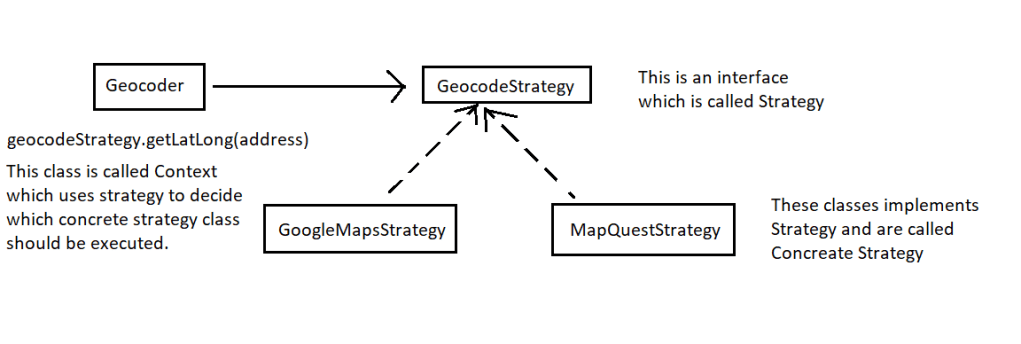
Let’s understand this code using below pictorial representation which is self explanatory-

Geocode Strategy

The Strategy design pattern uses aggregation instead of inheritance, allowing better decoupling between the behavior and the class that uses the behavior. This allows the behavior to be changed without breaking the classes that use it, and the classes can switch between behaviors by changing the specific implementation used without requiring any significant code changes.

For all Design Patterns, please refer this.

Singleton Design Pattern (Apex Design Patterns)

What is singleton?: Its a design pattern which restricts the instantiation of a class to one “single” instance only within a single transaction context.

Why Singleton?: minimizing object instantiation for improved performance and to mitigate impact of governor limits

Let’s discuss problem first then solution using singleton pattern-

Problem:

trigger AccountTrigger on Account (before insert, before update) {
    for(Account record : Trigger.new){
        AccountDemoRecordType rt = new AccountDemoRecordType();
	record.recordTypeId = rt.id;
    }
}

public class AccountDemoRecordType {
    public String id {get;private set;}
    public AccountDemoRecordType(){
        // This could breach the governor limits on describes
        // if a trigger is executed in bulk
        id = Account.sObjectType.getDescribe()
            .getRecordTypeInfosByName().get('Demo').getRecordTypeId();
    }
}

So in above example, if the record are inserted/updated more than 100, we will get governor limit issue since AccountDemoRecordType object instance is created every time time for each record.

Solution: There are many solutions to this problem but we will solve it using a pattern(Singleton here).

trigger AccountTrigger on Account (before insert, before update) {
    for(Account record : Trigger.new){
        AccountDemoRecordType rt = AccountDemoRecordType.getInstance();
	record.recordTypeId = rt.id;
    }
}
//Lazy loading Variant
public class AccountDemoRecordType {
    public String id {get;private set;}
    private AccountDemoRecordType(){
        // This could breach the governor limits on describes
        // if a trigger is executed in bulk
        id = Account.sObjectType.getDescribe()
         .getRecordTypeInfosByName().get('Demo').getRecordTypeId();
    }

    private static AccountDemoRecordType instance = null;

    public static AccountDemoRecordType getInstance() {
	if(instance == null) instance = new AccountDemoRecordType();
        return instance;
    }
}

Using this approach, you can’t instantiate AccountDemoRecordType class using constructor. You can instantiate is only using getInstance method. Also, only one instance is created for AccountDemoRecordType class using getInstance method, so we will not be getting governor limit issue even if record size increases beyond 100.

//Eager Initialization variant
public class AccountDemoRecordType {
    public String id {get;private set;}
    private AccountDemoRecordType(){
        // This could breach the governor limits on describes
        // if a trigger is executed in bulk
        id = Account.sObjectType.getDescribe()
         .getRecordTypeInfosByName().get('Demo').getRecordTypeId();
    }

    private static AccountDemoRecordType instance = new AccountDemoRecordType();

    public static AccountDemoRecordType getInstance() {
        return instance;
    }
}

Eager initialization variant can be used if cost of creating the instance is small.

Logger is the best example which is using singleton pattern.

For all Design Patterns, please refer this.

Apex Design Patterns

Developers around the world over the period of time invented some patterns (repeatable solutions) to solve some common occurring problems, we call it design patterns. We are working on multi tenant architecture in salesforce, all design patterns don’t work here. We have some tricky patterns here in Apex because of this architecture, we call it as Apex Design Patterns.

Image showing solving of problems using apex design patterns

There are following 6 common design patterns in apex-

  • Singleton – Its a design pattern which restricts the instantiation of a class to one “single” instance only within a single transaction context.
Advertisements
  • Strategy – Its a behavioral design pattern that lets you define a family of algorithms, put each of them into a separate class, and make their objects interchangeable. The Strategy pattern (aka the policy pattern) attempts to solve the issue where you need to provide multiple solutions for the same problem so that one can be selected at runtime.
  • Decorator – This pattern allows you to add new functionality to an existing object without altering its structure. This type of design pattern comes under structural pattern as this pattern acts as a wrapper to existing class. This pattern creates a decorator class which wraps the original class and provides additional functionality keeping class methods signature intact.
  • Facade – hides the complexity of the system and provides simple interface.
  • Composite – lets you compose objects into tree structures and then work with these structures as if they were individual objects.
Advertisements
  • Bulk State Transition – used to perform bulk actions efficiently based on change of state of one or more records.

To know more about these patterns, click on respective design pattern name.

Please note: There are no hard and fast rule to use these design patterns, you can use any other OO design patterns as well but make sure you are handling everything efficiently by taking care of governor limits.

Dynamic Forms in Salesforce Lightning

Sometimes there is a requirement where you want to show/hide certain fields based on some criteria but that was not possible with standard salesforce layout and thats why dynamic forms came into picture. With dynamic forms we can customize highlighted panel and the detail view of the record page.

On the highlighted panel, you can just customize the actions and its visibility while on the detail view, you can customize field position and its visibility based on certain conditions.

How can you enable Dynamic form:-

Go to object’s lightning record page which you wish to upgrade, select the “Record Detail” or “Highlights Panel” component, and choose “Upgrade Now” as shown below-

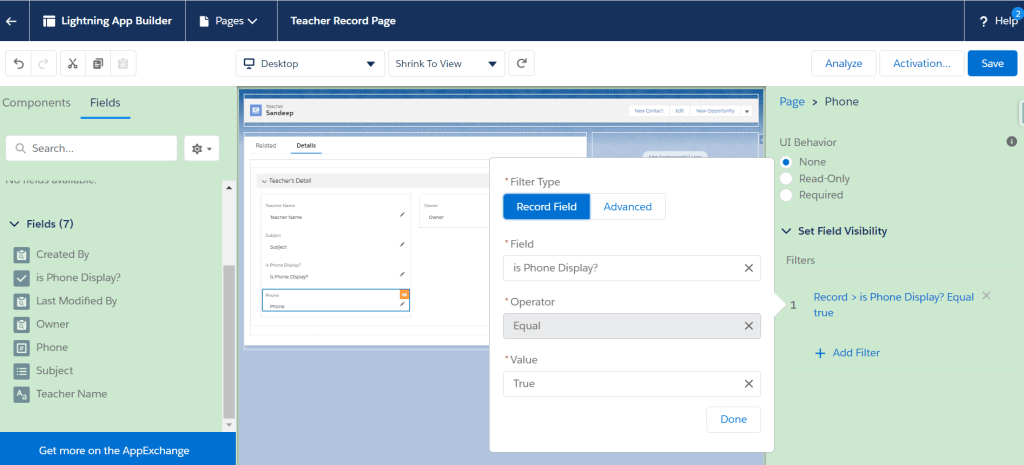
Click next and select appropriate page layout you wish to migrate. You also delete existing details and start from the scratch. For eg. I have edited teacher’s record page layout to display section and fields from scratch by deleting existing components. I am displaying phone field dynamically based on other field ‘is Phone Display?’ as shown in below screenshot-

Note: Dynamic Forms is currently only available for custom objects; standard objects such as Accounts and Opportunities are not supported. Also its supported only for the desktop version. If want to use for the mobile, please use ‘Record detail – Mobile’ component.

Preview:

QR Code Scanner in Salesforce

Currently we have in-built QR code scanner in Salesforce. But problem with this scanner is that it only supports salesforce mobile app and some clients wants to use scanner through desktop browser which can scan QR Code using any camera attached to the desktop.

So I have found a custom solution for this so that you can scan QR code either by uploading image file or by scanning file through camera.

Let’s jump to the solution now. Download js file from here and upload it in static resource and name it as ‘Html5QRCode’.

Now create a visualforce page by pasting below code-

<apex:page >
  <head>
    <title>Html-Qrcode Demo</title>
  
   <apex:includeScript value="{!$Resource.Html5QRCode}"/>
   <script>
       function docReady(fn) {
            // see if DOM is already available
            if (document.readyState === "complete" || document.readyState === "interactive") {
                // call on next available tick
                setTimeout(fn, 1);
            } else {
                document.addEventListener("DOMContentLoaded", fn);
            }
        } 
        
        docReady(function() {
            var resultContainer = document.getElementById('qr-reader-results');
            var lastResult, countResults = 0;
            
            var html5QrcodeScanner = new Html5QrcodeScanner(
                "qr-reader", { fps: 10, qrbox: 250 });
            
            function onScanSuccess(qrCodeMessage) {
                alert(qrCodeMessage);
                window.location = '/' + qrCodeMessage;
            }
            
            // Optional callback for error, can be ignored.
            function onScanError(qrCodeError) {
                // This callback would be called in case of qr code scan error or setup error.
                // You can avoid this callback completely, as it can be very verbose in nature.
            }
            
            html5QrcodeScanner.render(onScanSuccess, onScanError);
        });
      </script>
  </head>
  <body>
    <div id="qr-reader" style="width:500px"></div>
    <div id="qr-reader-results"></div>
  </body>
</apex:page>

Currently I am redirecting user after successful scanning QR code. Based on scan success or failure, you can write your own logic in onScanSuccess and onScanError function as shown in above code.

Preview:

Reference: https://blog.minhazav.dev/HTML5-QR-Code-scanning-launched-v1.0.1/

Create your own Launch pad in Salesforce Lightning

Like App Launcher, Launchpad lets user quickly access the information they need. Using launchpad, you can access visualforce pages, lightning web components, lightning components directly without creating any tab.

There is a standard lightning component named as ‘LaunchPad’ which can use on following lightning pages-

  • Home Page
  • Record Page
  • App Page

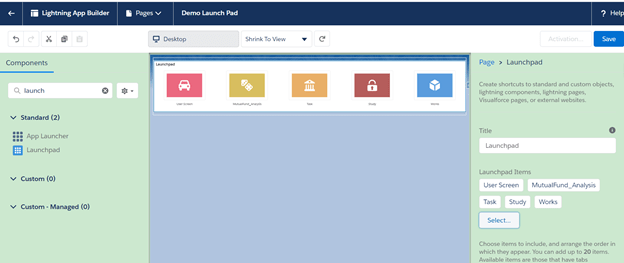
Approach is simple to add this launchpad component to these lightning pages. Just drag and drop this component as shown in below screenshot(home page example) and then select launchpad items which you want to display on its screen-

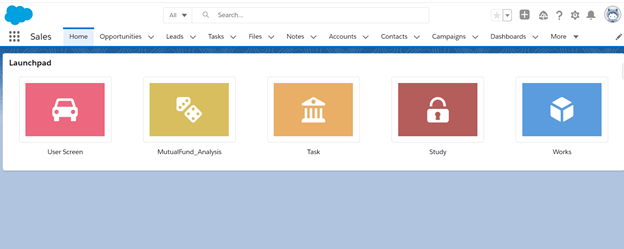
Below screenshot depicts how launchpad looks like on the home screen-

Similarly, you can add launchpad on other lightning pages.

How to access custom attributes from an event object

You can use following two approach to access attribute value from event object-

Approach 1 – Retrieve using standard Attribute: Here we can use name attribute. We access the attribute value using event.target.{attribute name}. Check printNameAttribute method in below code which retrieves value from Name attribute.

Approach 2 – Retrieve using Custom Attribute: Here we use data attribute. We access the attribute value using event.target.dataset.{data attribute name}. Check printDataAttribute method in below code which retrieves value from Data attribute. Data Attribute name is here target-id which is user defined. In javascript you will refer that as targetId.

<!DOCTYPE html>
<html>
 <body>
  <button data-target-id='This is Data Attribute Example' onclick="printDataAttribute(event)" >Test Data Attribute</button>
  <button name='This is Name Attribute Example' onclick="printNameAttribute(event)" >Test Name Attribute</button>
    <p id="demo"></p>
	<script>
	 function printDataAttribute(event) { 
	  document.getElementById("demo").innerHTML = event.target.dataset.targetId;
	 }
     function printNameAttribute(event) { 
	  document.getElementById("demo").innerHTML = event.target.name;
	 }
	</script>
 </body>
</html>

Note: The same way of retrieving value using event can be used in Lighting Web Component as well.

Creating a record using Rest Explorer(Workbench) in Salesforce

I hope you are comfortable with rest api. So if you want to access/update the salesforce data, you can do that using standard salesforce rest api end point. So if you want to test this end point for data access/update, you can test that using workbench which is very simple and straigh-forward way.

So let’s say, you want to create a new account using standard salesforce rest api endpoint, then follow these steps-

  1. Go to workbench and login using org credential. Then go to ‘utilities’ -> Rest Explorer.
  2. Now select ‘Post’ from Http methods.
  3. You will see some endpoints like this- /services/data/vxx.0. Add ‘/sobjects/Account’ to it.
  4. Now paste your input json in the request body as shown in below screenshot and click on ‘Execute’.
  5. In the response, you will see the id if record successfully created.

Similarly you can perform other operations like getting and updating data using rest explorer.

Check Salesforce organization limits and usage using Workbench

  1. Ensure you are logged into the organization where you want to verify your limits.
  2. Navigate to: https://workbench.developerforce.com/login.php
  3. Accept any oauth prompts to complete authentication
  4. On the ‘Jump to’ picklist select REST Explorer.
  5. Click Select.
  6. From the options presented select: /services/data/vXX.0/limits
  7. Click Execute.
  8. Select the SingleEmail area to view the daily maximum and remaining calls.

Reference: https://help.salesforce.com/articleView?id=000331939&type=1&mode=1

Enforce Security With the stripInaccessible Method

Use the stripInaccessible method to enforce field- and object-level data protection. This method can be used to strip the fields and relationship fields from query and subquery results that the user can’t access. The method can also be used to remove inaccessible sObject fields before DML operations to avoid exceptions and to sanitize sObjects that have been deserialized from an untrusted source.

The field- and object-level data protection is accessed through the Security and SObjectAccessDecision classes. The access check is based on the field-level permission of the current user in the context of the specified operation—create, read, update, or upsert. 

1. Getting accessible records

SObjectAccessDecision securityDecision = Security.stripInaccessible(sourceRecords);
System.debug(securityDecision.getRecords()); // prints records with fields to which user has access

2. Printing removed field- 

System.debug(securityDecision.getRemovedFields().get('Account')); // Prints "Rating" 
//This prints removed fields from account object.

3. To check whether field is accessible to user or not- 

Contact c = securityDecision.getRecords()[0];
System.debug(c.isSet('social_security_number__c')); // prints "false" 
//Since social_security_number__c is not available to user.

4. You can also use ‘contains’ to check whether the field is inaccessible or not-

securityDecision.getRemovedFields().get('Campaign').contains('ActualCost');
//if true, it means field is inaccessible.

Reference– 

https://developer.salesforce.com/docs/atlas.en-us.apexcode.meta/apexcode/apex_classes_with_security_stripInaccessible.htm

Use the Safe Navigation Operator to Avoid Null Pointer Exceptions

Use the safe navigation operator (?.) to replace explicit, sequential checks for null references. This operator short-circuits expressions that attempt to operate on a null value and returns null instead of throwing a NullPointerException.

If the left-hand-side of the chain expression evaluates to null, the right-hand-side is not evaluated. Use the safe navigation operator (?.) in method, variable, and property chaining. The part of the expression that is not evaluated can include variable references, method references, or array expressions.

So let’s take an example of a contact object record-

Contact contactObj = getContactRecord();
if(contactObj  != null) {
    system.debug(contactObj .FirstName);
}

So we can replace above code of block in a single line of statement as shown below using safe navigation operator (?.)-

system.debug(contactObj?.FirstName);

Other alternative:

system.debug(contactObj != null?contactObj.FirstName:null);

Batch Apex Similified

In order to process the large number of records, we use batch apex in salesforce.

I hope you already know how to write a batch and how to use it. So I am giving you just few examples and important points to be considered while using the batch –

Refer this for Iterable example.

Using Database.QueryLocator to Define Scope

The start method can return either a Database.QueryLocator object that contains the records to use in the batch job or an iterable.

The following example uses a Database.QueryLocator:

1.       public class SearchAndReplace implements Database.Batchable{

2.        

3.          public final String Query;

4.          public final String Entity;

5.          public final String Field;

6.          public final String Value;

7.        

8.          public SearchAndReplace(String q, String e, String f, String v){

9.        

10.          Query=q; Entity=e; Field=f;Value=v;

11.       }

12.     

13.       public Database.QueryLocator start(Database.BatchableContext BC){

14.          return Database.getQueryLocator(query);

15.       }

16.     

17.       public void execute(Database.BatchableContext BC, List scope){

18.         for(sobject s : scope){

19.         s.put(Field,Value);

20.         }

21.         update scope;

22.        }

23.     

24.       public void finish(Database.BatchableContext BC){

25.       }

26.    }


Important points:

 
1.        If you use a QueryLocator object, the governor limit for the total number of records retrieved by SOQL queries is bypassed. A maximum of 50 million records can be returned in the Database.QueryLocator object. If more than 50 million records are returned, the batch job is immediately terminated and marked as Failed.
 
2.       If you use an iterable, the governor limit for the total number of records retrieved by SOQL queries is still enforced.
 
3.       Batches of records tend to execute in the order in which they’re received from the start method. However, the order in which batches of records execute depends on various factors. The order of execution isn’t guaranteed.
 
4.       Each execution of a batch Apex job is considered a discrete transaction. For example, a batch Apex job that contains 1,000 records and is executed without the optional scope parameter from Database.executeBatch is considered five transactions of 200 records each. The Apex governor limits are reset for each transaction. If the first transaction succeeds but the second fails, the database updates made in the first transaction are not rolled back.
 
5.       If the start method of the batch class returns a QueryLocator, the optional scope parameter of Database.executeBatch can have a maximum value of 2,000. If set to a higher value, Salesforce chunks the records returned by the QueryLocator into smaller batches of up to 2,000 records. If the start method of the batch class returns an iterable, the scope parameter value has no upper limit. However, if you use a high number, you can run into other limits.
 
6.       The Database.executeBatch method returns the ID of the AsyncApexJob object, which you can use to track the progress of the job. For example:
ID batchprocessid = Database.executeBatch(reassign);
AsyncApexJob aaj = [SELECT Id, Status, JobItemsProcessed, TotalJobItems, NumberOfErrors FROM AsyncApexJob WHERE ID =: batchprocessid ];
while the System.scheduleBatch method returns the scheduled job ID (CronTrigger ID). For example:
String cronID = System.scheduleBatch(reassign, 'job example', 1);
CronTrigger ct = [SELECT Id, TimesTriggered, NextFireTime FROM CronTrigger WHERE Id = :cronID];
// TimesTriggered should be 0 because the job hasn't started yet.
System.assertEquals(0, ct.TimesTriggered);
System.debug('Next fire time: ' + ct.NextFireTime);
 
7.       The scheduler runs as system — all classes are executed, whether or not the user has permission to execute the class.
 
8.       All scheduled Apex limits apply for batch jobs scheduled using System.scheduleBatch. After the batch job is queued (with a status of Holding or Queued), all batch job limits apply and the job no longer counts toward scheduled Apex limits
 
9.       While submitted jobs have a status of Holding, you can reorder them in the Salesforce user interface to control which batch jobs are processed first. To do so, from Setup, enter Apex Flex Queue in the Quick Find box, then select Apex Flex Queue.
Alternatively, you can use Apex methods to reorder batch jobs in the flex queue. To move a job to a new position, call one of the System.FlexQueue methods. Pass the method the job ID and, if applicable, the ID of the job next to the moved job’s new position. For example:
Boolean isSuccess = System.FlexQueue.moveBeforeJob(jobToMoveId, jobInQueueId);
 
10.  To use a callout in batch Apex, specify Database.AllowsCallouts in the class definition. For example:
public class SearchAndReplace implements Database.Batchable, Database.AllowsCallouts{
}
 
11.  The start, execute, and finish methods can implement up to 100 callouts each.
 
12.  If you specify Database.Stateful in the class definition, you can maintain state across these transactions. When using Database.Stateful, only instance member variables retain their values between transactions. Static member variables don’t retain their values and are reset between transactions. Maintaining state is useful for counting or summarizing records as they’re processed. For example, suppose your job processed opportunity records. You could define a method in execute to aggregate totals of the opportunity amounts as they were processed.
 
13.  With the Apex flex queue, you can submit up to 100 batch jobs. If the Apex flex queue has the maximum number of 100 jobs, Database.executeBatch throws a LimitException and doesn’t add the job to the queue.
 
14.  Up to 5 batch jobs can be queued or active concurrently.
 
15.  Only one batch Apex job's start method can run at a time in an org.
 
16.  In a running test, you can submit a maximum of 5 batch jobs.
 
17.  If your org doesn’t have Apex flex queue enabled, Database.executeBatch adds the batch job to the batch job queue with the Queued status. If the concurrent limit of queued or active batch job has been reached, a LimitException is thrown, and the job isn’t queued.
 
18.  The maximum number of batch Apex method executions per 24-hour period is 250,000, or the number of user licenses in your org multiplied by 200—whichever is greater. Method executions include executions of the start, execute, and finish methods. This limit is for your entire org and is shared with all asynchronous Apex: Batch Apex, Queueable Apex, scheduled Apex, and future methods. To check how many asynchronous Apex executions are available, make a request to REST API limits resource. See List Organization Limits in the REST API Developer Guide. The licenses that count toward this limit are full Salesforce user licenses or App Subscription user licenses. Chatter Free, Chatter customer users, Customer Portal User, and partner portal User licenses aren’t included.
 
19.  The executeBatch method starts an asynchronous process. When you test batch Apex, make certain that the asynchronously processed batch job is finished before testing against the results. Use the Test methods startTest and stopTest around the executeBatch method to ensure that it finishes before continuing your test.
 
20.  Future methods can’t be called from a batch Apex class.
 
21.  When a batch Apex job is run, email notifications are sent to the user who submitted the batch job. If the code is included in a managed package and the subscribing org is running the batch job, notifications are sent to the recipient listed in the Apex Exception Notification Recipient field.
 
22.  Each batch Apex invocation creates an AsyncApexJob record. To construct a SOQL query to retrieve the job’s status, number of errors, progress, and submitter, use the AsyncApexJob record’s ID. For more information about the AsyncApexJob object, see AsyncApexJob in the Object Reference for Salesforce. For each 10,000 AsyncApexJob records, Apex creates an AsyncApexJob record of type BatchApexWorker for internal use. When querying for all AsyncApexJob records, we recommend that you filter out records of type BatchApexWorker using the JobType field. Otherwise, the query returns one more record for every 10,000 AsyncApexJob records.
 
23.  For a sharing recalculation, Its recommended that the execute method delete and then re-create all Apex managed sharing for the records in the batch. This process ensures that sharing is accurate and complete.
 
24.  Ensure that batch jobs execute as fast as possible. To ensure fast execution of batch jobs, minimize Web service callout times and tune queries used in your batch Apex code. The longer the batch job executes, the more likely other queued jobs are delayed when many jobs are in the queue.
 
25.  Batch Apex jobs run faster when the start method returns a QueryLocator object that doesn't include related records via a subquery. Avoiding relationship subqueries in a QueryLocator allows batch jobs to run using a faster, chunked implementation. If the start method returns an iterable or a QueryLocator object with a relationship subquery, the batch job uses a slower, non-chunking, implementation. For example, if the following query is used in the QueryLocator, the batch job uses a slower implementation because of the relationship subquery:
SELECT Id, (SELECT id FROM Contacts) FROM Account
A better strategy is to perform the subquery separately, from within the execute method, which allows the batch job to run using the faster, chunking implementation.
 
26.  Starting with API version 26.0, you can start another batch job from an existing batch job to chain jobs together. Chain a batch job to start a job after another one finishes and when your job requires batch processing, such as when processing large data volumes. Otherwise, if batch processing isn’t needed, consider using Queueable Apex.

Basics of Salesforce CPQ

What is Salesforce CPQ?

CPQ stands for configure, price, and quote.

A quality quote is the end product of Salesforce CPQ.

Using Salesforce CPQ, you can choose products smartly, configure its price (You just need to set the percent discount, CPQ with do the math) and generate a nice pdf for your customer quickly and accurately.


Product Selection using CPQ?

Salesforce CPQ simplifies product selection.

You can choose products from the list of products. You can filter out the products. Your admin can group products into categories for easy product selection.

You can use guided selling process from the Salesforce CPQ to select the products that meets your business requirement.

Sometimes there is requirement to sell products in combination, we call it bundle in Salesforce CPQ. Sales Admin can configure bundles which prevents sales rep choosing the wrong product combination.


Pricing using Salesforce CPQ?

You don’t have to calculate the price manually. Salesforce CPQ do it automatically.

Salesforce CPQ do that math to calculate prices automatically but you have to configure which price to use. There are several CPQ pricing methods-

  • Standard Salesforce Pricebook
  • Contracted Pricing
  • Unit cost for a product
  • Cost Plus Markup
  • Block Price Method

You can use discount schedules to handle tiered discounts for volume-­­based pricings and also apply the same to subscription-based products to discount them based on the overall subscription term.


What is Quote?

In Salesforce CPQ term, Quote can be electronic record or PDF document created from the record.

You need to add Quote, then choose products to make the quote complete. Also, you can add as many quotes as you want.  You can also use quote to negotiate with customer.

There can be only one primary quote. Total amount field on quote is reflected on the Opportunity’s Amount field and products from this quote is reflected on product related list on opportunity.

Using Salesforce CPQ, you can generate a perfect quote which have everything there which is important to customers which includes price break up of products and discounts. It includes all important terms & conditions also which is automatically added if any. You can add digital signature to the quote for get it signed electronically for faster sales cycle.

Salesforce CPQ can display several pieces of information about your quote dynamically, quickly and easily, in a pdf document. This document is stored on the quote as well on the opportunity. You can even email that document to your customer.  


Renewal Process

For the subscription-based product, there is a contract for certain period of time. When the contract ends, renewal process begins. Usually will have to create a new renewal opportunity to create a quote but Salesforce CPQ automates this to create contract and quote seamlessly.

Salesforce CPQ creates renewal opportunity and the quote before the contract ends. It also automatically adds subscription products. You can also automate final quotes by adding products from existing quote. You can also add/remove products to modify this quote.

How to use Apex Replay Debugger

Step 1. Use the Debug: Toggle Breakpoint and SFDX: Toggle Checkpoint commands to toggle on and off breakpoints and checkpoints, respectively
Step 2.  Use SFDX: Update Checkpoints in Org command to update checkpoint in the org. You must tell Salesforce about your checkpoints so that heap dumps are collected as your Apex code executes
Notes:  You can set as many breakpoints as you like, but you can only set up to five checkpoints at a time.
Be sure to generate debug logs and replay them with Apex Replay Debugger soon after updating your checkpoints, because checkpoints expire after 30 minutes and heap dumps expire after a day.
Step 3. After breakpoints and checkpoints set, run Apex test to generate a replay-enabled debug log.
Use SFDX: Turn On Apex Debug Log for Replay Debugger first. This creates a trace flag to generate replay-enabled debug logs for 30 minutes. You can change the duration in Setup on the Debug Logs page.
Run your apex test class using SFDX: run Apex Tests command.

Step 4. Run SFDX: Get Apex Debug Logs & click on debug log to download.

Step 5. Right-click any line in the debug log, then choose SFDX: Launch Apex Replay Debugger with Current File. After a few seconds, Visual Studio Code opens the Debug sidebar, ready for you to begin stepping through the code.

CSS Tricks

align-items: center -> align all the items in the center of the screen
justify-content: space-between -> items are evenly distributed in the line; first item is on the start line, last item on the end line
background-size: contain -> fit the size of the image within parent container.

Let’s know bit more->

The justify-content property is a sub-property of the Flexible Box Layout module.

It defines the alignment along the main axis. It helps distribute extra free space leftover when either all the flex items on a line are inflexible, or are flexible but have reached their maximum size. It also exerts some control over the alignment of items when they overflow the line.

The justify-content property accepts five different values:

flex-start (default): items are packed toward the start line
flex-end: items are packed toward to end line
center: items are centered along the line
space-between: items are evenly distributed in the line; first item is on the start line, last item on the end line
space-around: items are evenly distributed in the line with equal space around them
space-evenly: items are distributed so that the spacing between any two adjacent alignment subjects, before the first alignment subject, and after the last alignment subject is the same


Sample code in LWC
Sample.html

<template>    
<div class=‘customSession’>
      <div >
        <p class=“customTitle”>The Future of javascript demo</p>
        <p class=“icon customTime”>12/7/2020 5:20 AM</p>
        <p class=“icon customRoom”>Keynote Room</p>
      </div>
      <div class=“customPicture”>
            alt=‘Sandeep’ title=‘Sandeep’>
      </div>
    </div>
</template>

Sample.css

.customSession {
    displayflex;
    justify-contentspace-between;    
    border-left3px solid #0277bd;
    border-radius0 0.5rem 0.5rem 0;
    align-itemscenter;
    border1px solid #dddbda;
    margin1rem 0;
    padding1rem;
    font-size1rem;
}

.customSession .icon {
    color#039be5;
    background-repeatno-repeat;
    background-sizecontain;
    padding-left1.75rem;
}

.customSession .customTitle {
    font-weight600;
    font-size1.2rem;
    color#039be5;
}

.customSession .customRoom {
    margin-top0.4rem;
}

.customSession .customTime {
    margin-top0.6rem;
}

.customPicture {
    displayflex;
    justify-contentend;
}

.customPicture > img {
    border-radius50%;
    height3.5rem;
}

Creating LWC project using CLI

Step 1. Create a new Salesforce project with this command
sfdx force:project:create -n projectName

Step 2. Navigate to the directory with this command
cd projectName

Step 3. Authorize an org with this command
sfdx force:auth:web:login -s -a projectName

In this step, browser will open, you need to enter credentials to authorize your org with this project. You can close your browser after authorization.

You can use following command to open the org again.
sfdx force:org:open

ScrollToTop button example

Use cases-
1. When you scroll to the bottom, ‘scroll to top’ button will be visible.
2. When you will click on that ‘scroll to top’, button, you will be navigated to the top.

Please find the sample code-

SampleScrollToBottomTop.html


        JQuery 
      | Detecting when user scrolls to bottom of div.
   

#gh-bt {
position: fixed;
display: block;
width: 32px;
height: 33px;
right: -50px;
bottom: 60px;
overflow: hidden;
z-index: 9;
border: 1px solid #ddd;
border-top-left-radius: 3px;
border-bottom-left-radius: 3px;
}
#gh-bti {
position: absolute;
clip: rect(0,33px,36px,0);
top: -1px;
left: -1px;
}
button {
-webkit-appearance: button;
-webkit-writing-mode: horizontal-tb !important;
text-rendering: auto;
color: buttontext;
letter-spacing: normal;
word-spacing: normal;
text-transform: none;
text-indent: 0px;
text-shadow: none;
display: inline-block;
text-align: center;
align-items: flex-start;
cursor: default;
background-color: buttonface;
box-sizing: border-box;
margin: 0em;
font: 400 13.3333px Arial;
padding: 1px 6px;
border-width: 2px;
border-style: outset;
border-color: buttonface;
border-image: initial;
}

<script src=
https://ajax.googleapis.com/ajax/libs/jquery/3.4.0/jquery.min.js”&gt;

 
<body style="text-align:center;"
      id=”body”>


        SalesforceCookCode 


Sample Data

Sample Data

Sample Data

Sample Data

Sample Data

Sample Data

Sample Data

Sample Data

Sample Data

Sample Data

Sample Data

Sample Data

Sample Data

Sample Data

Sample Data

Sample Data

Sample Data

Sample Data

Sample Data

Sample Data

Sample Data

Sample Data

Sample Data

Sample Data

Sample Data

Sample Data

Sample Data

Sample Data

Sample Data

Sample Data

Sample Data

Sample Data

Sample Data

Sample Data

Sample Data

Sample Data

Sample Data

Sample Data

Sample Data

Sample Data

Sample Data

Sample Data

Sample Data

Sample Data

Sample Data

Sample Data

Sample Data

Sample Data

Sample Data

Sample Data

Sample Data

Sample Data

Sample Data

Sample Data

Sample Data

Sample Data

Sample Data

Sample Data

Sample Data

Sample Data

Sample Data

Sample Data

Sample Data

Sample Data


Scroll to top
   
$(‘#gh-bt’).hide();
       
        $(window).on(‘scroll’, function() {
            if ($(window).scrollTop() >= $(
              ‘.div’).offset().top + $(‘.div’).
                outerHeight() – window.innerHeight) {
                $(‘#gh-bt’).show();
            } else {
$(‘#gh-bt’).hide();
}
        });

$(‘#gh-bt’).click(function() {
  $(“html, body”).animate({ scrollTop: 0 }, “slow”);
  return false;
});


Build an Aura Component to Override a Standard Action

Topics to learn-
1. How to populate picklist values in a field.
2. How to use modal to show popup
3. Use of slds-backdrop class
4. How to use LDS (lightning data service) to create/edit a record.

Please refer the below code to learn the above topics-

PropertyDialog.cmp


<force:recordData aura:id="forceRecord"
                      recordId=”{!v.recordId}”
                      targetFields=”{!v.propertyRecord}”
                      fields=”Id,Name,Beds__c,Baths__c,Price__c,Status__c”
                      mode=”EDIT” />


PropertyDialogController.js
({
doInit : function(component, event, helper) {
        var recId = component.get(“v.recordId”);
if (recId) {
    component.set(“v.modalContext”, “Edit”);
}
if (!recId) {
component.find(“forceRecord”).getNewRecord(
        “Property__c”,
        null,
        false,
        $A.getCallback(function() {
            var rec = component.get(“v.propertyRecord”);
            var error = component.get(“v.recordError”);
            if (error || (rec === null)) {
                console.log(“Error initializing record template: ” + error);
                return;
            }
        })
    );
}
},
    
    saveRecord : function(component, event, helper) {
        var propBeds = parseInt(component.find(‘propBeds’).get(“v.value”), 10);
var propBaths = parseInt(component.find(‘propBaths’).get(“v.value”), 10);
var propPrice = parseInt(component.find(‘propPrice’).get(“v.value”), 10);
component.set(“v.propertyRecord.Name”, component.find(‘propName’).get(“v.value”));    
component.set(“v.propertyRecord.Beds__c”, propBeds);
component.set(“v.propertyRecord.Baths__c”, propBaths);
component.set(“v.propertyRecord.Price__c”, propPrice);
component.set(“v.propertyRecord.Status__c”, component.find(‘propStatus’).get(“v.value”));
var tempRec = component.find(“forceRecord”);
tempRec.saveRecord($A.getCallback(function(result) {
    console.log(result.state);
    var resultsToast = $A.get(“e.force:showToast”);
    if (result.state === “SUCCESS”) {
        resultsToast.setParams({
            “title”: “Saved”,
            “message”: “The record was saved.”
        });
        resultsToast.fire();
        var recId = result.recordId;
helper.navigateTo(component, recId);
    } else if (result.state === “ERROR”) {
        console.log(‘Error: ‘ + JSON.stringify(result.error));
        resultsToast.setParams({
            “title”: “Error”,
            “message”: “There was an error saving the record: ” + JSON.stringify(result.error)
        });
        resultsToast.fire();
    } else {
        console.log(‘Unknown problem, state: ‘ + result.state + ‘, error: ‘ + JSON.stringify(result.error));
    }
}));
},
    cancelDialog: function(component, event, helper) {
    var recId = component.get(“v.recordId”);
    if (!recId) {
        var homeEvt = $A.get(“e.force:navigateToObjectHome”);
        homeEvt.setParams({
            “scope”: “Property__c”
        });
        homeEvt.fire();
    } else {
        helper.navigateTo(component, recId);
    }
}
})
PropertyDialogHelper.js
({
    navigateTo: function(component, recId) {
        var navEvt = $A.get(“e.force:navigateToSObject”);
        navEvt.setParams({
            “recordId”: recId
        });
        navEvt.fire();
    }
})
PicklistController.apxc
public class PickListController {
@AuraEnabled        
public static List getPickListValuesIntoList(String objectType, String selectedField){
    List pickListValuesList = new List();
    Schema.SObjectType convertToObj = Schema.getGlobalDescribe().get(objectType);
    Schema.DescribeSObjectResult res = convertToObj.getDescribe();
    Schema.DescribeFieldResult fieldResult = res.fields.getMap().get(selectedField).getDescribe();
    List ple = fieldResult.getPicklistValues();
    for( Schema.PicklistEntry pickListVal : ple){
        pickListValuesList.add(pickListVal.getLabel());
    }     
    return pickListValuesList;
}
}
PicklistValues.cmp
PicklistValuesController
({
    doInit : function(component) {
        var action = component.get(“c.getPickListValuesIntoList”);
        action.setParams({
            objectType: component.get(“v.sObjectName”),
            selectedField: component.get(“v.fieldName”)
        });
        action.setCallback(this, function(response) {
            var list = response.getReturnValue();
            component.set(“v.picklistValues”, list);
        })
        $A.enqueueAction(action);
    }
})

For more information, please comment in the commentbox or try the below trailhead-
https://trailhead.salesforce.com/content/learn/projects/workshop-override-standard-action

LWC publish subscribe model

To understand this concept, please go through this trailhead-
https://trailhead.salesforce.com/content/learn/projects/lwc-build-flexible-apps/inter-comp-events?trail_id=build-lightning-web-components

pubsub.js

/**
 * A basic pub-sub mechanism for sibling component communication
 *
 * TODO – adopt standard flexipage sibling communication mechanism when it’s available.
 */

const events = {};

const samePageRef = (pageRef1pageRef2=> {
    const obj1 = pageRef1.attributes;
    const obj2 = pageRef2.attributes;
    return Object.keys(obj1)
        .concat(Object.keys(obj2))
        .every(key => {
            return obj1[key] === obj2[key];
        });
};

/**
 * Registers a callback for an event
 * @param {string} eventName – Name of the event to listen for.
 * @param {function} callback – Function to invoke when said event is fired.
 * @param {object} thisArg – The value to be passed as the this parameter to the callback function is bound.
 */
const registerListener = (eventNamecallbackthisArg=> {
    // Checking that the listener has a pageRef property. We rely on that property for filtering purpose in fireEvent()
    if (!thisArg.pageRef) {
        throw new Error(
            ‘pubsub listeners need a “@wire(CurrentPageReference) pageRef” property’,
        );
    }

    if (!events[eventName]) {
        events[eventName] = [];
    }
    const duplicate = events[eventName].find(listener => {
        return listener.callback === callback && listener.thisArg === thisArg;
    });
    if (!duplicate) {
        events[eventName].push({ callbackthisArg });
    }
};

/**
 * Unregisters a callback for an event
 * @param {string} eventName – Name of the event to unregister from.
 * @param {function} callback – Function to unregister.
 * @param {object} thisArg – The value to be passed as the this parameter to the callback function is bound.
 */
const unregisterListener = (eventNamecallbackthisArg=> {
    if (events[eventName]) {
        events[eventName] = events[eventName].filter(
            listener =>
                listener.callback !== callback || listener.thisArg !== thisArg,
        );
    }
};

/**
 * Unregisters all event listeners bound to an object.
 * @param {object} thisArg – All the callbacks bound to this object will be removed.
 */
const unregisterAllListeners = thisArg => {
    Object.keys(events).forEach(eventName => {
        events[eventName] = events[eventName].filter(
            listener => listener.thisArg !== thisArg,
        );
    });
};

/**
 * Fires an event to listeners.
 * @param {object} pageRef – Reference of the page that represents the event scope.
 * @param {string} eventName – Name of the event to fire.
 * @param {*} payload – Payload of the event to fire.
 */
const fireEvent = (pageRefeventNamepayload=> {
    if (events[eventName]) {
        const listeners = events[eventName];
        listeners.forEach(listener => {
            if (samePageRef(pageReflistener.thisArg.pageRef)) {
                try {
                    listener.callback.call(listener.thisArgpayload);
                } catch (error) {
                    // fail silently
                }
            }
        });
    }
};

export {
    registerListener,
    unregisterListener,
    unregisterAllListeners,
    fireEvent,
};

bearsList.js

import following module
import { fireEvent } from ‘c/pubsub’;

bears;
@wire(CurrentPageReferencepageRef;
@wire(searchBears, {searchTerm: ‘$searchTerm’})
loadBears(result) {
    this.bears = result;
    if (result.data) {
       fireEvent(this.pageRef‘bearListUpdate’result.data);
    }
}

it publishes the bearListUpdate event.

bearMap.js

connectedCallback() {
        // subscribe to bearListUpdate event
        registerListener(‘bearListUpdate’this.handleBearListUpdatethis);
    }
    disconnectedCallback() {
        // unsubscribe from bearListUpdate event
        unregisterAllListeners(this);
    }
    handleBearListUpdate(bears) {
        this.mapMarkers = bears.map(bear => {
            const Latitude = bear.Location__Latitude__s;
            const Longitude = bear.Location__Longitude__s;
            return {
                location: { LatitudeLongitude },
                title: bear.Name,
                description: `Coords: ${Latitude}${Longitude}`,
                icon: ‘utility:animal_and_nature’
            };
        });
    }

It subscribes to the ‘bearListUpdate’ event.

Now as you can see in below screenshot, when you search bears, you track their locations as well at the same time.

Make Long-Running Callouts with Continuations

Use the Continuation class in Apex to make a long-running request to an external Web service. Process the response in a callback method. An asynchronous callout made with a continuation doesn’t count toward the Apex limit of 10 synchronous requests that last longer than five seconds.

To make a long-running callout, define an Apex method that returns a Continuation object. 

@AuraEnabled(continuation=true cacheable=true)
public static Object startRequest() {
// Create continuation. Argument is timeout in seconds.
Continuation con = new Continuation(40);
// more to come here
return con;
}


Set an Apex callback method to be invoked after the callout completes in the continuationMethod property of the Continuation object. In this example, the callback method is processResponse. The callback method must be in the same Apex class.


con.continuationMethod='processResponse';


Set the endpoint for a callout by adding an HttpRequest object to the Continuation object. A single Continuation object can contain a maximum of three callouts. Each callout must have a remote site or named credential defined in Setup.

HttpRequest req = new HttpRequest();
req.setMethod('GET');
req.setEndpoint(LONG_RUNNING_SERVICE_URL);
con.addHttpRequest(req);


Set data to pass to the callback method in the state property of the Continuation object. The state property has an Object type so you can pass in any data type that’s supported in Apex.

con.state='Hello, World!';


Code the logic in the Apex callback. When all the callouts set in the Continuation object have completed, the Apex callback method, processResponse, is invoked. The callback method has two parameters that you can access.

public static Object processResponse(List<String> labels, Object state)


  1. labels—A list of labels, one for each request in the continuation. These labels are automatically created.

  2. state—The state that you set in the state property in your Continuation object.


Get the response for each request in the continuation. For example:


HttpResponse response = Continuation.getResponse(labels[0]);


Return the results to the JavaScript controller.


Complete Apex Class Example with Continuation


Here’s a complete Apex class that ties together all the earlier steps.

public with sharing class SampleContinuationClass {
// Callout endpoint as a named credential URL
// or, as shown here, as the long-running service URL
private static final String LONG_RUNNING_SERVICE_URL =
'';

// Action method
@AuraEnabled(continuation=true cacheable=true)
public static Object startRequest() {
// Create continuation. Argument is timeout in seconds.
Continuation con = new Continuation(40);
// Set callback method
con.continuationMethod='processResponse';
// Set state
con.state='Hello, World!';
// Create callout request
HttpRequest req = new HttpRequest();
req.setMethod('GET');
req.setEndpoint(LONG_RUNNING_SERVICE_URL);
// Add callout request to continuation
con.addHttpRequest(req);
// Return the continuation
return con;
}

// Callback method
@AuraEnabled(cacheable=true)
public static Object processResponse(List labels, Object state) {
// Get the response by using the unique label
HttpResponse response = Continuation.getResponse(labels[0]);
// Set the result variable
String result = response.getBody();
return result;
}
}


Resolution for SVG rendering issue on visualforce page

Issue: Using tag to get SLDS Icons in vf. Initially on page load all works fine but when I try to re-render any that have icons inside it, on complete of rerendering it vanish my all icons.

Resolution: 

I was able to overcome the problem of SVG images disappearing using following steps-

-Add docType=”html-5.0″ attribute to the tag;
-Put the xmlns=”…” and xmlns:xlink=”…” attributes directly on the tag, together with xlink:href=”…” value for the SVG icon.

for eg.

<use xmlns="http://www.w3.org/2000/svg&quot; xmlns:xlink="http://www.w3.org/1999/xlink&quot;

  xlink:href=”{!URLFOR($Asset.SLDS, ‘assets/icons/doctype-sprite/svg/symbols.svg#attachment’)}”>

Convert old Notes into Enhanced Notes using Apex

When you convert Old Notes to enhanced Notes, following must be kept in mind-
1. CreatedDate/LastModifiedDate of the enhanced note must be same that of the old Note. Create a permission set for that. Follow the steps to create the same-

  1. From Setup, enter Permission Sets in the Quick Find box, then select Permission Sets.
  2. Create a new permission set.
  3. Select System Permissions.
  4. Click Edit and enable the following permissions:
    1. In the Systems section:
      1. a. Modify All Data
      2. b. Set Audit Fields upon Record Creation
    2. In the Users section:
      1. c. View All Users
  5. Click Save.
  6. Click Manage Assignments.
  7. Assign the permission set to anyone who will be converting old Notes into enhanced Note. this typically includes admins.


Sample Code:- 


/**
 * This class converts all notes related to a record
 *
 * Uses ‘without sharing’ to ensure can perform SOQL queries on
 * existing ContentVersions and ContentDocumentLinks to know if
 * a Note has already been converted or not.
 */
public without sharing class ConvertNotesToContentNotesService {

    private String parentId { get; set; }

    // if context user is a community user then we
    // need to pass on the network id to assign to ContentVersion
    private ID networkId { get; set; }


    public ConvertNotesToContentNotesService(  String parentId ) {
        this.parentId = parentId;
    }

    public ConvertNotesToContentNotesService( String parentId, ID networkId ) {
        this.parentId = parentId;
        this.networkId = networkId;
    }

    /**
     * Each note record should have these fields populated:
     *  – Id
     *  – ParentId
     *  – OwnerId
     *  – Title
     *  – Body
     *  – IsPrivate
     *  – CreatedById
     *  – CreatedDate
     *  – LastModifiedById
     *  – LastModifiedDate
     */
    public void convert() {
        
        List oldNotes = [SELECT id, ownerId, owner.isActive, parentId, title, body, isPrivate,
                    createdById, createdDate, lastModifiedById, lastModifiedDate
                    FROM Note
                WHERE
                    parentId = :parentId];
        // determine if communities are enabled and if so then we will need
        // to assign the network id field when inserting the content versions
        // otherwise error “INSUFFICIENT_ACCESS_ON_CROSS_REFERENCE_ENTITY” occurs
        // if community user creates a note and it tries to get converted
        Boolean communitiesEnabled = ContentVersion.sObjectType.getDescribe().fields.getMap().containsKey( ‘NetworkId’ );

        Map oldNotesMap = new Map( oldNotes );

        // the new notes to try and save
        List newNoteVersions = new List();

        for ( Note oldNote : oldNotes ) {

            // per Salesforce we must escape certain special characters
            // logic inspired by David Reed (http://www.ktema.org//2016/08/24/importing-notes-into-salesforce/)
            // https://help.salesforce.com/apex/HTViewSolution?id=000230867&language=en_US
            String noteBody = ( String.isBlank( oldNote.body ) ? ” : oldNote.body )
                // the escape entity for ‘&’ is ‘&’
                // so it includes ‘&’ in its own escape sequence, which is a problem
                // because escapeXml() changes ‘&’ to ‘&’ as well
                // so a single ‘&’ would become ‘&amp;’
                // therefore we first find any normal ‘&’
                // and replace them with a token value that will
                // be later replaced with ‘&’
                .replace(‘&’, ‘sfdcAMPERSANDsfdc’)
                .escapeXml()
                .replace(‘sfdcAMPERSANDsfdc’, ‘&’)
                // handle nitpick on apostrophe html entity
                .replace(”’, ‘'’)
                // handle known unsupported non-ascii characters
                // oddly, other symbols like ® ™ are ok unescaped
                .replace(‘©’, ‘©’)
                // handle new lines
                .replace(‘\r\n’, ‘
‘)

                .replace(‘\r’, ‘
‘)

                .replace(‘\n’, ‘
‘)

            ;

            // content version cannot have a null or empty string body
            // so set to empty paragraph which will appear as blank note.
            // we do this after escaping the original note body otherwise
            // the

tag would get escaped, doh!
            if ( String.isBlank( noteBody ) ) {
                noteBody = ‘

‘;
            }

            // We set the owner of the new content note to be the
            // same as the note’s owner because both fields
            // must have same value to insert the content note.
            // If they do not match then we get error:
            // “Documents in a user’s private library must always be owned by that user.”
            // The other reason to reference the old record’s owner
            // is if the original creator is inactive and the admin
            // needs the new converted file to be owned by an active user.
            // The owner of records can be changed, the created by cannot.

            ContentVersion newNoteVersion = new ContentVersion(
                // data fields
                title = oldNote.title,
                versionData = Blob.valueOf( noteBody ),
                pathOnClient = oldNote.title + ‘.snote’,
                firstPublishLocationId = oldNote.parentId,
                sharingPrivacy = ( oldNote.isPrivate ? ‘P’ : ‘N’ ),
                // custom fields for history tracking and conversion purposes
                //original_record_id__c = oldNote.id,
                //original_record_parent_id__c = oldNote.parentId,
                //original_record_owner_id__c = oldNote.ownerId,
                // audit fields
                ownerId = oldNote.ownerId, // system requirement, owner and creator must be the same
                createdById = oldNote.ownerId,
                createdDate = oldNote.createdDate,
                lastModifiedById = oldNote.lastModifiedById,
                lastModifiedDate = oldNote.lastModifiedDate
            );

            // if communities are enabled then assign network id
            if ( communitiesEnabled ) {
                newNoteVersion.put( ‘NetworkId’, this.networkId );
            }

            newNoteVersions.add( newNoteVersion );

        }

        Database.insert( newNoteVersions);
    }

}


Deleting Files related to a record

Sample Code:

        Set contentDocumentIds = new Set();
        List cDocLink = [Select id, ContentDocumentId from
                                              ContentDocumentLink where LinkedEntityId = :ParentId];
        for(ContentDocumentLink contentDocLinks : cDocLink) {
        contentDocumentIds.add(contentDocLinks.ContentDocumentId);
        }
        delete cDocLink;
       
        delete [SELECT Id FROM ContentDocument
                                          WHERE Id in :contentDocumentIds];

Converting attachment into file

When you convert attachment to File, following must be kept in mind-
1. Filename should be without extension. It can be with extension but its better to without extension.
2. CreatedDate/LastModifiedDate of the file must be same that of the attachment. Create a permission set for that. Follow the steps to create the same-

  1. From Setup, enter Permission Sets in the Quick Find box, then select Permission Sets.
  2. Create a new permission set.
  3. Select System Permissions.
  4. Click Edit and enable the following permissions:
    1. In the Systems section:
      1. a. Modify All Data
      2. b. Set Audit Fields upon Record Creation
    2. In the Users section:
      1. c. View All Users
  5. Click Save.
  6. Click Manage Assignments.
  7. Assign the permission set to anyone who will be converting attachments into files. This typically includes admins.

Please find the code for the conversion(Its for specific attachment migration but Adjust the code accordingly with savepoint if you are converting attachments in bulk. You may want to delete the attachment at the same times.). Everything is self-explanatary. Leave a comment if want to know more or migrating your org from classic to lightning and need help on notes/attachment migration.-


public without sharing class ConvertAttachment {
    public static void convertAttachmentIntoFile(Id attachmentId) {
        //Get attachment
        Attachment attach = [SELECT Id, Name, Body, ContentType, ParentId, OwnerId, LastModifiedDate, Description From Attachment where id =: attachmentId LIMIT 1];
         
        //Insert ContentVersion
        ContentVersion cVersion = new ContentVersion();
        cVersion.ContentLocation = ‘S’; //S-Document is in Salesforce. E-Document is outside of Salesforce. L-Document is on a Social Netork.
        cVersion.PathOnClient = attach.Name; //File name with extention
        cVersion.Origin = ‘H’;//C-Content Origin. H-Chatter Origin.
        cVersion.OwnerId = attach.OwnerId; //Owner of the file
        cVersion.Title = attach.Name.subString(0, attach.Name.indexOf(‘.’)); //File name without extention
        cVersion.VersionData = attach.Body;//File content
        cVersion.CreatedById = attach.OwnerId;
        cVersion.LastModifiedDate = attach.LastModifiedDate;
        cVersion.createdDate = attach.LastModifiedDate;
        if(attach.Description != null) {
            cVersion.Description = attach.Description;
        }
        Insert cVersion;
        
        //After saved the Content Verison, get the ContentDocumentId
        Id conDocument = [SELECT ContentDocumentId FROM ContentVersion WHERE Id =:cVersion.Id].ContentDocumentId;
         
        //Insert ContentDocumentLink
        ContentDocumentLink cDocLink = new ContentDocumentLink();
        cDocLink.ContentDocumentId = conDocument;//Add ContentDocumentId
        cDocLink.LinkedEntityId = attach.ParentId;//Add attachment parentId
        cDocLink.ShareType = ‘I’;//V – Viewer permission. C – Collaborator permission. I – Inferred permission.
        cDocLink.Visibility = ‘InternalUsers’;//AllUsers, InternalUsers, SharedUsers
        Insert cDocLink;
    }
}

Mass action for Visualforce & lightning

We are deleting multiple records using mass action here. After deleting we are redirecting back to the same list view. 
Please follow following four steps to create mass action button-
Step1. Create a extension with standardsetController
Step2. Create a vf page with recordSetVar attribute
Step3. Create a list button for this vf.
Step4. Add this list button to search layout. 
Everytime is self explanatary. 

Classic Mass Action Running Example
Lightning Mass Action Running Example

How to navigate from one component to other component in lightning

We will use lightning:navigation component to navigate to other component. Please follow below steps for the same-

Step 1.  Add the lightning:isUrlAddressable interface to the component on which you want to navigate. for eg.


    {!v.dummyValue}.

Step 2. Retrieve the attribute values from the page state. In below code, ‘c__dummyString’ is the attribute.

//------------Component1Controller.js-----------------------------
({
    init: function(cmp, evt, helper) {
        var myPageRef = cmp.get("v.pageReference");
        var dummyString = myPageRef.state.c__dummyString;
        cmp.set("v.dummyValue", dummyString);
    }
})

Step3. Add lightning:navigation component to the component from which you are navigating to other component (URL addressable component for eg. Component1 in our case).


Step4. Define page reference for the component you’re navigating to. Its recommended to set the page reference using an init handler. This example stores the pageReference in an attribute in the component, and is used to navigate later in the click handler.

//------------Component2Controller.js-----------------------------
({
    init : function(component, event, helper) {
        var pageReference = {
            type: 'standard__component',
            attributes: {
                componentName: 'c__Component1', //Don't forget to add 'c__'
            },
            state: {
                "c__dummyString": "Page navigated successfully"
            }
        };
        component.set("v.pageReference", pageReference);
     },

     handleClick: function(component, event, helper) {
        var navService = component.find("navService");
        var pageReference = component.get("v.pageReference");
        event.preventDefault();
        navService.navigate(pageReference); //use this to navigate to other component using pageReference
}
})

How to Test:
You can create a lightning custom tab for component ‘Component2’.

You will see ‘navigate’ button when you click on this tab using app launcher. Now click on ‘navigate’ button, you will be redirected to other component.

You will see following text on the screen-
Page navigated successfully.

Standard New and Edit functionality


public with sharing class ReadingPermissionController {

public ReadingPermission__c newReadingPermission {get;set;}
public String returnUrl {get;set;}

public ReadingPermissionController(ApexPages.StandardController setCon) {
ReadingPermission__c r = (ReadingPermission__c) setCon.getRecord();
newReadingPermission = new ReadingPermission__c();
if(r.Id != null) {
newReadingPermission = [Select Id, Name, Permission_Holder_Name__c, Permission_Holder_ID__c, Permission_Holder_Type__c, Granted_Permissions__c from ReadingPermission__c where id =: r.Id];
}
//system.assert(false, newReadingPermission );
returnUrl = apexpages.currentPage().getParameters().get('retURL');
}

public List getReviewerList() {
List options = new List();
options.add(new SelectOption('' , '--None--'));
List users = [Select Id, name from user where profileId in: OnlineReadingBaseClass.getOnlineReadingProfileIds()];
for(User u : users) {
options.add(new SelectOption(u.Id, u.Name));
}
return options;
}

public List getQueueList() {
List sOptions = new List();
List groupList = [select Id, name from Group where type = 'Queue'];
sOptions.add(new SelectOption('' , '--None--'));
for(Group g : groupList) {
sOptions.add(new SelectOption(g.Id , g.Name));
}
return sOptions;
}

public List getGroupList() {
List sOptions = new List();
List groupList = [select Id, name from Group where type = 'Regular'];
sOptions.add(new SelectOption('' , '--None--'));
for(Group g : groupList) {
sOptions.add(new SelectOption(g.Id , g.Name));
}
return sOptions;
}

public PageReference save() {
PageReference pag = null;
try {
upsert newReadingPermission;
pag = new PageReference(returnUrl);
} catch(Exception e) {
ApexPages.addMessages(e);
}
return pag;
}

public PageReference saveAndNew() {
PageReference pag = null;
try {
upsert newReadingPermission;
newReadingPermission = new ReadingPermission__c();
} catch(Exception e) {
ApexPages.addMessages(e);
}
return pag;
}

public PageReference cancel() {
return new PageReference(returnUrl);
}
}


#loading-image {
position: fixed;
top: 40%;
left: 40%;
}

#loading {
width: 100%;
height: 100%;
top: 0px;
left: 0px;
position: absolute;
display: none;
opacity: 0.5;
filter: alpha(opacity = 50);
-moz-opacity: 0.5;
background-color: #fff;
text-align: center;
z-index: 100;
}


//function for showing loading image
function showLoadingImage() {
document.getElementById('loading').style.display='block';
}


//function for hiding loading image
function hideLoadingImage() {
document.getElementById('loading').style.display='none';
}


Loading...


Creating Vf and Apex Class for Portal

Class-


public with sharing class ReadingPermissionController {

public ReadingPermission__c newReadingPermission {get;set;}
public String returnUrl {get;set;}

public ReadingPermissionController(ApexPages.StandardController setCon) {
ReadingPermission__c r = (ReadingPermission__c) setCon.getRecord();
newReadingPermission = new ReadingPermission__c();
if(r.Id != null) {
newReadingPermission = [Select Id, Name, Permission_Holder_Name__c, Permission_Holder_ID__c, Permission_Holder_Type__c, Granted_Permissions__c from ReadingPermission__c where id =: r.Id];
}
//system.assert(false, newReadingPermission );
returnUrl = apexpages.currentPage().getParameters().get('retURL');
}

public List getReviewerList() {
List options = new List();
options.add(new SelectOption('' , '--None--'));
List users = [Select Id, name from user where profileId in: OnlineReadingBaseClass.getOnlineReadingProfileIds()];
for(User u : users) {
options.add(new SelectOption(u.Id, u.Name));
}
return options;
}

public List getQueueList() {
List sOptions = new List();
List groupList = [select Id, name from Group where type = 'Queue'];
sOptions.add(new SelectOption('' , '--None--'));
for(Group g : groupList) {
sOptions.add(new SelectOption(g.Id , g.Name));
}
return sOptions;
}

public List getGroupList() {
List sOptions = new List();
List groupList = [select Id, name from Group where type = 'Regular'];
sOptions.add(new SelectOption('' , '--None--'));
for(Group g : groupList) {
sOptions.add(new SelectOption(g.Id , g.Name));
}
return sOptions;
}

public PageReference save() {
PageReference pag = null;
try {
upsert newReadingPermission;
pag = new PageReference(returnUrl);
} catch(Exception e) {
ApexPages.addMessages(e);
}
return pag;
}

public PageReference saveAndNew() {
PageReference pag = null;
try {
upsert newReadingPermission;
newReadingPermission = new ReadingPermission__c();
} catch(Exception e) {
ApexPages.addMessages(e);
}
return pag;
}

public PageReference cancel() {
return new PageReference(returnUrl);
}
}

Salesforce Interview Questions

How can we improve VisualForce Page Performance?
Hint:- 1. Reduce view state
2. Reduce load time
3. Careful use of multiple concurrent requests
4. Queries and security- using with sharing keyword
5. Preventing field values from dropping off the page.

For more information, please open following link-
http://www.salesforce.com/docs/developer/pages/Content/pages_best_practices_performance.htm

What is View state? How can we reduce this?
Visualforce pages that contain a form component also contain an encrypted, hidden form field that encapsulates the view state of the page. This view state is automatically created, and as its name suggests, it holds the state of the page – state that includes the components, field values and controller state.
Best practices for optimising view state-
1. Minimize number of forms on a page.
2. Declare variables as transient to reduce view state
3. Recreate State versus Storing It in View State
4. Use Custom Objects or Custom Settings to Store Large Quantities of Read-Only Data
5. Refine Your SOQL to Retrieve Only the Data Needed by the Page
6. Refactor Your Pages to Make Its View Stateless
7. Consider Doing Your Own State Management in Certain Cases

For more information, please open the following link-
https://developer.salesforce.com/page/An_Introduction_to_Visualforce_View_State

What are the salesforce components which we can’t deploy?
1. Email services
2. Web to case
3. Self-service portal setting
4. Self-service portal users
5. Organization wide email addresses
6. Fiscal year
7. Lead setting
8. Self service portal font and color
9. Search settings
10. Site.com
11. tag settings
12. Console layouts
13. Analytic setting

For more information, please open the following link-

Profile, Permission setting, roles, sharing rules, manual sharing and OWD
Profiles:- Permissions or collections of settings that defines what a user can do in salesforce.
Permission sets:- Permission set are very similar to profiles. Whatever you can define using profile, you can define using permission set. The main difference is that user can have one profile but many permission sets at a time. So we can define profile to give minimum level of access that every type of user need, then we can use permission set to give additional access. 

Role Hierarchy:- Role Hierarchy enables users above another users in hierarchy to have same level of access to the records owned by or shared with the user below.
Sharing Rules:- used by administrator to grant users within a group or roles access to records owned by a specific group of users.
Manual Sharing:- Manual sharing allows the record owner or the user with full access to a record to share the record with a user or a group of users.
OWD:– to define default sharing setting for an organisation.

Merge Triggers?
Merge trigger don’t fire their own event. Instead they fire delete and update events as follows-
1. deletion of losing record and
2. updation of wining record.
For example:- If two contacts are merged, only update and delete trigger fire. No trigger for records related to contact, such account or opportunity, fires.

For more information, open the following links-
https://www.salesforce.com/us/developer/docs/apexcode/Content/apex_triggers_merge_statements.htm

Apex best practices
1. Bulkify your code
2. Avoid soql queries or DML inside for loops
3. Bulkify your helper class
4. Using collections, streamlining queries and efficient for loops
5. Querying large set of data
6. Use of limit apex methods to avoid hitting governor limits
7. Using @future appropriately.
8. Writing test methods to verify large datasets
9. Avoid hard-coded Ids
10 .Streamlining multiple triggers on the same object.

For more information, open following link-
https://developer.salesforce.com/page/Apex_Code_Best_Practices

Force.com Rest Apis?
Force.com rest apis lets you use a simple and lightweight api access to force.com data using OAuth, together with a data flavors- XML and JSON. The rest api is out of box to suit basic CRUD operation.

Setting up an apex rest endPoint:-
@RestResource(urlMapping = ‘/FieldCase/*’)
global with sharing class RestCaseControllerClass {
This will define ‘FieldCase’ an accessible endpoint and full URI would be constructed from your instance URL constructed with ‘services/apexrest/FieldCase.’

Using GET and DELETE:-
HTTP GET defines data as a series of query parameters in the URI itself. For eg. here is the URI:
https://na8.salesforce.com/services/apexrest/FieldCase?companyName=GenePoint

@HttpGet
global static List getOpenCases() {
String campanyName = RestContext.request.params.get(‘campanyName’);
//return query here
}

Using PUT, PATCH and POST:-
Accessing Binary data using RESTRequest Object:-

For more information, please go to following link-
https://developer.salesforce.com/page/Creating_REST_APIs_using_Apex_REST

Salesforce Integration using SOAP based web services?
WSDL:- is an xml file that defines Remote application’s method and data that have been exposed via a URI. 
 For more information:-
http://th3silverlining.com/2010/03/28/salesforce-integration-using-wsdls/


Web Service Methods:-
https://www.salesforce.com/us/developer/docs/apexcode/Content/apex_web_services_methods.htm

SOAP, REST, Bulk and MetaData APIs?
SOAP API
Use SOAP API to create, retrieve, update or delete records, such as accounts, leads, and custom objects. With more than 20 different calls, SOAP API also allows you to maintain passwords, perform searches, and much more. Use SOAP API in any language that supports Web services.
REST API
REST API provides a powerful, convenient, and simple REST-based Web services interface for interacting with Salesforce. Its advantages include ease of integration and development, and it’s an excellent choice of technology for use with mobile applications and Web projects. However, if you have a large number of records to process, you may wish to use Bulk API, which is based on REST principles and optimized for large sets of data.
Bulk API
Bulk API is based on REST principles and is optimized for loading or deleting large sets of data. You can use it to query, insert, update, upsert, or delete a large number of records asynchronously by submitting batches which are processed in the background by Salesforce.
SOAP API, in contrast, is optimized for real-time client applications that update small numbers of records at a time. Although SOAP API can also be used for processing large numbers of records, when the data sets contain hundreds of thousands of records, it becomes less practical. Bulk API is designed to make it simple to process data from a few thousand to millions of records.
Metadata API
Use Metadata API to retrieve, deploy, create, update, or delete customizations for your organization. The most common use is to migrate changes from a sandbox or testing organization to your production environment. Metadata API is intended for managing customizations and for building tools that can manage the metadata model, not the data itself.

How to work efficiently with DML statements in Apex class

The following Apex DML statements are available:
Insert
Update
Upsert
Delete
Undelete
Merge

Salesforce allows only 150 DML statements for each Apex transaction. So its better to check the list against null or empty before performing DML operations. 

Example-

Account a = new Account(Name='Acme2');
insert(a);

Account myAcct = [SELECT Id, Name, BillingCity FROM Account WHERE Id = :a.Id];
myAcct.BillingCity = 'San Francisco';

try {
if(!myAcct.Empty()) { //Here if myAcct list is empty, you will save 1 DML operation.
update myAcct;
}
} catch (DmlException e) {
// Process exception here
}

Maintaining Width of multi-picklist on visualforce page in Salesforce

Use following javascript code


$(document).ready(function(){
$("[id*='_unselected']").dblclick(function(){
setTimeout(function() {
$("[id*='_unselected']").removeAttr('style');
$("[id*='_selected']").removeAttr('style');
}, 100);
});
$("[id*='_selected']").dblclick(function(){
setTimeout(function() {
$("[id*='_unselected']").removeAttr('style');
$("[id*='_selected']").removeAttr('style');
}, 100);
});
$("[title='Add']").click(function(){
setTimeout(function() {
$("[id*='_unselected']").removeAttr('style');
$("[id*='_selected']").removeAttr('style');
}, 100);
});
$("[title='Remove']").click(function(){
setTimeout(function() {
$("[id*='_unselected']").removeAttr('style');
$("[id*='_selected']").removeAttr('style');
}, 100);
});
});

Getting Dynamic Initialized recordList


public class RecordListUtility {

public static String getIntializedRecordList(String objectName, Set fieldNames, String listVariable, Integer limitRows) {
String sqlString = 'Select ';
for(String field : fieldNames) {
sqlString += field + ', ';
}
sqlString = sqlString.substring(0, sqlString.length() - 2);
sqlString += ' from ' + objectName + ' limit '+ limitRows;

List objectRecordList = Database.Query(sqlString);

String recordListToReturn = 'List '+listVariable+' = new List();';
for(Sobject s : objectRecordList) {
recordListToReturn += listVariable +'.add(new ' + objectName + '(';
for(String field : fieldNames) {
Schema.DisplayType fieldDisplayType = SchemaCache.getFieldDescribe(objectName, field).getType();
String customFieldType = getCustomFieldType(fieldDisplayType);
if(customFieldType == 'str') {
recordListToReturn += field + ' = \'' + s.get(field) + '\', ';
} else {
recordListToReturn += field + ' = ' + s.get(field) + ', ';
}

}
recordListToReturn = recordListToReturn.substring(0, recordListToReturn.length() - 2);
recordListToReturn += '));';
}
recordListToReturn += 'insert ' + listVariable +';';
return recordListToReturn;
}

private Static String getCustomFieldType(Schema.DisplayType fieldType) {
String customFieldType;

Set stringTypes = new Set();
stringTypes.add(Schema.DisplayType.Reference);
stringTypes.add(Schema.DisplayType.ID);
stringTypes.add(Schema.DisplayType.String);
stringTypes.add(Schema.DisplayType.Email);
stringTypes.add(Schema.DisplayType.URL);
stringTypes.add(Schema.DisplayType.Picklist);
stringTypes.add(Schema.DisplayType.Phone);

Set numberTypes = new Set();
numberTypes.add(Schema.DisplayType.Double);
numberTypes.add(Schema.DisplayType.Percent);
numberTypes.add(Schema.DisplayType.Integer);
numberTypes.add(Schema.DisplayType.Currency);

if(fieldType == Schema.DisplayType.MultiPicklist) {
customFieldType = 'str';
} else if(stringTypes.contains(fieldType)) {
customFieldType = 'str';
} else if(numberTypes.contains(fieldType)) {
customFieldType = 'num';
} else if(fieldType == Schema.DisplayType.Boolean){
customFieldType = 'bool';
} else if(fieldType == Schema.DisplayType.Date || fieldType == Schema.DisplayType.DateTime){
if(fieldType == Schema.DisplayType.DateTime) {
customFieldType = 'dateTimeType';
} else {
customFieldType = 'dateType';
}
}
return customFieldType;
}
}

Please refer SchemaCache class here.
Example
Create a RecordListUtilityExample class which can use RecordListUtility class


public class RecordListUtilityExample {
public String getContactRecordList() {
return RecordListUtility.getIntializedRecordList('Contact', new Set{'Name', 'Id'}, 'contactList', 10);
}
}

Now create a RecordListUtilityExample Visualforce page


{!IntializedContactRecordList}

Now preview this page and observe the result.

Creating portal user through trigger

Portal user will be created if unique email is inserted in contact.If user is already created, no new portal user will be created for that contact.


trigger CreatePortalUser on Contact (after insert, after update) {
List usersToInsert = new List();
List ExistingUsers = [Select contactId from User where contactId in: Trigger.NewMap.keySet()];
Set contactsHavingUsers = new Set();
for(User u : ExistingUsers) {
contactsHavingUsers.add(u.Id);
}
Profile portalProfile = [select id, name from profile where name='Portal User']; //Portal User is a custom profile already set up for your customer portal
String aliasVar = '';
for(Contact con : Trigger.New) {
if(!contactsHavingUsers.contains(con.Id) && con.Email != null) {
if((con.LastName).length() > 8) {
aliasVar = (con.LastName).substring(0, 8);
} else {
aliasVar = con.LastName;
}
User testUser = new User(alias = aliasVar, email = con.Email,
emailencodingkey='UTF-8', lastname=con.LastName, languagelocalekey='en_US',
localesidkey='en_US', profileid = portalProfile.Id,
timezonesidkey='America/Los_Angeles', username = con.Email, contactId=con.Id);
usersToInsert.add(testUser);
}
}
// Set the DML options
Database.DMLOptions dlo = new Database.DMLOptions();
dlo.EmailHeader.triggerUserEmail = true;
Database.insert(usersToInsert, dlo);
}

Email and temporary password will be sent to user’s email id.

Getting Where condition string for filtering specific object records

Below is the function and wrapper class which can be used to get where condition. This function can be customized as per different requirement.


//Returns wherecondition for soql based on SearchFieldWrapper class list which can be used on visual force page for filter functionality.
public String getWhereCondition (List searchFieldWrapperList) {
String whereCondition = '';
for (WrapperClass f : searchFieldWrapperList) {
String fieldValue = f.fieldValue;
String fieldName = f.fieldName;
if(f.fieldName != null && f.ObjectName != null) {
Schema.DisplayType fieldDisplayType = SchemaCache.getFieldDescribe(obj, fieldName).getType();
if(fieldDisplayType == Schema.DisplayType.Reference) {
if(f.fieldName.contains('__c')) {
fieldName = f.fieldName.replace('__c', '__r') + '.Name';
} else if(f.fieldName.endswith('id')){
fieldName = f.fieldName.substring(0, f.fieldName.length()-2)+'.Name';
}
}
if(!String.isBlank(fieldValue) && f.customFieldType == 'str') {
if(f.selectedCondition == ReadConstantClass.CONTAINS) {
whereCondition += ReadConstantClass.AND_OPERATOR + fieldName + ' LIKE \'' + '%' + fieldValue + '%\' ';
} else if(f.selectedCondition == ReadConstantClass.STARTS_WITH) {
whereCondition += ReadConstantClass.AND_OPERATOR + fieldName + ' LIKE \'' + fieldValue + '%\' ';
} else if(f.selectedCondition == ReadConstantClass.ENDS_WITH) {
whereCondition += ReadConstantClass.AND_OPERATOR + fieldName + ' LIKE \'' + '%' + fieldValue + '\' ';
} else if(f.selectedCondition == ReadConstantClass.EQUALS) {
whereCondition += ReadConstantClass.AND_OPERATOR + fieldName + ' = \'' + fieldValue + '\' ';
}
} else if(f.customFieldType == 'num') {
if(String.isBlank(fieldValue)) {
fieldValue = '0';
}
if(fieldValue.isNumeric()) {
if(f.selectedCondition == ReadConstantClass.EQUALS) {
whereCondition += ReadConstantClass.AND_OPERATOR + fieldName + ' = ' + fieldValue + ' ';
} else if(f.selectedCondition == ReadConstantClass.NOT_EQUALS) {
whereCondition += ReadConstantClass.AND_OPERATOR + fieldName + ' != ' + fieldValue + ' ';
} else if(f.selectedCondition == ReadConstantClass.LESS_THAN) {
whereCondition += ReadConstantClass.AND_OPERATOR + fieldName + ' < ' + fieldValue + ' ';
} else if(f.selectedCondition == ReadConstantClass.GREATER_THAN) {
whereCondition += ReadConstantClass.AND_OPERATOR + fieldName + ' > ' + fieldValue + ' ';
} else if(f.selectedCondition == ReadConstantClass.LESS_OR_EQUALS) {
whereCondition += ReadConstantClass.AND_OPERATOR + fieldName + ' <= ' + fieldValue + ' ';
} else if(f.selectedCondition == ReadConstantClass.GREATER_OR_EQUALS) {
whereCondition += ReadConstantClass.AND_OPERATOR + fieldName + ' >= ' + fieldValue + ' ';
}
} else {
returnBlankList = true;
}
} else if(f.customFieldType == 'bool') {
if(f.selectedCondition == ReadConstantClass.EQUALS) {
whereCondition += ReadConstantClass.AND_OPERATOR + fieldName + ' = ' + f.boolValue + ' ';
}
} else if(f.dateValue != null && f.customFieldType == 'dateType') {
String dateValue = String.valueOf(f.dateValue).substring(0, 10);
if(f.selectedCondition == ReadConstantClass.EQUALS) {
whereCondition += ReadConstantClass.AND_OPERATOR + fieldName + ' = ' + dateValue + ' ';
} else if(f.selectedCondition == ReadConstantClass.NOT_EQUALS) {
whereCondition += ReadConstantClass.AND_OPERATOR + fieldName + ' != ' + dateValue + ' ';
} else if(f.selectedCondition == ReadConstantClass.LESS_THAN) {
whereCondition += ReadConstantClass.AND_OPERATOR + fieldName + ' < ' + dateValue + ' ';
} else if(f.selectedCondition == ReadConstantClass.GREATER_THAN) {
whereCondition += ReadConstantClass.AND_OPERATOR + fieldName + ' > ' + dateValue + ' ';
} else if(f.selectedCondition == ReadConstantClass.LESS_OR_EQUALS) {
whereCondition += ReadConstantClass.AND_OPERATOR + fieldName + ' <= ' + dateValue + ' ';
} else if(f.selectedCondition == ReadConstantClass.GREATER_OR_EQUALS) {
whereCondition += ReadConstantClass.AND_OPERATOR + fieldName + ' >= ' + dateValue + ' ';
}
} else if(f.dateTimeValue != null && f.customFieldType == 'dateTimeType') {
String dateTimeValue = f.dateTimeValue.format('yyyy-MM-dd\'T\'hh:mm:ss\'z\'');
if(f.selectedCondition == ReadConstantClass.EQUALS) {
whereCondition += ReadConstantClass.AND_OPERATOR + fieldName + ' = ' + dateTimeValue + ' ';
} else if(f.selectedCondition == ReadConstantClass.NOT_EQUALS) {
whereCondition += ReadConstantClass.AND_OPERATOR + fieldName + ' != ' + dateTimeValue + ' ';
} else if(f.selectedCondition == ReadConstantClass.LESS_THAN) {
whereCondition += ReadConstantClass.AND_OPERATOR + fieldName + ' < ' + dateTimeValue + ' ';
} else if(f.selectedCondition == ReadConstantClass.GREATER_THAN) {
whereCondition += ReadConstantClass.AND_OPERATOR + fieldName + ' > ' + dateTimeValue + ' ';
} else if(f.selectedCondition == ReadConstantClass.LESS_OR_EQUALS) {
whereCondition += ReadConstantClass.AND_OPERATOR + fieldName + ' <= ' + dateTimeValue + ' ';
} else if(f.selectedCondition == ReadConstantClass.GREATER_OR_EQUALS) {
whereCondition += ReadConstantClass.AND_OPERATOR + fieldName + ' >= ' + dateTimeValue + ' ';
}
}
}
}
return whereCondition;
}

//Wrapper Class
public class SearchFieldWrapper {
public String fieldName {get;set;}
public String fieldValue{get;set;}
public Boolean boolValue {get;set;} //In case of boolean type, use this value rather than fieldValue
public Date dateValue {get;set;} //In case of date type, use this value
public DateTime dateTimeValue {get;set;} //In case of date time type, use this value
public String selectedCondition {get;set;}
public String customFieldType{get;set;} // str, num, bool, dateType, dateTimeType
}

ReadConstantClass class


public class ReadConstantClass{
public static final string EQUALS = 'equals';
public static final string NOT_EQUALS= 'not equal to';
public static final string LESS_THAN = 'less than';
public static final string GREATER_THAN = 'greater than';
public static final string LESS_OR_EQUALS= 'less or equal';
public static final string GREATER_OR_EQUALS = 'greater or equal';
public static final string CONTAINS = 'contains';
public static final string STARTS_WITH = 'starts with';
public static final string ENDS_WITH = 'ends with';
public static final string ORDER_BY = ' order by ';
public static final string WHERE_CLAUSE = ' where ';
public static final string IN_CLAUSE = ' in ';
public static final string NOT_OPERATOR = ' not ';
public static final string AND_OPERATOR = ' and ';
public static final string LIMIT_ROWS = ' not ';
}

Feel free to contact me regarding full implementation.

Getting customfieldtype based on field display type

We will use customfieldtype later to generate dynamic query from list of fields of specific object.


public String getCustomFieldType(Schema.DisplayType fieldType) {
String customFieldType;

Set stringTypes = new Set();
stringTypes.add(Schema.DisplayType.Reference);
stringTypes.add(Schema.DisplayType.ID);
stringTypes.add(Schema.DisplayType.String);
stringTypes.add(Schema.DisplayType.Email);
stringTypes.add(Schema.DisplayType.URL);
stringTypes.add(Schema.DisplayType.Picklist);
stringTypes.add(Schema.DisplayType.Phone);

Set numberTypes = new Set();
numberTypes.add(Schema.DisplayType.Double);
numberTypes.add(Schema.DisplayType.Percent);
numberTypes.add(Schema.DisplayType.Integer);
numberTypes.add(Schema.DisplayType.Currency);

if(fieldType == Schema.DisplayType.MultiPicklist) {
customFieldType = 'str';
} else if(stringTypes.contains(fieldType)) {
customFieldType = 'str';
} else if(numberTypes.contains(fieldType)) {
customFieldType = 'num';
} else if(fieldType == Schema.DisplayType.Boolean){
customFieldType = 'bool';
} else if(fieldType == Schema.DisplayType.Date || fieldType == Schema.DisplayType.DateTime){
if(fieldType == Schema.DisplayType.DateTime) {
customFieldType = 'dateTimeType';
} else {
customFieldType = 'dateType';
}
}
return customFieldType;
}

Getting operator list based on field display type

Below is the function which you can include in any of the class where you want to return operator list based on field type.


public List getOperatorList(Schema.DisplayType fieldType) {
List operatorList = new List();
operatorList.add(new SelectOption('', '--None--'));

Set stringTypes = new Set();
stringTypes.add(Schema.DisplayType.Reference);
stringTypes.add(Schema.DisplayType.ID);
stringTypes.add(Schema.DisplayType.String);
stringTypes.add(Schema.DisplayType.Email);
stringTypes.add(Schema.DisplayType.URL);
stringTypes.add(Schema.DisplayType.Picklist);
stringTypes.add(Schema.DisplayType.Phone);

Set numberTypes = new Set();
numberTypes.add(Schema.DisplayType.Double);
numberTypes.add(Schema.DisplayType.Percent);
numberTypes.add(Schema.DisplayType.Integer);
numberTypes.add(Schema.DisplayType.Currency);

if(fieldType == Schema.DisplayType.MultiPicklist) {
operatorList.add(new SelectOption(ReadConstantClass.CONTAINS, ReadConstantClass.CONTAINS));
} else if(stringTypes.contains(fieldType)) {
operatorList.add(new SelectOption(ReadConstantClass.EQUALS, ReadConstantClass.EQUALS));
operatorList.add(new SelectOption(ReadConstantClass.CONTAINS, ReadConstantClass.CONTAINS));
operatorList.add(new SelectOption(ReadConstantClass.STARTS_WITH, ReadConstantClass.STARTS_WITH));
operatorList.add(new SelectOption(ReadConstantClass.ENDS_WITH, ReadConstantClass.ENDS_WITH));
} else if(numberTypes.contains(fieldType)) {
operatorList.add(new SelectOption(ReadConstantClass.EQUALS, ReadConstantClass.EQUALS));
operatorList.add(new SelectOption(ReadConstantClass.NOT_EQUALS, ReadConstantClass.NOT_EQUALS));
operatorList.add(new SelectOption(ReadConstantClass.LESS_THAN, ReadConstantClass.LESS_THAN));
operatorList.add(new SelectOption(ReadConstantClass.GREATER_THAN, ReadConstantClass.GREATER_THAN));
operatorList.add(new SelectOption(ReadConstantClass.LESS_OR_EQUALS, ReadConstantClass.LESS_OR_EQUALS));
operatorList.add(new SelectOption(ReadConstantClass.GREATER_OR_EQUALS, ReadConstantClass.GREATER_OR_EQUALS));
} else if(fieldType == Schema.DisplayType.Boolean){
operatorList.add(new SelectOption(ReadConstantClass.EQUALS, ReadConstantClass.EQUALS));
} else if(fieldType == Schema.DisplayType.Date || fieldType == Schema.DisplayType.DateTime){
operatorList.add(new SelectOption(ReadConstantClass.EQUALS, ReadConstantClass.EQUALS));
operatorList.add(new SelectOption(ReadConstantClass.NOT_EQUALS, ReadConstantClass.NOT_EQUALS));
operatorList.add(new SelectOption(ReadConstantClass.LESS_THAN, ReadConstantClass.LESS_THAN));
operatorList.add(new SelectOption(ReadConstantClass.GREATER_THAN, ReadConstantClass.GREATER_THAN));
operatorList.add(new SelectOption(ReadConstantClass.LESS_OR_EQUALS, ReadConstantClass.LESS_OR_EQUALS));
operatorList.add(new SelectOption(ReadConstantClass.GREATER_OR_EQUALS, ReadConstantClass.GREATER_OR_EQUALS));
}
return operatorList;
}

ReadConstantClass class


public class ReadConstantClass{
public static final string EQUALS = 'equals';
public static final string NOT_EQUALS= 'not equal to';
public static final string LESS_THAN = 'less than';
public static final string GREATER_THAN = 'greater than';
public static final string LESS_OR_EQUALS= 'less or equal';
public static final string GREATER_OR_EQUALS = 'greater or equal';
public static final string CONTAINS = 'contains';
public static final string STARTS_WITH = 'starts with';
public static final string ENDS_WITH = 'ends with';
public static final string ORDER_BY = ' order by ';
public static final string WHERE_CLAUSE = ' where ';
public static final string IN_CLAUSE = ' in ';
public static final string NOT_OPERATOR = ' not ';
public static final string AND_OPERATOR = ' and ';
public static final string LIMIT_ROWS = ' not ';
}

Trigger Factory Pattern

Create an interface ITrigger as following

public interface ITrigger {
    /**
     * bulkBefore
     *
     * This method is called prior to execution of a BEFORE trigger. Use this to cache
     * any data required into maps prior execution of the trigger.
     */
    void bulkBefore();
    
    /**
     * bulkAfter
     *
     * This method is called prior to execution of an AFTER trigger. Use this to cache
     * any data required into maps prior execution of the trigger.
     */
    void bulkAfter();
    
    /**
     * beforeInsert
     *
     * This method is called for records during a BEFORE
     * trigger. Never execute any SOQL/SOSL etc in this and other iterative methods.
     */
    void beforeInsert(List newlstObj); 
    /**
     * beforeUpdate
     *
     * This method is called for records to be updated during a BEFORE
     * trigger.
     */
    void beforeUpdate(List newlstObj,List oldlstObj,Map newMapObj, Map oldMapObj);

    /**
     * beforeDelete
     *
     * This method is called for records to be deleted during a BEFORE
     * trigger.
     */
    void beforeDelete(List oldlstObj,Map oldMapObj);

    /**
     * afterInsert
     *
     * This method is called  for records inserted during an AFTER
     * trigger. Always put field validation in the 'After' methods in case another trigger
     * has modified any values. The record is 'read only' by this point.
     */
    void afterInsert(List newlstObj,Map newMapObj);

    /**
     * afterUpdate
     *
     * This method is called for records updated during an AFTER
     * trigger.
     */
    void afterUpdate(List newlstObj,List oldlstObj,Map newMapObj, Map oldMapObj);

    /**
     * afterDelete
     *
     * This method is called for records deleted during an AFTER
     * trigger.
     */
    void afterDelete(List oldlstObj,Map oldMapObj);

    /**
     * andFinally
     *
     * This method is called once all records have been processed by the trigger. Use this 
     * method to accomplish any final operations such as creation or updates of other records.
     */
    void andFinally();
}

Create TriggerException class as following
public class TriggerException extends Exception {}

Create TriggerFactory class

public  class TriggerFactory
{
    /**
     * Public static method to create and execute a trigger handler
     *
     * Arguments:   Schema.sObjectType soType - Object type to process (SObject.sObjectType)
     *
     * Throws a TriggerException if no handler has been coded.
     */
    public static void createHandler(Schema.sObjectType soType)
    {
        // Get a handler appropriate to the object being processed
        ITrigger handler = getHandler(soType);
        // Make sure we have a handler registered, new handlers must be registered in the getHandler method.
        if (handler == null)
        {
            throw new TriggerException('No Trigger Handler registered for Object Type: ' + soType);
        }
        // Execute the handler to fulfil the trigger
        execute(handler);
    }
    
    /**
     * private static method to control the execution of the handler
     *
     * Arguments:   ITrigger handler - A Trigger Handler to execute
     */ 
    private static void execute(ITrigger handler)
    {
        // Before Trigger
        if (Trigger.isBefore)
        {
            // Call the bulk before to handle any caching of data and enable bulkification
            handler.bulkBefore();
            // Iterate through the records to be deleted passing them to the handler.
            if (Trigger.isDelete) {
                handler.beforeDelete(trigger.old,trigger.oldMap);
            }
            // Iterate through the records to be inserted passing them to the handler.
            else if (Trigger.isInsert) {
                handler.beforeInsert(trigger.new);
            }
            // Iterate through the records to be updated passing them to the handler.
            else if (Trigger.isUpdate)
            {
                handler.beforeUpdate(trigger.new,trigger.old,trigger.newMap,trigger.oldMap);
            }
        }
        else
        {   
            // Call the bulk after to handle any caching of data and enable bulkification
            handler.bulkAfter();
            // Iterate through the records deleted passing them to the handler.
            if (Trigger.isDelete) {
                handler.afterDelete(trigger.old,trigger.oldMap);
            }
            // Iterate through the records inserted passing them to the handler.
            else if (Trigger.isInsert) {
                handler.afterInsert(trigger.new,trigger.newMap);
            }
            // Iterate through the records updated passing them to the handler.
            else if (Trigger.isUpdate) {
                handler.afterUpdate(trigger.new,trigger.old,trigger.newMap,trigger.oldMap);
            }
        }
        
        // Perform any post processing
        handler.andFinally();
    }
    
    /**
     * private static method to get the appropriate handler for the object type.
     * Modify this method to add any additional handlers.
     *
     * Arguments:   Schema.sObjectType soType - Object type tolocate (SObject.sObjectType)
     *
     * Returns:     ITrigger - A trigger handler if one exists or null.
     */     
    public static ITrigger getHandler(Schema.sObjectType soType)
    {
        if (soType == Contact.sObjectType){
            return new ContactTriggerHandler();            
        }
        return null;
    }
}

ContactTriggerHandler is a class that implements ITrigger interface.

Now create only one trigger on a object. Following example shows a trigger created on Contact object.

trigger ContactTrigger on Contact (after delete, after insert, after undelete, after update, before delete, before insert, before update) {    
    TriggerFactory.createHandler(Contact.sobjectType);  
}

Using Query String Parameters in a Visualforce Page

To access query string parameter value in custom controller
String value = ApexPages.currentPage().getParameters().get(‘name’);

To access query string parameter value in visual force page
{!$CurrentPage.parameters.name}

To setting param value
ApexPages.currentPage().setParameters().put(‘name’, ‘sandeep’);

The setParameters() method is only valid inside test methods.