When working with SSL/TLS and securing communications, it is essential to generate a private key and certificate. OpenSSL is a powerful and widely-used toolkit for managing these cryptographic tasks. Below, I’ll walk you through the process of generating a private key and a self-signed certificate using OpenSSL.
Step 1: Install OpenSSL
If you don’t have OpenSSL installed, you can download it from here. Follow the instructions for your operating system. I have window 11, so I installed Win64 OpenSSL v3.3.1 Light exe as highlighted in below screenshot-
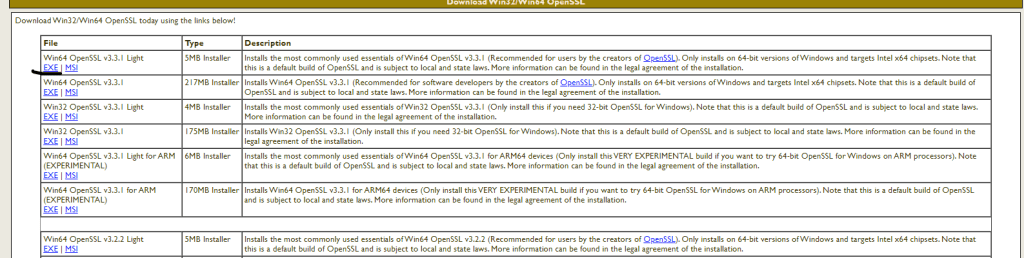
you can install based on your operating system. You have to set path also after installing.
Step 2: Generate a Private Key
- Open your terminal or command prompt.
- Run the following command to generate a private key:
openssl genpkey -algorithm RSA -out private.key -aes256
-algorithm RSA: Specifies the RSA algorithm.-out private.key: Specifies the output file name.-aes256: Encrypts the private key with AES 256.
You will be prompted to enter a passphrase to encrypt the private key. Remember this passphrase as you will need it to use the key.
Step 3: Generate a Certificate Signing Request (CSR)
- Run the following command to generate a CSR:
openssl req -new -key private.key -out request.csr
This command will prompt you to enter information about your organization. This information will be included in your certificate.
Step 4: Generate a Self-Signed Certificate
- Run the following command to generate a self-signed certificate:
openssl x509 -req -days 365 -in request.csr -signkey private.key -out certificate.crt
-req: Indicates that the input is a CSR.-days 365: Specifies the certificate’s validity period (365 days).-signkey private.key: Specifies the private key to sign the certificate.-out certificate.crt: Specifies the output file name for the certificate.
Summary of Generated Files
- private.key: Your private key, encrypted with a passphrase.
- request.csr: Your certificate signing request.
- certificate.crt: Your self-signed certificate.
Example Commands Together
# Generate a private key
openssl genpkey -algorithm RSA -out private.key -aes256

# Generate a CSR
openssl req -new -key private.key -out request.csr

# Generate a self-signed certificate
openssl x509 -req -days 365 -in request.csr -signkey private.key -out certificate.crt
Now you have a private key and a self-signed certificate that you can use for development or testing purposes. If you need a certificate for production use, you should submit your CSR to a Certificate Authority (CA) to get it signed.
Demo:
 SFDC Arjuna