Create a folder for your code and open git bash inside this folder by clicking right click like this-

Get clone by clicking on clone button like this and paste in git bash and press enter-

project folder will be created inside your local branch folder. Now move to this project folder using below command-
cd {projectname}
Now paste following command in git bash-
git fetch && git checkout PD-13271-Auto-Creation-of-Payment-link-in-read-only-mode-for-Payment-builder-record
You can get checkout url from the branch like this

Now open you eclipse and click Open folder and select project folder which is inside your branch folder.
Now you are ready to go to connect this folder to an org using sfdx authorization and push your code to branch using git commands. You can refer below document if you are new to git commands.
Deploying your code from vscode to SFDC-
Go to Terminal from vscode and click New terminal to open a terminal and now paste the following code-
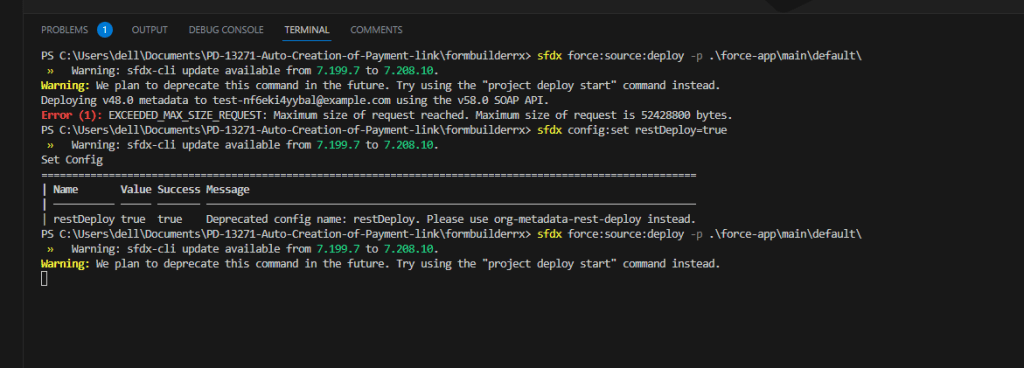
sfdx force:source:deploy -p .\force-app\main\default\
You may get EXCEEDED_MAX_SIZE_REQUEST: Maximum size of request reached. Maximum size of request is 52428800 bytes. error as shown below-

To remove this error, run following command before running above command-
sfdx config:set restDeploy=true
 SFDC Arjuna