We will be connecting one salesforce org (identity provider) to another salesforce org (service provider) using SAML.
Let’s jump to the steps with screenshots to understand this better –
Do this in Identity provider Org:
- Enable Identity provider & Download the certificate–
- Go to Setup -> Identity Provider
- Click on ‘Enable Identity Provider’. Select existing certificate if any else create new certificate. We have existing certificate, so we select that and click on save.
You can refer below screenshots to understand this-


Do this in Service provider Org:
- Create remote site setting–
- Create a remote site setting for the ‘Salesforce Identity’ URL you just saved in previous step from identity provider page from identity provider org. This remote site setting is needed to create SAML entry.
- Enable SAML & create a SAML setting for this identity provider org-
- Go to Setup -> Single Sign-On Settings->Click Edit and check off Enable Button and Click on Save.
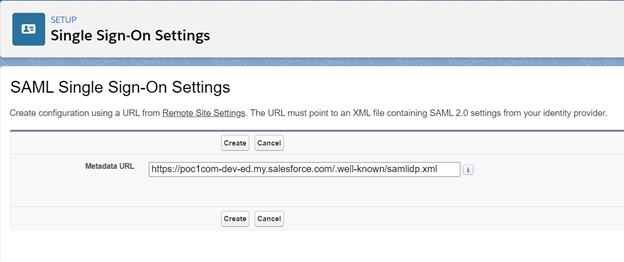
- Now click on New or New from Metadata File or New From Metadata URL.
- New – If you want to enter everything manually.
- New from Metadata File – This will generate SSO setting based on the Metadata file which you can download from identity provider setup page from identity provider org.
- New From Metadata URL – This will generate SSO setting based on the Identity provider URL you just copied from identity provider.
- We are using ‘New From Metadata URL’ here but please note this url need to be set in remote site setting first before using here as already mentioned in previous step otherwise you will not able to proceed using Metadata URL.
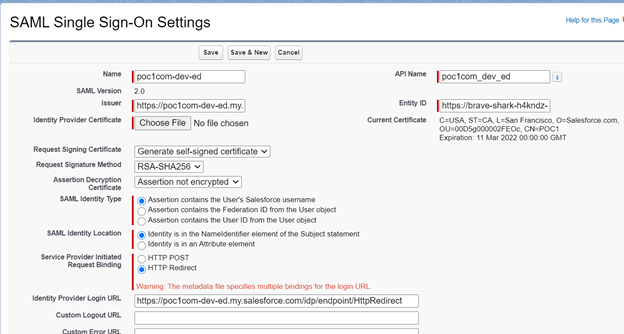
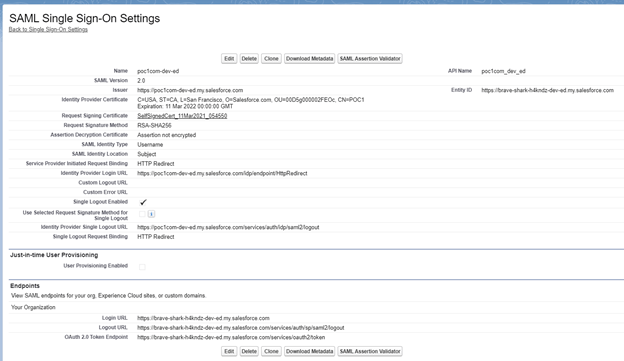
- Select Assertion contains the Federation ID from the User object from SAML identity type and click on Save.
You can refer below screenshot to understand this-

- Add the identity provider as an authentication service
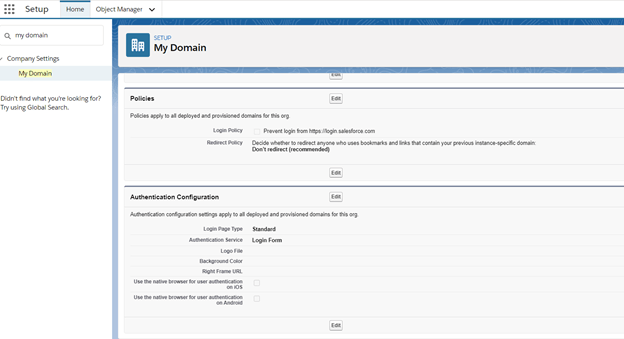
- Go to Setup -> My Domain.
- Click on ‘Edit’ button under ‘Authentication Configuration’ & check off ‘Identity Provider’ org which is just below Login Form.
You can refer below screenshot to understand this-


Do this in Identity provider Org:
- Create a connected App-
- Go to Setup -> App Manager -> New Connected App.
- Now enter Connected App Name, Description and Email.
- Now check off ‘Enable SAML’ and enter Entity Id and ACS URL. This Entity Id and ACS URL is same as Entity Id and Login URL which you just saved from SAML setting page.
- Now select Subject Type as ‘Federation Id’ and Idp Certificate is the same as certificate which you selected while enabling identity provider.
- Click on Save.
You can refer below screenshot to understand this-


- Add Profiles
- Click on Manage button on the connected app you just create (classic view).
- Now click on Manage Profiles button and select profile of the user in service provider org whom you want to give access.
Please refer below screenshot-

Test Connection:
Create a new user or use the existing ones in both org which you want to use to authenticate from identity provider to service provider. Federation id of both user should be same and profile should be exactly what you selected in connected app setting.
- Test Connection directly from Connected App
- Click on Idp-initiated Login URL as shown in below screenshot from identity provider org. You should be able to login in your service provider org from this.

- Login from Service provider URL:
- Enter service provider url in the same window in which you login with your identity provider. Just click on identity provider link as shown in below screen and you should be able to login.

- Login from App Launcher
- To this using app launcher, you will first have to configure your connected app in that way.
- So in order to configure that, go to your connected app which you just created by clicking on setup->Connected App->Edit Policies.
- Enter ‘Start Url’ same as ‘ACS Url’ and click on save.
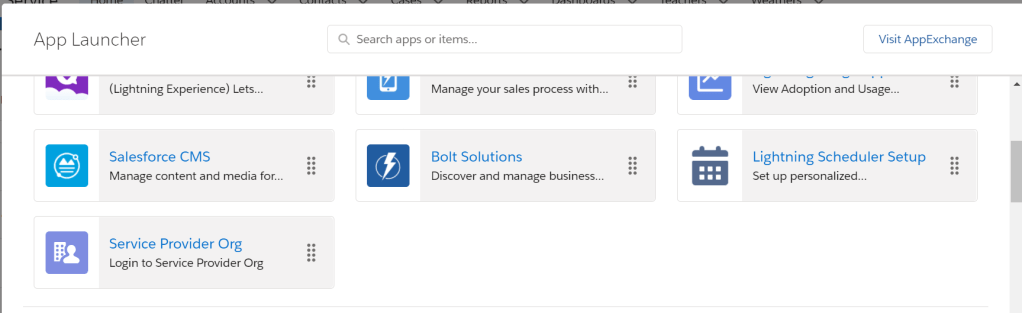
- Click on App Launcher. You should see an app with same name as your connected app (‘Service Provider Org’ in our case) as shown in below screenshot. Click on this app and you should be able to login to service provider.
 SFDC Arjuna